Port Security
Port Security Overview
This chapter shows you how to set up port security.
About Port Security
Port security allows only packets with dynamically learned MAC addresses and/or configured static MAC addresses to pass through a port on the Switch.
For maximum port security, enable this feature, disable MAC address learning and configure static MAC addresses for a port. It is not recommended you disable port security together with MAC address learning as this will result in many broadcasts. By default, MAC address learning is still enabled even though the port security is not activated.
Port Security Setup
Click SECURITY > Port Security > Port Security in the navigation panel to display the screen as shown.
SECURITY > Port Security > Port Security (Standalone Mode)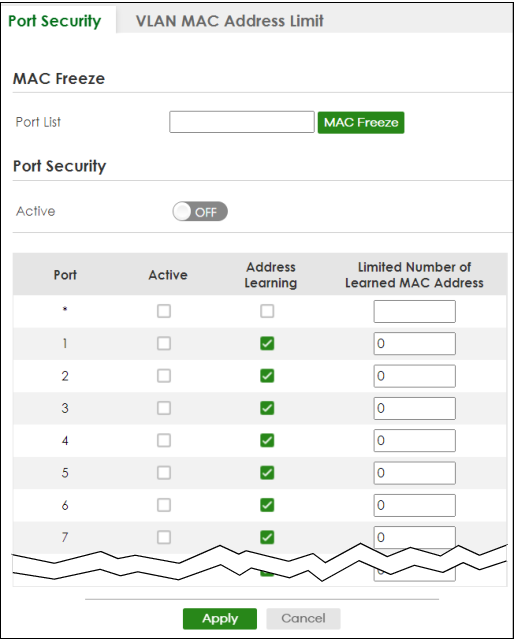
SECURITY > Port Security > Port Security (Stacking Mode)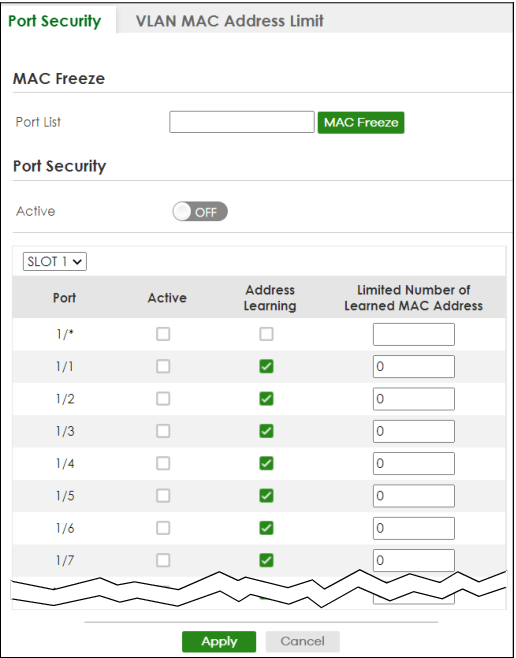
The following table describes the labels in this screen.
label | description |
|---|---|
Port List | Enter the number of the ports (separated by a comma) on which you want to enable port security and disable MAC address learning. After you click MAC Freeze, all previously learned MAC addresses on the specified ports will become static MAC addresses and display in the SWITCHING > Static MAC Forwarding screen.  In Stacking mode, the first number represents the slot and the second the port number. Enter 1/1-1/24,2/23 for ports 1 to 24 for the Switch in slot 1 and port 23 for the Switch in slot 2, for example. |
MAC Freeze | Click MAC Freeze to have the Switch automatically select the Active checkboxes and clear the Address Learning checkboxes only for the ports specified in the Port List. |
Port Security | |
Active | Enable the switch button to enable port security on the Switch. |
SLOT | This field appears only in Stacking mode. Click the drop-down list to choose the slot number of the Switch in a stack. |
Port | This field displays the port number. In Stacking mode, the first number represents the slot ID and the second is the port number. Please note that the default stacking ports (the last four ports of your Switch) cannot be configured. They are reserved for stacking only. |
* | Settings in this row apply to all ports. Use this row only if you want to make some of the settings the same for all ports. Use this row first to set the common settings and then make adjustments on a port-by-port basis. Changes in this row are copied to all the ports as soon as you make them. |
Active | Select this checkbox to enable the port security feature on this port. The Switch forwards packets whose MAC addresses is in the MAC address table on this port. Packets with no matching MAC addresses are dropped. Clear this checkbox to disable the port security feature. The Switch forwards all packets on this port. |
Address Learning | MAC address learning reduces outgoing broadcast traffic. For MAC address learning to occur on a port, the port itself must be active with address learning enabled. |
Limited Number of Learned MAC Address | Use this field to limit the number of (dynamic) MAC addresses that may be learned on a port. For example, if you set this field to "5" on port 2, then only the devices with these five learned MAC addresses may access port 2 at any one time. A sixth device must wait until one of the five learned MAC addresses ages out. MAC address aging out time can be set in the SYSTEM > Switch Setup screen. “0” means this feature is disabled. The valid range follows the size of the MAC address table of the Switch Series. This information can be found on the Switch Series Datasheet or Release Note. |
Apply | Click Apply to save your changes to the Switch’s run-time memory. The Switch loses these changes if it is turned off or loses power, so use the Save link on the top navigation panel to save your changes to the non-volatile memory when you are done configuring. |
Cancel | Click Cancel to begin configuring this screen afresh. |
VLAN MAC Address Limit
Use this screen to set the MAC address learning limit on per-port and per-VLAN basis. Click SECURITY > Port Security > VLAN MAC Address Limit in the navigation panel to display the screen as shown.
SECURITY > Port Security > VLAN MAC Address Limit
The following table describes the labels in this screen.
label | description |
|---|---|
Select an entry’s checkbox to select a specific entry. Otherwise, select the checkbox in the table heading row to select all entries. | |
Index | This field displays the index number of the rule. |
Active | This field displays whether the rule is activated or not. |
Port | This field displays the number of the port to which this rule is applied. |
VID | This is the VLAN ID number to which the port belongs. |
Limit Number | This is the maximum number of MAC addresses which a port can learn in a VLAN. |
Add/Edit | Click Add/Edit to add a new entry or edit a selected one. |
Delete | Click Delete to remove the selected entries. |
VLAN MAC Address Limit
Use this screen to add/edit the MAC address learning limit on per-port and per-VLAN basis. Click Add/Edit, or select an entry and click Add/Edit in the SECURITY > Port Security > VLAN MAC Address Limit screen to display this screen.
SECURITY > Port Security > VLAN MAC Address Limit > Add/Edit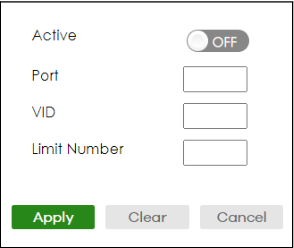
The following table describes the labels in this screen.
label | description |
|---|---|
Port | Enter the number of the port to which this rule is applied. |
VID | Enter the VLAN identification number. |
Limit Number | Use this field to limit the number of (dynamic) MAC addresses that may be learned on a port in a specified VLAN. For example, if you set this field to "5" on port 2, then only the devices with these 5 learned MAC addresses may access port 2 at any one time. A sixth device would have to wait until one of the 5 learned MAC addresses aged out. MAC address aging out time can be set in the SYSTEM > Switch Setup screen. The valid range is from “0” to “32K”. “0” means this feature is disabled. |
Clear | Click Clear to clear the fields to the factory defaults. |
Cancel | Click Cancel to not save the configuration you make and return to the last screen. |