Accessing the Local GUI
Overview
The local GUI is an HTML-based management interface that allows easy system setup and management through Internet browser. Use a browser that supports HTML5, such Mozilla Firefox, or Google Chrome, Microsoft Edge. The recommended screen resolution is 1024 by 768 pixels.
In order to use the local GUI you need to allow:
• Web browser pop-up windows from your device.
• JavaScript (enabled by default).
• Java permissions (enabled by default).
Accessing the Local GUI
This section shows how to access the local GUI for the first time.
1 Ensure your Leaf Plus hardware is properly connected. See the Quick Start Guide.
2 Access the local GUI login screen through a WiFi or wired connection.
2a WiFi connection
From a WiFi-enabled device, search for the Leaf Plus's initial SSID (Zyxel-xxxx, where xxxx is the last four characters of the MAC address on the device label.) and connect to it. The local GUI appears once your computer connects to the initial SSID. If the local GUI does not appear automatically, open your web browser and enter "https://1.1.1.1" or "https://setup.zyxel.com".
 If the Leaf Plus cannot connect to the Internet, use the Leaf Plus’s DHCP-assigned IP address to access its local GUI. Check the connected router or DHCP server for the IP address of the Leaf Plus.The default security mode for the Leaf Plus's initial SSID is enhanced-open. Client devices without enhanced-open support cannot connect to the initial SSID. Alternatively, you can use a wired connection to access the local GUI.
2b Wired connection
Use Cat 5e or higher Ethernet cables to connect the Leaf Plus to the PoE port of a PoE injector that supports IEEE 802.3at or IEEE 802.3af, and connect your computer to the LAN port. Open your web browser and enter the Leaf Plus’s DHCP-assigned IP address or http://192.168.1.2. If the Leaf Plus and your computer are not connected to a DHCP server, ensure your computer’s IP address is between "192.168.1.3" and "192.168.1.254".
3 Enter the user name (default: “admin”) and default password. The default password is unique to each Leaf Plus and shown on the label.
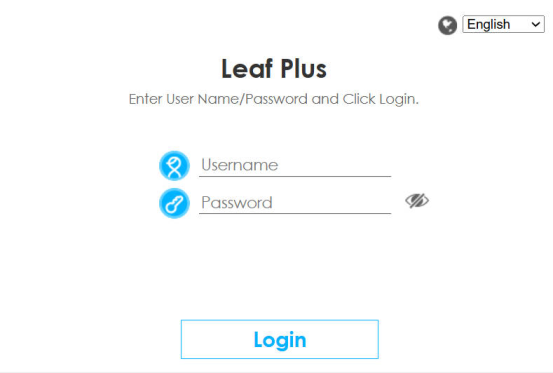
4 Select the language you prefer for the local GUI. Click Login.