Dashboard
Overview
This screen displays general AP information in widgets that you can rearrange to suit your needs. You can also edit and refresh individual widgets.
Dashboard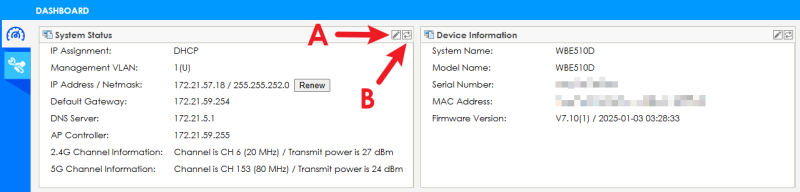
The following table describes the labels in this screen.
Label | Description |
|---|---|
Edit (A) | Click this to open the setup window to configure settings such as the IP address, VLAN, system name, and other network parameters. |
Refresh Now (B) | Click this to update the widget’s information immediately. |
System Status | |
IP Assignment | This field displays how the interface gets its IP address. Static - This interface has a static IP address. DHCP Client - This interface gets its IP address from a DHCP server. |
Management VLAN | This field displays the management VLAN ID for the Zyxel Device. |
IP Address / Netmask | This field displays the current IP address and subnet mask assigned to the interface. If the IP address is 0.0.0.0, the interface is disabled or did not receive an IP address and subnet mask through DHCP. If the interface has a dynamic IP address, click Renew to update the IP address for the interface. |
Default Gateway | This field displays the IP address of the default outgoing gateway. |
DNS Server | This field display the IP address of the DNS server. |
AP Controller | This field displays the IP address of the APC detected by the Zyxel Device. This field is empty if there is no APC detected by the Zyxel Device.  You need to check your APC to verify if your APC is managing your Zyxel Device. You need to check your APC to verify if your APC is managing your Zyxel Device. |
2.4G Channel Information | This field displays the channel number the Zyxel Device is using and its output power in the 2.4 GHz spectrum. This shows Not activated if the wireless LAN is disabled. |
5G Channel Information | This field displays the channel number the Zyxel Device is using and its output power in the 5 GHz spectrum. This shows Not activated if the wireless LAN is disabled. |
6G Channel Information | This field displays the channel number the Zyxel Device is using and its output power in the 6 GHz spectrum. This shows Not activated if the wireless LAN is disabled. |
Device Information | |
System Name | This field displays the name used to identify the Zyxel Device on any network. |
Model Name | This field displays the model name of this Zyxel Device. |
Serial Number | This field displays the serial number of the Zyxel Device. |
MAC Address | This field displays the MAC address of the Zyxel Device. |
Firmware Version | This field displays the firmware version of the Zyxel Device. |
Edit System Status
Use this screen to configure the Zyxel Device’s network setting and the connection with your APC.
Network
To access this screen, click Dashboard > Edit (System Settings) > Network.
Each field is described in the following table.
Label | Description |
|---|---|
Management VLAN | |
VLAN ID | Enter a VLAN ID for the Zyxel Device to use to tag traffic originating from this SSID. Make sure your VLAN settings allow the Zyxel Device to connect to the Internet so you could manage it with your APC. |
Tag Type | Select tagged to make the Zyxel Device adds the Management VLAN ID to outbound traffic transmitted through its Ethernet port. If you select Untagged, the outbound traffic transmitted through the Zyxel Device Ethernet port will NOT be tagged with the Management VLAN ID. |
IP Address | |
IP Address Assignment | Select DHCP to make the interface a DHCP client and automatically get the IP address, subnet mask, gateway and DNS Server IP address from a DHCP server. Select Static IP to specify the IP address, subnet mask, gateway and DNS server IP address manually. |
Use Fixed DNS Server IP Address | Select this if you have a preferred DNS server that you want to specify manually even if the IP type is DHCP. Setting a fixed DNS server IP address may help if you experience unreliable DNS resolution. |
DNS Server IP Address | Enter the IP address of a DNS server. |
IP Address | Enter the IP address for this interface. |
Subnet Mask | Enter the subnet mask of this interface in dot decimal notation. The subnet mask indicates what part of the IP address is the same for all computers in the network. |
Gateway | Enter the IP address of the gateway. The Zyxel Device sends packets to the gateway when it does not know how to route the packet to its destination. The gateway should be on the same network as the interface. |
DNS Server IP Address | Enter the IP address of the DNS server. |
OK | Click OK to save your changes. |
Cancel | Click Cancel to exit this screen without saving your changes. |
APC Discovery
Use APC Discovery screen to configure the Zyxel Device’s APC Discovery settings.
Each field is described in the following table.
Label | Description |
|---|---|
Auto | Select this option to use DHCP option 138/DNS SRV record/Broadcast to get the APC’s IP address. If the Zyxel Device and a Zyxel APC, such as a ZyWALL ATP, are in the same subnet, it will be managed by the controller automatically. |
Manual | Select this option and enter the IP address of the APC manually. This is necessary when the APC is not in the same subnet and you want it to manage the Zyxel Device. |
Primary AC IP/FQDN | Specify the primary IP address of the APC to which the Zyxel Device connects. |
Secondary AC IP/FQDN | Specify the secondary IP address of the APC to which the Zyxel Device connects. |
OK | Click OK to save your changes. |
Cancel | Click Cancel to exit this screen without saving your changes. |
Edit Device Information
Use this screen to configure the Zyxel Device’s system name.
Enter the system name and click OK to save the change.