Appendix B
Using a Passkey
Overview
A passkey is a password-less login method that lets you log in using the same way you unlock your device – fingerprint, Face ID, or PIN. You can use passkeys to log in to Zyxel Web Portals such as, Nebula, Circle, SecuReporter, and so on.
When you create a passkey, your computer or mobile device generates two keys:
• Public key – stored on the Zyxel server.
• Private key – stored locally on your computer or mobile device.
Your device’s PIN or biometrics (for example, fingerprint, Face ID) is used only to unlock the private key, and is only stored locally on your computer or mobile device.
 The passkey limit for each account is shown below.
 Maximum number of passkeys | 5 |
The following are the minimum computer or mobile device operating system and web browser version requirements to run passkey: computer OS version | Mobile device OS version | web Browser version |
|---|---|---|
Windows 10 or later | iOS 16 or later | Chrome 109 or later |
macOS 13 Ventura or later | iPadOS 16 or later | Safari 16.1 or later |
ChromeOS 109 or later | Android 9 or later | Edge 109 or later |
To set up passkey and sign in using your PIN or biometrics, do the following:
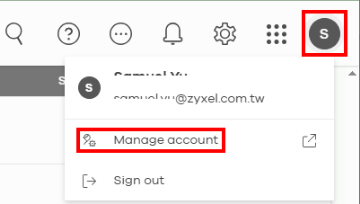
1 Log in to the Web Portal, click the Account icon at the top right corner, select Manage account.
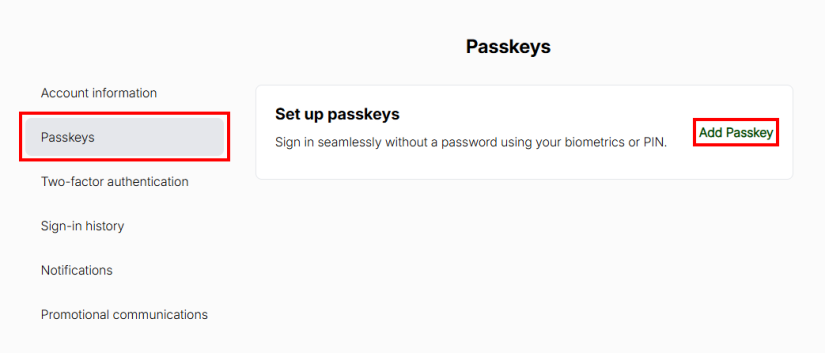
2 Go to the Passkeys tab and click Add Passkey.
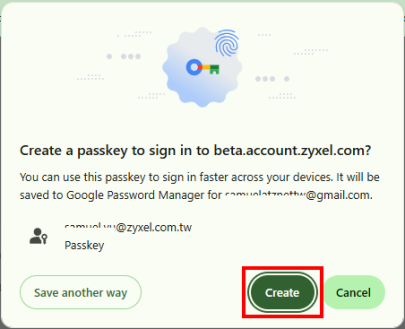
3 Click Create.
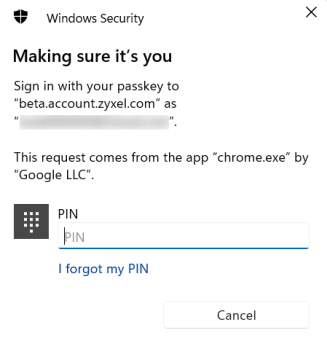
4 Your device will prompt you to authenticate using biometrics (fingerprint or Face ID) or your PIN.
Your device must have one of the following sign-in options enabled: PIN, fingerprint, or Face ID. To set up these sign-in options on your Windows computer, go to Settings > Accounts > Sign-in options. For biometrics, your computer or mobile device must have a fingerprint reader or camera for Face ID. If not, select the PIN option instead. PIN Option
On a Windows computer, select PIN, and enter the 6-digit PIN that you already set on your device.
The PIN option is only available on Windows computers as a Windows Hello sign-in method. If you are logging in from a mobile device, you will be prompted to use fingerprint or Face ID instead. 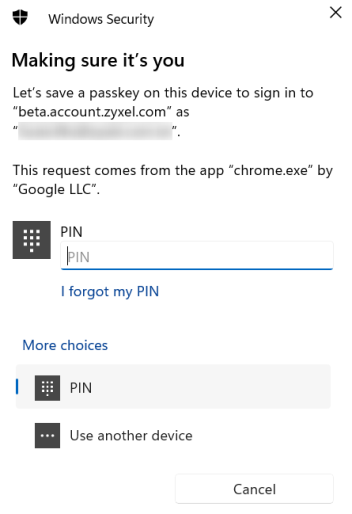
The passkey is now saved on this device.
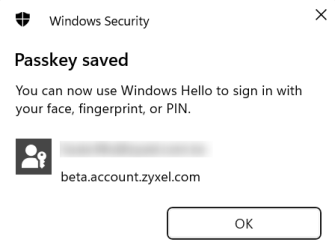
If you lose your PIN, do the following:
• In Windows OS:
Go to Settings > Accounts > Sign-in options > PIN (Windows Hello) > I forgot my PIN. You will be prompted to re-authenticate using your Microsoft Account password or recovery options.
• In macOS:
Use your Apple ID to reset the passcode, or restore from another Apple device where you are still signed in.
• For Cloud Password Managers:
If you forget it, you can usually log in again using your master password or account recovery flow.
Biometrics Option
Select Fingerprint. Scan your fingerprint to use it as your sign-in method. The following example uses fingerprint.
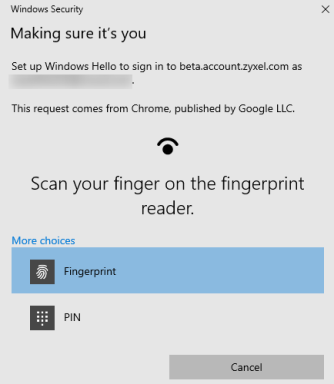
5 Name your passkey after completing the PIN authentication or fingerprint authentication, and then click OK.
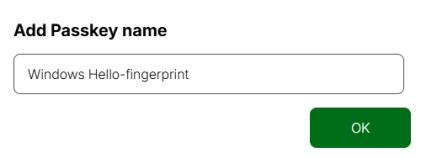
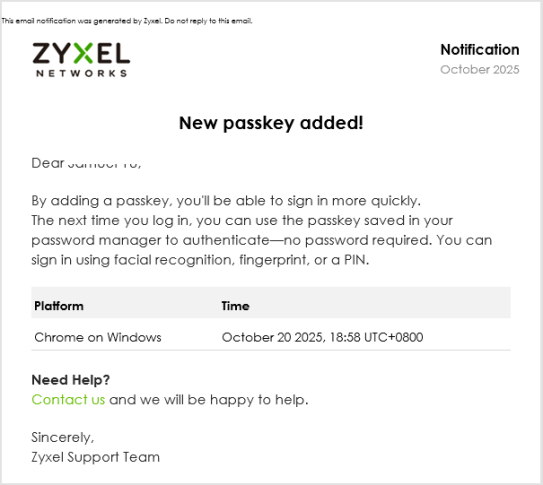
6 A New passkey added! email will be sent to the same email address used for your Zyxel account.
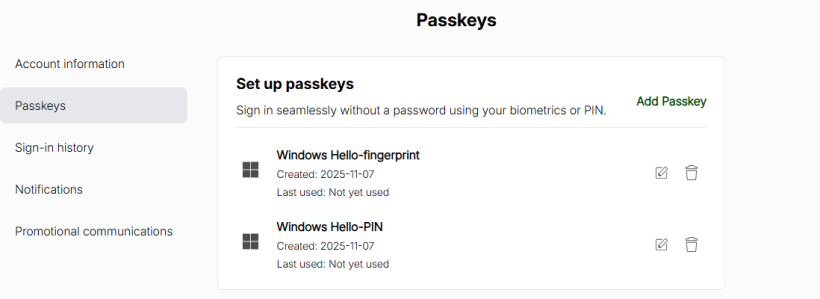
7 You can view all your saved passkeys on the Manage account > Passkeys page. Select the passkey that matches the device you are using to sign in.
Log in with a Passkey
The passkey is stored locally on your device. If you have enabled cloud synchronization on your device, you can log in from other devices within the same operating system. If not, you must log in using the same device where the passkey was registered.
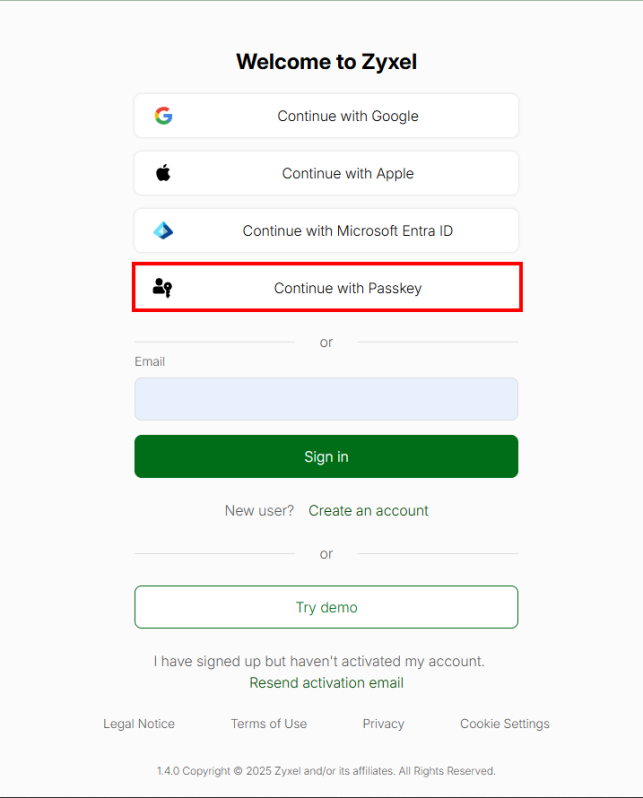
1 On the login screen, click Continue with Passkey.
2 Select the account email you want to sign in with, and click Next.
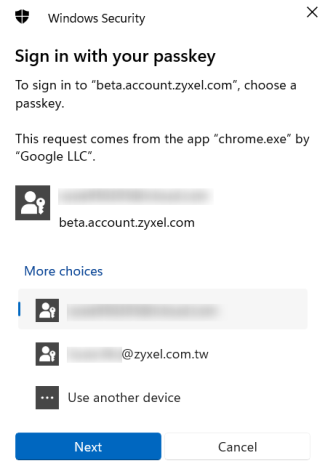
3 Complete the biometric authentication by using your device’s fingerprint reader to scan your fingerprint, or camera to map your face, or by entering a PIN to log in to the portal.