Admins & Teams
The Admins & teams enables you to assign an administrator or a group of administrators (a team) to multiple organizations at the same time. This is faster than configuring administrators for each organization at Organization-wide > Administrators, especially if you have a large number of organizations.
Administrator Privilege Priority
You can configure organization administrator privileges on the following screens:
• MSP > MSP cross-org manage > Admins & teams > MSP admins & teams
• MSP > MSP cross-org manage > Admins & teams > Org. administrators
• Group-wide > Group-wide manage > Administrators
• Organization-wide > Administrators
If an NCC account has different administrator privileges configured on different screens, then the highest privilege level takes priority.
Example, account User1 has four different privilege levels configured for organization Org1 on the four screens above: None, Read-Only, Full, Full (Delegate). User1’s final privilege level for Org1 is Full (Delegate).
MSP admins & teams Screen
In the MSP, a team is a collection of MSP administrator accounts. A group is a collection of two or more organizations.
• An MSP administrator can be assigned to multiple MSP teams.
• The role of an MSP administrator is the union of their individual role assigned at the organization-wide level and the roles granted using the MSP teams they belong to.
The admins and teams screen allows you to assign an administrator account to multiple organizations, and assign administrator privileges to a group of administrator accounts (a team). To access this screen, click MSP > MSP cross-org manage > Admins & teams > MSP admins & teams.
 Some of the actions on this screen are only available if your administrator account has full access to the organization.
 MSP > MSP cross-org manage > Admins & teams > MSP admins & teams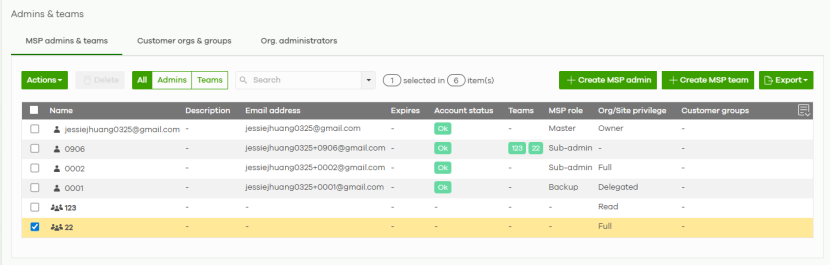
The following table describes the labels in this screen.
Label | Description |
|---|---|
Actions | Click this button to assign MSP administrators: • Assign to teams: select the MSP team(s) to assign the administrator(s) to. • Add to organizations: select the MSP organization(s) to assign the administrator(s) and MSP team(s) to. • Add to sites: create an MSP team to contain the sites to add the administrator(s) and MSP account(s) to it, then select the site(s) in the organization(s). A team is a collection of MSP accounts. A group is a collection of organizations. • Add to group: select the MSP team(s) to assign the administrator(s) and MSP team(s) to. • Assign MSP Pack license: select or enter the License key to assign an MSP Pack license to the MSP administrator. |
Delete | Click this button to remove administrator(s) or MSP team(s). |
All / Admins / Teams | You can set the filter to display the administrator account(s) or MSP team(s) only. By default, all administrator account(s) and MSP team(s) are displayed (All). |
Search | Specify your desired filter criteria to filter the list of administrator accounts. |
N selected in T item(s) | This shows the number of administrator accounts (N) selected in the total number of entries (T) in the list. |
Export | Click this button to save the MSP administrators and MSP teams list as a CSV or XML file to your computer. |
* | Click this to select all rows. Alternatively, click a row to go to the Update MSP admin screen that allows you to change the MSP administrator’s profile, assign the MSP role, assign the organization/site’s privilege, and assign an MSP Pack license. Then click OK. |
Name | This shows the name of the administrator account. |
Description | This shows the user-specified description for the administrator account. |
Email address | This shows the email address of the administrator account. |
Expires | This shows how long the account is valid. Never expire – this account never expires. Expire on – this specifies the date the account is valid. |
Account status | This shows OK when the administrator account has accepted the MSP role invitation. This shows Deactivated if an administrator account has been created but cannot be used. This shows Pending if an administrator account has been assigned an MSP role but has yet to accept it. |
Teams | This shows the name of the team(s) the MSP account belongs to. |
MSP Role | This shows the role the administrator has within the specified site. Master: the owner of the MSP. Each MSP can only have one MSP master. Backup: the MSP master can assign administrators as the MSP backup. A backup administrator belongs to only one MSP master. An MSP backup can take on the role of the MSP master when the MSP master’s MSP Pack license expires. An MSP backup cannot assign another MSP backup. The organization bound to the MSP will automatically have its MSP master and MSP backup assigned to it. Sub-admin: The MSP master or MSP backup can assign additional administrators, referred to as MSP sub-admins. An MSP sub-admin belongs to only one MSP master and/or MSP backup. The MSP master automatically becomes co-administrator of organization(s) created by the MSP sub-admin (an MSP Pack license is optional). For example, Bob was added as an MSP sub-admin. Bob creates a new ‘ORG B’. Then the MSP master will be the owner of ‘ORG B’. 3rd-party admin: Administrator(s) who do not belong to the MSP but are assigned the Installer or Guest Ambassador privileges. |
Org/Site privilege | This shows the privileges the administrator has within the specified organization or site. Owner: the administrator account is the creator of the organization, who has full access to that organization and cannot be deleted by other administrators. The administrator account can delete an organization, transfer ownership of an organization, including ownership of the Nebula Devices. Full: the administrator can edit settings, create or delete other administrator accounts, create or delete a site, and add or renew licenses for Nebula Devices in the organization. Read: the administrator account has no write access to the organization, but can be a site administrator. Delegated: The administrator account has delegated owner privileges. This type of account can perform all of the same actions as the organization owner, except for the following: • Delete organization • Transfer organization ownership • Assign delegate owner privileges to an administrator account |
Customer groups | This shows the name of the collection of organizations owned by a customer that is bound to an MSP account. |
 | Click this icon to display a greater or lesser number of configuration fields. |
Create/Update MSP Administrator
In the MSP > MSP cross-org manage > Admins & teams > MSP admins & teams screen, click the + Create MSP admin button to add a new administrator account, or click an existing account entry to modify the account settings.
NCC does not count the administrators created in MSP admin & teams to the Base tier and Nebula Plus Pack number of administrator account limit.An NCC account with an MSP license can add administrators (with/without an MSP Pack license) to the Base tier and Nebula Plus Pack organizations without limit.
MSP > MSP cross-org manage > Admins & teams > MSP admins & teams: Create/Update MSP admin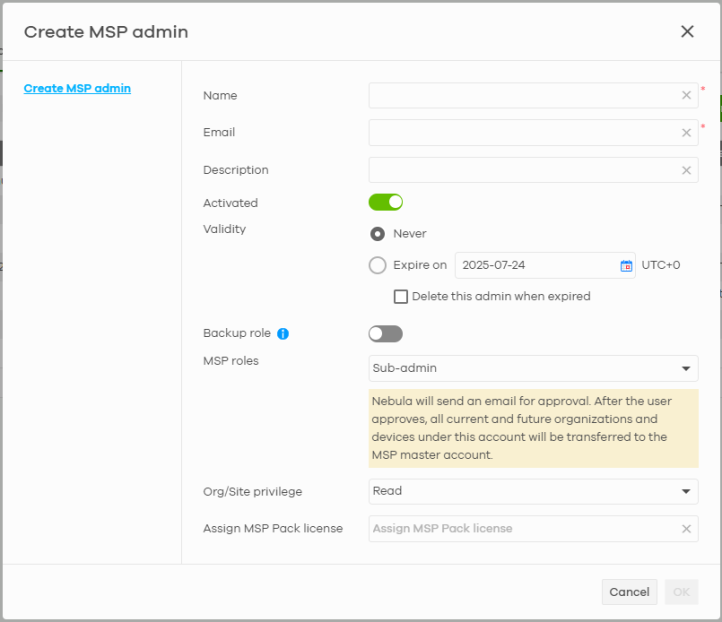
The following table describes the labels in this screen.
Label | Description |
|---|---|
Name | Enter a descriptive name for the administrator account. Enter up to 100 characters in this field including special characters inside the square quotes [~!@#$%^&*()_+{}|:”<>?–=[]\;’,./]. The name is not editable after saving it. |
Email | Enter the email address of the administrator account, which is used to log into the NCC. This field is read-only if you are editing an existing account. |
Description | Enter a description for this administrator. You can use alphanumeric and ()+/:=?!*#@$_%- characters, and it can be up to 60 characters long. |
Activated | Click the switch to the right to enable the account. Alternatively, click the switch to the left to temporarily disable the account. |
Validity | Specify how long the account is valid. Choices are: Never – select this if the account never expire. Expire on – select this to specify the date the account can no longer access the organization. Select Delete this admin when expired to remove this account from the administrator list when the Expire on date has been reached. Otherwise, this account will remain on the administrator list with an inactivated status. |
Backup role | Click the switch to the right to assign the role of MSP backup to the administrator. |
MSP roles | Select the MSP role the administrator has within the selected organizations. Sub-admin: The MSP master or MSP backup can assign additional administrators, referred to as MSP sub-admins. An MSP sub-admin belongs to only one MSP master and/or MSP backup. The MSP master automatically becomes co-administrator of organization(s) created by the MSP sub-admin (an MSP Pack license is optional). 3rd-party admin: Administrator(s) who do not belong to the MSP but are assigned the Installer or Guest Ambassador privileges. |
Org/Site privilege | Select the privileges the administrator has within the selected sites. Full: the administrator can edit settings, create or delete other administrator accounts, create or delete a site, and add or renew licenses for Nebula Devices in the site. Read: the administrator account has no write access to the site, but can be a site administrator. Installer: the administrator can register Nebula Devices at this site. Guest Ambassador: the administrator can only access the Site-wide > Configure > Vouchers and Site-wide > Configure > Cloud authentication pages to create, remove, or manage WiFi vouchers and captive portal user accounts in a site. |
Cancel | Click this button to exit this screen without saving. |
Ok | Click this button to save your changes and close the screen. |
Create/Update Team
In the MSP > MSP cross-org manage > Admins & teams > MSP admins & Teams screen, click the + Create MSP team button to add a new administrator team, or click an existing team entry to modify its settings.
MSP > MSP cross-org manage > Admins & teams > MSP admins & Teams: Create/Update MSP teams
The following table describes the labels in this screen.
Label | Description |
|---|---|
Team name | Enter a descriptive name for the team. Enter up to 15 characters in this field including special characters inside the square quotes [~!@#$%^&*()_+{}|:”<>?–=[]\;’,./]. The name is not editable after saving it. |
Description | Enter a description of the team, for example their role or membership. Enter up to 64 characters for this field including special characters inside the square quotes [~!@#$%^&*()_+{}|:”<>?–=[]\;’,./]. |
Team members | Select the administrators to add as members of the MSP team. |
Org/Site privilege | Select the privileges the team members have within the selected organizations. Full: the administrator can edit settings, create or delete other administrator accounts, create or delete a site, and add or renew licenses for Nebula Devices in the site. Read: the administrator account has no write access to the site, but can be a site administrator. Installer: the administrator can register Nebula Devices at this site. Guest Ambassador: the administrator can only access the Site-wide > Configure > Vouchers and Site-wide > Configure > Cloud authentication pages to create, remove, or manage WiFi vouchers and captive portal user accounts in a site. |
Cancel | Click this button to exit this screen without saving. |
OK | Click this button to save your changes and close the screen. |
Customer orgs & groups Screen
The customer organizations and groups screen allows you to add an organization or a collection of organizations owned by a customer that is bound to an MSP account. To access this screen, click MSP > MSP cross-org manage > Admins & teams > Customer orgs & groups.
Some of the actions on this screen are only available if your administrator account has full access to the organization. MSP > MSP cross-org manage > Admins & teams > Customer orgs & groups
The following table describes the labels in this screen.
Label | Description |
|---|---|
Actions | Click this button to assign the customer organizations or customer groups: • Add org(s) to group: select the customer group(s) to assign the organization(s) owned by the customers to. • Add MSP admins to orgs/groups: select the administrator(s) and team(s) to assign the organization(s) owned by the customers to. |
Delete | Click this button to remove the customer organizations or customer groups. |
All / Orgs / Groups | You can set the filter to display the customer organization(s) or customer group(s) only. By default, all customer organization(s) and customer group(s) are displayed (All). |
Search | Specify your desired filter criteria to filter the list of customer organization(s) and customer group(s). |
N selected in T item(s) | This shows the number of customer organizations and customer groups (N) selected in the total number (T) of entries in the list. |
Export | Click this button to save the customer organization(s) and customer group(s) list as a CSV or XML file to your computer. |
* | Click this to select all rows. Alternatively, click a row to go to the Update organization screen that allows you to add/remove the customer administrators and add/remove the customer groups. Then click OK. |
Name | This shows the name of the customer organization(s) and customer group(s). |
Group Description | This shows the user-specified description for the customer organization(s) and customer group(s). |
Group members | This shows the name of the organizations or sites that these members belong to, the number of members in the customer group and the organization privilege assigned to it. |
Create by | This shows the name of the administrator account that created the customer groups. It will show ‘–’ (dash) for organizations. |
Owner | This shows the name of the owner of the organization. |
Admins / Teams | This shows the name of the MSP accounts and MSP teams that the administrator account belongs to. |
 | Click this icon to display a greater or lesser number of configuration fields. |
Create Group
In the MSP > MSP cross-org manage > Admins & teams > Customer orgs & groups screen, click the + Create group button to select the organizations/sites and administrators/MSP teams to include in a customer group.
MSP > MSP cross-org manage > Admins & teams > Customer orgs & groups: Create group
The following table describes the labels in this screen.
Label | Description |
|---|---|
Group name | Enter a descriptive name for the customer group. Enter up to 100 characters in this field including special characters inside the square quotes [~!@#$%^&*()_+{}|:”<>?–=[]\;’,./]. The name is not editable after saving it. |
Description | Enter a description for this customer group. You can use alphanumeric and ()+/:=?!*#@$_%- characters, and it can be up to 256 characters long. |
Group members | Click Organizations only to select the organizations, or click Sites of an organization and then click +Add to select the sites to include in the customer group. |
MSP admins | Select the MSP administrators to include in the customer group. |
MSP teams | Select the MSP teams to include in the customer group. |
Cancel | Click this button to exit this screen without saving. |
Ok | Click this button to save your changes and close the screen. |
Update Organization
In the MSP > MSP cross-org manage > Admins & teams > Customer orgs & groups screen, click an existing customer group entry to update the administrators, MSP teams and groups.
MSP > MSP cross-org manage > Admins & teams > Customer orgs & groups: Update organization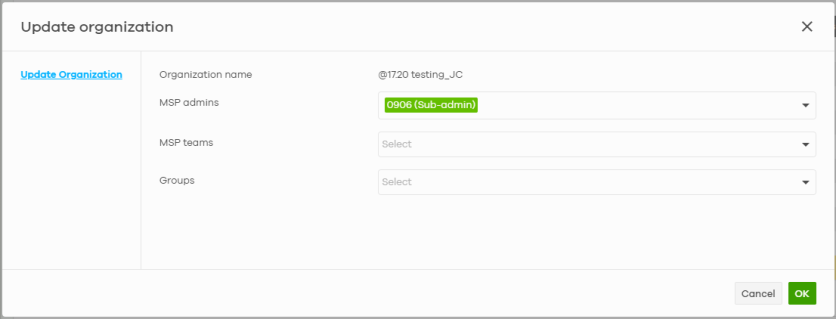
The following table describes the labels in this screen.
Label | Description |
|---|---|
Organization name | This field displays the name of the MSP organization. This field is read-only. |
MSP admins | Select the MSP administrators to include in the organization. |
MSP teams | Select the MSP teams to include in the organization. |
Groups | Select the customer group(s) to include in the organization. |
Cancel | Click this button to exit this screen without saving. |
Ok | Click this button to save your changes and close the screen. |
Create Organization
In the MSP > MSP cross-org manage > Admins & teams > Customer orgs & groups screen, click the + Create organization button to add a new MSP organization administrator, or click an existing MSP organization/group entry to modify its settings.
MSP > MSP cross-org manage > Admins & teams > Customer orgs & groups: Create organization / Update group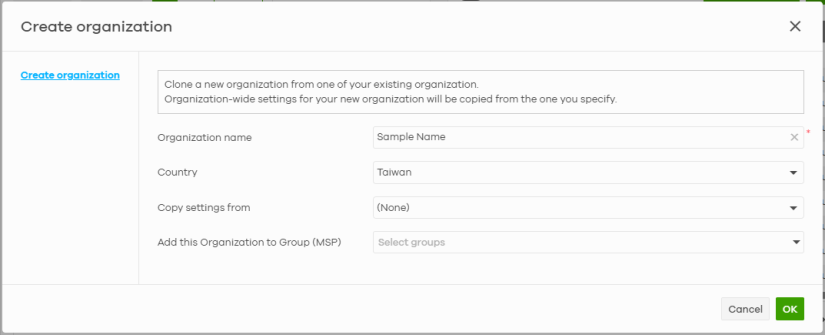
MSP > MSP cross-org manage > Admins & teams > Customer orgs & groups: Update organization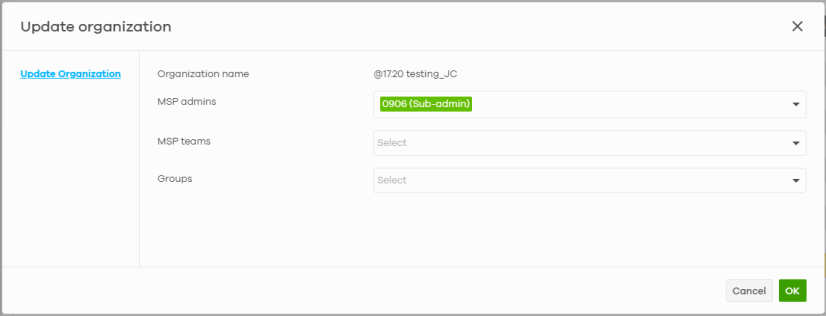
MSP > MSP cross-org manage > Admins & teams > Customer orgs & groups: Update group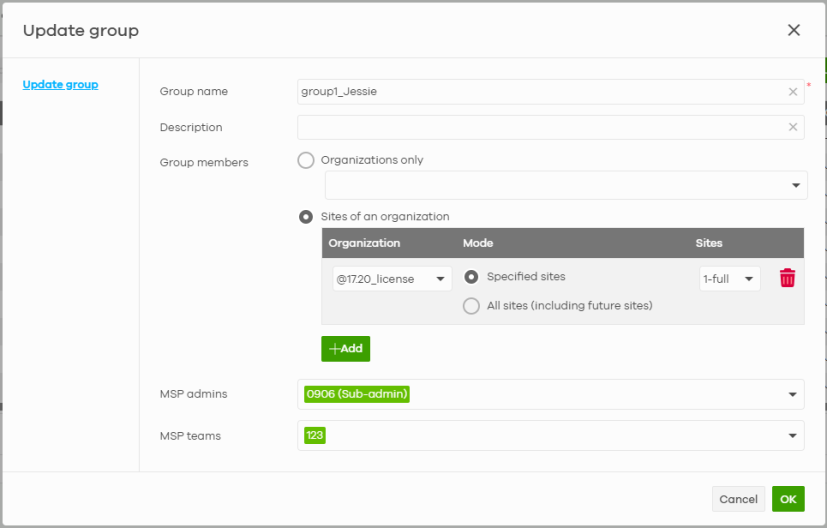
The following table describes the labels in this screen.
Label | Description |
|---|---|
Organization name | This field shows the name of the organization. This field is read-only. |
Country | Select where you are located. |
Copy settings from | Clone the new organization from an existing organization by selecting the organization to copy settings from. |
Add this Organization to Group (MSP) / Groups | Select the customer group(s) to add this organization to. |
Group name | This field shows the name of the customer group. This field is read-only. |
Description | Enter a description of the customer group, for example their role or membership. Enter up to 256 characters for this field including special characters inside the square quotes [~!@#$%^&*()_+{}|:”<>?–=[]\;’,./]. |
Group members | Click Organizations only to select the organizations, or click Sites of an organization and then click +Add to select the sites to include in the customer group. |
MSP admins | Select the administrators to include in the customer group. |
MSP teams | Select the MSP teams to include in the customer group. |
Cancel | Click this button to exit this screen without saving. |
OK | Click this button to save your changes and close the screen. |
Org. administrators Screen
The organization-wide administrators screen allows you to manage (add/modify/remove) the organization-wide administrator account from the MSP menu. You do not need to go to each organization’s administrator account page to do so. To access this screen, click MSP > MSP cross-org manage > Admins & teams > Org. administrators.
Some of the actions on this screen are only available if your administrator account has full access to the organization. MSP > MSP cross-org manage > Admins & teams > Org. administrators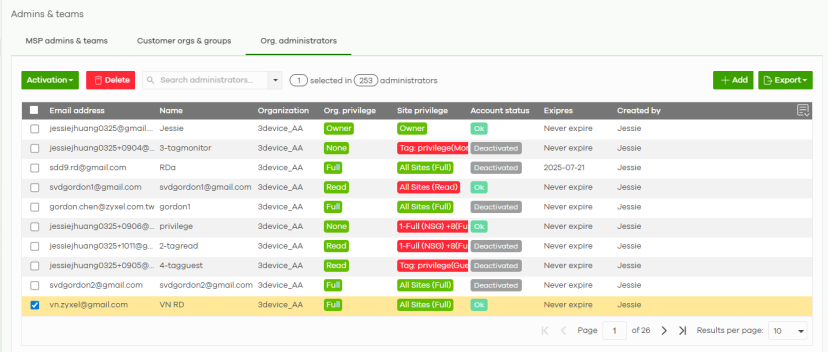
The following table describes the labels in this screen.
Label | Description |
|---|---|
Activation | Click this button to Activate/Deactivate the selected accounts. When you select Activate, specify how long the account is valid. Choices are: • Never expire: select this if the account never expire. • Expire on: select this to specify the date the account can no longer access the organization. Then click Apply. |
Delete | Click this button to remove the selected administrator(s), revoking their access to all assigned organization(s). |
Search | Specify your desired filter criteria to filter the list of administrator accounts. |
N selected in T item(s) | This shows the number of administrator accounts (N) selected in the total number of entries (T) in the list. |
+ Add | Click this button to create a new entry in order to configure the account’s access to another organization. |
Export | Click this button to save the organization-wide administrators list as a CSV or XML file to your computer. |
* | Click this to select all rows. Alternatively, click a row to go to the Update Org-wide administrator screen that allows you to change the organization-wide administrator’s profile and change the account’s access to another organization. Then click Update admin. |
Email address | This shows the email address of the administrator account. |
Name | This shows the name of the administrator account. |
Organization | This shows the name of the organization of the administrator account. |
Org. privilege | This shows the privileges the administrator has within the specified organization. Owner: the administrator account is the creator of the organization, who has full access to that organization and cannot be deleted by other administrators. The administrator account can delete an organization, transfer ownership of an organization, including ownership of the Nebula Devices. Full: the administrator can edit settings, create or delete other administrator accounts, create or delete a site, and add or renew licenses for Nebula Devices in the organization. Read: the administrator account has no write access to the organization, but can be a site administrator. Delegated: the administrator account has delegated owner privileges. This type of account can perform all of the same actions as the organization owner, except for the following: • Delete organization • Transfer organization ownership • Assign delegate owner privileges to an administrator account None: the administrator account can only be a site administrator. |
Site privilege | This shows the privileges the administrator has within the specified site. Owner: the administrator account is the creator of the organization, who has full access to that organization and cannot be deleted by other administrators. The administrator account can delete an organization, transfer ownership of an organization, including ownership of the Nebula Devices. Full: the administrator can edit settings, create or delete other administrator accounts, create or delete a site, and add or renew licenses for Nebula Devices in the organization. Read: the administrator account has no write access to the organization, but can be a site administrator. Monitor-only: the administrator can view the site’s monitor pages for Nebula Access Points, Ethernet Switches, and Security Appliances only. The configuration pages are hidden from view. Installer: the administrator can register Nebula Devices at this site. Guest Ambassador: the administrator can only access the Site-wide > Configure > Vouchers and Site-wide > Configure > Cloud authentication pages to create, remove, or manage WiFi vouchers and captive portal user accounts in a site. |
Account status | This shows whether the administrator account has been validated (OK). It shows Deactivated if an administrator account has been created but cannot be used. It shows Pending if an administrator account has been assigned an MSP role but has yet to accept it. |
Expires | This shows how long the account is valid. Never expire – this account never expires. Expire on – this specifies the date the account is valid. |
Created by | This shows the name of the MSP administrator who created the MSP organization-wide account. |
 | Click this icon to display a greater or lesser number of configuration fields. |
Create Organization-wide Administrator
In the MSP > MSP cross-org manage > Admins & teams > Org. administrators screen, click the + Add button to add a new organization-wide administrator account, or click an existing account entry to modify the account settings.
An NCC account with an MSP license can add organization-wide administrators (with/without an MSP Pack license) to the Base tier and Nebula Plus Pack organizations without limit.MSP > MSP cross-org manage > Admins & teams > Org. administrators: Add
The following table describes the labels in this screen.
Label | Description |
|---|---|
Organization | Select an organization for the organization-wide administrator account. |
Name | Enter a descriptive name for the organization-wide administrator account. Enter up to 100 characters in this field including special characters inside the square quotes [~!@#$%^&*()_+{}|:”<>?–=[]\;’,./]. The name is not editable after saving it. |
Email | Enter the email address of the organization-wide administrator account, which is used to log into the NCC. This field is read-only if you are editing an existing account. |
Description | Enter a description for this administrator. You can use alphanumeric and ()+/:=?!*#@$_%- characters, and it can be up to 60 characters long. |
Activated | Click the switch to the right to enable the organization-wide administrator account. Alternatively, click the switch to the left to temporarily disable the account. |
Validity | Specify how long the account is valid. Choices are: Never expire – select this if the organization-wide administrator account never expire. Expire on – select this to specify the date the account can no longer access the organization. Select Delete this admin when expired to remove this account from the administrator list when the Expire on date has been reached. Otherwise, this account will remain on the administrator list with an inactivated status. |
Organization access | This shows the privileges the organization-wide administrator has within the specified organization. Full: the organization-wide administrator can edit settings, create or delete other administrator accounts, create or delete a site, and add or renew licenses for Nebula Devices in the organization. Read-only: the organization-wide administrator account has no write access to the organization, but can be a site administrator. None: the organization-wide administrator account can only be a site administrator. |
Delegate owner’s authority | This setting is only available when Organization access is set to Full. Select this to delegate owner privileges to an organization’s administrator account with full privileges. An account with delegated owner privileges can perform all of the same actions as the organization owner, except for the following: • Delete organization • Transfer organization ownership • Assign delegate owner privileges to an administrator account. |
Site access | All sites will inherit full permission when Organization access is Full. To set specific privilege for specific sites, please select Read-only or None in Organization access. |
Site | Select the sites the organization-wide administrator has access to. |
Privilege | Select the privileges the organization-wide administrator has within the selected sites. Full: the organization-wide administrator can edit settings, create or delete other administrator accounts, create or delete a site, and add or renew licenses for Nebula Devices in the site. Read-only: the organization-wide administrator account has no write access to the site, but can be a site administrator. Monitor-only: the organization-wide administrator can view the site’s monitor pages for Nebula Access Points, Ethernet Switches, and Security Appliances only. The configuration pages are hidden from view. Installer: the organization-wide administrator can register Nebula Devices at this site. Guest Ambassador: the organization-wide administrator can only access the Site-wide > Configure > Vouchers and Site-wide > Configure > Cloud authentication pages to create, remove, or manage WiFi vouchers and captive portal user accounts in a site. |
 | Click the remove icon to delete the entry. |
+ Add | Click this button to create a new entry in order to configure the account’s access to another organization. |
Cancel | Click this button to exit this screen without saving. |
Create admin | Click this button to save your changes and close the screen. |