Backup and Restore
Use these screens to back up the following to NCC, or restore a previously saved configuration. Click MSP > MSP cross-org manage > Backup & restore to access these screens.
• Your organizations and its included sites and Nebula Device’s
• Nebula Switch cloud configurations
• USG FLEX H Series local configurations / ZyWALL ATP or USG FLEX Series in Cloud Monitor mode’s local configurations
• Nebula Mobile Router’s local configurations
Backup and Restore Site / Switch / Firewall / Mobile Router Screens
Use the screens to perform a backup of the site / Nebula Switch / Nebula Firewall / Nebula Mobile Router configuration, view a list of previous backups and the details, or restore a previously saved configuration in your organization. Click MSP > MSP cross-org manage > Backup & restore > Site / Switch / Firewall / Mobile Router to access this screen.
maximum number | type | Description |
|---|---|---|
2 | Manual | A backup created using Organization-wide > Organization-wide manage > Backup & restore > Site: Actions: Create backup. |
2 | Scheduled | A backup created using Organization-wide > Organization-wide manage > Backup & restore > Site: Actions: Set backup schedule. |
 Only the MSP administrators with full privileges can do backups and restores. The maximum number of backups per site includes the backups done in the Organization-wide > Organization-wide manage > Backup & restore, MSP > MSP cross-org manage > Backup & restore, and Site-wide > Devices > Firewall: Backup & Restore screens. NCC will automatically remove the oldest backup after exceeding 2 manual plus 2 scheduled backups. A backup done in the Organization-wide > Organization-wide manage > Backup & restore and MSP > MSP cross-org manage > Backup & restore screens is also added to the Site-wide > Devices > Firewall: Backup & Restore screen.
A manual or scheduled back up done in the Organization-wide > Organization-wide manage > Backup & restore and Site-wide > Devices > Firewall: Backup & Restore screen is also added to the MSP > MSP cross-org manage > Backup & restore screen.
The backups will be removed from NCC when the site it belongs to is deleted. MSP > MSP cross-org manage > Backup & restore > Site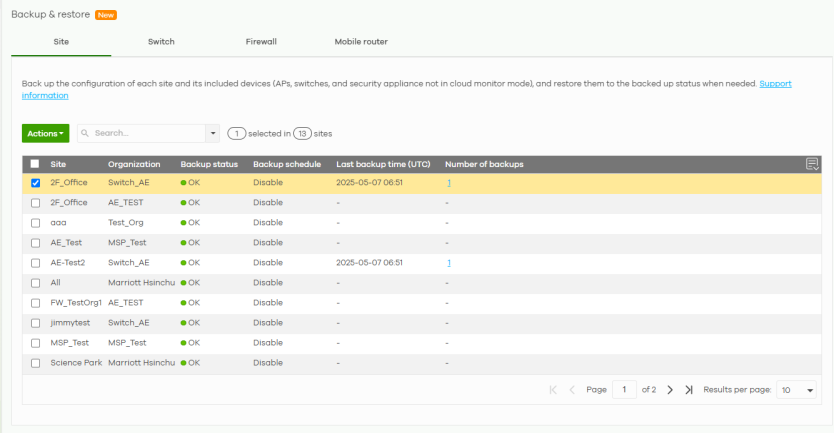
MAP > MSP cross-org manage > Backup & restore > Switch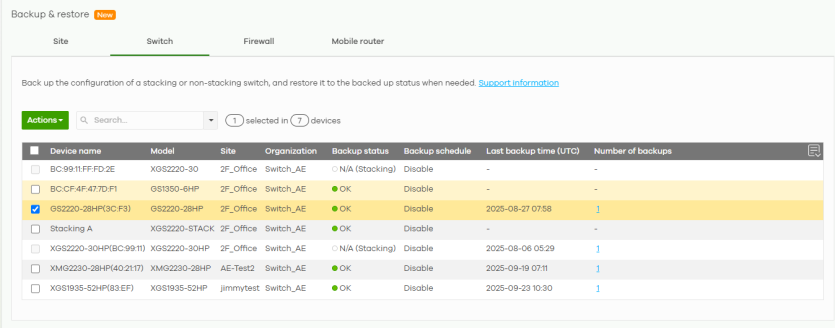
MAP > MSP cross-org manage > Backup & restore > Firewall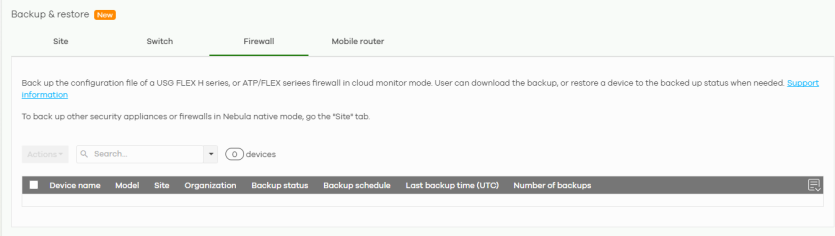
MAP > MSP cross-org manage > Backup & restore > Mobile router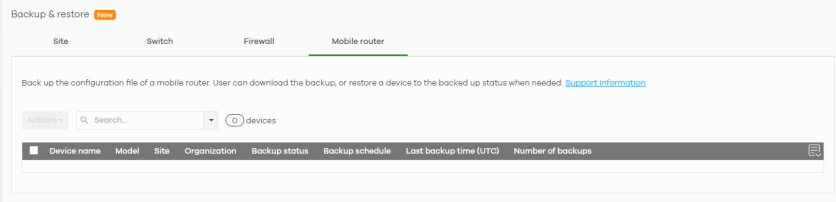
The following table describes the labels in the screens.
Label | Description |
|---|---|
Actions | Click the Create backup button to open the window to create a new backup of the current configuration of the site / Nebula Switch / Nebula Firewall / Nebula Mobile Router to the NCC. Enter 1 to 64 characters including special characters inside the square quotes [~!@#$%^&*()_+{}|:”<>–=[]\;’,/ ] in the Backup description field and then click Backup. Otherwise, click Cancel. The backup time will depend on how many sites / Nebula Switches / Nebula Firewalls / Nebula Mobile Routers are selected and the number of Nebula Devices in the selected sites during the backup. Do not make any Web Configurator changes on the Nebula FLEX H device during backup. Click the Set backup schedule button to open the window to select a Monthly, Weekly, or Daily backup of the current configuration of the site / Nebula Switch / Nebula Firewall / Nebula Mobile Router to the NCC. Then select the day of the month/week. To activate the schedule, click the Backup schedule switch to the right and then click Update to save the settings and close the window. Otherwise, click Cancel. Click the Restore button to restore a previously saved site / Nebula Switch / Nebula Firewall / Nebula Mobile Router configuration from NCC to the site. |
Search | Select the filter criteria (Any or site name) to filter the list of sites. |
N sites/devices | This shows how many sites / Nebula Switches / Nebula Firewalls / Nebula Mobile Routers (N) match the filter criteria and how many sites / Nebula Switches / Nebula Firewalls / Nebula Mobile Routers are created in total in the organization / site. |
Select an entry’s checkbox to select a specific entry. Otherwise, select the checkbox in the table heading row to select all entries. | |
Device name | This shows the descriptive name of the Nebula Device. |
Model | This shows the model name of the Nebula Device. |
Site | This shows the descriptive name of the site. |
Organization | This shows the descriptive name of the organization. |
Backup status | This indicates the default or last backup is successful (green), a backup is in progress (orange), a previous backup failed (red), or the Nebula Switch / Nebula Firewall / Nebula Mobile Router does not belong to a site or the Nebula Switch is a stacking member (white). The last backup failed (red) status is kept until the next successful backup. |
Backup schedule | This shows the backup schedule when activated. Otherwise, it shows Disable. |
Last backup time (UTC) | This shows the UTC date and time the backup was saved on the NCC server. |
Number of backups | This shows the total number of backups of the site configurations. A maximum of 4 backups (2 manual and 2 scheduled) are allowed per site. Click the hyperlink to open a window to change the Backup description. You can use alphanumeric and ()+/:=?!*#@$_%- characters, up to 512 characters. Or click the delete icon to remove the backup. Then click Update. |