MSP Portal
This screen lists every organization to which your account has at least read-only access.
To access this screen, select MSP portal from the Organization drop-down list box in the title bar, or click MSP > MSP cross-org manage > MSP portal in the navigation panel.
MSP > MSP cross-org manage > MSP portal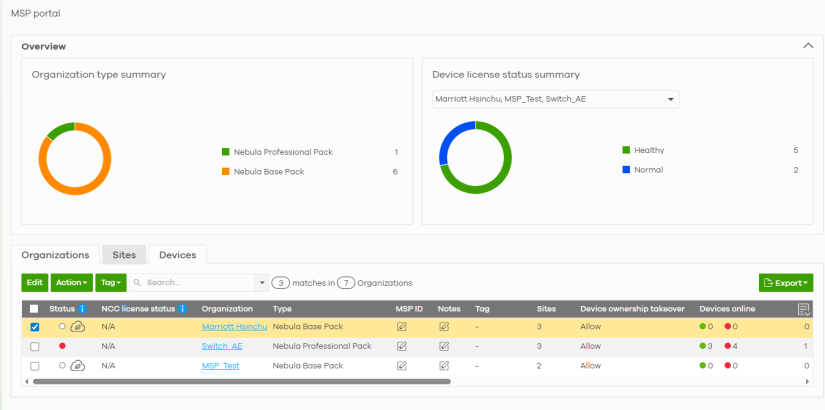
The following table describes the labels in this screen.
Label | Description |
|---|---|
Organization type summary | This pie chart shows the total number of the organization mode (for example, x PRO, x Plus, x Base organizations). |
Device license status summary | This pie chart shows the total number of Nebula managed devices with NCC and ATP licenses only. You can select the organization to display in the drop-down list. Click a particular color in the pie chart to show the details of the licenses of the selected organizations. |
Organizations | |
Edit | Click the Edit button to open a screen where you can change the MSP ID and Notes of the Organization. See Organization-wide > Organization-wide manage > Organization settings for more information on MSP ID and Notes criteria. 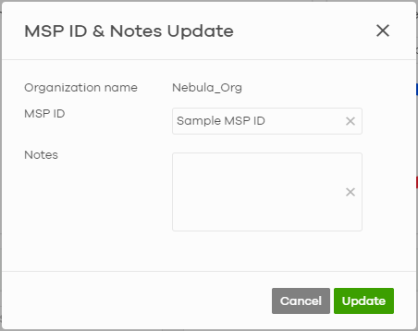 |
Action | Perform and action on the selected Nebula organization. • Deactivate CSM. Select the organization(s) and click this button to disable CSM (Cloud-Saving Mode). See Cloud-Saving Mode for more information on Cloud-saving mode. • Restrict/allow device ownership takeover. Select this to open a screen where you can allow/prohibit the transfer of Nebula Device to another administrator’s organization by using the Nebula Mobile app. Click this switch to the right to prohibit Nebula Device transfer between administrators. |
Tag | Assign a name to an organization or to a group of organizations. 1. Select the organizations. The Tag button will be enabled. 2. Click Tag. 3. In the Add field, enter a tag (up to 32 alphanumeric characters and spaces are allowed). 4. Click +Add new. Then Add to confirm. To remove the tag assigned to an organization or to a group of organizations. 1. Select the organization with an assigned tag. 2. Click Tag. 3. Enter the name of the tag. As you type along, NCC will automatically show the names of tags that matches. 4. Select the tag. Then click Remove. |
Search | Specify your desired filter criteria to filter the list of organizations and organization status. |
matches in | This shows the number of organizations that match your filter criteria after you perform a search. |
Organizations | This shows the number of organizations that you can manage. |
* | Click this to select all rows. Alternatively, click a row to go to the Sites tab that will show the sites belonging to the organization. |
Status | This shows the status of Nebula Devices in the organization. • Green: All Nebula Devices are online and have no alerts. • Red: Some Nebula Devices are offline. • White: No Nebula Devices in this organization. •  : This organization is in Cloud-saving mode. : This organization is in Cloud-saving mode. |
NCC license status | This shows the license status of Nebula Devices in the organization. • Green: All Nebula Devices with over 1 year licenses. • Blue: Any Nebula Device with over 90 days but less than 1 year license together with another Nebula Device with over 1 year license. • Orange: Any Nebula Device with license that will expire in 90 days together with another Nebula Device with over 90 days license. • Red: Any Nebula Device with an expired license or is unlicensed. • Gray: No Nebula Devices in this organization. |
Organization | This shows the descriptive name of the organization. Click an Organization to go to the Organization-wide > Organization-wide manage > Organization portal screen. Hover the mouse over the name of the Organization to display the site information window. Clicking a Site name will go to the Site-wide > Dashboard screen. |
Tag | This shows the tag name assigned to this organization. Otherwise, the organization does not have a tag. |
MSP ID | This shows the customer ID used by the administrator of the organization on another system. For example, CRM (Customer Relationship Management) and ERP (Enterprise Resource Planning) systems. |
Notes | This shows the user-specified description of the MSP ID. |
Pay As You Go | This shows the payment plan if the organization is using PAYG (Pay As You Go). In the Zyxel Circle website (if the NCC account has a Circle account) select the Gold Pack plan (Pro, GSP) or the Pro Pack plan (PRO). See the Circle User’s Guide for more information on Pay As You Go. Otherwise, the value will be blank. |
Type | This shows your NCC version type. |
Sites | This shows the number of sites belonging to this organization. |
Devices online | This shows the number of Nebula Devices in this organization which are online (green), have recently had alerts (orange), recently went offline (red), or have been offline for more than 6 days (gray). |
AP | This shows the number of Nebula access points connected to the sites in this organization. |
SW | This shows the number of Nebula switches connected to the sites in this organization. |
Security appliance | This shows the number of Nebula security appliances connected to the sites in this organization. |
MR | This shows the number of Nebula mobile routers connected to the sites in this organization. |
Device ownership takeover | This shows Allow if the Nebula Device can transfer to another administrator’s organization using the Nebula Mobile app. This shows Restrict if the Nebula Device cannot transfer to another administrator’s organization using the Nebula Mobile app. |
Next NCC license expiration date | This shows the date when the license will expire, or N/A when there is no Nebula-managed device in the organization. For example, if you have two Nebula Devices in the organization: • Nebula Device 1 is with NCC license expiration date on 2022/10/1 • Nebula Device 2 is with NCC license expiration date on 2022/11/1 This field will show the nearest expiration date ‘2022/10/1’. |
# devices will expire in 90 days | This shows the number of Nebula-managed devices with licenses that will expire in 90 days or less in this organization. |
# unused NCC license | This shows the number of unused NCC (Nebula Control Center) licenses in this organization. |
 | Click this icon to display a greater or lesser number of configuration fields. |
Export | Click this button to save the MSP Portal list as a CSV or XML file to your computer. |
Sites | |
Search | Specify your desired filter criteria to filter the list of sites. |
matches in | This shows the number of sites that match your filter criteria after you perform a search. |
sites | This shows the number of sites that you can manage. |
* | Click this to select all rows. |
Status | This shows the status of Nebula Devices in the site. • Green: All Nebula Devices are online and have no alerts. • Red: Some Nebula Devices are offline. • White: No Nebula Devices in this site. |
Organization | This shows the descriptive name of the organization. |
Site | This shows the descriptive name of the site. Clicking a site name will go to the Site-wide > Dashboard screen. |
Tags | This shows the tag name assigned to this site. Otherwise, the site does not have a tag. |
Devices | This shows the number of Nebula Devices connected to the site. |
Offline devices | This shows the number of Nebula Devices in this site which are offline. |
% Offline | This shows the percentage of Nebula Devices in this site which are offline. |
Template | This shows the name of the template that is bound to a site. |
 | Click this icon to display a greater or lesser number of configuration fields. |
Export | Click this button to save the MSP Portal list as a CSV or XML file to your computer. |
Devices |  Only Nebula Devices registered in the organization will be displayed here. Only Nebula Devices registered in the organization will be displayed here. |
Reboot | Select the Nebula Device(s) and click Reboot to restart the Nebula Device(s). Then click Confirm to continue. This button is disabled when the Nebula Device is not assigned to a site or is offline. When performing a multi-Nebula Device reboot, some Nebula Devices may not receive the reboot command due to the order in which they are connected. For example: If a Switch is connected to multiple Access points, and you select both the Switch and the Access points to reboot at the same time, the Switch may restart first and cause the Access points to lose connection, resulting in the Access points not rebooting. |
Search | Specify your desired filter criteria to filter the list of Nebula Devices. |
matches in | This shows the number of Nebula Devices that match your filter criteria after you perform a search. |
devices | This shows the number of Nebula Devices that you can manage. |
* | Click this to select all rows. |
Status | This shows the status of Nebula Device. • Green: The Nebula Device is online. • Red: The Nebula Device is offline. ‘–’ (dash) is shown when the Nebula Device is not assigned to a site. |
Name | This shows the name of the Nebula Device. |
Model | This shows the model name of the Nebula Device. |
Product type | This shows the type of Nebula Device (for example, Firewall, Access point, Switch). |
MAC address | This shows the MAC address of the Nebula Device. Clicking a MAC address will go to the Site-wide > Devices > (Nebula Device): Details screen. |
Serial number | This shows the serial number of the Nebula Device. |
Description | This shows the user-specified description for the Nebula Device. |
Organization | This shows the descriptive name of the organization. |
Site | This shows the descriptive name of the site. Clicking a site name will go to the Site-wide > Dashboard screen. |
Organization ID | This shows the 24-digit organization ID generated automatically by NCC. |
 | Click this icon to display a greater or lesser number of configuration fields. |
Export | Click this button to save the MSP Portal list as a CSV or XML file to your computer. |