Using DPPSK to Access the Guest WiFi Network
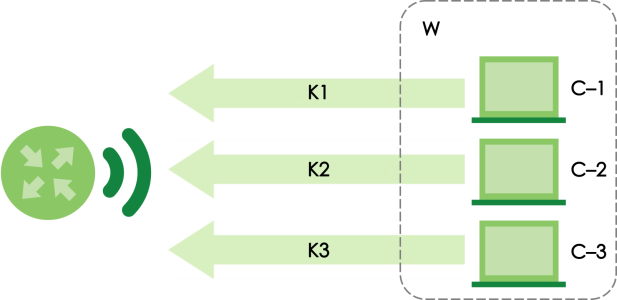
DPPSK (Dynamic Personal Pre-Shared Key) is a cloud authentication method offered in Nebula Professional Pack that enhances on the traditional Pre-Shared Key (PSK) method. DPPSK introduces dynamic key allocation to address the security weaknesses of static shared passwords. Unlike WPA2-PSK, where all users share the same password, DPPSK assigns a unique pre-shared key (K1, K2, K3) to each user or client device (C-1, C-2, C-3). The pre-shared key can be customized to expire in a particular timeframe. This tutorial shows you how to configure DPPSK for a guest WiFi network (W).
Set Up Guest WiFi
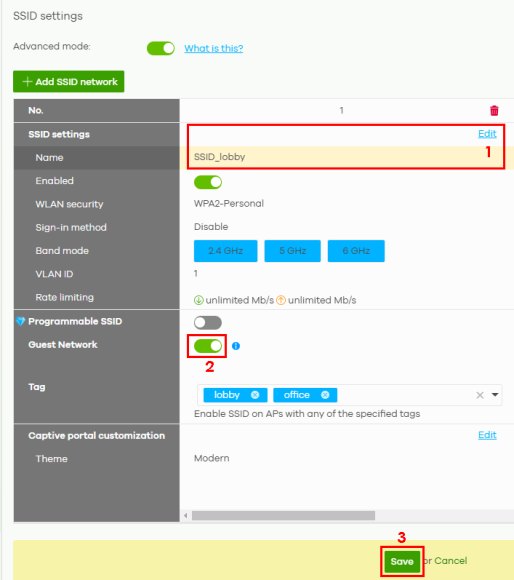
1 Go to Site-wide > Configure > Access points > SSID settings.
2 Change the SSID Name (1) (for example, SSID_lobby).
3 Enable the Guest Network (2).
4 Then click Save (3).
Select DPPSK as the WiFi Security
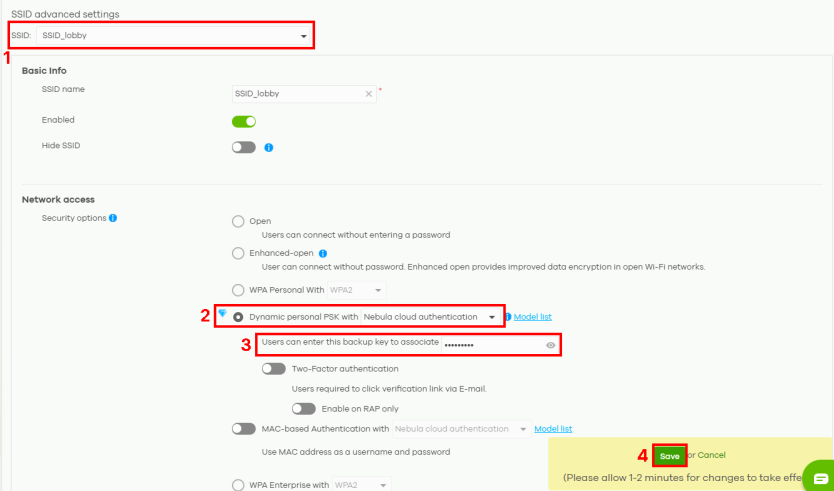
1 Go to Site-wide > Configure > Access points > SSID advanced settings.
2 Select the SSID (SSID_lobby) (1).
 Each site can only have one SSID in DPPSK mode.
 3 Select Dynamic personal PSK with Nebula cloud authentication (2).
4 (Optional) Enter a backup key (3) for users who forget their DPPSK but still want to connect to the SSID.
5 Then click Save (4).
Generate the DPPSK in Batch
1 Go to Organization-wide > Organization-wide manage > Cloud authentication.
2 Click the DPPSK (1) tab.
3 Click +Add (2) and then click Batch create DPPSK (3).

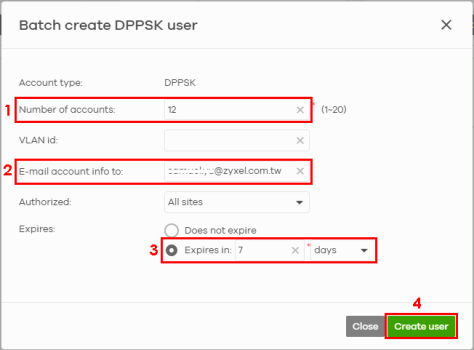
4 Enter 12 (for example) in the Number of accounts (1). This is the number of keys to be generated.
5 Enter a specific email address (2) to send a copy of each DPPSK and expiration date in a printable format.
6 Enter 7 (for example) and select days on the Expires in field (3).
7 Click Create user (4) to save your changes and close the screen.
8 The 12 DPPSK keys will be sent to the specified email for your distribution.
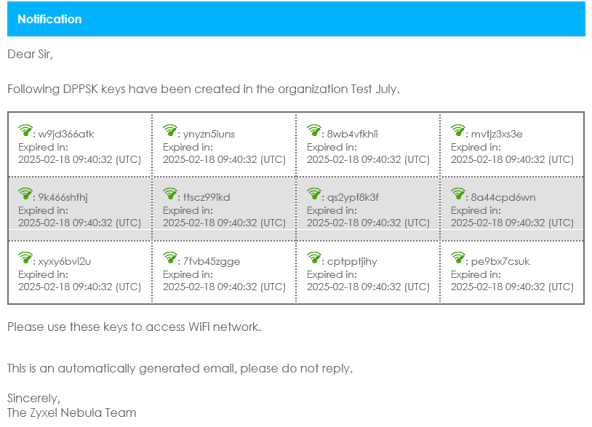
The 12 DPPSK keys can now be used by your WiFi clients to access the SSID_lobby WiFi network.