Set Up Nebula Monitor Mode (for Security Firewalls in on-premise only)
Nebula Monitor Mode provides remote SSH, remote Web Configurator, and backup configuration file functions. This allows you to manage on-premise devices more easily.
 Make sure that the firmware version is later than V5.37 (refer to Maintain Firmware for more information).
 This tutorial guides you on how to set up Nebula Monitor Mode on your USG FLEX 100 as example.
1 Add an organization (refer to Create Organization for more information) and site (refer to Create Site for more information) on NCC.
2 Go to Organization-wide > Organization-wide manage > Organization settings.
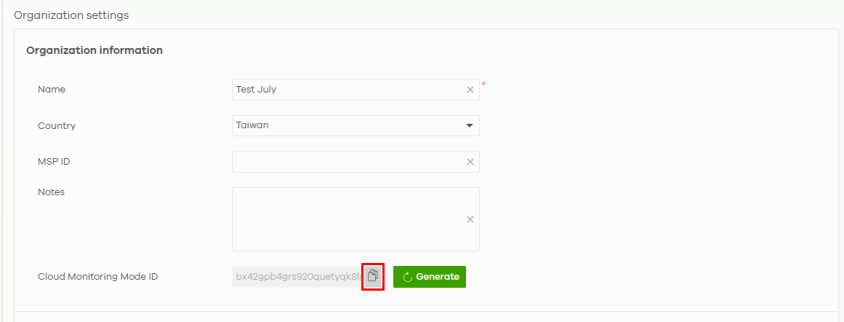
3 Click the copy icon to copy the Cloud Monitoring Mode ID.
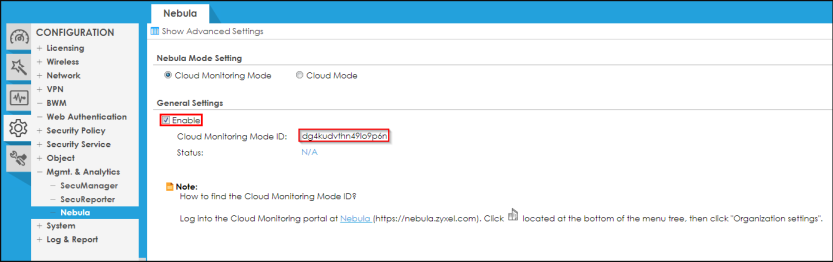
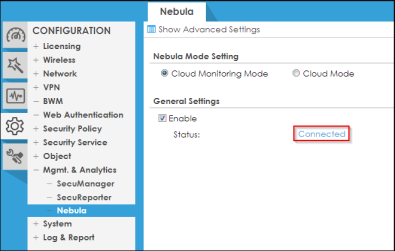
4 On your Web Configurator, go to Configuration > Mgmt. & Analytics > Nebula: General Settings. Click the Enable checkbox, paste the Cloud Monitoring Mode ID and click Apply.
The Status will change from N/A to Connecting.
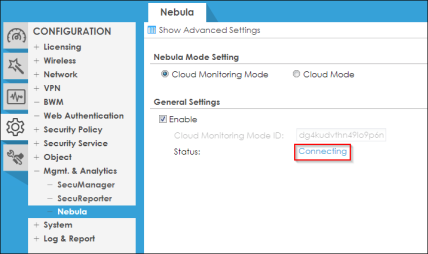
When the Security Firewall has connected successfully to NCC, the Status will change from Connecting to Connected.
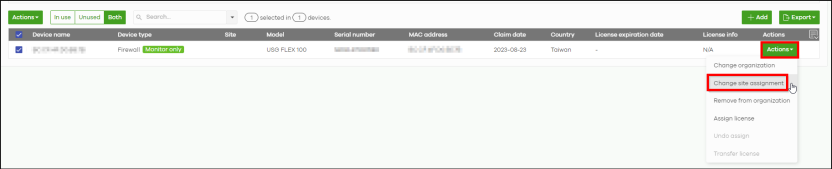
5 In NCC, go to Organization-wide > Organization-wide manage > License & inventory > Devices tab. You will find the Nebula Device (Security Firewall) with the Device type set to Firewall (Monitor only). The Site field will be blank as the Nebula Device have not yet been assigned to a site.

6 Click Actions, then click Change site assignment to assign the Nebula Device to a site.
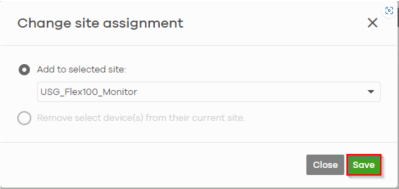
7 Then click Save.
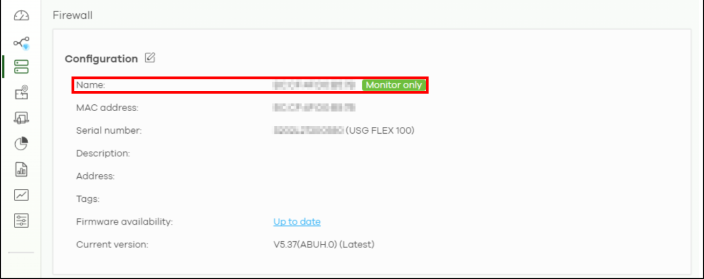
8 Go to Site-wide > Devices > Firewall: Name to check if the Nebula Device that has been assigned to a site is in Monitor mode.