Set Up WiFi Network Load Balancing
To avoid too many client devices connecting to the same Nebula Device (AP), which can cause high loading and impact WiFi performance, load balancing steers client devices to another nearby AP to split the loading equally. WiFi performance will decrease if the loading of the Nebula Device is too heavy; the more client devices connecting to the same Nebula Device, the less bandwidth each client device can get.
The following figure shows a high density WiFi deployment scenario. Most of the client devices (C:15) connect to AP2 even when the signal to the other Nebula Devices (AP1, AP3) are good. You can set up load balancing to disassociate idle / weaker WiFi signal client devices on AP2 to balance the loading.
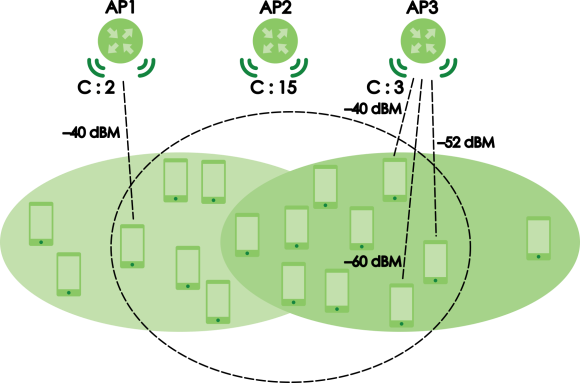
This tutorial shows you how to configure WiFi network load balancing.
1 Go to Site-wide > Configure > Access points > AP & port settings > Load balancing and select the load balancing mode:
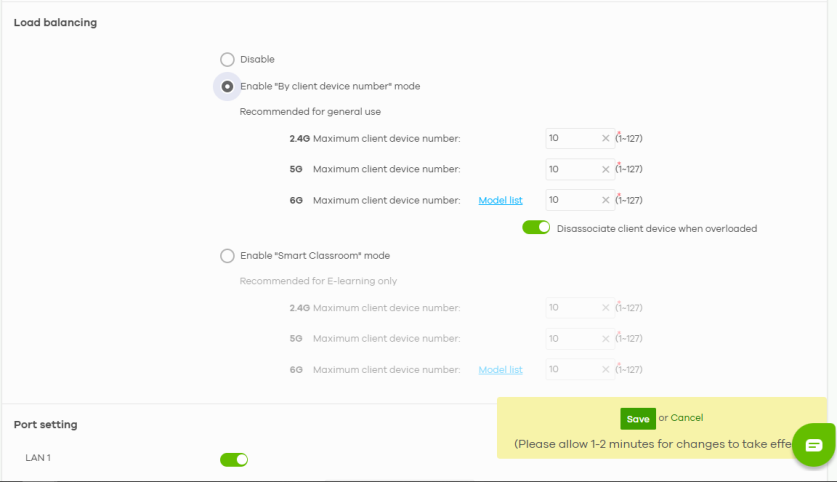
• Enable ‘By client device number’ mode –
Click the Disassociate client device when overloaded switch to the right to disassociate WiFi client devices connected to an overloaded Nebula Device (AP). The disassociation priority is WiFi client device with the longest idle time, then disassociate WiFi clients with weak WiFi signal strength.
Click the Disassociate client device when overloaded switch to the left to delay the connection of WiFi client devices until the Nebula Device can accommodate the required bandwidth. The Nebula Device can also steer the WiFi client device to another Nebula Device within its broadcast radius.
Click the Disassociate client device when overloaded switch to the right to disassociate WiFi client devices connected to an overloaded Nebula Device (AP). The disassociation priority is WiFi client device with the longest idle time, then disassociate WiFi clients with weak WiFi signal strength.
Click the Disassociate client device when overloaded switch to the left to delay the connection of WiFi client devices until the Nebula Device can accommodate the required bandwidth. The Nebula Device can also steer the WiFi client device to another Nebula Device within its broadcast radius.
The disassociation of WiFi client devices by the Nebula Device is based on the following criteria:
• Idle time – WiFi client devices with the longest idle time will be disassociated first. If none of the connected WiFi client devices are idle, then the criteria shifts to weak signal strength.
• Signal strength – WiFi client devices that have the weakest signal strength will be disassociated first.
 The Nebula Device will delay sending of response, authentication, and probe request packets to a disassociated WiFi client device up to 3 instances. A disassociated WiFi client device can reconnect to the Nebula Device only after receiving 3 instances of delayed response.
 • Enable ‘Smart Classroom’ mode –
When the maximum number of WiFi client devices has been reached, the Nebula Device disassociates the WiFi client devices instantly and ignores any response, authentication and probe request packets. The disassociation criteria is always poor signal strength.
When the maximum number of WiFi client devices has been reached, the Nebula Device disassociates the WiFi client devices instantly and ignores any response, authentication and probe request packets. The disassociation criteria is always poor signal strength.
By default, the Nebula Device allows connection of a WiFi client device when it does not detect another Nebula Device within its broadcast radius. The following table shows the Nebula Device’s response to association requests when the number of associated WiFi client devices threshold has been reached, and the corresponding disassociation criteria based on the load balancing mode.
load balancing mode | by client device number | smart classroom |
|---|---|---|
Association request response when the number of connected WiFi client devices has reached the threshold. | Delay new WiFi client device’s association request. | Ignore new WiFi client device’s association request. |
WiFi client device disassociation criteria. | Longest idle time, then the weakest WiFi signal strength. | Weakest WiFi signal strength. |
2 Set the Maximum client device number threshold (up to 127) when load balancing will be triggered for each bandwidth (2.4 GHz, 5 GHz and 6 GHz).
3 Then click Save.