Configure Schedule to Allow WiFi Access Only at Certain Times
This example shows you how to allow WiFi Internet access only at certain times.
To configure a schedule to control when a WiFi network (SSID) is enabled or disabled, do the following:
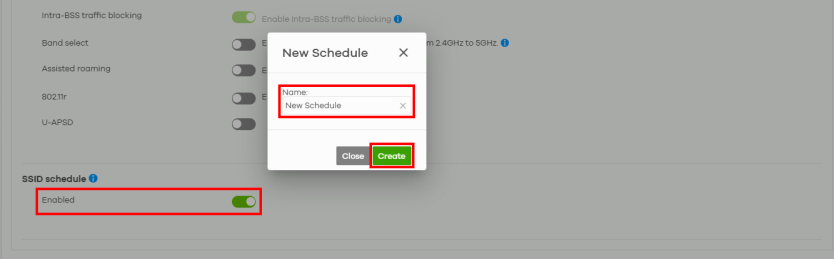
1 Go to Site-wide > Configure > Access points > SSID advanced settings. Click the Enabled switch in SSID schedule to the right to configure a schedule. The New Schedule window appears. Enter a descriptive Name for the schedule of up to 127 characters (0 to 9 a to z). The casing does not matter. Then, click Create.
2 The schedule Name appears on Schedule. To change it, click the edit icon ( ) . Select Custom schedule in Schedule template to manually configure the day and time at which the WiFi network (SSID) is enabled. Specify the hour and minute when the schedule begins and ends each day. Then click Save.
) . Select Custom schedule in Schedule template to manually configure the day and time at which the WiFi network (SSID) is enabled. Specify the hour and minute when the schedule begins and ends each day. Then click Save.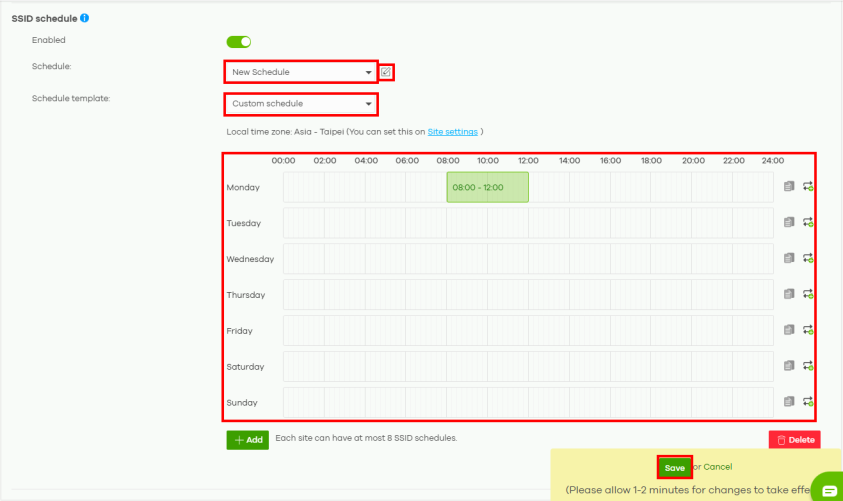
For example, to enable the SSID on Monday: 08:00 to 12:00, click the 08:00 to 10:00 block and drag the right corner to include the 10:00 to 12:00 block (1). Click the Copy icon (2) to copy Monday’s schedule by selecting the day(s) of the week on the Copy schedule to window that appears. Click Apply to confirm.
To set multiple SSID schedules (up to 12 per day), click a block or click the Repeat icon (3) to set the Time range, Allowed period and Disabled period on the Add repeated slots window that appears. Click Apply to confirm.

You can click the block (1) to change the Start and End or select All Day on the Edit time window that appears. Click Save to confirm.