Change Log
Use this screen to view logged messages for changes in the Admins & teams and Cross-org synchronization screens. Click MSP > MSP cross-org manage > Change log to access the screens.
When the log is full, it deletes older entries one by one to make room for newer ones.
MSP > MSP cross-org manage > Change log > MSP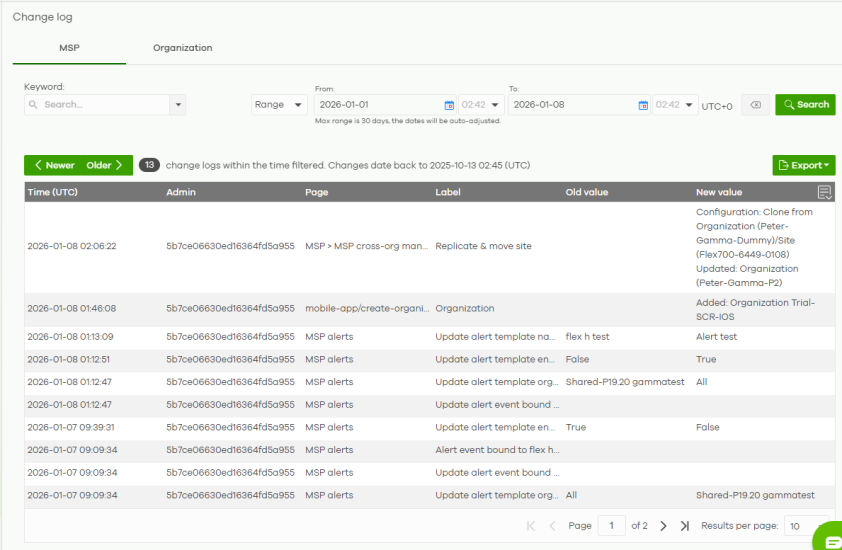
MSP > MSP cross-org manage > Change log > Organization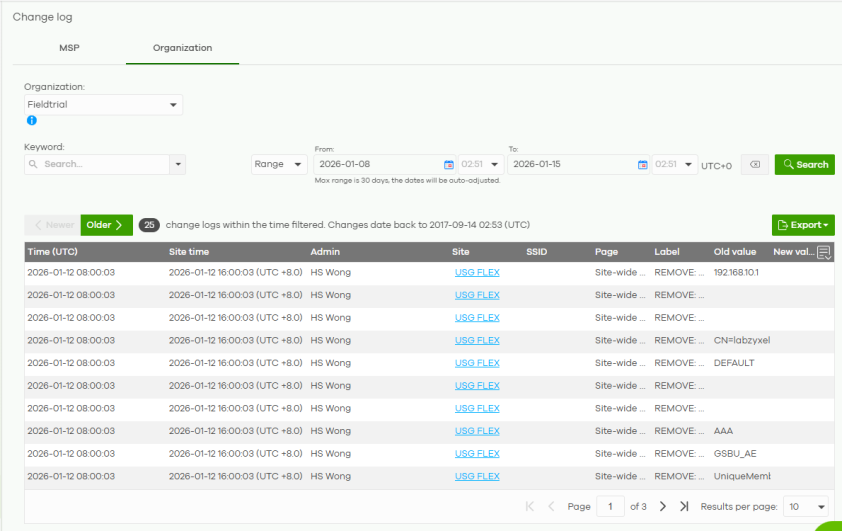
 The MSP > MSP cross-org manage > Change log > Organization screen is available only if you have the Professional Pack or Pay-As-You-Go (PAYG) license.
 The following table describes the labels in this screen.
Label | Description |
|---|---|
Organization | This field only appears on the Organization tab. Select the organization with Professional Pack or Pay-As-You-Go (PAYG) license to filter the list of log entries. |
Keyword | Enter a keyword or specify one or more filter criteria to filter the list of log entries. |
Range/Before | Select a filtering option, set a date, and then click Search to filter log entries by date. Range: Display log entries from the first specified date to the second specified date. Before: Display log entries from the beginning of the log to the selected date. |
Search | Click this to update the list of logs based on the search criteria. |
Reset filters  | Click this to return the search criteria to the previously saved time setting. |
Newer / Older | Click to sort the log messages by most recent or oldest. |
N change logs within the time filtered. | This shows the total number of the log messages that match the search criteria. It also shows the date and time the very first log was created. |
Export | Click this button to download the log list as a CSV or XML file to your computer. |
Time (UTC) | This shows the date and time in UTC+00:00 (or UTC+0) when the log was recorded. UTC is a standard time for use around the world (formerly known as Greenwich Mean Time or GMT). UTC is an international abbreviation that is neither French nor English. It means both "Temps Universel Coordonné" and "Coordinated Universal Time". |
Site time | This field only appears on the Organization tab. This shows the date and time in UTC+08:00 (or UTC+8) when the log was recorded. |
Admin | This shows the name of the administrator account. |
Site | This field only appears on the Organization tab. This shows which site the log was recorded. |
SSID | This field only appears on the Organization tab. This shows which SSID the log was associated with when the log was recorded. |
Page | This shows the name of the NCC menu in which the change was made. |
Label | This shows the action that triggered the log entry |
Old value | This shows the old setting or state that was overwritten with the new value. |
New value | This shows the new setting or state. |
 | Click this icon to display a greater or lesser number of configuration fields. |