Monitor and Improve the Health of WiFi Networks for APs and Connected WiFi Clients
To monitor and improve the WiFi connection between the Nebula APs and WiFi clients, go to Site-wide > Monitor > Access points > Wireless health.
 The wireless health feature is only available for Nebula APs with Professional Pack license.
 The following charts and tables are available for WiFi network monitoring.
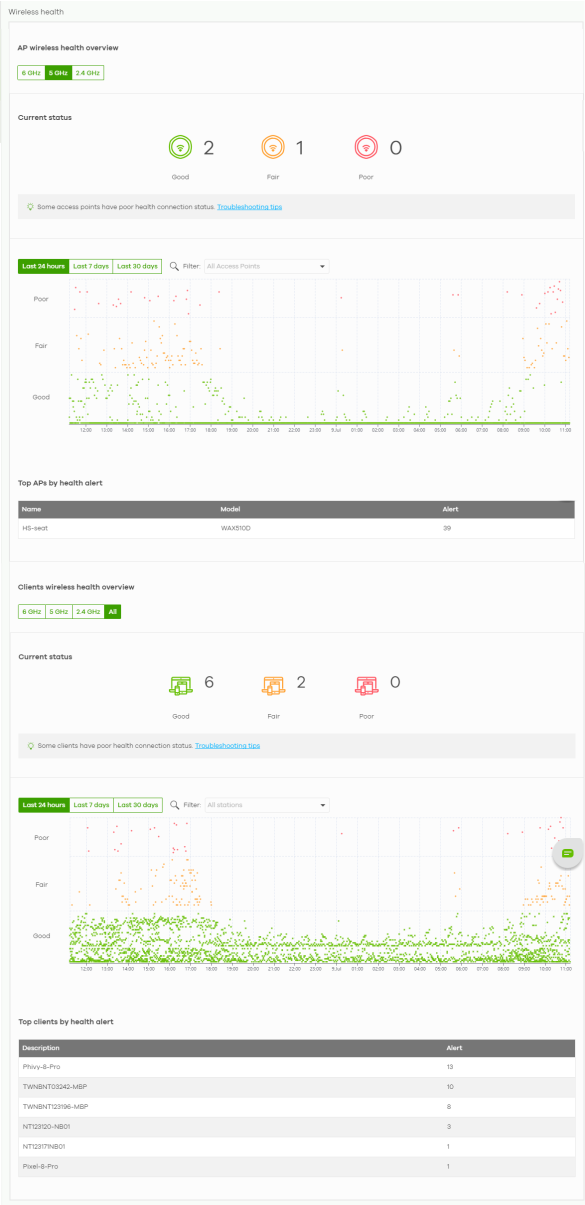
• AP wireless health overview
Step 1. Select the WiFi frequency band of the Nebula AP to view, 2.4 GHz, 5 GHz, or 6 GHz.
See the number of supported Nebula APs that are currently online, using the specified frequency band that are in Good, Fair, or Poor wireless health threshold as detected by NCC.
Step 2. Select a time period and filter one or more specific Nebula APs to view the health report. Unselect any Nebula AP to view the report including all Nebula APs.
See the graph showing the state of wireless health (y-axis: Good, Fair, or Poor) over the time period which the Nebula AP’s health state is recorded (x-axis).
Step 1. Select the WiFi frequency band of the Nebula AP to view, 2.4 GHz, 5 GHz, or 6 GHz.
See the number of supported Nebula APs that are currently online, using the specified frequency band that are in Good, Fair, or Poor wireless health threshold as detected by NCC.
Step 2. Select a time period and filter one or more specific Nebula APs to view the health report. Unselect any Nebula AP to view the report including all Nebula APs.
See the graph showing the state of wireless health (y-axis: Good, Fair, or Poor) over the time period which the Nebula AP’s health state is recorded (x-axis).
• Top APs by health alert
See the table showing the Name and Model of the Nebula AP, and how many times a Nebula AP is in a poor state of wireless health on a selected time period.
See the table showing the Name and Model of the Nebula AP, and how many times a Nebula AP is in a poor state of wireless health on a selected time period.
• Clients wireless health overview
Step 1. Select the frequency band of the WiFi client to view, 2.4 GHz, 5 GHz, 6 GHz, or All.
See the number of connected WiFi clients that are currently online, using the specified frequency band that are in Good, Fair, or Poor wireless health threshold as detected by NCC.
Step 2. Select a time period and filter one or more specific WiFi clients to view the health report. Unselect any WiFi client to view the report including all WiFi clients.
See the graph showing the state of wireless health (y-axis: Good, Fair, or Poor) over the time period which the WiFi client’s health state is recorded (x-axis).
Step 1. Select the frequency band of the WiFi client to view, 2.4 GHz, 5 GHz, 6 GHz, or All.
See the number of connected WiFi clients that are currently online, using the specified frequency band that are in Good, Fair, or Poor wireless health threshold as detected by NCC.
Step 2. Select a time period and filter one or more specific WiFi clients to view the health report. Unselect any WiFi client to view the report including all WiFi clients.
See the graph showing the state of wireless health (y-axis: Good, Fair, or Poor) over the time period which the WiFi client’s health state is recorded (x-axis).
• Top clients by health alert
See the table showing the name of the WiFi client, and how many times a WiFi client is in a poor state of wireless health on a selected time period.
See the table showing the name of the WiFi client, and how many times a WiFi client is in a poor state of wireless health on a selected time period.
Enable automatic optimization to allow NCC to improve the wireless health of WiFi networks.
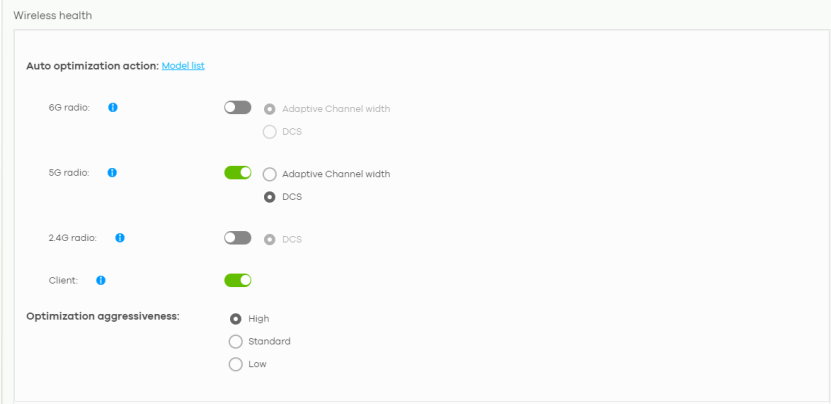
1 For each WiFi frequency band on Auto optimization action, click the switch to the right to enable automatic optimization.
2 Enable the following to have the Nebula AP improve the WiFi network performance.
• Select Adaptive channel width to have the Nebula AP change the channel bandwidth from 160 MHz to 80 MHz (for the 6 GHz WiFi frequency band) and from 80 MHz to 20 MHz (for the 5 GHz WiFi frequency band) to reduce the radio interference with other WiFi devices. If adaptive channel width does not improve WiFi performance then the Nebula AP also performs Dynamic Channel Selection (DCS). Or,
• Select DCS to have the Nebula AP scan and choose a radio channel that has least interference.
3 Click the Client switch to the right to have the Nebula AP steer the WiFi clients in poor health to a Nebula AP with a strong signal. Client steering to improve the signal strength is done every 30 minutes.
4 Select High in Optimization aggressiveness to have the Nebula AP optimize the WiFi network performance by doing the following:
• Lower the channel bandwidth to reduce radio interference from other wireless devices (Adaptive Channel Width).
• Select a radio channel with least interference (Dynamic Channel Selection).
• Direct WiFi clients to a Nebula AP with a stronger WiFi signal.
There might be some disruption to the client’s WiFi connections while the Nebula AP is optimizing the WiFi network. To minimize disruption, you can optimize the WiFi network only when the WiFi network is below a certain level of busyness. Low, Standard, and High stand for different levels of busyness. The busyness level you select decides when the Nebula AP takes action to optimize the WiFi network.