Add a Nebula Device
This section shows you how to add a Mobile Router, Security Gateway, Nebula Firewall, Access Point or Switch to a selected organization and site on NCC for management.
Using the NCC Portal
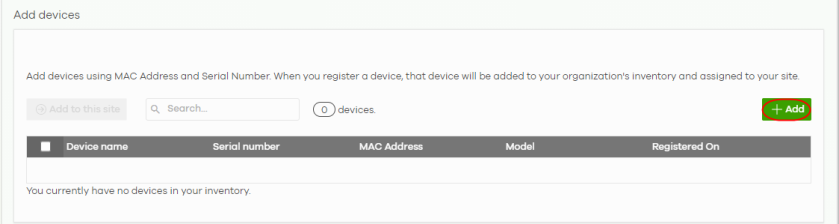
1 Go to the Site-wide > Devices > + > Add devices screen. Click +Add.
2 Enter the Serial number, MAC address, and a descriptive Name of the Nebula Device you want to add. Click the Finish button to save the changes.
 When a Nebula Device is added to a site other than a Nebula Device owner, the Acknowledge button appears. Click this button first to confirm that the Serial number and MAC Address information are correct. Then click the Next button to check the Nebula Device firmware.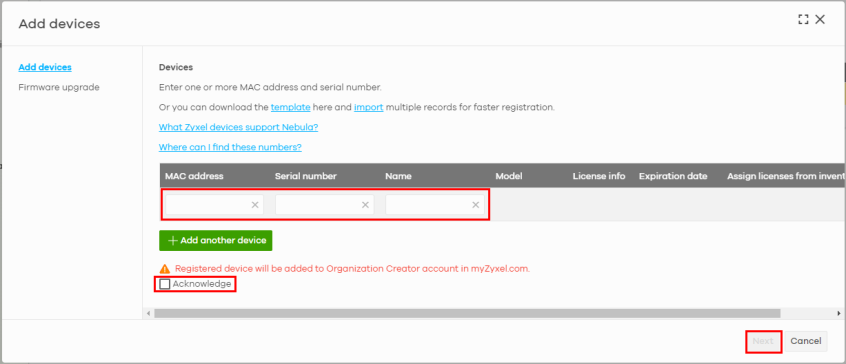
Using the Nebula Mobile app
1 On your Nebula Mobile app, tap Add Devices.
2 Tap Scan QR Code to add the Nebula Device QR code. You can find the QR code:
• On the Nebula Device label
• On the box that came with the Nebula Device
• On the Web Configurator, click Dashboard > Cloud Control Status: NCC Discovery.
Or, tap Enter Manually and enter the Serial Number and MAC Address on the Nebula Device label.
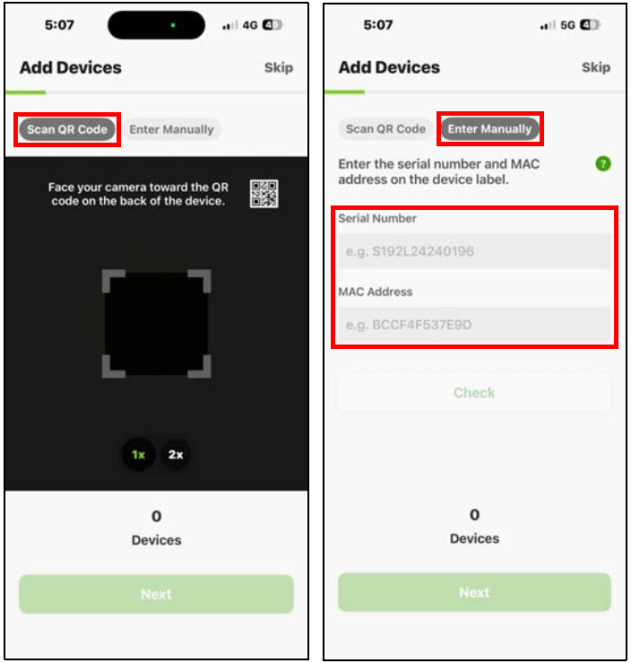
3 Tap Next.
4 Select a trial pack license and tap Next.
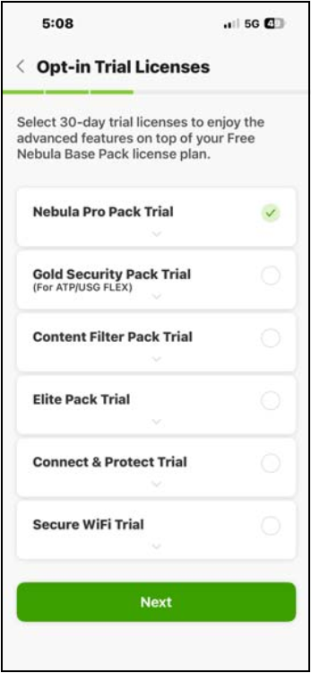
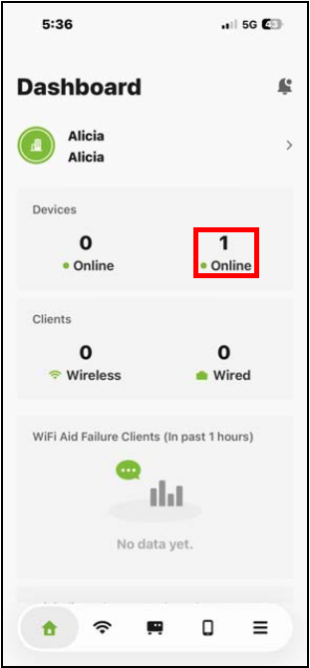
On the Dashboard screen, the newly added Nebula Device will appear.
 Use the Nebula Mobile app to add a Nebula Device that was previously registered to another Zyxel Account. In case you cannot use the Nebula Mobile app to add a Nebula Device, the previous owner may have activated Device ownership takeover in Organization-wide > Organization-wide manage > Organization settings, or MSP > MSP cross-org manage > MSP portal. Contact Zyxel customer support if you are unable to find the previous Nebula Device owner and disable this function.