Help
Online documents
Click Help > Online documents to view the online help for NCC and NCC-compatible devices. For example, to view the Security Firewall Series configuration and hardware information, locate the online help under Firewall.
Help > Online documents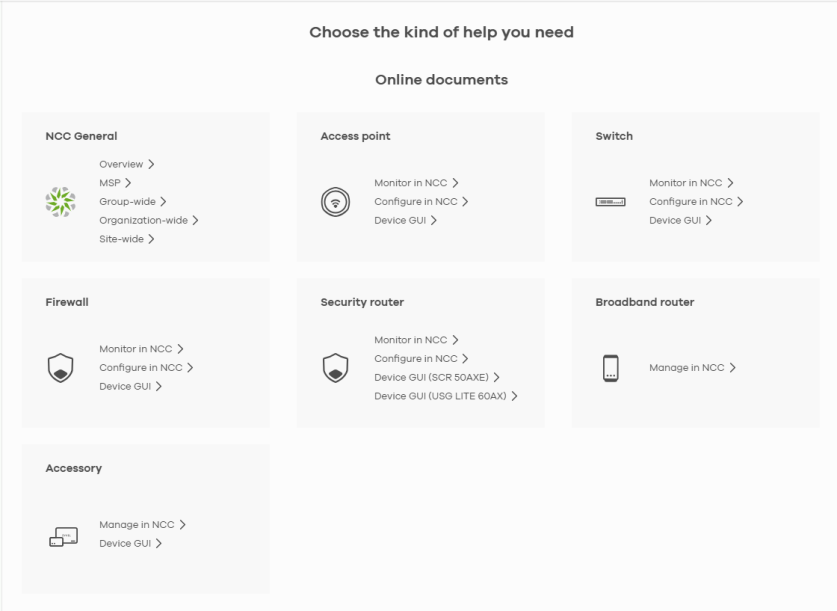
The following summarizes how to navigate the Online documents screen. The Online documents screen is divided into these parts:
Online Documents Overview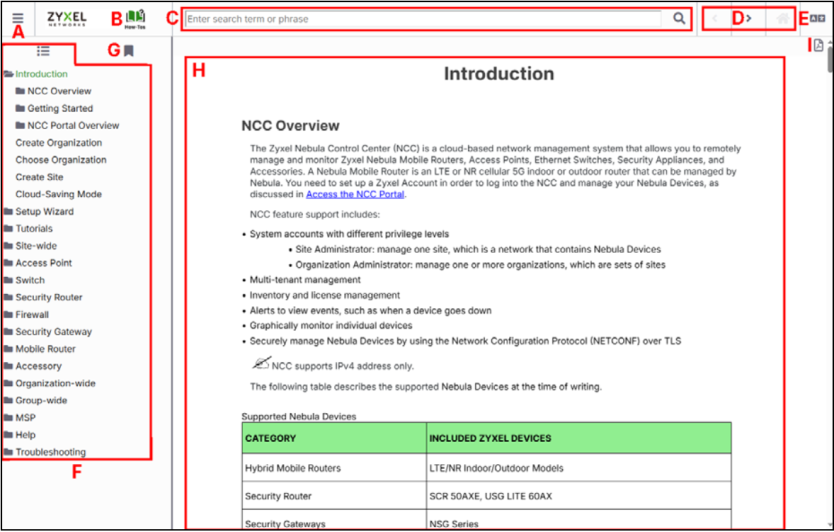
• A – Hide/Show the Contents Menu/Index
• B – How-To Assistant
• C – Search Bar
• D – Navigation Buttons
• E – Google Translate Button
• F – Contents Menu
• G – Index
• H – Content Page
• I – Download Content PDF Button
The following table shows the description of the online documents parts.
Label | Description |
|---|---|
A | Click to hide or show the contents menu and Index. |
B | This AI How-To Assistant provides clear, step-by-step guidance for configuring, managing, maintaining, and troubleshooting Nebula Control Center using the official User’s Guide. Type a question to display the answer in the main screen. |
C | Enter a keyword to search and display the related section(s) in the online document. |
D | These are the navigation buttons. • Click the Previous button to display the previous chapter in the online document. • Click the Next button to display the next chapter in the online document. • Click the Home button to display the first chapter in the online document. |
E | Click this to view the translated content page. You can click Google Translate anywhere in a content page, but you must be at the top of the content page to choose a language. The bottom right of the content page has a ‘Back to top’ arrow to get there. |
F | This shows a menu of the content topics. Click a topic heading to display its content in the main screen. |
G | Click this to show the Index panel. Click an index entry to view its description. |
H | The content of the online document is displayed here. |
I | Click this to download content in a PDF file. You must be at the top of the content page to click the PDF icon. |