Backup & Restore
Use the Site-wide > Devices > Broadband routers > Backup & restore screen to back up your configuration settings to the cloud or restore your current setting to the backup configuration.
Site-wide > Devices > Broadband routers > Backup & restore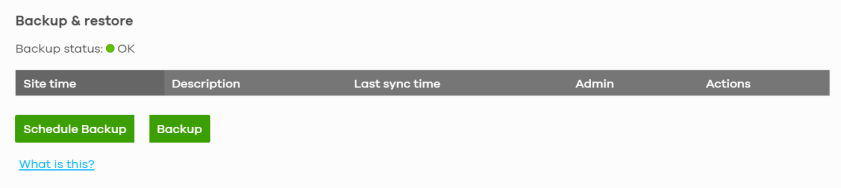
The following table describes the labels in this screen.
Label | Description |
|---|---|
Backup & restore | |
Site time | This shows the date and time of the site, to which the change was applied, when the log was recorded. |
Description | This shows the description of the backup. |
Last sync time | This shows the year-month-date hour:minute:second when NCC checked the Nebula Device, but skip the scheduled backup because there is no configuration change. |
Admin | This shows the name of the administrator who made the back up or Schedule backup. |
Actions | Click the Restore icon to restore a previously saved configuration file from NCC to the Nebula Device. Click the Download icon to download the configuration file to your computer or laptop. Click the Delete icon to remove the configuration file on the Nebula Device. |
Schedule Backup | Select a Monthly, Weekly, or Daily backup of the current configuration of the Nebula Device to the NCC. Then select the Day of the month/week. Otherwise, select Disable. Then click Confirm.  • NCC will skip the scheduled backup when there is no configuration change. • NCC can retain up to 10 backup configurations per Nebula Device in this screen. When the maximum number of backup configuration per Nebula Device is reached, a new backup configuration automatically overwrites an existing backup configuration, starting with the oldest existing backup configuration first. |
Backup | Click this button to create a new backup of the current configuration of the Nebula Device to the NCC. Click the Download icon (  ) to download the configuration file to your computer or laptop. Click the Delete icon ( ) to download the configuration file to your computer or laptop. Click the Delete icon ( ) to remove the configuration file on the Nebula Device. ) to remove the configuration file on the Nebula Device. |