Disable MAC Randomization on WiFi Clients
Many client devices, such as smartphones, tablets, and laptops, enable MAC randomization by default. Instead of using the client device's fixed MAC address, a randomized MAC address is used when connecting to a WiFi network to improve privacy.
If you are using MAC binding, which authenticates client devices by both their MAC address and pre-shared key, disable MAC randomization first so the client device always connects using its fixed MAC address. To disable MAC randomization on your smartphones and laptops, follow the steps below.
Disable MAC Randomization on Smartphones
The following example uses an iPhone running iOS.
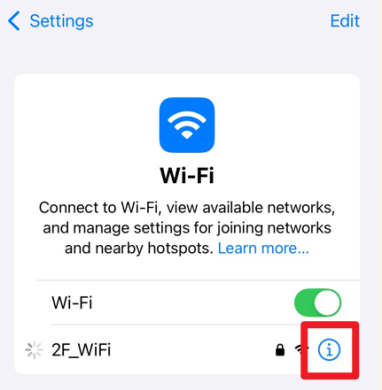
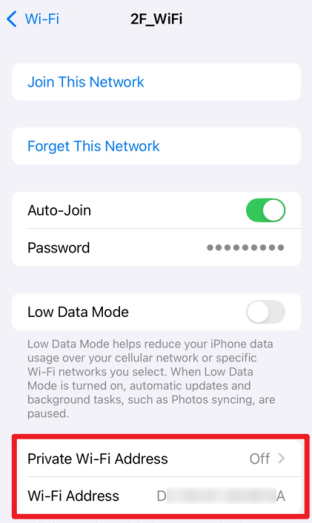
1 Go to Settings > Wi-Fi, tap the information button next to the WiFi network that you want to connect to.
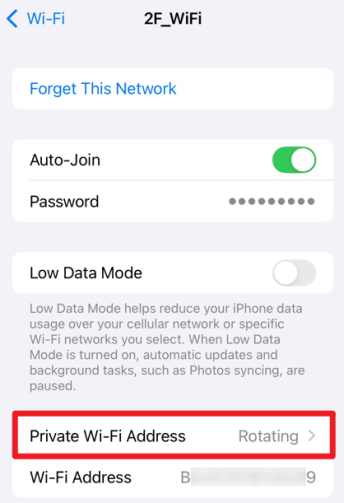
2 Check the Private Wi-Fi Address setting, if it is set to Rotating, the displayed Wi-Fi Address is a randomized MAC address. Tap Private Wi-Fi Address to change its setting.
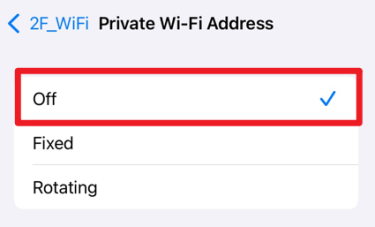
3 Select Off to turn off the MAC randomization.
4 Check the Wi-Fi Address field to see the smartphone's fixed MAC address.
Disable MAC Randomization on Laptops
The following example uses a Windows laptop.
1 Go to Settings > Network & Internet > Wi-Fi.
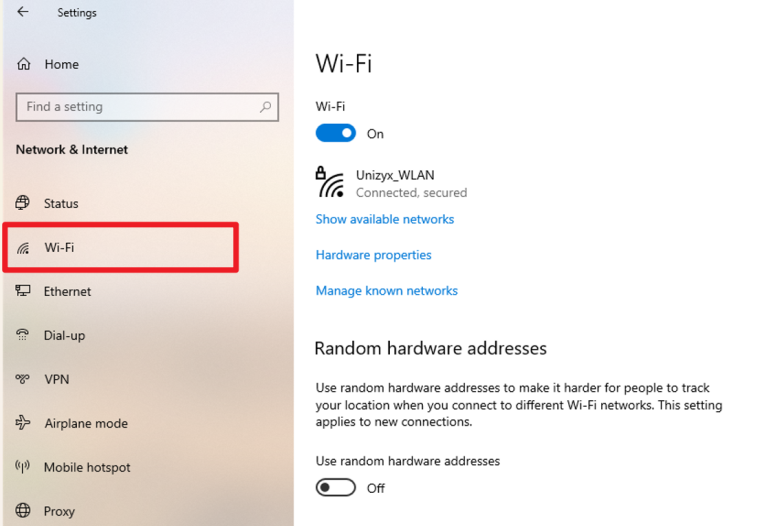
2 Under Random hardware addresses, turn Use random hardware addresses off.
 This setting applies to new WiFi networks that you have not connected to before, it does not affect current WiFi network connection. To change the setting for your current WiFi network, see the next step.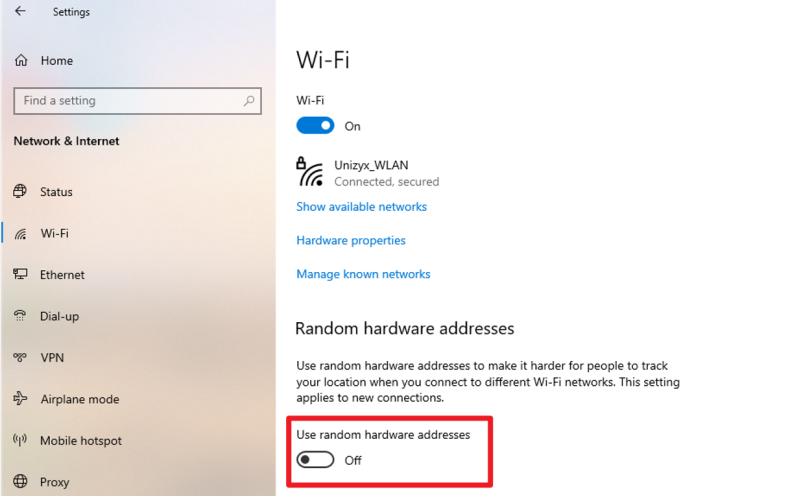
3 If you are currently connected to a WiFi network, click the connected WiFi network SSID, and open its Properties screen.
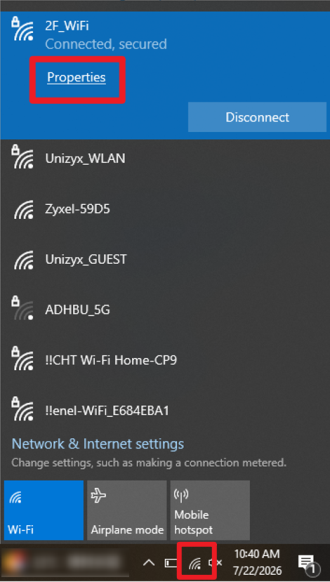
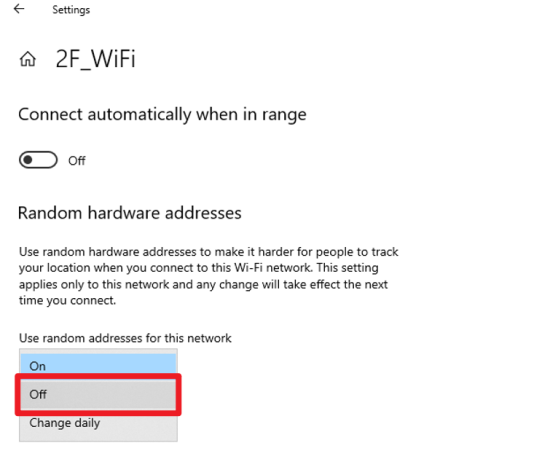
4 Set Use random addresses for this network to Off. Reconnect to this WiFi network for the change to take effect.
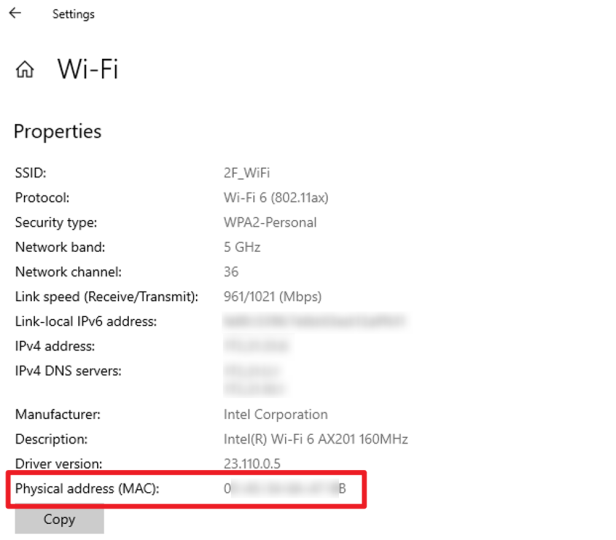
5 Go to Settings > Network & Internet > Wi-Fi and select Hardware properties to view the laptop’s physical MAC address.
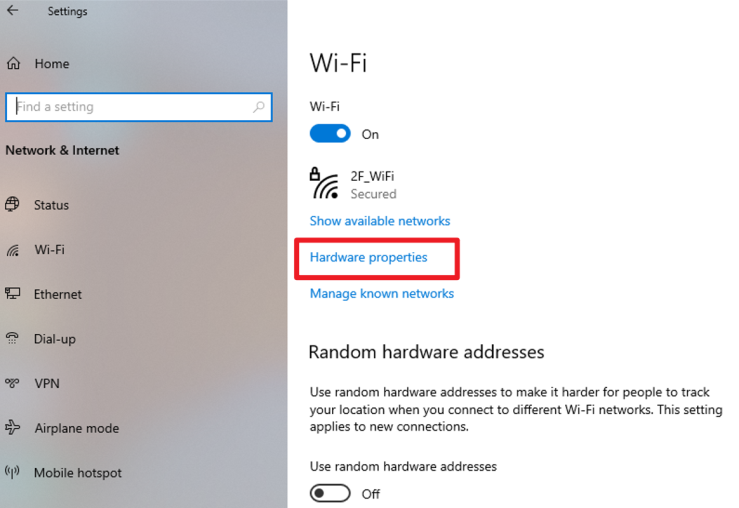
6 Check the Physical address (MAC) field. It will display the fixed MAC address of your laptop. Use this MAC address for the MAC binding.