Accessory
Overview
This chapter discusses the menus that you can use to monitor the Nebula-managed Accessories in your network and configure settings even before an Accessory is deployed and added to the site.
An Accessory can be managed by Nebula. It is referred to as a Nebula Accessory in this chapter.
Configuration
From the navigation panel, click Site-wide > Devices > Accessory and the following screen appears.
Site-wide > Devices > Accessory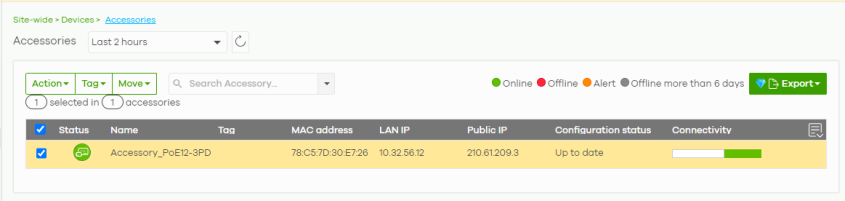
The following table describes the labels in this screen.
Label | Description |
|---|---|
Accessories | Select to view device information and connection status in the past 2 hours, day, week, month. |
 | Click this button to reload the data-related frames on this page. |
Action | Perform an action on the selected Nebula Accessories. |
Reboot | Select this to restart the Nebula Accessory. |
Tag | Select one or multiple Nebula Accessories and click this button to create a new tag for the Nebula Accessories or delete an existing tag. |
Move | Select one or multiple Nebula Accessories and click this button to move the Nebula Accessories to another site or remove the Nebula Accessories from the current site. |
Search | Specify your desired filter criteria to filter the list of Nebula Accessories. |
Accessories | This shows the number of Nebula Accessories connected to the site network. |
Export | Click this button to save the accessories list as a CSV or XML file to your computer. |
* | Click this to select all the rows in this table. |
Status | This shows the status of the Nebula Accessory. • Green: The Nebula Accessory is online and has no alerts. • Amber: The Nebula Accessory has alerts. Hover the mouse over the icon to find the problem. • Red: The Nebula Accessory is offline. • Gray: The Nebula Accessory has been offline for 7 days or more. Click the Nebula Accessory on this page to go to the Nebula Accessory’s details screen for more information. |
Name | This shows the descriptive name of the Nebula Accessory. Click the Edit icon to change the Nebula Accessory name. |
Tag | This shows the user-specified tag for the Nebula Accessory. |
MAC address | This shows the MAC address of the Nebula Accessory. |
LAN IP | This shows the local (LAN) IP address of the Nebula Accessory. |
Public IP | This shows the global (WAN) IP address of the Nebula Accessory. |
Model | This shows the model number of the Nebula Accessory. |
Configuration status | This shows whether the configuration on the Nebula Accessory is up-to-date. |
Product information | This shows the production information of the Nebula Accessory. |
Connectivity | This shows the accessory connection status. The red time slot indicates the connection to the NCC is down, and the green time slot indicates the connection is up. Move the cursor over a time slot to see the actual date and time when an Nebula Accessory is connected or disconnected. |
Serial number | This shows the serial number of the Nebula Accessory. |
Firmware status | This shows whether the firmware installed on the Nebula Accessory is up-to-date. |
Firmware type | This shows Stable when the installed firmware may not have the latest features but has passed Zyxel internal and external testing. This shows Latest when the installed firmware is the most recent release with the latest features, improvements, and bug fixes. This shows General Availability when the installed firmware is a release before Latest, but is newer than stable and is still undergoing Zyxel external testing. This shows Dedicated when the installed firmware is locked and Zyxel support is monitoring. Contact Zyxel customer support if you want to unlock the firmware in order to upgrade to a later one. This shows Beta when the installed firmware is a release version for testing the latest features and is still undergoing Zyxel internal and external testing. This shows N/A when the Nebula Accessory is offline and its firmware status is not available. |
Firmware availability | This shows whether the firmware on the Nebula Accessory is Up to date, there is firmware update available for the Nebula Accessory (Upgrade available), or a specific version of firmware has been installed by Zyxel customer support (Locked). |
Current version | This shows the firmware version currently installed on the Nebula Accessory. |
IP type | This shows whether the IP address was assigned automatically (DHCP), or manually (Static IP). |
 | Click this icon to display a greater or lesser number of configuration fields. For faster loading of data, select only the configuration fields listed that do NOT take a long time to fetch data. |
Accessory Details
Click a Nebula Accessory entry in the Site-wide > Devices > Accessory screen to display individual Nebula Accessory statistics.
Site-wide > Devices > Accessory: Details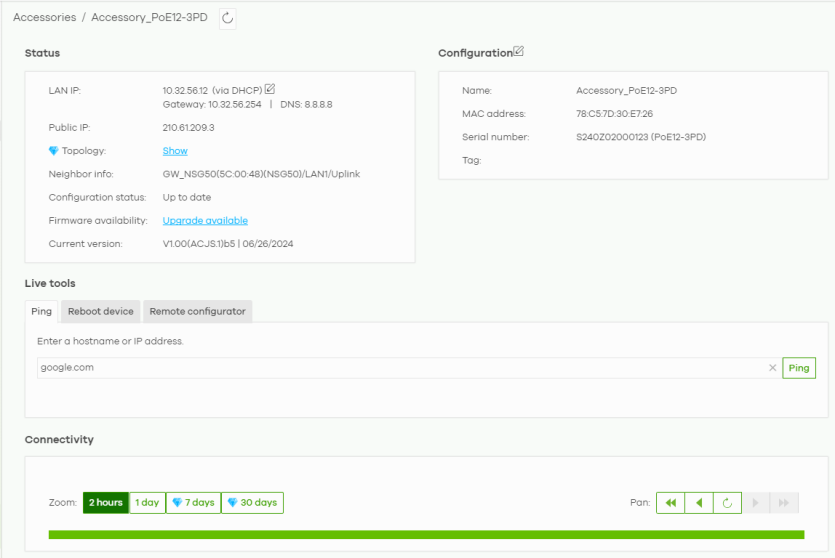
The following table describes the labels in this screen.
Label | Description |
|---|---|
 | Click this button to reload the data-related frames on this page. |
Status | |
LAN IP | This shows the local (LAN) IP address of the Nebula Accessory. It also shows the IP addresses of the gateway and DNS server. Click the edit icon to open a screen where you can change the IP addresses, VLAN ID number and tagging setting. 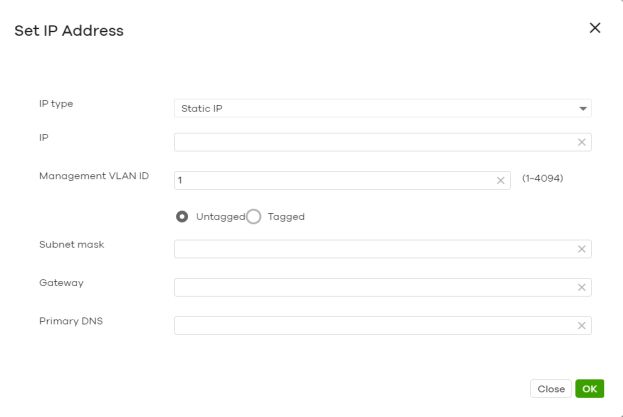  To prevent an IP address conflict, NCC will prevent input of an IP address already used by another Nebula Accessory in the same site. |
Public IP | This shows the global (WAN) IP address of the Nebula Accessory. |
Topology | Click Show to go to the Site-wide > Topology screen. |
Neighbor info | This shows the LLDP information received on the up-link port. |
Configuration status | This shows whether the configuration on the Nebula Accessory is up-to-date. |
Firmware availability | This shows whether the firmware on the Nebula Accessory is up-to-date or there is firmware update available for the Nebula Accessory. |
Current version | This shows the firmware version currently installed on the Nebula Accessory. |
Configuration Click the edit configuration icon to change the Nebula Accessory name and tags. You can also move the Nebula Accessory to another site or remove. By default, the Nebula Accessory’s hostname is the MAC address. Enter a Name to identify the Nebula Accessory. You can use up to 64 alphanumeric characters including period (.) and hyphen (-). Spaces are not allowed. The period (.) and hyphen (-) cannot be the first character, last character, or appear consecutively on the Name. For example, -wax650, wax650-, wax650..wax650, wax650.-wax650. | |
Name | This shows the descriptive name of the Nebula Accessory. |
MAC address | This shows the MAC address of the Nebula Accessory. |
Serial number | This shows the serial number of the Nebula Accessory. |
Change site | Select the new site from the drop-down menu or click Remove to remove the Nebula Accessory from the site. |
Tags | This shows the user-specified tag for the Nebula Accessory. |
Live tools | |
Ping | Enter the domain name or IP address of a computer that you want to perform ping from the Nebula Accessory in order to test a connection and click Ping. This can be used to determine if the Nebula Accessory and the computer are able to communicate with each other. |
Reboot device | Click the Reboot button to restart the Nebula Accessory. All connected clients will be temporarily disconnected during reboot. |
Remote configurator | This allows you to establish a remote connection to this Nebula Accessory by specifying the IP address and port number. Then click Establish. This feature is available to the organization owner, organization administrators with full privileges, and site administrators with full privileges. |
Connectivity Move the cursor over the chart to see the transmission rate at a specific time. | |
Zoom | Select to view the statistics in the past 2 hours, day, week, or month. |
Pan | Click to move backward or forward by one day or week. |