Broadband Routers
Overview
This chapter discusses the menus that you can use to monitor the Nebula-managed Broadband Routers in your network and configure settings even before a Broadband Router is deployed and added to the site.
A Nebula Broadband Router is an LTE, NR or FWA cellular 5G indoor or outdoor router that can be managed by Nebula. It is referred to as a Nebula Broadband Router in this chapter.
Configuration
From the navigation panel, click Site-wide > Devices > Broadband router and the following screen appears. The Configuration screen allows you to view the information of your indoor or outdoor Nebula Broadband Router in a selected site. To edit the Name, MAC address, Serial number, Description, Address, and Tags of your Nebula Broadband Router, click the edit icon ( ) in the Configuration field.
 Only one Broadband Router is allowed per site.
Site-wide > Devices > Broadband router > Configuration (Indoor)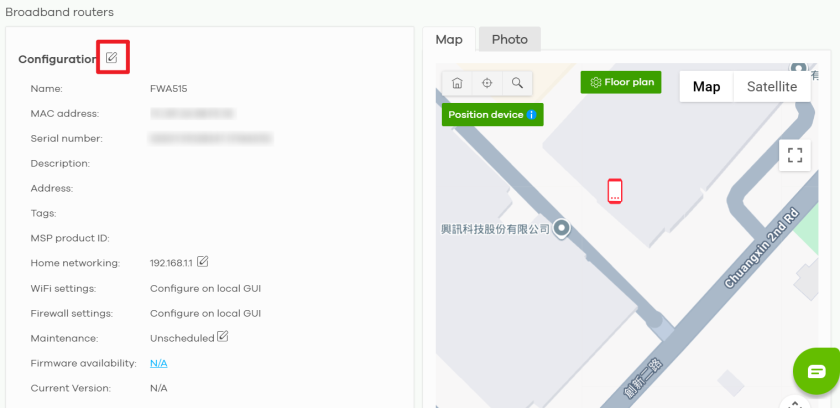
Site-wide > Devices > Broadband router > Configuration (Outdoor)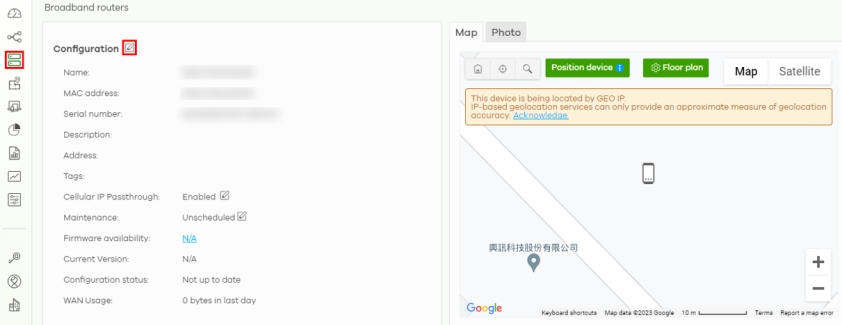
Configuration: Edit
The following screen displays after you click the edit icon. Use the Site-wide > Devices > Broadband router > Configuration: Edit screen to configure your indoor and outdoor Nebula Broadband Router information. You can also move the Nebula Broadband Router to another site.
Site-wide > Devices > Broadband router > Configuration: Edit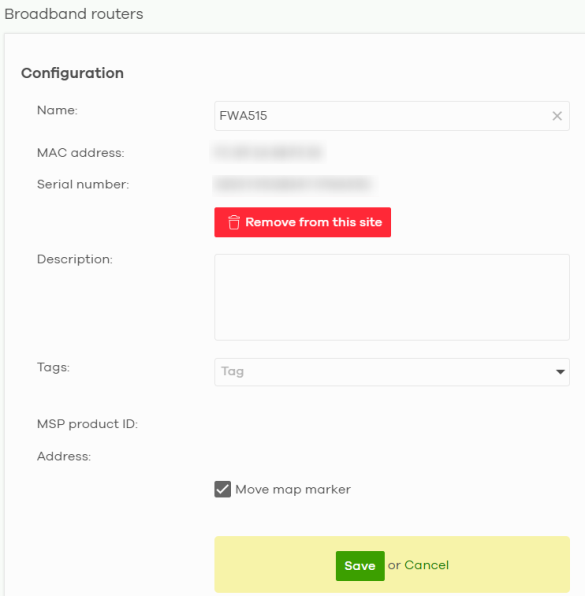
The following table describes the labels in this screen.
Label | Description |
|---|---|
Configuration | |
Name | Enter a descriptive name for the Nebula Broadband Router. |
MAC address | This shows the MAC address of the Nebula Broadband Router. |
Serial number | This shows the serial number of the Nebula Broadband Router. |
Description | Enter a user-specified description for the Nebula Broadband Router. |
Tags | Enter a user-specified tag for the Nebula Broadband Router. |
Address | Enter a user-specified address for the Nebula Broadband Router. |
Save | Click Save to save your changes. |
Cancel | Click Cancel to exit this screen without saving. |
Home Networking
To configure the Home networking setting, click the edit icon ( ) in the Home networking field.
Site-wide > Devices > Broadband router > Configuration: Home networking (Indoor)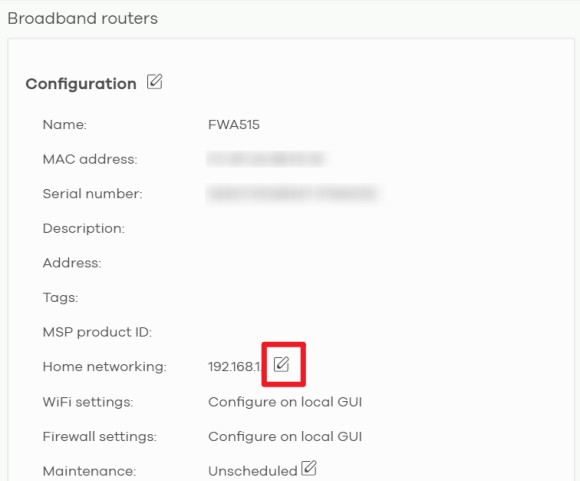
The following Site-wide > Devices > Broadband router > Configuration > Home networking: Edit screen displays. Use this screen to configure the LAN IP address and DHCP server settings of your indoor Nebula Broadband Router.
Site-wide > Devices > Broadband router > Configuration > Home networking: Edit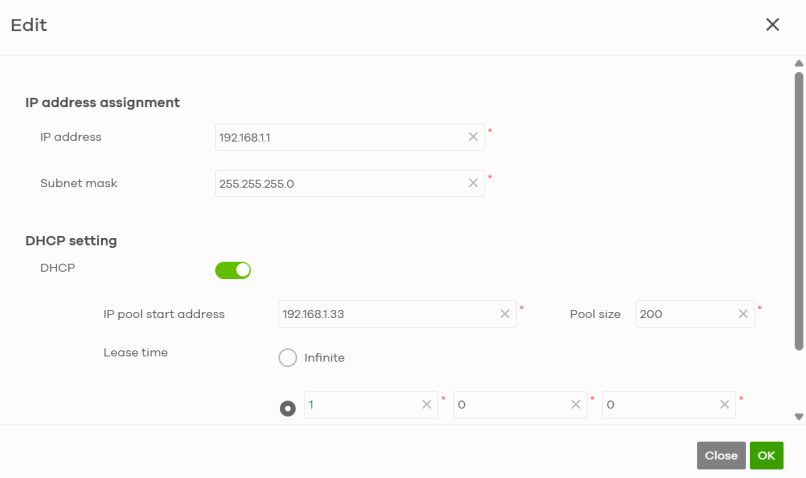
The following table describes the labels in this screen.
Label | Description |
|---|---|
IP address assignment | |
IP address | Enter the IP address for this interface. To prevent an IP address conflict, NCC will prevent input of an IP address already used by another Nebula Broadband Router in the same site. |
Subnet mask | Enter the subnet mask of this interface in dot decimal notation. The subnet mask indicates what part of the IP address is the same for all computers in the network. |
DHCP setting | |
DHCP Server | Select this to disable or enable the DHCP server. |
IP pool start address | Enter the IP address from which the Nebula Broadband Router begins allocating IP addresses. |
Pool size | Enter the number of IP addresses to allocate. This number must be at least one and is limited by the interface’s Subnet mask. For example, if the Subnet mask is 255.255.255.0 and IP pool start address is 10.10.10.10, the security gateway can allocate 10.10.10.10 to 10.10.10.254, or 245 IP addresses. |
Lease time | Specify how long each computer can use the information (especially the IP address) before it has to request the information again. Choices are: Infinite – select this if IP addresses never expire; days, hours, minutes – select this to enter how long IP addresses are valid. |
Close | Click Close to exit this screen without saving. |
OK | Click OK to save your changes. |
Cellular IP Passthrough
To configure the cellular IP passthrough setting, click the edit icon ( ) in the Cellular IP Passthrough field. IP passthrough allows a LAN computer on the local network of the Nebula Broadband Router to have access to web services using a public IPv4 address. When IP passthrough is configured, all traffic is forwarded to the LAN computer and will not go through NAT.
Site-wide > Devices > Broadband router > Configuration: Cellular IP Passthrough (Outdoor)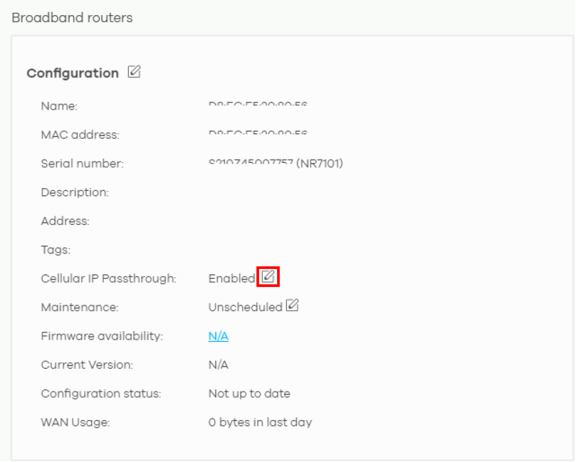
The following Site-wide > Devices > Broadband router > Configuration > Cellular IP Passthrough: Edit screen displays. Use this screen to disable or enable IP passthrough on your outdoor Nebula Broadband Router. Slide the switch to the right to enable IP passthrough.
Site-wide > Devices > Broadband router > Configuration > Cellular IP Passthrough: Edit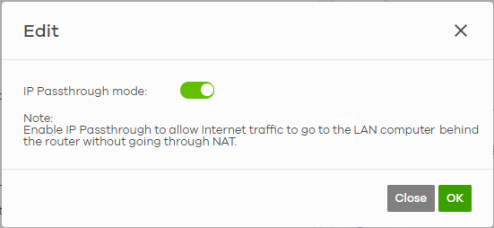
The following table describes the labels in this screen.
Label | Description |
|---|---|
IP Passthrough mode | This displays if IP passthrough is enabled on the Nebula Broadband Router. |
Close | Click Close to exit this screen without saving. |
OK | Click OK to save your changes. |
Firmware Status
Go back to the Site-wide > Devices > Broadband router > Configuration screen to view the firmware version and WAN/LAN/WLAN usage of your indoor or outdoor Nebula Broadband Router.
LAN Usage, 2.4G WLAN Usage and 5G WLAN Usage are only available for indoor Nebula Broadband Routers.Site-wide > Devices > Broadband router > Configuration > Firmware status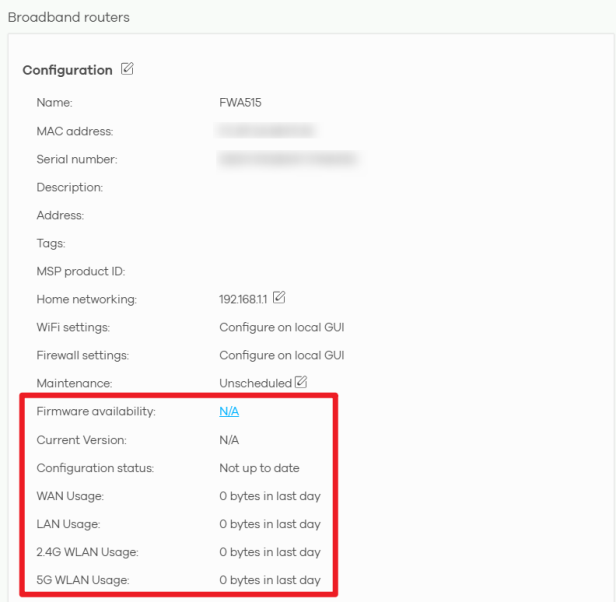
The following table describes the labels in this screen.
Label | Description |
|---|---|
WiFi settings | Configure the Nebula Broadband Router’s WiFi settings using its Web Configurator. Refer to the Nebula Broadband Router’s User’s Guide for more information. This field is NOT configurable. |
Firewall settings | Configure the Nebula Broadband Router’s firewall settings using its Web Configurator. Refer to the Nebula Broadband Router’s User’s Guide for more information. This field is NOT configurable. |
Maintenance | This shows whether automatic reboot is scheduled on the Nebula Broadband Router. |
Edit | Click the Enable the schedule switch to the right to have the Nebula Broadband Router restart at a specific time on selected days of the week. By scheduling a reboot, you can have the Nebula Broadband Router refresh the network connections at a specified time, allowing automatic reconnection with WiFi clients in case of a connection failure. Select the day(s) of the week to have the automatic restart. Specify the time of the day (in 24-hour format) to have the Nebula Broadband Router automatically restart. For example, 23:00 is 11:00 PM. 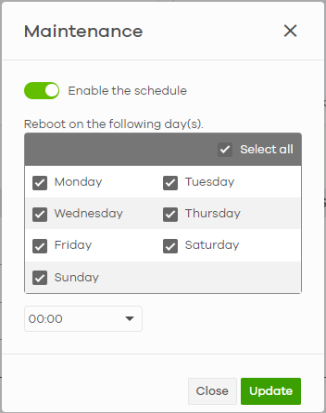 |
Firmware availability | The NCC automatically detects whether the firmware is up-to-date or not. Click the value in the Firmware availability field to go to the Site-wide > Configure > Firmware management screen and configure your Firmware management settings. |
Current Version | This shows the firmware version currently installed on the Nebula Broadband Router. |
Configuration status | This shows whether the configuration on the Nebula Broadband Router is up-to-date. |
WAN Usage | This shows the total amount of data consumed by the Nebula Broadband Router on the WAN (uplink/downlink) in the past 24 hours. |
LAN Usage (indoor NCCs only) | This shows the total amount of data consumed by the Nebula Broadband Router on the LAN (upllink/downlink) in the past 24 hours. |
2.4G WLAN Usage (indoor NCCs only) | This shows the total amount of data consumed by the Nebula Broadband Router on the 2.4G WiFi network (uplink/downlink) in the past 24 hours. |
5G WLAN Usage (indoor NCCs only) | This shows the total amount of data consumed by the Nebula Broadband Router on the 5G WiFi network (uplink/downlink) in the past 24 hours. |