Deploy With Nebula Native Mode (for Nebula Firewalls in NCC only)
Nebula native mode means the Nebula Firewall has a certificate (ZTP (Zero Touch Provision) or factory) to connect with NCC.
 Make sure the Nebula Firewall can connect to NCC through the Internet by using any of the following methods:
– DHCP WAN, or
– configure WAN through the Nebula Firewall’s Web Configurator.
– configure WAN through the Nebula Firewall’s Web Configurator.
If you are adding a ZyWALL USG FLEX / ATP / USG20(W)-VPN Series Nebula Firewall (NF) with v5.10 and later firmware to a site, or if your NF has run ZTP before, do the following to deploy the NF using Nebula native mode:
• Reset the NF to factory-default settings
• Select the Nebula management mode.
Reset the NF to Factory-Default Settings
You only need to do this if you have configured the NF before.Press the RESET button on the NF panel (see the NF user’s guide for more information).
Apply the factory-default settings on the NF before switching to cloud mode. Only the following two settings can be changed after resetting:• Default administrator account password
• WAN settings
Select the Nebula Management Mode
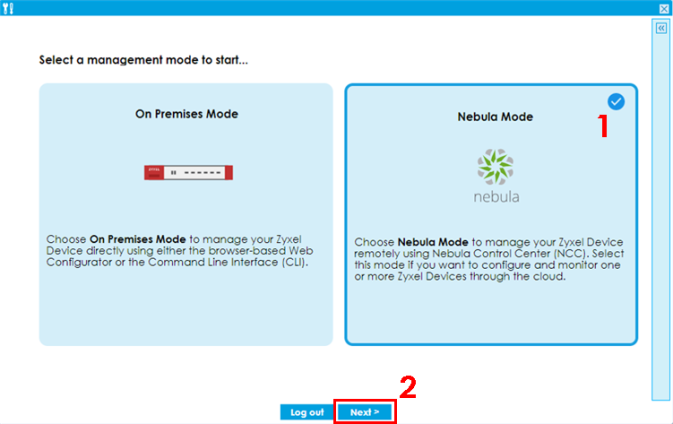
1 Log in to the NF Web Configurator (see the NF user’s guide for more information). When you log in to the Web Configurator, the Initial Setup Wizard screen displays.
2 Select Nebula Mode and click Next.
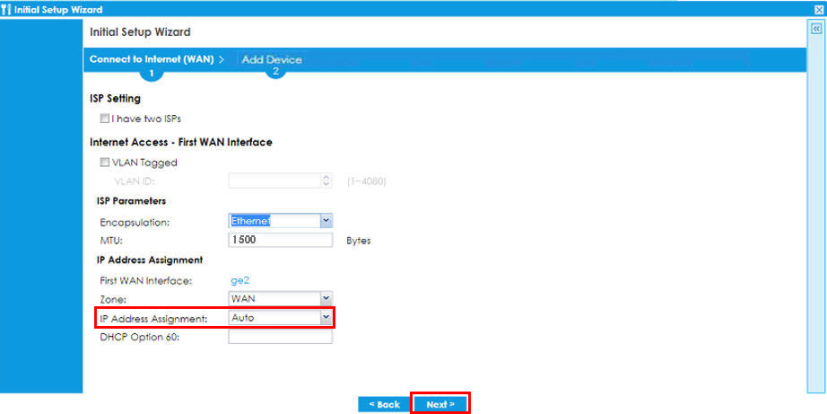
3 Configure the WAN settings and click Next.
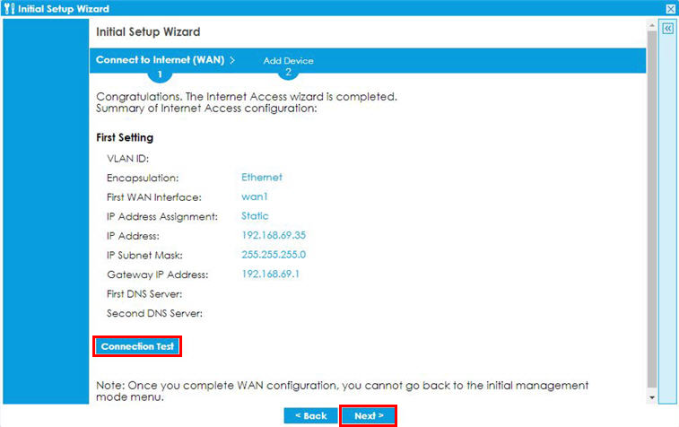
4 Click Connection Test to check that you can access the Internet and then click Next.
5 Click Go to Nebula.
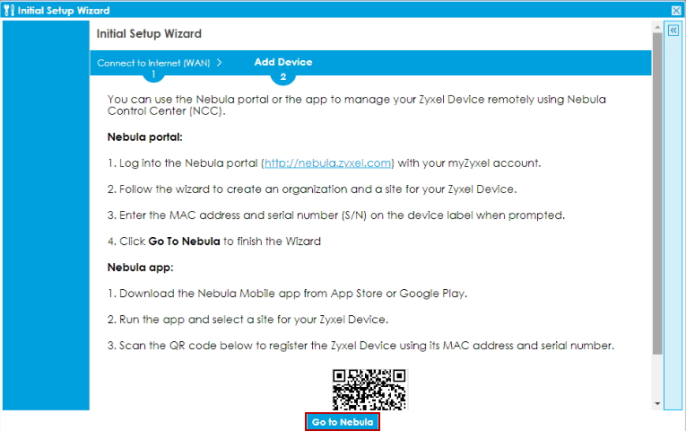
NCC Configuration
1 You will be redirected to the NCC portal. Click Get Started.
2 Use the Setup Wizard to create an organization and a site, and add the Nebula Firewall. See Setup Wizard for more information on using the wizard.
Make sure to select Nebula native mode as the Deployment Method in the Setup Wizard.Nebula Firewalls with ZLD5.37 Patch 1 or newer firmware do not support the Zero Touch Provision mode (see Step 8: Set up the Deployment Method for more information on the ZTP deployment method).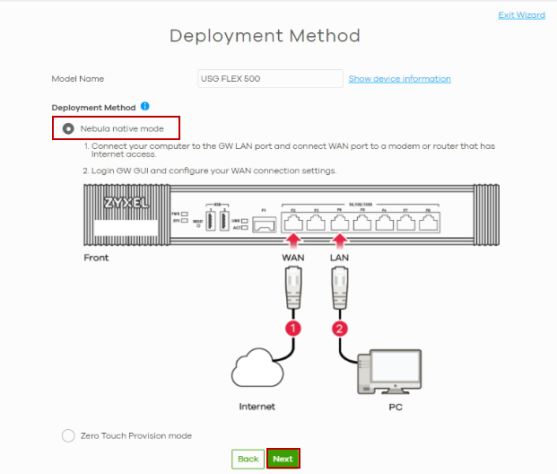
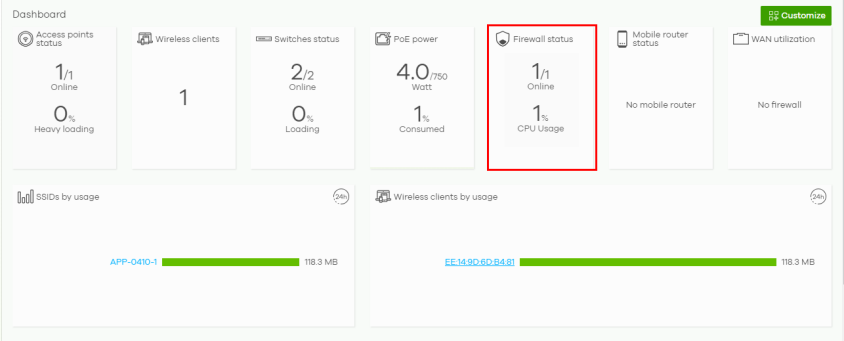
3 After configuring the Setup Wizard, close the NCC welcome message to go to the NCC portal dashboard. 1/1 Online will show on Firewall Status. This means that one NF is registered in NCC and is online.