Diagnostic
Diagnostic Overview
The Diagnostic screen displays information to help you identify Internet connection problems with the Zyxel Device.
What You Can Do in this Chapter
Diagnostic
Use this screen to ping, traceroute or nslookup for troubleshooting. Ping and traceroute are used to test whether a particular host is reachable. After entering an IP address and clicking one of the buttons to start a test, the results will be shown in the screen. Use nslookup to find the IP address for a host name and the host name for an IP address. Use TR-471 test to perform an Internet connection quality test through a TR-471 test server for applications such as live streaming, online games and VoIP.
Click Maintenance > Diagnostic to open the following screen.
Maintenance > Diagnostic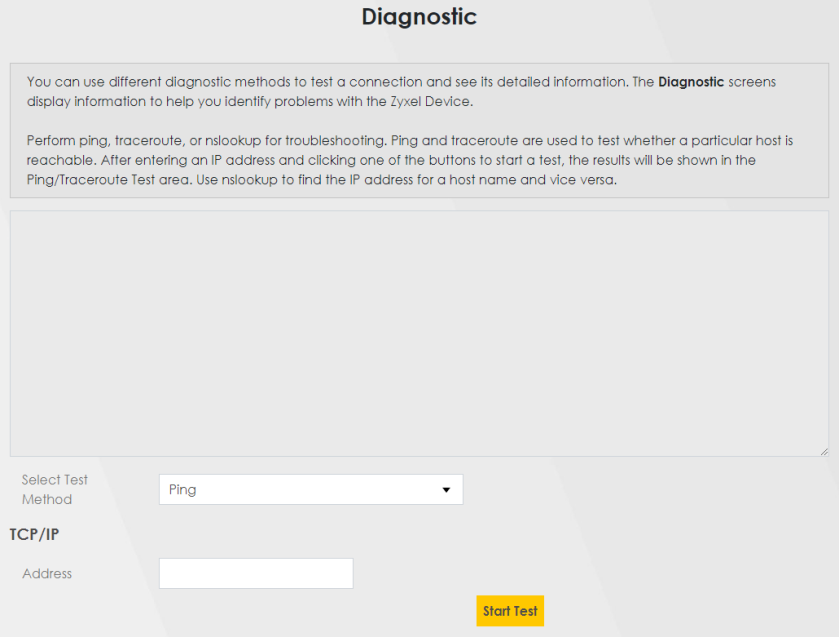
The following table describes the fields in this screen.
Label | Description |
|---|---|
Ping/TraceRoute Test | The result of tests is shown here in the info area. |
Select Test Method | |
Ping | Select this to perform a ping test on the IPv4 address or host name in order to test a connection. The ping statistics will show in the info area. |
Ping 6 | Select this to perform a ping test on the IPv6 address or host name in order to test a connection. The ping statistics will show in the info area. |
Trace Route | Select this to perform the IPv4 trace route function. This determines the path a packet takes to the specified host. |
Trace Route 6 | Select this to perform the IPv6 trace route function. This determines the path a packet takes to the specified host. |
Nslookup | Select this to perform a DNS lookup on the IP address or host name. |
TCP/IP | |
Address | Enter the IP address of a computer that you want to perform ping, trace route or nslookup in order to test a connection. |