Firmware Upgrade
Firmware Upgrade Overview
This chapter explains how to upload new firmware to your Zyxel Device if you get new firmware releases from your service provider.
Firmware Upgrade
This screen lets you upload new firmware to your Zyxel Device.
Get the latest firmware from your service provider. Then upload the firmware file to your Zyxel Device. The upload process uses HTTP (Hypertext Transfer Protocol). The upload may take up to 3 minutes. After a successful upload, the Zyxel Device will reboot.
Click Maintenance > Firmware Upgrade to open the following screen.
Do NOT turn off the Zyxel Device while firmware upload is in progress!
Maintenance > Firmware Upgrade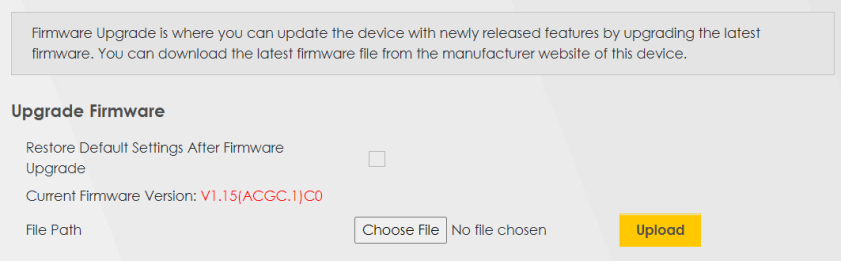
The following table describes the labels in this screen.
LABEL | DESCRIPTION |
|---|---|
Upgrade Firmware | |
Restore Default Settings After Firmware Upgrade | Select this to reset all your configurations, including Mesh Wi-Fi settings, to the factory defaults after firmware upgrade. Otherwise, make sure this is cleared if you do not want the Zyxel Device to lose all its current configurations and return to the factory defaults.  Make sure to back up the Zyxel Device’s configuration settings first in case the reset all settings process is not successful. Make sure to back up the Zyxel Device’s configuration settings first in case the reset all settings process is not successful. |
File Path | Enter the location of the file you want to upload in this field or click Choose File/Browse to find it. |
Choose File/Browse | Click this to find the .bin file you want to upload. Remember that you must decompress compressed (.zip) files before you can upload them. |
Upload | Click this to begin the upload process. This process may take up to 3 minutes. Only use firmware for your Zyxel Device’s specific model. Refer to the label on the bottom of your Zyxel Device. For example, if the Zyxel Device’s current firmware version is V5.70(ACDZ.0)B4, you must upload the firmware file containing "ACDZ". |
After you see the firmware updating screen, wait a few minutes before logging into the Zyxel Device again.
Firmware Uploading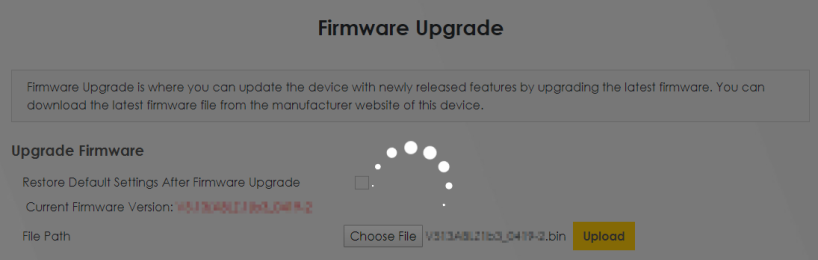
The Zyxel Device automatically restarts in this time, causing a temporary network disconnect. In some operating systems, you may see the following icon on your desktop.
Network Temporarily Disconnected
After 2 minutes, log in again and check your new firmware version in the Connection Status screen.
If the upload was not successful, an error screen will appear. Click OK to go back to the Firmware Upgrade screen.
Error Message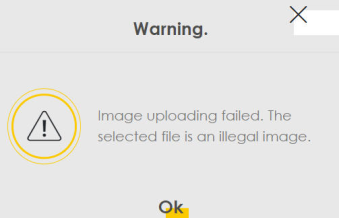
Module Upgrade
This screen lets you upload new firmware specific to the built-in LTE module in order to improve the LTE module’s reliability and performance. The upload process uses HTTP (Hypertext Transfer Protocol) and may take more than 3 minutes. After a successful upload, the Zyxel Device will reboot.
Click Maintenance > Firmware Upgrade > Module Upgrade to open the following screen.
Maintenance > Firmware Upgrade > Module Upgrade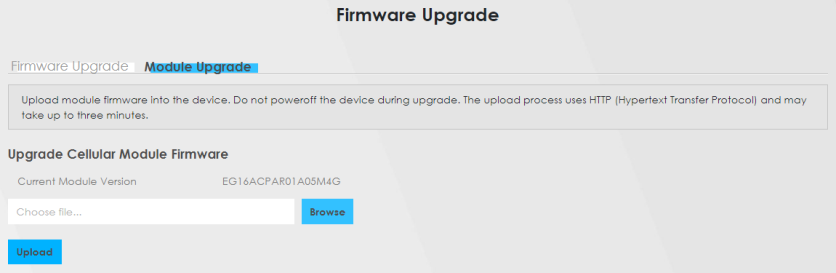
The following table describes the labels in this screen.
LABEL | DESCRIPTION |
|---|---|
Upgrade Cellular Module Firmware | |
Current Module Version | This is the current module firmware version. |
Choose file... | Enter the location of the file you want to upload in this field or click Choose File/Browse to find it. |
Choose File/Browse | Click this to find the .bin file you want to upload. Remember that you must decompress compressed (.zip) files before you can upload them. |
Upload | Click this to begin the upload process. This process may take more than 3 minutes. |
After you see the module updating screen, wait about 20 minutes before logging into the Zyxel Device again.
The Zyxel Device automatically restarts in this time causing a temporary network disconnect. In some operating systems, you may see the following icon on your desktop.
Network Temporarily Disconnected
After two minutes, log in again and check your new firmware version in the Status screen.
If the upload was not successful, an error screen will appear. Click OK to go back to the Module Upgrade screen.