Time Settings
Time Settings Overview
This chapter shows you how to configure system related settings, such as system date and time.
Time
For effective scheduling and logging, the Zyxel Device system time must be accurate. Use this screen to configure the Zyxel Device’s time based on your local time zone. You can enter a time server address, select the time zone where the Zyxel Device is physically located, and configure Daylight Savings settings if needed.
To change your Zyxel Device’s time and date, click Maintenance > Time. The screen appears as shown.
Maintenance > Time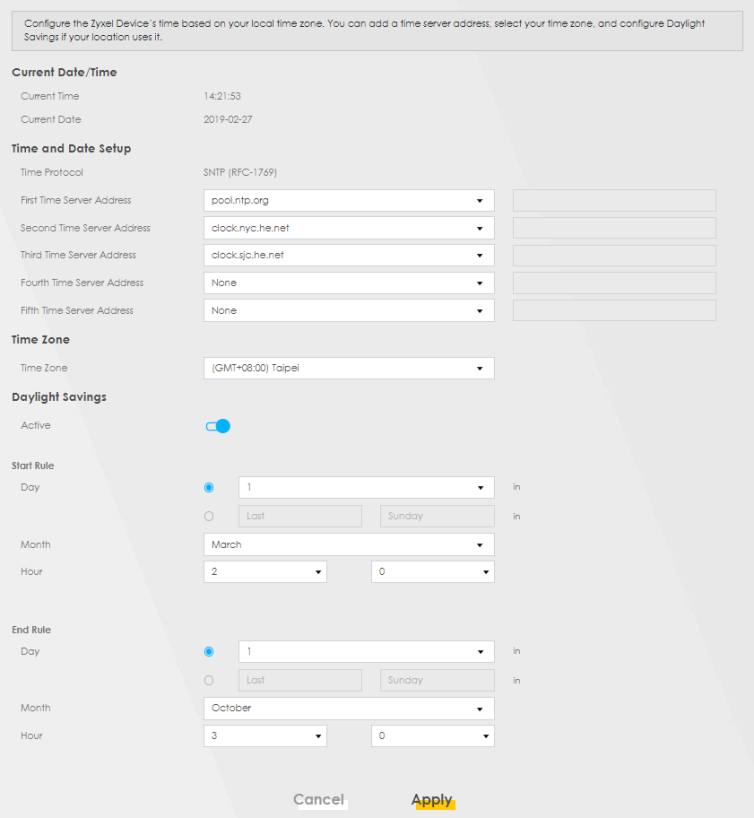
The following table describes the fields in this screen.
LABEL | Description |
|---|---|
Current Date/Time | |
Current Time | This displays the time of your Zyxel Device. Each time you reload this screen, the Zyxel Device synchronizes the time with the time server. |
Current Date | This displays the date of your Zyxel Device. Each time you reload this screen, the Zyxel Device synchronizes the date with the time server. |
Time and Date Setup | |
Time Protocol | This displays the time protocol used by your Zyxel Device. |
First – Fifth Time Server Address | Select an NTP time server from the drop-down list box for the first to fifth time servers. Otherwise, select Other and enter the IP address or URL (up to 29 printable characters in length) of your time server. Select None if you do not want to configure the time server. Check with your ISP/network administrator if you are unsure of this information. The Zyxel Device uses the time servers as shown in the web configurator by default. |
Time Zone | |
Time zone | Choose the time zone of your location. This will set the time difference between your time zone and Greenwich Mean Time (GMT). |
Cancel | Click Cancel to exit this screen without saving. |
Apply | Click Apply to save your changes. |