Quick Start
Quick Start Overview
Use the Wizard screens to configure the Zyxel Device’s time zone and Wi-Fi settings.
 See the technical reference chapters for background information on the features in this chapter.
Quick Start Setup
You can click the Wizard icon in the side bar to open the Wizard screens. After you click the Wizard icon, the following screen appears. Click Let’s go to proceed with settings on time zone and Wi-Fi networks. It will take you a few minutes to complete the settings on the Wizard screens. You can click Skip to leave the Wizard screens.
Wizard – Home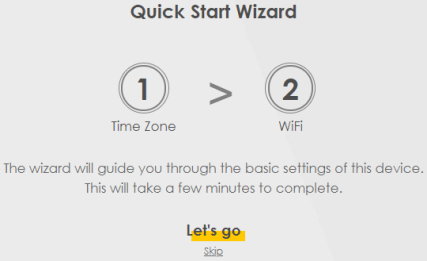
Quick Start Setup – Time Zone
Select the time zone of the Zyxel Device’s location. Click Next.
Wizard – Time Zone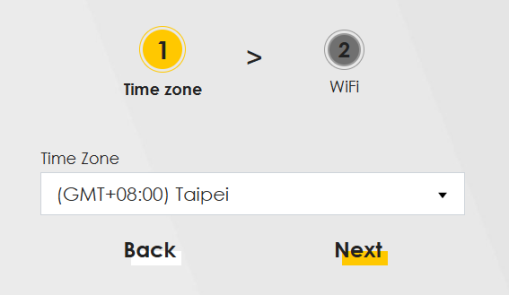
Quick Start Setup – WiFi
Turn Wi-Fi on or off. If you keep it on, record the WiFi Name and WiFi Password in this screen so you can configure your Wi-Fi clients to connect to the Zyxel Device. If you want to show or hide your Wi-Fi password, click the Eye icon ( ).
).
).Select Keep 2.4GHz and 5GHz the same to use the same SSID for 2.4 GHz and 5 GHz Wi-Fi networks. Otherwise, clear the checkbox to have two different SSIDs for 2.4 GHz and 5 GHz Wi-Fi networks. The screen and fields to enter may vary when you select or clear the checkbox.
Wizard – Wi-Fi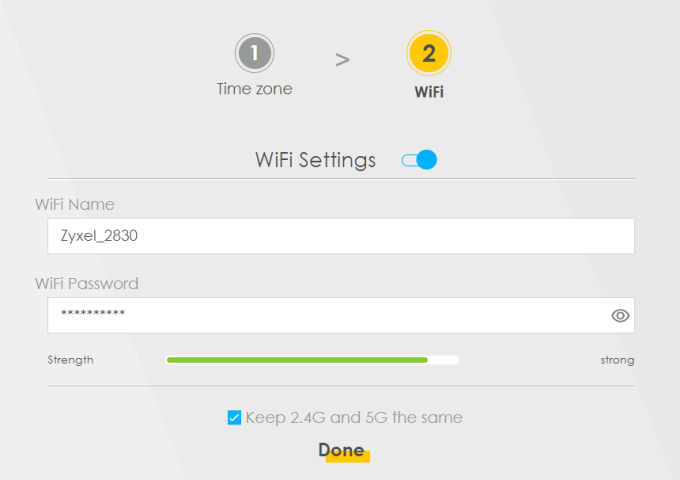
Only the Nebula LTE3301-PLUS supports the Country feature.You can also enable the wireless service using any of the following methods:Click Network Setting > Wireless to open the General screen. Then select Enable in the Wi-Fi field. Or, press the Wi-Fi ON/OFF button for more than 5 seconds.
Quick Start Setup – Finish
Your Zyxel Device saves and applies your settings.