Alert Settings
Configure alert settings, such as recipients, email subject, event severity levels to email, and event triggering thresholds.
If your do not use Nebula to manage your Zyxel Devices, follow the instructions in this section to configure alert settings in SecuReporter. Go to History > Alert > Alert Settings.
If you use Nebula to manage your Zyxel Devices, the following screen appears. Click the button to configure alert settings in Nebula. In Nebula, go to Site-wide > Configure > Alert Settings > Security alerts and MSP > MSP cross-org manage > Alert templates. See Nebula User’s Guide for more information. 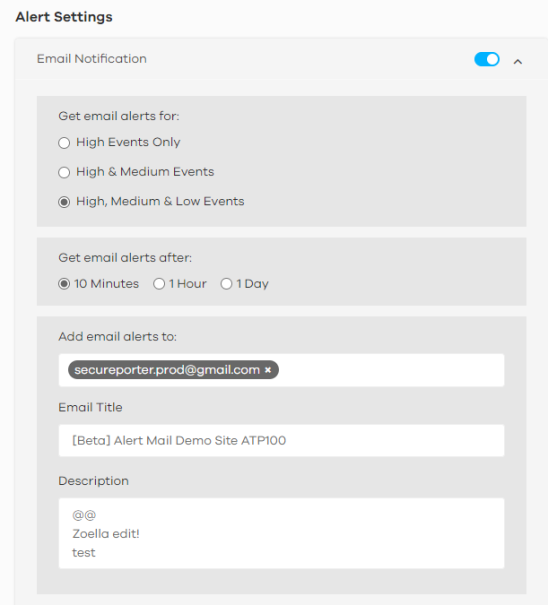
Email Notification
Use this screen to configure rules and templates for email alert notifications.
History > Alert > Alert Settings > Email Notification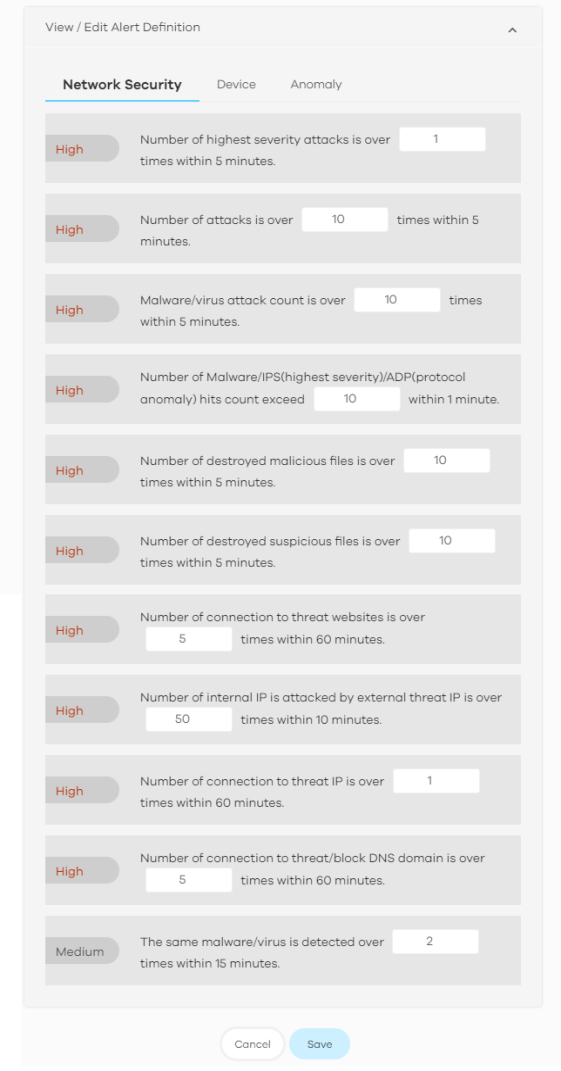
The following table describes the labels in this screen.
Label | DESCRIPTION |
|---|---|
Email Notification | Off means no alerts are emailed to any recipients. Select On (slide switch to the right) to have alerts emailed to the selected recipients. |
Get email alerts for | Select the severity levels of the security events for which you wish to send out email notifications. • High Events Only – Events that are exceptionally harmful, such as attacks by viruses or a high frequency of attacks. • High & Medium Events – Events that are exceptionally harmful, and events that usually have no adverse effect on a network or a low frequency of attacks. • High, Medium & Low Events – Events that are exceptionally harmful, events that usually have no adverse effect on a network, and events that could collect users’ personal information or adversely affect the network or a medium frequency of attacks. |
Get email alert after | Select 10 Minutes, 1 Hour, or 1 Day to choose how often you want to receive alert notifications. |
Add email alerts to | This is where you can add users to the mailing list for event notifications. To add a user, click the field window to select one or more names from the box. |
Email Title | Type an email subject here. |
Description | Type a description of the emails to be sent here. For example, maybe these emails are just for high severity events. |
View / Edit Alert Definition
Use this screen to configure the criteria for email alert notifications. Multiple types of alerts are available under the following categories: Network Security, Device, and Anomaly.
Network Security
Use this screen to configure the threshold that triggers alerts for different types of network security attacks.
History > Alert > Alert Settings > View/Edit Alert Definition > Network Security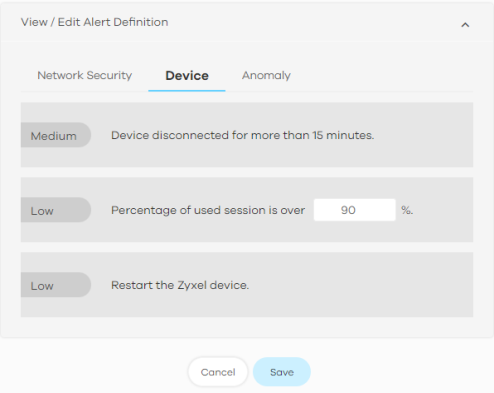
The following table describes the labels in this screen.
Label | DESCRIPTION |
|---|---|
View/Edit Alert Definition | |
Network Security | This table shows a list of recent network security events. |
(set the threshold) | The threshold is the number that triggers an alert. If the threshold is adjustable, a blank field will appear. Set the threshold for the alert by entering the numeric value or by pressing the up- and down- arrows. Adjustable values vary and include frequency, rate of occurrence, and the time period. |
Device
Use this screen to view the rules and configure the thresholds that trigger alerts based on Zyxel Device behavior.
History > Alert > Alert Settings > View/Edit Alert Definition > Device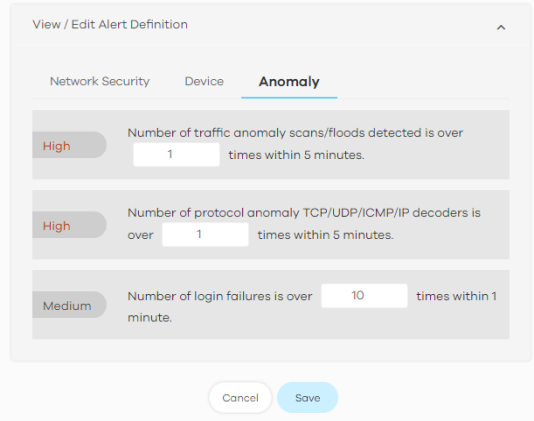
The following table describes the labels in this screen.
Label | DESCRIPTION |
|---|---|
View/Edit Alert Definition | |
Percentage of used session is over % | The Zyxel Device has a limit on the number of concurrent active connections allowed. You can set a percentage threshold of this limit, and an alert will be sent if the number of connections exceeds this threshold. |
Anomaly
Use this screen to configure the rules that trigger alerts for potential anomalies.
Unusual Device Admin Login
A login is considered unusual when:
• Unusual location (Geo-IP): Login from a public IP address in a country not recorded in the last 30 days.
• Unusual device: Login from a private IP address with a device hostname not recorded in the last 30 days.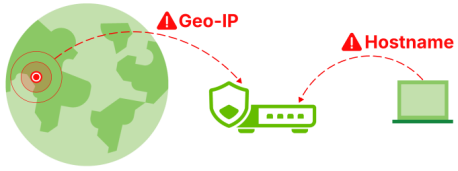
History > Alert > Alert Settings > View/Edit Alert Definition > Anomaly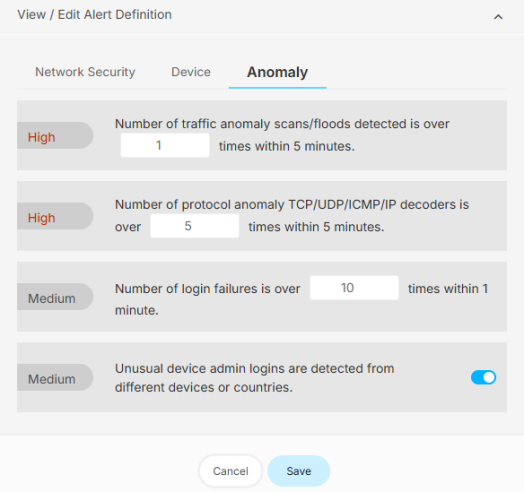
The following table describes the labels in this screen.
Label | DESCRIPTION |
|---|---|
View/Edit Alert Definition | |
Anomaly | This table shows a list of recent traffic and protocol anomalies. |
(set the threshold) | The threshold is the number that triggers an alert. If the threshold is adjustable, a blank field will appear. Set the threshold for the alert by entering the numeric value or by pressing the up- and down-arrows. Adjustable values vary and include frequency, rate of occurrence, and the time period. |
Unusual Device Admin Logins | Detect unusual login behavior on admin-privileged accounts. |