Introduction
Overview
SecuReporter is a cloud-based analytics tool that is part of the Cloud CNM suite developed by Zyxel. It can aggregate logs from up to 40,000 supported Zyxel Security Appliances across distributed locations, giving network administrators a centralized view of security events and flow data, including the hostname, IP address, MAC address of the client devices.
Reports are generated using security intelligence techniques and automated data correlation with real-time traffic analytics, as opposed to merely relying on static and predefined rules. Insights relevant to a network’s security environment are available at a glance on an intuitive dashboard.
Supported Zyxel Devices and Firmware Versions
At the time of writing of this User’s Guide, SecuReporter supports the following Zyxel Devices:
supported models | supported version |
|---|---|
USG FLEX 100 | Version 4.50 or later |
USG FLEX 200 | Version 4.50 or later |
USG FLEX 500 | Version 4.50 or later |
USG FLEX 100W | Version 4.60 or later |
USG FLEX 700 | Version 4.60 or later |
USG FLEX 100AX | Version 5.37 or later |
USG FLEX 100H(P) | Version 1.10 or later |
USG FLEX 200H(P) | Version 1.10 or later |
USG FLEX 500H | Version 1.10 or later |
USG FLEX 700H | Version 1.10 or later |
USG FLEX 50H(P) | Version 1.30 or later |
USG LITE 60AX (Traffic Logs only) | Version 2.20 or later |
 SecuReporter supports log sending from the Zyxel Device managed through NCC (Nebula Control Center). Log sending is disabled by default on the Zyxel Device. To view logs in SecuReporter, you must enable logs to be sent to SecuReporter in the Web Configurator of the Zyxel Device or NCC. However, the traffic logs of the ZyWALL ATP series and USG FLEX series on-cloud models are sent to NCC and are not available in SecuReporter.
Screens and widgets vary depending on the Zyxel Devices that you use. This table summarizes some of the features that are only available for the USG FLEX H series, ZyWALL ATP series, ZyWALL USG FLEX series, and ZyWALL USG FLEX 50(AX) series.
SUPPORTED features | USG FLEX H Series | USG FLEX Series | USG FLEX 50(AX) SERIES | ATP Series | USG LITE 60AX Series |
|---|---|---|---|---|---|
Sandboxing | Yes | Yes (with Gold Security Pack) | No | Yes | No |
Reputation Filter | Yes | Yes (with Gold Security Pack) | No | Yes | Yes |
Web Filtering | Yes | Yes | Yes | Yes | No |
Anti-Malware | Yes | Yes | No | Yes | No |
IPS | Yes | Yes | No | Yes | No |
Application Patrol | Yes | Yes | No | Yes | No |
Device Insight | Yes | Yes | Yes | Yes | No |
Traffic Usage | Yes | Yes | Yes | Yes | Yes |
SecuReporter Management Privileges
A Zyxel Device owner can register a Zyxel Device at https://account.zyxel.com. Only an owner can add Zyxel Devices to an organization. However, an owner can assign other people to manage Zyxel Devices.
This table summarizes SecuReporter privileges at each level of the model:
role types | sign in at Zyxel account? | Privileges |
|---|---|---|
Agent (Owner) | Yes | • Can add/delete Zyxel Devices to/from an organization • Can add/edit organizations • Can add/edit admin/user accounts • Can configure alert notifications • Can configure dashboard widgets • Can configure analyses and reports • Can create request for transfer of analytics and logs • Can import analytics and logs • Can create log download request and download archived logs |
Admin | Yes | • Can add/edit organizations • Can configure alert notifications • Can configure dashboard widgets • Can configure analyses and reports • Can import analytics and logs • Can download archived logs |
User | Yes | • Can configure dashboard widgets • Can view analyses and report |
License Options
You can use SecuReporter with a free 30-day Trial license or buy a 1-year device license. You will receive a renewal notification before either expires. In addition, for the SecuReporter license, you will have an extra 15 day grace period to renew.
SecuReporter will automatically delete logs when the grace period has expired.Cloud Mode
In cloud mode, you can manage and monitor the Zyxel Device through the Nebula Control Center (NCC). This means you can manage devices remotely without the need of connecting to each device directly. It offers many features to better manage and monitor not just the Zyxel Device, but your network as a whole, including supported access points, switches and gateways. Your network can also be managed through your smartphone using the Nebula Mobile app.
NCC allows different levels of management. You can configure each device on its own or configure a set of devices together as a site. You can also monitor groups of sites called organizations, as shown below.
Organization | Organization | Organization | Organization |
Site A | Site A | Site B | Site B |
Device A-1 | Device A-2 | Device B-1 | Device B-2 |
Some features are not supported for certain models in cloud mode. Please go to NCC to view or configure them.
features | ATP / USG FLEX / USG FLEX 50 (AX) / VPN series | usg flex h sERIES |
|---|---|---|
Add/delete Zyxel Devices to/from an organization | No | No |
Add/edit admin/user accounts | No | No |
Configure alert notifications | No | No |
View traffic log | Yes | Yes |
View security event log | Yes | Yes |
View User/Device/DHCP events | Yes | Yes |
View CPU/memory/session usage | No | Yes |
Event logs are available by default. However, traffic logs will not be generated unless you enable them. To view traffic logs in SecuReporter, you must enable traffic log sending in the Web Configurator of the Zyxel Device or through NCC.Get Started
Use a browser that supports HTML5, such as Google Chrome, Mozilla Firefox, Safari, or Microsoft Edge. The recommended minimum screen resolution is 1366 by 768 pixels. In order to use SecuReporter you need to allow web browser pop-up windows from your computer.
To set up SecuReporter:
1 You must enable SecuReporter on a supported Zyxel Device. Refer to the User’s Guide of the supported Zyxel Device for instructions.
2 Register the Zyxel Devices using the same Zyxel Account. To open an account at Zyxel, go to https://account.zyxel.com and click Create an account, or sign in with your Google account, Apple account, Microsoft Entra ID, or Passkey.
3 After you register the Zyxel Devices, follow the on-screen instructions to activate the SecuReporter license for the registered Zyxel Devices.
Once you are in the SecuReporter web portal, configure an organization with the Zyxel Devices.
See Overview for an overview of how to get started using SecuReporter.On your next login after configuring an organization, select an Organization first. Your registered devices will be shown in Device.
Select Organization and Device on Startup
Set up Passkey
A passkey is a password-less login method that lets you log in using the same way you unlock your device — fingerprint, Face ID, or PIN. You can use passkeys to log into portals such as SecuReporter or NCC.
When you create a passkey, your computer or mobile device generates two keys:
• Public key – stored on the Zyxel server.
• Private key – stored locally on your computer or mobile device.
Your device’s PIN or biometrics (for example, fingerprint, Face ID) is used only to unlock the private key, and is only stored locally on your computer or mobile device.
The passkey limit for each account is shown below.Maximum number of passkeys | 5 |
The following are the minimum computer or mobile device operating system and web browser version requirements to run passkey:computer OS version | Mobile device OS version | Browser version |
|---|---|---|
Windows 10 or later | iOS 16 or later | Chrome 109 or later |
macOS 13 Ventura or later | iPadOS 16 or later | Safari 16.1 or later |
ChromeOS 109 or later | Android 9 or later | Edge 109 or later |
To set up passkey and sign in using your PIN or biometrics, do the following:
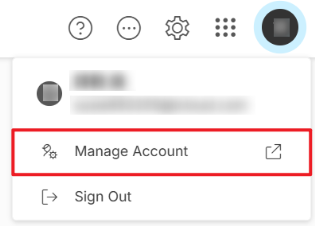
4 Log in to SecuReporter, click the Account icon at the top right corner, select Manage Account.
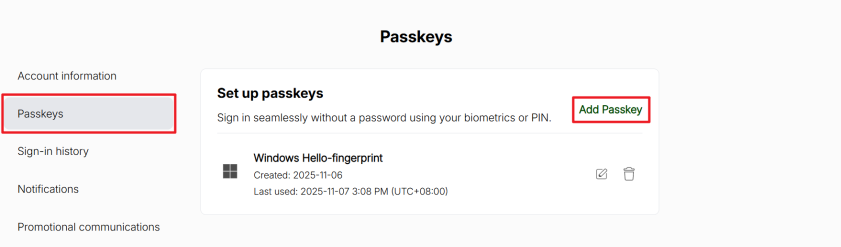
5 Go to the Passkeys tab and click Add Passkey.
6 Your device will prompt you to authenticate using biometrics (fingerprint / Face ID) or your PIN.
Your device must have one of the following sign-in options enabled: PIN, fingerprint, or Face ID. To set up these sign-in options on your Windows computer, go to Settings > Accounts > Sign-in options.For biometrics, your computer or mobile device must have a fingerprint reader or camera for Face ID. If not, select the PIN option instead.PIN Option
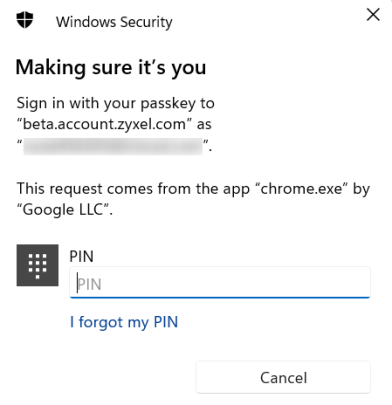
On a Windows computer, select PIN, and enter the 6-digit PIN that you already set on your device.
The PIN option is only available on Windows computers as a Windows Hello sign-in method. If you’re logging in from a mobile device, you will be prompted to use fingerprint or Face ID instead.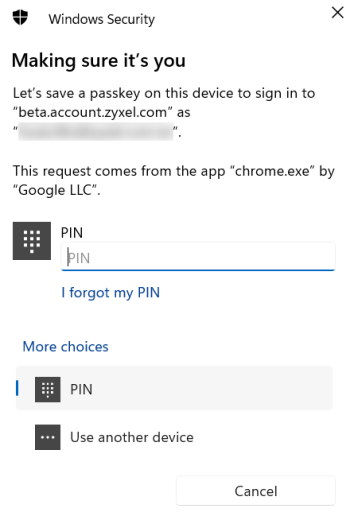
The passkey is now saved on this device for SecuReporter.
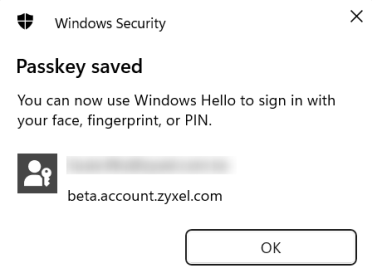
If you lose your PIN, do the following:
• In Windows OS:
Go to Settings > Accounts > Sign-in options > PIN (Windows Hello) > I forgot my PIN. You will be prompted to re-authenticate using your Microsoft Account password or recovery options.
• In macOS:
Use your Apple ID to reset the passcode, or restore from another Apple device where you are still signed in.
• For Cloud Password Managers:
If you forget it, you can usually log in again using your master password or account recovery flow.
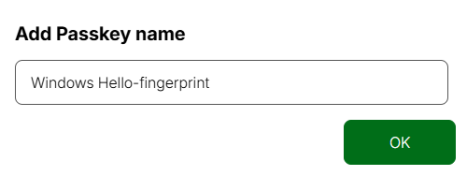
7 Name your passkey after completing the PIN authentication, and then click OK.
Biometrics Option
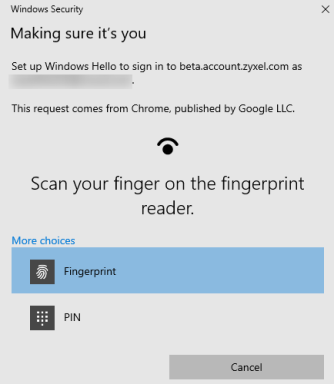
Select Fingerprint. Scan your fingerprint to use it as your sign-in method. The following example uses fingerprint.
8 Name your passkey after completing the fingerprint authentication, and then click OK.
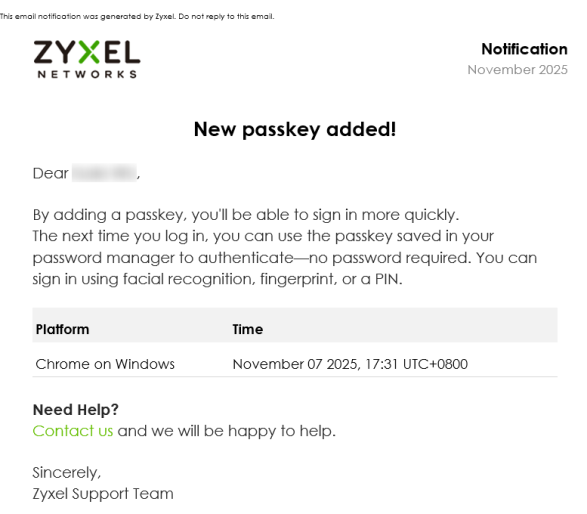
9 New passkey added! Email will be sent to the same email address used for your Zyxel Account.
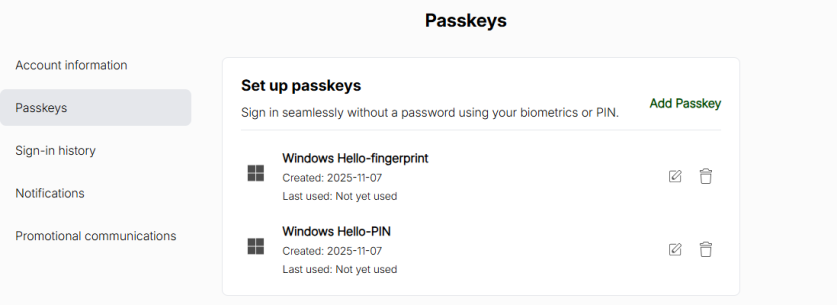
10 You can view all your saved passkeys on the Manage Account > Passkeys page. Select the passkey that matches the device you’re using to sign in.
Log in with a Passkey
The passkey is stored locally on your device. If you have enabled cloud synchronization on your device, you can log in from other devices within the same operating system. If not, you must log in using the same device where the passkey was registered.
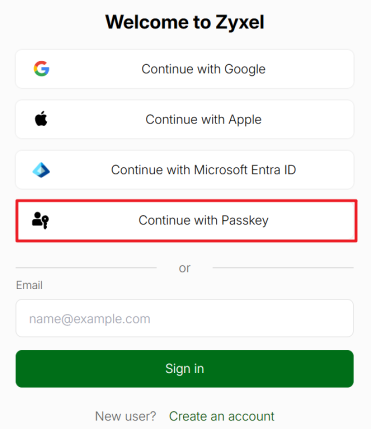
1 On the SecuReporter login screen, click Continue with Passkey.
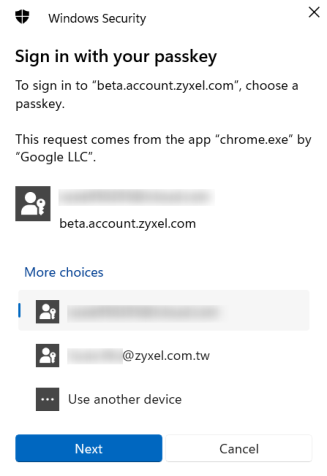
2 Select the account email you want to sign in with, and click Next.
3 Complete the biometric authentication by using your device’s fingerprint reader to scan your fingerprint, or camera to map your face, or by entering a PIN to log in to the portal.
Title Bar
The title bar provides some useful links that always appear over the screens below. If your Zyxel Device is in NCC mode, not all icons will be available in the Title Bar.
Title Bar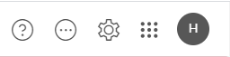
The icons provide the following functions.
label | description |
|---|---|
 | Click this to open the help, access the Download Library, or visit the Community. |
 | Click this to set up the following: • Organization & Device – you see all organizations that you have already created and the Zyxel Devices (Model, Device and License Status). • Members – to assign an administrator or user for organizations or Zyxel Devices within organizations that you created. |
 | Click this to turn on or off SecuReporter’s dark mode display. |
 | Click this to show a list of available apps provided by Zyxel. |
 | Click this to open the myZyxel website login page in a new tab or window. |
 | Click this to open the NCC portal login page in a new tab or window. |
 | Click this to open the SecuReporter website login page in a new tab or window. |
 | Click this to open the Astra website login page in a new tab or window. |
 | Click this to open the Circle website login page in a new tab or window. |
 | Click this to open the Zyxel Account website login page in a new tab or window. You will be redirected to the Marketplace after you log in. |
 | Click this to open the Zyxel store website in a new tab or window. |
 | Click this to open the Education Center website in a new tab or window. |
 | Click this to go to Zyxel Community, where you can get the latest Zyxel Device information and have conversations with other people by posting your messages. |
 | Click this to view your account name, manage your account information (edit Profile, change Password, set up Two-Factor Authentication), or to log out. |