Licensing
Licensing
Use the Licensing screens to register your Zyxel Device and manage its service subscriptions.
• Use the Licenses screen to refresh Zyxel Device registration. Go to nebula.zyxel.com to register your Zyxel Device and activate a service, such as content filtering.
• Use the Signature Update screen to download the latest signatures for your licensed services.
Please note that you cannot use the security services and upgrade firmware if your Zyxel Device is not registered at NCC or the services do not have a license. Your Zyxel Device and network will be exposed to threats and attacks. We strongly recommend you to register your Zyxel Device and purchase a license at NCC to better protect your Zyxel Device and network.
What you Need to Know
This section introduces the topics covered in this chapter.
Subscription Services Available
See Licensing > Signature Update for the subscription services that your Zyxel Device supports. You can extend a service at NCC > Organization-wide > License & Inventory.
Signature Update
• You need a valid service registration to update the Application Patrol signatures, IPS signatures and IP Reputation signatures.
• Schedule signature updates for a day and time when your network is least busy to minimize disruption to your network.
 The Zyxel Device does not have to reboot when you upload new signatures.
Features Available Without a License
You can use the following Zyxel Device features without a license:
monitor | configuration | maintenance |
|---|---|---|
System Statistics | Network | Maintenance |
Network Status | VPN | |
VPN Status | Security Policy | |
Object | ||
User & Authentication | ||
System | ||
Log & Report (except SecuReporter) |
Check if Your Zyxel Device Has an Inactive License
After purchasing a license, assign it to your Zyxel Device. You have to activate the assigned license manually before your Zyxel Device can use it.
Follow the steps below to check if a license is assigned to your Zyxel Device and activate it (if not yet activated) through NCC.
1 Go to NCC and log in.
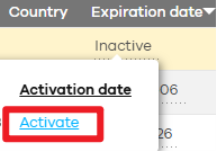
2 Go to Organization-wide > Device. Find your Zyxel Device and check the Expiration date field for the assigned license’s status.
3 If the license has not been activated, hover over Inactive and click Activate to activate it on your Zyxel Device.
The Licenses Screen
Use this screen to display the status of your service registrations and upgrade licenses. Go to NCC to register your Zyxel Device or purchase a license.
Pay As You Go (PAYG) is a new license payment method for specific organizations known as ‘PAYG Orgs’. Instead of paying in full for a license in advance, you reserve your credit card for future monthly payments.
PAYG is charged for a Gold Security Pack license or a Nebula Professional Pack license for each Zyxel Device in the ‘PAYG Org’. Each Nebula Device in a PAYG Org will be charged for at least a Nebula Professional Pack license.
See Licenses for related information on licensing and grace period.
The Licenses screen may show different services depending on the licenses you purchase or activate.
The following table describes the labels in this screen.
Label | Description |
|---|---|
Device Registration Status | This field display the Zyxel Device registration status on NCC. • Registered: Your Zyxel Device has successfully registered at NCC. • Not Registered: Your Zyxel Device is not registered at NCC. Make sure you’re connected to the Internet. Wait a few minutes then click Refresh to update the registration status. |
Refresh | Click this and wait for a few moments for the license and device registration status to update. The license and device registration status are updated automatically once every day. |
Purchase License | Click Purchase License to go to Marketplace to renew Zyxel Device licenses. |
Licenses Information | |
Service | This lists the name of services or service modules that are available on the Zyxel Device. |
Anti-Malware | This is a license for cloud database signatures to detect virus patterns in files. |
Application Patrol | This is a license to use signatures to manage the use of various applications on the network. |
CDR | This is a license to detect wired and wireless clients that have become infected in your network and to block or isolate traffic coming from them. In this way, malicious traffic is not spread throughout the network. Secure policies can block malicious traffic for specific traffic flows, but CDR can block malicious traffic from the sender. Malicious traffic is identified using a combination of Web Filtering, Anti-Malware and IPS (IDP) signatures. You configure Collaborative Detection & Response (CDR) to block or quarantine traffic coming from wired or WiFi clients that are sending malicious traffic in NCC. See Registration at Nebula Control Center (NCC) for more information on NCC. |
Device Insight | This is a license to detect and manage client devices in the Zyxel Device local network and DMZ. |
IPS | This is a license to detect Intrusion Prevention System attacks. |
Nebula Professional Pack | This is a license that allows you to use NCC to monitor and manage groups of Zyxel Devices in organizations. See the NCC User’s Guide for more information on Nebula Plus and Professional pack licenses. |
Priority Support | This license only displays if the Gold Security Pack license for this Zyxel Device has expired. It allows you to request support for Zyxel Devices in Nebula organizations that do not have a Nebula Professional Pack license (Base-Tier). If you have a Nebula Professional Pack license, you will have Priority Support (Activated), but the Status here may display Expired. Ignore it. |
Reputation Filter | This is a license to recognize packets coming from suspect IPv4 addresses. |
Sandboxing | This is a license to provide an isolated environment to scan traffic from the WAN that comes with unknown files or untrusted programs. |
Secure WiFi | The Secure WiFi license allows you to manage more than the default number of APs (8 at the time of writing). Remote AP allows an IPSec VPN tunnel from a supported external AP to the Zyxel Device. |
SecuReporter | This is a license that allows SecuReporter to collect and analyze logs from your Zyxel Device in order to identify anomalies, notify you of potential internal or external threats, and report on network usage. SecuReporter retains logs for up to 1 year. |
Security Profile Sync | Security Profile Sync is a NCC template that allows you to share the same security service settings on Firewalls in different sites in the same organization. Security service settings include Content Filter, Application Patrol, URL Threat Filter, Anti-Malware, and Intrusion Detection / Prevention. |
Web Filtering | This is a license to a database that can block websites by category, such as Gambling. |
Status | This field displays whether a service license is enabled at NCC (Activated) or expired (Expired). It displays the remaining grace period if your license has Expired. It displays Not Licensed if there isn’t a license to be activated for this service. |
Expiration Date | This field displays the date your service license expires or the date the grace period expires if the license has already expired. You can continue to use IPS, Application Patrol, Anti-Malware and Web Filtering during the grace period. After the grace period ends, all of these features are disabled. |
Note | This displays additional information on a license such as the number of supported APs for the Secure WiFi license. |
You will see the following screen if:
• Your Zyxel Device is not registered at NCC.
• You’re logging into the Zyxel Device using an admin account.
Scan the QR code or click Nebula under Note to register your Zyxel Device at NCC. Please note that you need to register your Zyxel Device at NCC to upgrade firmware and use security services.
The Signature Update Screen
The following table describes the labels in this screen.
label | description |
|---|---|
Feature | This field displays the name of the services available on the Zyxel Device. |
Type | This field displays the type of service engine used by the Zyxel Device. |
Current Version | This field displays the signatures version number currently used by the Zyxel Device. This number gets larger as new signatures are added. |
Release Date | This field displays the date and time the set was released. |
Last Sync | This field displays the date and time the Zyxel Device last checked for new signatures. |
Action | Click the Update icon (  )to have the Zyxel Device immediately check for new signatures. If new signatures are found, they are then downloaded to the Zyxel Device. )to have the Zyxel Device immediately check for new signatures. If new signatures are found, they are then downloaded to the Zyxel Device.Click the Schedule icon (  ) to have the Zyxel Device automatically check for new signatures regularly at the time and day specified. You should select a time when your network is not busy for minimal interruption. ) to have the Zyxel Device automatically check for new signatures regularly at the time and day specified. You should select a time when your network is not busy for minimal interruption. |
Signature Update
Use this screen to view the service update status.
Auto Update
The following table describes the labels in this screen.
label | description |
|---|---|
Auto Update | Enable to have the Zyxel Device automatically check for new signatures regularly at the time and day specified. You should select a time when your network is not busy for minimal interruption. |
Every N Hours | Select this option to have the Zyxel Device check for new signatures every specified (N) hour. |
Daily | Select this option to have the Zyxel Device check for new signatures every day at the specified time. The time format is the 12 hour clock. |
Weekly | Select this option to have the Zyxel Device check for new signatures once a week on the day and at the time specified. |
OK | Click this button to save your changes to the Zyxel Device. |