Dashboard
Overview
This chapter describes how to access the Zyxel Device Local GUI Web Configurator and provides an overview of its screens.
The Local GUI Web Configurator is an HTML-based management interface that allows you to manage and set up basic settings for your Zyxel Device.
Use a browser that supports HTML5, such Microsoft Edge, Mozilla Firefox, or Google Chrome. The recommended screen resolution is 1024 by 768 pixels.
In order to use the Local GUI Web Configurator you need to allow web browser pop-up windows from your device.
 Use the Local GUI Web Configurator for troubleshooting when your Zyxel Device cannot connect to Nebula.
Accessing the Local GUI Web Configurator
These are the defaults to log into the Web Configurator for the first time.
The Password on the Zyxel Device label is both the Web Configurator initial default and the Zyxel Device WiFi network initial default. credential | initial default |
|---|---|
LAN IP Address | https://192.168.168.1 |
User Name | admin |
Web and WiFi Password | See Password on the Zyxel Device label. |
1 Make sure your Zyxel Device hardware is properly connected (refer to the Quick Start Guide).
2 Make sure your computer has an IP address in the same subnet as the Zyxel Device.
3 Launch your web browser and enter "https://192.168.168.1" in the web browser’s address bar.
4 The following screen appears if your Zyxel Device is not registered with Nebula Control Center (NCC).
• If you want to configure the WAN settings and troubleshoot using the Web Configurator, click Login.
• If you want to register your Zyxel Device with NCC, scan the QR code to open or download the Nebula Mobile app, and then follow the wizard.
Register with Nebula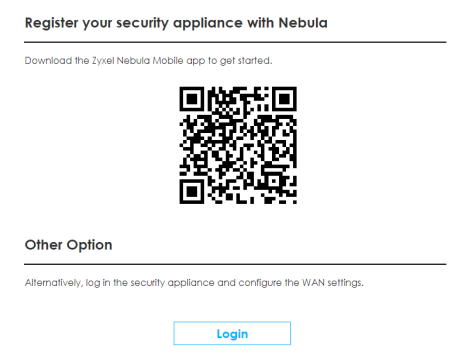
5 Select the language you prefer (upper right). Click Login to log in to the Local GUI Web Configurator.
Login (Non-Nebula Cloud-managed mode)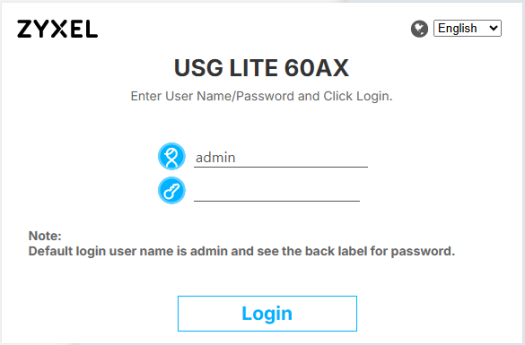
Login (Nebula Cloud-managed mode)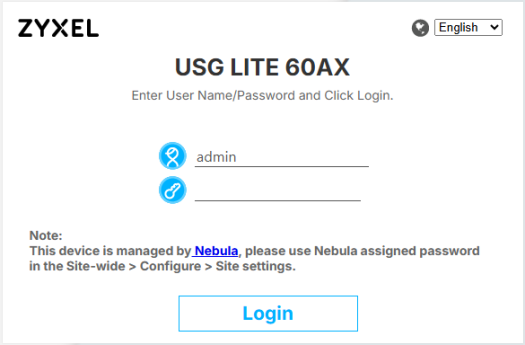
6 On the displayed login screen, enter the default user name admin and the password.
• If your Zyxel Device is managed by NCC, use the local credentials password created in NCC to log in to the cloud mode – Local GUI. To see the local credentials password, go to Site-wide > Configure > Site settings > Device configuration: Local credentials: Password in the NCC portal.
• If your Zyxel Device is not managed by NCC, use the Password on the Zyxel Device label.
7 Then click Login.
8 The Zyxel Device DASHBOARD screen displays allowing you to monitor your Zyxel Device. It shows if the Zyxel Device is online and connected to NCC, and basic system information.
Local GUI Web Configurator Initial Screen (Non-Nebula Cloud-managed mode)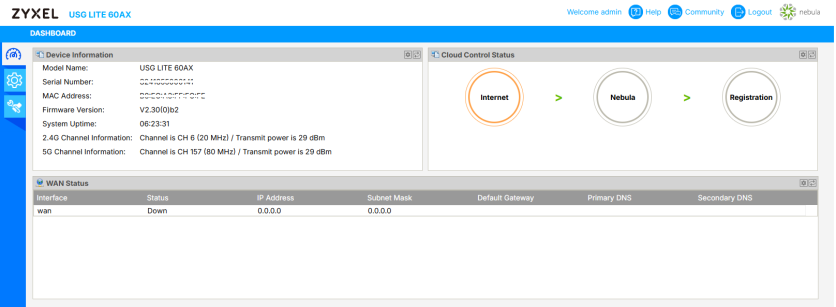
Local GUI Web Configurator Initial Screen (Nebula Cloud-managed mode)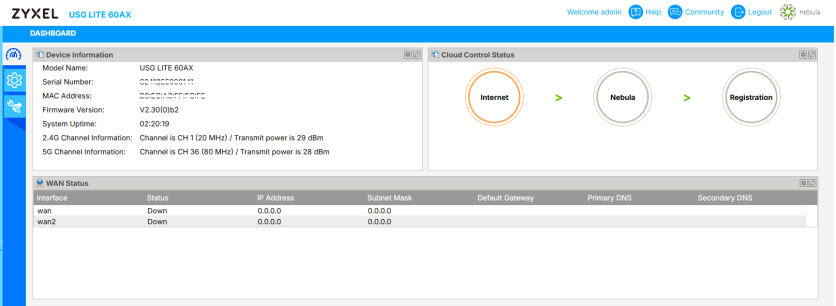
Dashboard
This screen displays general Zyxel Device information, the NCC connection status, and the WAN status.
Dashboard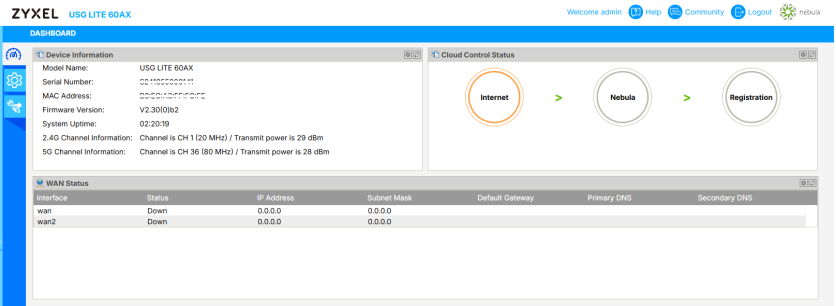
The following table describes the labels in this screen.
label | description |
|---|---|
Device Information | |
Model Name | This is the Zyxel Device system name. It is used for identification. |
Serial Number | This is the serial number of the Zyxel Device. |
MAC Address | This is the WiFi adapter MAC (Media Access Control) address of the WiFi interface. |
Firmware Version | This is the current version of the firmware inside the Zyxel Device. |
System Uptime | This displays how long the Zyxel Device has been running since it last started up. The Zyxel Device starts up when you plug it in, when you restart it, or when you reset it. |
2.4G Channel Information | This field displays the channel number the Zyxel Device is using and its output power in the 2.4 GHz spectrum. This shows Not activated if WiFi is disabled. |
5G Channel Information | This field displays the channel number the Zyxel Device is using and its output power in the 5 GHz spectrum. This shows Not activated if WiFi is disabled. |
Cloud Control Status | This field displays: • The Zyxel Device Internet connection status. • The connection status between the Zyxel Device and NCC. • The Zyxel Device registration status on NCC. Mouse over the circles to display detailed information. To transfer your Zyxel Device management to NCC, first make sure your Zyxel Device is connected to the Internet. Then go to NCC and register your Zyxel Device. 1. Internet Green – The Zyxel Device is connected to the Internet through the WAN (default) or WAN2 interface. Orange – The Zyxel Device is not connected to the Internet. 2. Nebula Green – The Zyxel Device is connected to NCC. Gray – The Zyxel Device is not connected to NCC. 3. Registration Green – The Zyxel Device is registered on NCC. Gray – The Zyxel Device is not registered on NCC. |
WAN Status | |
Interface | This displays WAN as the interface that will connect with your primary ISP for Internet access. This display WAN2 as the secondary interface that will connect with your backup ISP for Internet access. When the WAN2 interface is configured as LAN, this row will automatically be hidden. |
Status | This field displays the speed and duplex of the interface when it is connected to the Internet. Alternatively, this displays Disconnected. |
IP Address | This field displays the IPv4 address for this interface. If this field shows ‘–’, the interface does not have an IPv4 address yet or is configured as 'Unassigned'. |
Subnet Mask | This field displays the subnet mask of this interface in dot decimal notation. The subnet mask indicates what part of the IP address is the same for all computers in the network. |
Default Gateway | This field displays the IPv4 address of the Zyxel Device through which this interface sends traffic. |
Primary DNS | This field displays the IPv4 address of the first (primary) DNS server for the DHCP clients to use. |
Secondary DNS | This field displays the IPv4 address of the second (backup) DNS server for the DHCP clients to use. |
If the Zyxel Device cannot connect to the Internet or to NCC, move the mouse over the status circle to check the error message.
Cloud Control Status