IP Table
This chapter introduces the IP table screen.
IP Table Overview
The IP Table screen shows how packets are forwarded or filtered across the Switch’s ports. When a device (which may belong to a VLAN group) sends a packet which is forwarded to a port on the Switch, the IP address of the device is shown on the Switch’s IP Table. The IP Table also shows whether the IP address is dynamic (learned by the Switch) or static (belonging to the Switch).
The Switch uses the IP Table to determine how to forward packets. See the following figure.
1 The Switch examines a received packet and learns the port from which this source IP address came.
2 The Switch checks to see if the packet's destination IP address matches a source IP address already learned in the IP Table.
• If the Switch has already learned the port for this IP address, then it forwards the packet to that port.
• If the Switch has not already learned the port for this IP address, then the packet is flooded to all ports. Too much port flooding leads to network congestion then the Switch sends an ARP to request the MAC address. The Switch then learns the port that replies with the MAC address.
• If the Switch has already learned the port for this IP address, but the destination port is the same as the port it came in on, then it filters the packet.
IP Table Flowchart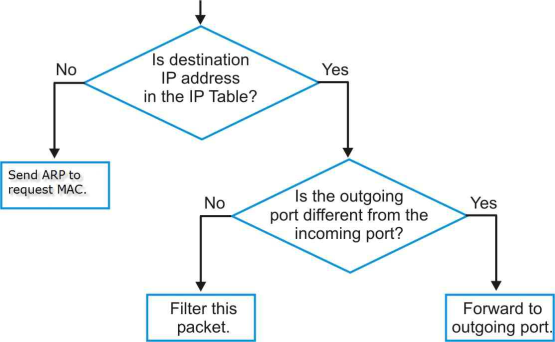
Viewing the IP Table
Click MONITOR > IP Table > IP Table in the navigation panel to display the following screen.
MONITOR > IP Table > IP Table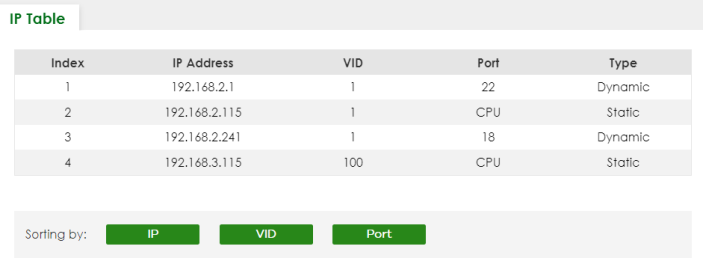
The following table describes the labels in this screen.
label | description |
|---|---|
Index | This field displays the index number. |
IP Address | This is the IP address of the device from which the incoming packets came. |
VID | This is the VLAN group to which the packet belongs. |
Port | This is the port from which the above IP address was learned. This field displays CPU to indicate the IP address belongs to the Switch. |
Type | This shows whether the IP address is Dynamic (learned by the Switch) or Static (belonging to the Switch). |
Sorting by | Click one of the following buttons to display and arrange the data according to that button type. The result is then displayed in the IP table. |
IP | Click this button to display and arrange the data according to IP address. |
VID | Click this button to display and arrange the data according to VLAN group. |
Port | Click this button to display and arrange the data according to port number. |