MAC Pinning
This chapter shows you how to configure MAC pinning on the Switch.
MAC Pinning Overview
When the Switch obtains a connected device’s MAC address, it adds an entry in the MAC address forwarding table and uses the table to determine how to forward frames. In addition to the source MAC address of a received frame, the Switch also learns the VLAN to which the device belongs and the port on which the frame is received. If the Switch learns the same MAC address and same VLAN ID on another port, it updates the MAC address table immediately.
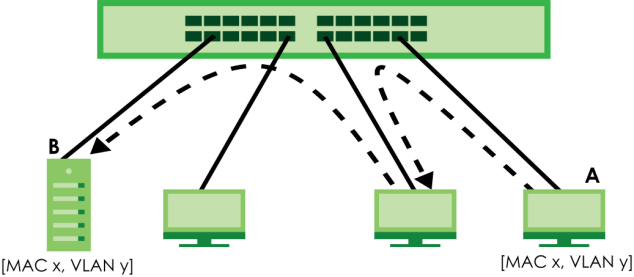
MAC pinning allows you to set a port or multiple ports to have priority over other ports in MAC address learning. That means when a MAC address (and VLAN ID) is learned on a MAC-pinning-enabled port, the MAC address will not be learned on any other port until the aging time for the dynamically learned MAC address in the table expires.
This helps enhance security. For example, when an attacker (A) sends packets to all connected clients by spoofing the source MAC address of a server (B) connected to one of the Switch’s ports, on which MAC pinning is enabled, the responses from clients will still be forwarded to the server according to the Switch’s MAC forwarding table.
MAC Pinning Configuration
Use this screen to enable MAC pinning on the Switch and on specific ports. Click SWITCHING > MAC Pinning > MAC Pinning in the navigation panel to open the following screen.
SWITCHING > MAC Pinning > MAC Pinning (Standalone Mode)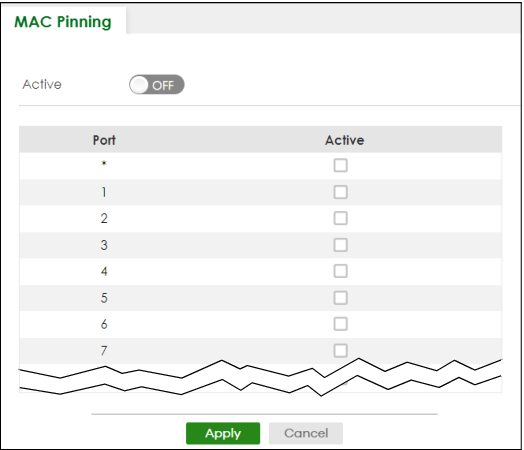
The following table describes the labels in this screen.
label | description |
|---|---|
Active | Enable the switch button to turn on the MAC pinning function on the Switch. |
Port | This field displays the port number. |
* | Settings in this row apply to all ports. Use this row only if you want to make some settings the same for all ports. Use this row first to set the common settings and then make adjustments on a port-by-port basis.  Changes in this row are copied to all the ports as soon as you make them. Changes in this row are copied to all the ports as soon as you make them. |
Active | Select this checkbox to enable MAC pinning on this port. The port then has priority over other ports in MAC address learning. Clear this checkbox to disable MAC pinning. |
Apply | Click Apply to save your changes to the Switch’s run-time memory. The Switch loses these changes if it is turned off or loses power, so use the Save link on the top navigation panel to save your changes to the non-volatile memory when you are done configuring. |
Cancel | Click Cancel to begin configuring this screen afresh. |