Mirroring
Mirroring Overview
This chapter discusses port mirroring setup screens.
Port mirroring allows you to copy a traffic flow to a monitor port (the port you copy the traffic to) in order that you can examine the traffic from the monitor port without interference.
Local Port Mirroring
Click SWITCHING > Mirroring > Mirroring in the navigation panel to display the Mirroring screen. Use this screen to select a monitor port and specify the traffic flow to be copied to the monitor port.
SWITCHING > Mirroring > Mirroring (Standalone Mode)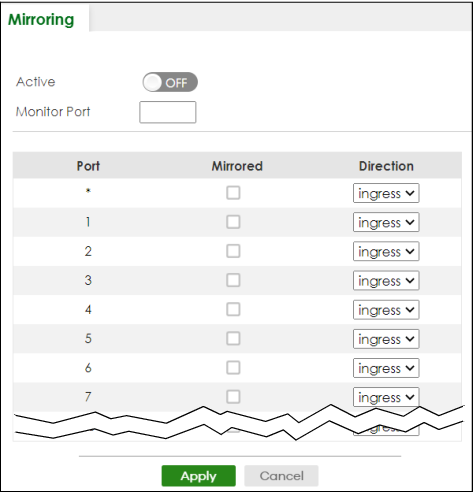
The following table describes the labels in this screen.
LABEL | DESCRIPTION |
|---|---|
Active | Enable the switch button to activate port mirroring on the Switch. Disable the switch to disable the feature. |
Monitor Port | The monitor port is the port you copy the traffic to in order to examine it in more detail without interfering with the traffic flow on the original ports. Enter the port number of the monitor port. |
Port | This field displays the port number. |
* | Settings in this row apply to all ports. Use this row only if you want to make some settings the same for all ports. Use this row first to set the common settings and then make adjustments on a port-by-port basis.  Changes in this row are copied to all the ports as soon as you make them. Changes in this row are copied to all the ports as soon as you make them. |
Mirrored | Select this option to mirror the traffic on a port. |
Direction | Specify the direction of the traffic to mirror by selecting from the drop-down list box. Choices are Egress (outgoing), Ingress (incoming) and Both. |
Apply | Click Apply to save your changes to the Switch’s run-time memory. The Switch loses these changes if it is turned off or loses power, so use the Save link on the top navigation panel to save your changes to the non-volatile memory when you are done configuring. |
Cancel | Click Cancel to reset the fields. |