VLAN Stacking
This chapter shows you how to configure VLAN stacking on your Switch. See the chapter on VLANs for more background information on Virtual LANs (VLANs).
VLAN Stacking Overview
A service provider can use VLAN stacking to allow it to distinguish multiple customers VLANs, even those with the same (customer-assigned) VLAN ID, within its network.
Use VLAN stacking to add an outer VLAN tag to the inner IEEE 802.1Q tagged frames that enter the network. By tagging the tagged frames (“double-tagged” frames), the service provider can manage up to 4094 VLAN groups with each group containing up to 4094 customer VLANs. This allows a service provider to provide different service, based on specific VLANs, for many different customers.
A service provider’s customers may require a range of VLANs to handle multiple applications. A service provider’s customers can assign their own inner VLAN tags on ports for these applications. The service provider can assign an outer VLAN tag for each customer. Therefore, there is no VLAN tag overlap among customers, so traffic from different customers is kept separate.
VLAN Stacking Example
In the following example figure, both A and B are Service Provider’s Network (SPN) customers with VPN tunnels between their head offices and branch offices respectively. Both have an identical VLAN tag for their VLAN group. The service provider can separate these two VLANs within its network by adding tag 37 to distinguish customer A and tag 48 to distinguish customer B at edge device 1 and then stripping those tags at edge device 2 as the data frames leave the network.
VLAN Stacking Example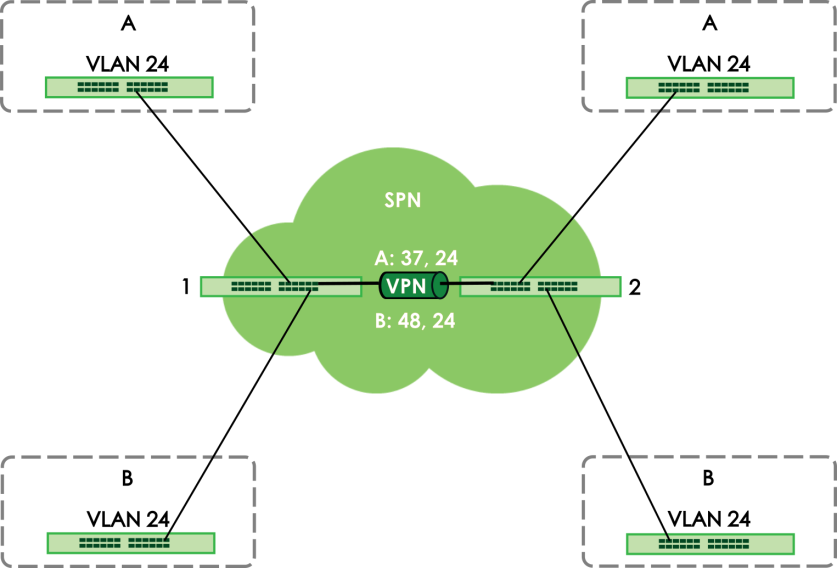
VLAN Stacking Port Roles
Each port can have three VLAN stacking “roles”, Normal, Access, and Tunnel (the latter is for Gigabit ports only).
• Select Normal for “regular” (non-VLAN stacking) IEEE 802.1Q frame switching.
• Select Access for ingress ports on the service provider's edge devices (1 and 2 in the VLAN stacking example figure). The incoming frame is treated as "untagged", so a second VLAN tag (outer VLAN tag) can be added.
 Static VLAN Tx Tagging MUST be disabled on a port where you choose Normal or Access.
• Select Tunnel (available for Gigabit ports only) for egress ports at the edge of the service provider's network. All VLANs belonging to a customer can be aggregated into a single service provider's VLAN (using the outer VLAN tag defined by the Service Provider’s (SP) VLAN ID (VID)).
Static VLAN Tx Tagging MUST be enabled on a port where you choose Tunnel.VLAN Tag Format
A VLAN tag (service provider VLAN stacking or customer IEEE 802.1Q) consists of the following three fields.
Type | Priority | VID |
Type is a standard Ethernet type code identifying the frame and indicates that whether the frame carries IEEE 802.1Q tag information. SP TPID (Service Provider Tag Protocol Identifier) is the service provider VLAN stacking tag type. Many vendors use 0x8100 or 0x9100.
TPID (Tag Protocol Identifier) is the customer IEEE 802.1Q tag.
• If the VLAN stacking port role is Access port, then the Switch adds the SP TPID tag to all incoming frames on the service provider's edge devices (1 and 2 in the VLAN stacking example figure).
• If the VLAN stacking port role is Tunnel port, then the Switch only adds the SP TPID tag to all incoming frames on the service provider's edge devices (1 and 2 in the VLAN stacking example figure) that have an SP TPID different to the one configured on the Switch. (If an incoming frame’s SP TPID is the same as the one configured on the Switch, then the Switch will not add the tag.)
Priority refers to the IEEE 802.1p standard that allows the service provider to prioritize traffic based on the class of service (CoS) the customer has paid for.
• On the Switch, configure priority level of the inner IEEE 802.1Q tag in the PORT > Port Setup > Port Setup screen.
• "0" is the lowest priority level and "7" is the highest.
VID is the VLAN ID. SPVID is the VID for the second (service provider’s) VLAN tag.
Frame Format
The frame format for an untagged Ethernet frame, a single-tagged 802.1Q frame (customer) and a “double-tagged” 802.1Q frame (service provider) is shown next.
Configure the fields as highlighted in the Switch SWITCHING > VLAN Stacking screens.
DA | SA | Len/Etype | Data | FCS | Untagged Ethernet frame | ||||||
DA | SA | TPID | Priority | VID | Len/Etype | Data | FCS | IEEE 802.1Q customer tagged frame | |||
DA | SA | SPTPID | Priority | VID | TPID | Priority | VID | Len/Etype | Data | FCS | Double-tagged frame |
DA | Destination Address | Priority | 802.1p Priority |
SA | Source Address | Len/Etype | Length and type of Ethernet frame |
(SP)TPID | (Service Provider) Tag Protocol IDentifier | Data | Frame data |
VID | VLAN ID | FCS | Frame Check Sequence |
Configuring VLAN Stacking
Click SWITCHING > VLAN Stacking > VLAN Stacking to display the screen as shown.
SWITCHING > VLAN Stacking > VLAN Stacking (Standalone Mode)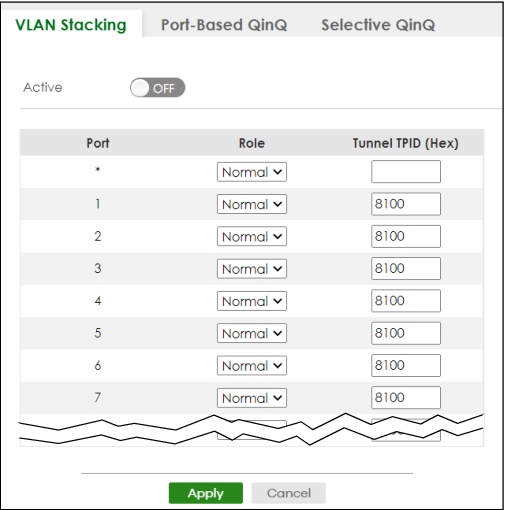
The following table describes the labels in this screen.
label | description |
|---|---|
Active | Enable the switch button to enable VLAN stacking on the Switch. |
Port | This field displays the port number. |
* | Settings in this row apply to all ports. Use this row only if you want to make some settings the same for all ports. Use this row first to set the common settings and then make adjustments on a port-by-port basis. Changes in this row are copied to all the ports as soon as you make them. |
Role | Select Normal to have the Switch ignore frames received (or transmitted) on this port with VLAN stacking tags. Anything you configure in SPVID and Priority of the Port-based QinQ or the Selective QinQ screen are ignored. Select Access to have the Switch add the SP TPID tag to all incoming frames received on this port. Select Access for ingress ports at the edge of the service provider's network. Select Tunnel (available for Gigabit ports only) for egress ports at the edge of the service provider's network. Select Tunnel to have the Switch add the Tunnel TPID (HEX) tag to all outgoing frames sent on this port. In order to support VLAN stacking on a port, the port must be able to allow frames of 1526 Bytes (1522 Bytes + 4 Bytes for the second tag) to pass through it. |
Tunnel TPID (HEX) | TPID is a standard Ethernet type code identifying the frame and indicates whether the frame carries IEEE 802.1Q tag information. Enter a four-digit hexadecimal number from 0000 to FFFF that the Switch adds in the outer VLAN tag of the frames sent on the tunnel ports. The Switch also uses this to check if the received frames are double-tagged. The value of this field is 0x8100 as defined in IEEE 802.1Q. It is used to identify the customer tag of an incoming frame. If the Switch needs to communicate with other vendors’ devices, they should use the same TPID. You can define up to four different tunnel TPIDs (including 8100) in this screen at a time. |
Apply | Click Apply to save your changes to the Switch’s run-time memory. The Switch loses these changes if it is turned off or loses power, so use the Save link on the top navigation panel to save your changes to the non-volatile memory when you are done configuring. |
Cancel | Click Cancel to begin configuring this screen afresh. |
Port-Based Q-in-Q
Port-based Q-in-Q lets the Switch treat all frames received on the same port as the same VLAN flows and add the same outer VLAN tag to them, even if they have different customer VLAN IDs.
Click SWITCHING > VLAN Stacking > Port-Based QinQ to display the screen as shown.
SWITCHING > VLAN Stacking > Port-Based QinQ (Standalone Mode)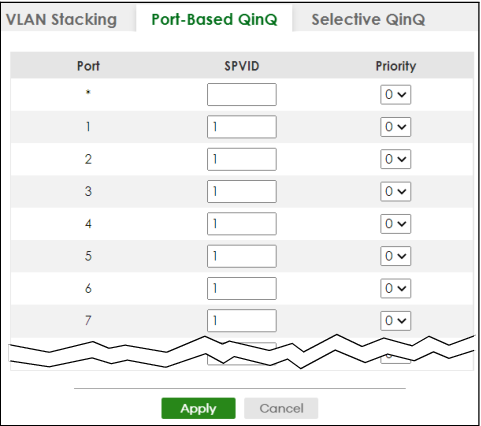
The following table describes the labels in this screen.
label | description |
|---|---|
Port | This field displays the port number. |
* | Settings in this row apply to all ports. Use this row only if you want to make some settings the same for all ports. Use this row first to set the common settings and then make adjustments on a port-by-port basis. Changes in this row are copied to all the ports as soon as you make them. |
SPVID | SPVID is the service provider’s VLAN ID (the outer VLAN tag). Enter the service provider ID (from 1 to 4094) for frames received on this port. |
Priority | Select a priority level (from 0 to 7). This is the service provider’s priority level that adds to the frames received on this port. "0" is the lowest priority level and "7" is the highest. |
Apply | Click Apply to save your changes to the Switch’s run-time memory. The Switch loses these changes if it is turned off or loses power, so use the Save link on the top navigation panel to save your changes to the non-volatile memory when you are done configuring. |
Cancel | Click Cancel to begin configuring this screen afresh. |
Selective Q-in-Q
Selective Q-in-Q is VLAN-based. It allows the Switch to add different outer VLAN tags to the incoming frames received on one port according to their inner VLAN tags.
Selective Q-in-Q rules are only applied to single-tagged frames received on the access ports. If the incoming frames are untagged or single-tagged but received on a tunnel port or cannot match any selective Q-in-Q rules, the Switch applies the port-based Q-in-Q rules to them.Click SWITCHING > VLAN Stacking > Selective QinQ to display the screen as shown.
SWITCHING > VLAN Stacking > Selective QinQ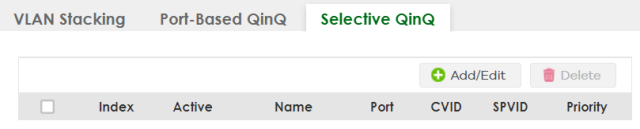
The following table describes the labels in this screen.
label | description |
|---|---|
Index | This is the number of the selective VLAN stacking rule. |
Active | This shows whether this rule is activated or not. |
Name | This is the descriptive name for this rule. |
Port | This is the port number to which this rule is applied. |
CVID | This is the customer VLAN ID in the incoming packets. |
SPVID | This is the service provider’s VLAN ID that adds to the packets from the subscribers. |
Priority | This is the service provider’s priority level in the packets. |
Select an entry’s checkbox to select a specific entry. Otherwise, select the checkbox in the table heading row to select all entries. | |
Add/Edit | Click Add/Edit to add a new entry or edit a selected one. |
Delete | Click Delete to remove the selected entries. |
Add/Edit Selective Q-in-Q
Click Add/Edit, or select an entry and click Add/Edit in the SWITCHING > VLAN Stacking > Selective QinQ screen to display this screen.
SWITCHING > VLAN Stacking > Selective QinQ > Add/Edit (Standalone Mode)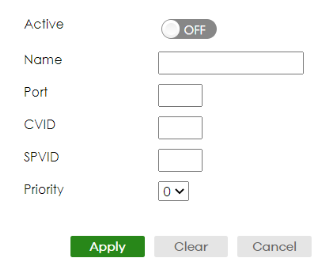
The following table describes the labels in this screen.
label | description |
|---|---|
Active | Enable the switch button to activate this rule. |
Name | Enter a descriptive name (up to 32 printable ASCII characters except [ ? ], [ | ], [ ' ], [ " ], or [ , ]) for identification purposes. |
Port | The port number identifies the port you are configuring. |
CVID | Enter a customer VLAN ID (the inner VLAN tag) from 1 to 4094. This is the VLAN tag carried in the packets from the subscribers. |
SPVID | SPVID is the service provider’s VLAN ID (the outer VLAN tag). Enter the service provider ID (from 1 to 4094) for frames received on this port. |
Priority | Select a priority level (from 0 to 7). This is the service provider’s priority level that adds to the frames received on this port. "0" is the lowest priority level and "7" is the highest. |
Apply | Click Apply to save your changes to the Switch’s run-time memory. The Switch loses these changes if it is turned off or loses power, so use the Save link on the top navigation panel to save your changes to the non-volatile memory when you are done configuring. |
Clear | Click Clear to clear the fields to the factory defaults. |
Cancel | Click Cancel to not save the configuration you make and return to the last screen. |