sFlow
This chapter shows you how to configure sFlow to have the Switch monitor traffic in a network and send information to an sFlow collector for analysis.
sFlow Overview
sFlow (RFC 3176) is a standard technology for monitoring switched networks. An sFlow agent embedded on a switch or router gets sample data and packet statistics from traffic forwarded through its ports. The sFlow agent then creates sFlow data and sends it to an sFlow collector. The sFlow collector is a server that collects and analyzes sFlow datagram. An sFlow datagram includes packet header, input and output interface, sampling process parameters and forwarding information.
sFlow minimizes impact on CPU load of the Switch as it analyzes sample data only. sFlow can continuously monitor network traffic and create reports for network performance analysis and troubleshooting. For example, you can use it to know which IP address or which type of traffic caused network congestion.
sFlow Application
sFlow Port Configuration
Click SWITCHING > sFlow > sFlow in the navigation panel to display the screen as shown.
SWITCHING > sFlow > sFlow (Standalone Mode)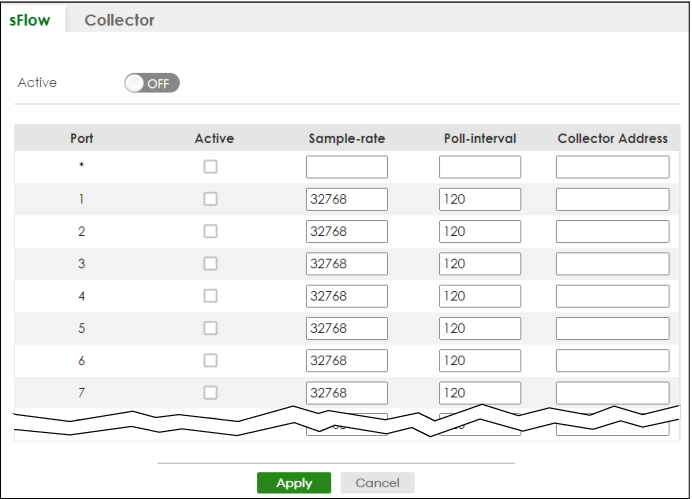
The following table describes the labels in this screen.
label | description |
|---|---|
Active | Enable the switch button to enable the sFlow agent on the Switch. |
Port | This field displays the port number. |
* | Settings in this row apply to all ports. Use this row only if you want to make some settings the same for all ports. Use this row first to set the common settings and then make adjustments on a port-by-port basis.  Changes in this row are copied to all the ports as soon as you make them. Changes in this row are copied to all the ports as soon as you make them. |
Active | Select this to allow the Switch to monitor traffic on this port and generate and send sFlow datagram to the specified collector. |
Sample-rate | Enter a number (N) from 256 to 65535. The Switch captures every one out of N packets for this port and creates sFlow datagram. |
Poll-interval | Specify a time interval (from 20 to 120 in seconds) the Switch waits before sending the sFlow datagram and packet counters for this port to the collector. |
Collector Address | Enter the IP address of the sFlow collector. You must have the sFlow collector already configured in the SWITCHING > sFlow > Collector screen. The sFlow collector does not need to be in the same subnet as the Switch, but it must be accessible from the Switch.Configure UDP port 6343 (the default) on a NAT router to allow port forwarding if the collector is behind a NAT router. Configure a firewall rule for UDP port 6343 (the default) to allow incoming traffic if the collector is behind a firewall. |
Apply | Click Apply to save your changes to the Switch’s run-time memory. The Switch loses these changes if it is turned off or loses power, so use the Save link on the top navigation panel to save your changes to the non-volatile memory when you are done configuring. |
Cancel | Click Cancel to begin configuring this screen afresh. |
sFlow Collector Configuration
Click SWITCHING > sFlow > Collector to display the screen as shown. You may want to configure more than one collector if the traffic load to be monitored is more than one collector can manage.
You can configure up to four sFlow collectors in this screen.SWITCHING > sFlow > Collector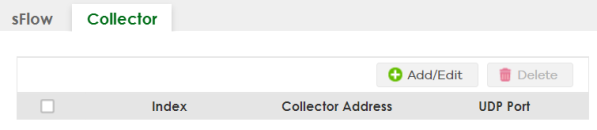
The following table describes the labels in this screen.
label | description |
|---|---|
Index | This field displays the index number of this entry. |
Collector Address | This field displays IP address of the sFlow collector. |
UDP Port | This field displays port number the Switch uses to send sFlow datagram to the collector. |
Select an entry’s checkbox to select a specific entry. Otherwise, select the checkbox in the table heading row to select all entries. | |
Add/Edit | Click Add/Edit to add a new entry or edit a selected one. |
Delete | Click Delete to remove the selected entries. |
Add/Edit sFlow Collector
Click Add/Edit, or select an entry and click Add/Edit in the SWITCHING > sFlow > Collector screen to display this screen.
SWITCHING > sFlow > Collector > Add/Edit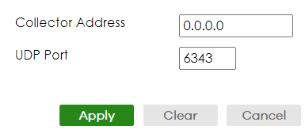
The following table describes the labels in this screen.
label | description |
|---|---|
Collector Address | Enter the IP address of the sFlow collector. |
UDP Port | Enter a UDP port number the Switch uses to send sFlow datagram to the collector. If you change the port here, make sure you change it on the collector, too. The default port is 6343. |
Apply | Click Apply to save your changes to the Switch’s run-time memory. The Switch loses these changes if it is turned off or loses power, so use the Save link on the top navigation panel to save your changes to the non-volatile memory when you are done configuring. |
Clear | Click Clear to clear the fields to the factory defaults. |
Cancel | Click Cancel to not save the configuration you make and return to the last screen. |