Logins
Set Up Login Accounts
Up to five people (one administrator and four non-administrators) may access the Switch through Web Configurator at any one time.
• An administrator is someone who can both view and configure Switch changes. The default user name for the Administrator is admin. See the default administrator password on the back label of the Switch.
• A non-administrator (user name is something other than admin) is someone who can view and/or configure Switch settings. The configuration right varies depending on the user’s privilege level.
Click SYSTEM > Logins > Logins to view the screen as shown.
SYSTEM > Logins > Logins 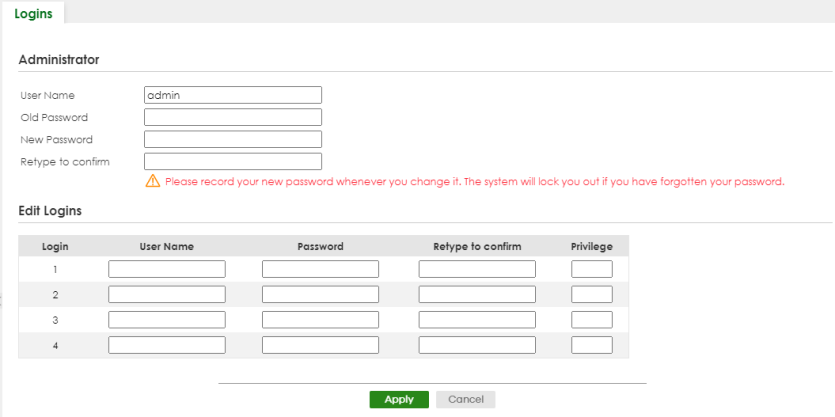
The following table describes the labels in this screen.
LABEL | Description |
|---|---|
Administrator This is the default administrator account with the “admin” user name. You can change the default administrator user name. | |
User Name | Change the default “admin” system user name (up to 32 printable ASCII characters except [ ? ], [ | ], [ ' ], [ " ], [ space ], [ , ], or [ : ]. |
Old Password | Enter the existing system password (see the back label on the Switch for the default password). |
New Password | Enter your new system password. The password rule when Password Complexity is disabled in SECURITY > Access Control > Account Security > Account Security is: • 4 to 32 characters in length The password rule when Password Complexity is enabled are: • 9 to 32 characters in length • Include at least three of these: numbers, uppercase letters, lowercase letters, and special characters (for example, ‘Ea5yPas5W0rd’) • Cannot match your login username • Cannot use the same character (case insensitive) or number three or more times in a row (for example, ‘777’, ‘AaA’) • Cannot use four or more sequential keyboard characters (case insensitive) or numbers (for example, ‘qWer’, ‘1234’), and • Cannot use the present password again.  [ ? ], [ | ], [ ' ], [ " ], [ , ], [ [ ], [ ] ] and space are not allowed whether Password Complexity is enabled or disabled. [ ? ], [ | ], [ ' ], [ " ], [ , ], [ [ ], [ ] ] and space are not allowed whether Password Complexity is enabled or disabled. |
Retype to confirm | Retype your new system password for confirmation. You can enter up to 32 printable ASCII characters. |
Edit Logins You may configure passwords for up to four users. These users can have read-only or read/write access. You can give users higher privileges through the Web Configurator or the CLI. For more information on assigning privileges through the CLI see the Ethernet Switch CLI Reference Guide. | |
Login | This is the index of an user account. |
User Name | Specify the user name (up to 32 printable ASCII characters except [ ? ], [ | ], [ ' ], [ " ], [ space ], [ , ], or [ : ]). |
Password | Enter your new system password. The password rule when Password Complexity is disabled in SECURITY > Access Control > Account Security > Account Security is: • 4 to 32 characters in length The password rule when Password Complexity is enabled are: • 9 to 32 characters in length • Include at least three of these: numbers, uppercase letters, lowercase letters, and special characters (for example, ‘Ea5yPas5W0rd’) • Cannot match your login username • Cannot use the same character (case insensitive) or number three or more times in a row (for example, ‘777’, ‘AaA’) • Cannot use four or more sequential keyboard characters (case insensitive) or numbers (for example, ‘qWer’, ‘1234’), and • Cannot use the present password again. [ ? ], [ | ], [ ' ], [ " ], [ , ], [ [ ], [ ] ] and space are not allowed whether Password Complexity is enabled or disabled. |
Retype to confirm | Retype your new system password for confirmation. |
Privilege | Type the privilege level for this user. At the time of writing, users may have a privilege level of 0, 3, 13, or 14 representing different configuration rights as shown below. • 0 – Display basic system information. • 3 – Display configuration or status. • 13 – Configure features except for login accounts, SNMP user accounts, the authentication method sequence and authorization settings, multiple logins, administrator and enable passwords, and configuration information display. • 14 – Configure login accounts, SNMP user accounts, the authentication method sequence and authorization settings, multiple logins, and administrator and enable passwords, and display configuration information. Users can run command lines if the session’s privilege level is greater than or equal to the command’s privilege level. The session privilege initially comes from the privilege of the login account. For example, if the user has a privilege of 5, he or she can run commands that requires privilege level of 5 or less but not more. |
Apply | Click Apply to save your changes to the Switch’s run-time memory. The Switch loses these changes if it is turned off or loses power, so use the Save link on the top navigation panel to save your changes to the non-volatile memory when you are done configuring. |
Cancel | Click Cancel to begin configuring this screen afresh. |