Introduction
Overview
The Root Plus and Root are outdoor Point-to-Multi-Point (PTMP) wireless bridge devices built on the latest Wi-Fi 7 (IEEE 802.11be) standard. They extend your existing network over long distances to multiple remote locations, providing high-speed wireless connectivity without the need for additional cabling.
They supports Multi-Link Operation (MLO), which transmits data simultaneously over the 5 GHz and 6 GHz bands to increase throughput and reduce latency. In a PTMP network, the Root (Plus) connects to multiple Leaf Plus devices to extend network access across locations.
 At the time of writing, you can only pair Root (Plus) with Leaf Plus.
The following figure shows the Root (Plus)’s application in a wireless bridge network. The Root (Plus) forms a wireless bridge connection with multiple Leaf Plus devices to provide network to different remote sites.
Root (Plus) Application in a Network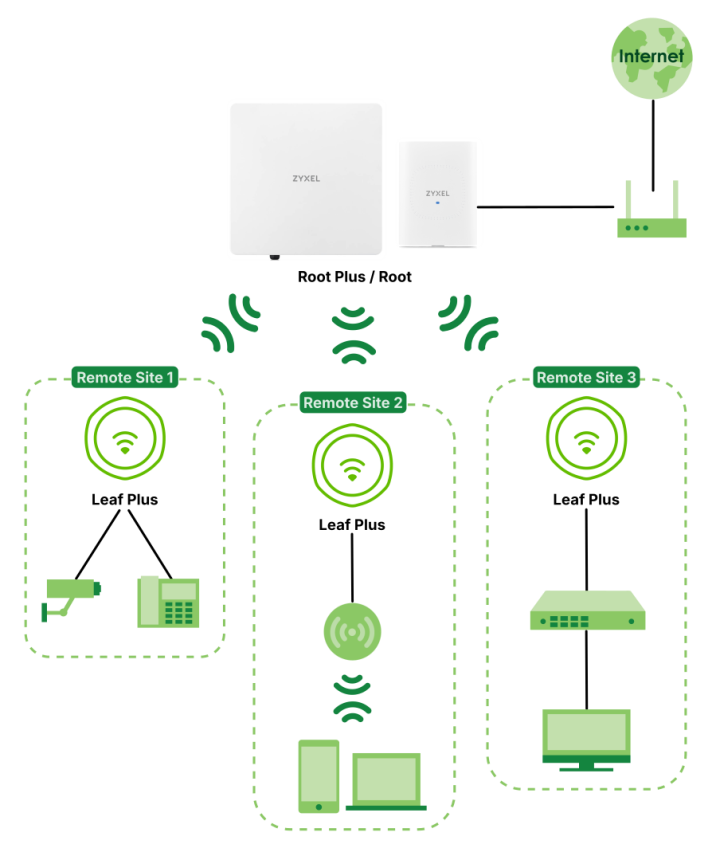
Feature Comparison
The following table shows the differences between Root Plus and Root. You can find the feature introductions in the later sections.
Features | Root plus | root |
|---|---|---|
Supported WiFi Standards | IEEE 802.11a IEEE 802.11ac IEEE 802.11ax IEEE 802.11be | IEEE 802.11a IEEE 802.11ac IEEE 802.11ax IEEE 802.11be |
Supported Frequency Bands | 5 GHz 6 GHz | 5 GHz 6 GHz |
Supported Channel Width | 5G: 20 / 40 / 80 / 160 / 240 MHz 6G: 20 / 40 MHz | 5G: 20 / 40 / 80 / 160 / 240 MHz 6G: 20 / 40 MHz |
Available Security Modes | None / Enhanced-open / WEP / WPA2-MIX-Personal / WPA3-Personal | None / Enhanced-open / WEP / WPA2-MIX-Personal / WPA3-Personal |
Number of WiFi Radios | 2 | 2 |
BandFlex (5 GHz / 6 GHz) | No | No |
Multi-Link Operation (MLO) | Yes | Yes |
Wireless Bridge | Yes | Yes |
Supported PoE Standards | IEEE 802.3at IEEE 802.3bt | IEEE 802.3af IEEE 802.3at |
External Antennas | No | Yes |
Internal Antennas | Yes | No |
Antenna Switch | No | No |
Smart Antenna | No | No |
Console Port | 4-Pin Serial | No |
Reset button | Yes | Yes |
LED Locator | Yes | Yes |
LED Suppression | Yes | Yes |
NCC Discovery | Yes | Yes |
AFC Report | Yes | Yes |
ACS Report | Yes | Yes |
Override Altitude | Yes | Yes |
Ethernet Forwarding Mode | Yes | Yes |
PTMP Bandwidth Control | Yes | Yes |
Wireless Remote Capture | Yes | Yes |
Email Daily Report | Yes | Yes |
SNMP | Yes | Yes |
Grounding | Yes | No |
Power Jack | PoE DC in 24 to 48 V | PoE |
Maximum number of log messages | 512 event logs | 512 event logs |
Latest Firmware Version Supported | 7.40 | 7.40 |
Dual-Radio
The Root (Plus) is equipped with two WiFi radios. The Root (Plus) uses the WiFi radios to transmit WiFi signals. This means you can configure different WiFi networks on the 5G/6G bands to operate simultaneously.
Due to each country’s regulations on frequency band usage, the available radio bands (5 GHz and 6 GHz) may differ by countries or markets the Root (Plus) products are sold to.A different channel should be configured for each WLAN interface to reduce the effects of radio interference.Multi-Link Operation (MLO)
An AP can support multiple frequency bands (5 GHz and 6 GHz), but a WiFi client can only connect to the AP using one of these frequency bands. The other frequency band is unused. The client's data transmission speed depends on the frequency band they are connected to.
WiFi 7 MLO allows a WiFi client to connect to the AP using multiple frequency bands simultaneously. This increases speed and improves reliability of the WiFi connection. MLO makes WiFi 7 ideal for streaming 4K/8K videos, using augmented reality (AR), virtual reality (VR) applications and playing online games.
To use MLO, both the AP and the WiFi client have to support MLO.
Preamble Puncturing
In WiFi 6 and earlier, any interference would cause the entire WiFi channel to become unavailable. In the figure below, if part of the WiFi channel (B) experiences interference, the rest of the WiFi channel (C) becomes unavailable.
Without Preamble Puncturing
WiFi 7 preamble puncturing allows you to block the specific portion of the channel that is experiencing interference while continuing to use the rest of the WiFi channel. In the figure below, if part of the WiFi channel (B) experiences interference, the rest of the WiFi channel (C) is still available.
Preamble Puncturing Example
Root (Plus) Management Mode
The Root (Plus) can be managed in one of the following methods: remote management through Nebula Control Center (NCC) or troubleshooting through the local GUI. It is recommended to use NCC to manage the Root (Plus) for complete configuration and monitoring. The local GUI is intended for troubleshooting purpose only.
NCC
This is the primary means by which you manage the Root (Plus) in cloud managed mode (NCC). With the NCC, you can remotely manage and monitor the Root (Plus) through a cloud-based network management system. See the NCC User’s Guide for more information.
Local GUI
If your Root (Plus) is managed by the NCC, use this only for troubleshooting if you cannot connect to the Internet. See Accessing the Local GUI for more information about the local GUI.
The following table shows the default IP addresses and purposes for different management modes.
Management Mode | Default IP Address | Purpose |
|---|---|---|
Nebula Control Center | Dynamic You can find the IP address in Site-wide > Devices > Access points > LAN IP. | For full configuration and monitoring |
Local GUI | Dynamic or Static (192.168.1.2) | For troubleshooting only |
Once you register your device with NCC, the local GUI login password will change to an NCC assigned password. To view or change the NCC assigned password, log in to NCC and go to Site-wide > Configure > Site settings > Local credentials.Site-wide > Configure > Site settings > Local credentials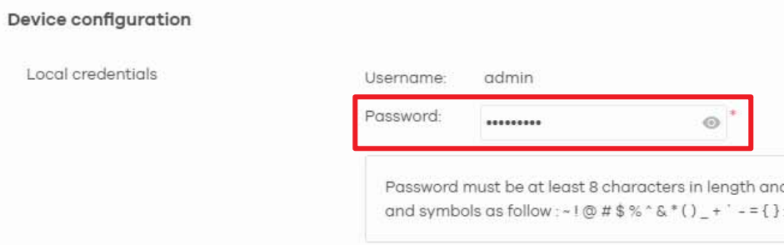
Good Habits for Managing the Root (Plus)
Do the following things regularly to make the Root (Plus) more secure and to manage it more effectively.
• Change the password often. Use a password that is not easy to guess and that consists of different types of characters, such as numbers and letters.
• Write down the password and put it in a safe place.
• Back up the configuration (and make sure you know how to restore it). Restoring an earlier working configuration may be useful if the Root (Plus) becomes unstable or even crashes. If you forget your password, you will have to reset the Root (Plus) to its factory default settings. If you backed up an earlier configuration file, you will not have to totally re-configure the Root (Plus); you can simply restore your last configuration.
• Inspect the signal path periodically. Trees, vegetation, or newly constructed structures can gradually block the line of sight between the Root (Plus) and Leaf Plus, reducing wireless link performance.