Network
Overview
This describes how you can configure the management IP address and VLAN settings of your Zyxel Device.
IP Setup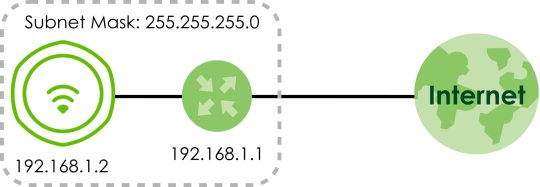
IP Setting
Use this screen to configure the IP address for your Zyxel Device.
Each field is described in the following table.
Label | Description |
|---|---|
IP Address Assignment | |
IP Type | Select DHCP to make the interface a DHCP client and automatically get the IP address, subnet mask, gateway and DNS Server IP address from a DHCP server. Select Static IP to specify the IP address, subnet mask, gateway and DNS server IP address manually. |
Use Fixed DNS Server IP Address | Select this if you have a preferred DNS server that you want to specify manually even if the IP type is DHCP. Setting a fixed DNS server IP address may help if you experience unreliable DNS resolution. |
IP Address | Enter the IP address for this interface. |
Subnet Mask | Enter the subnet mask of this interface in dot decimal notation. The subnet mask indicates what part of the IP address is the same for all computers in the network. |
Gateway | Enter the IP address of the gateway. The Zyxel Device sends packets to the gateway when it does not know how to route the packet to its destination. The gateway should be on the same network as the interface. |
DNS Server IP Address | Enter the IP address of the DNS server. |
IPv6 Address Assignment | |
Enable Stateless Address Auto-configuration (SLAAC) | Select this to enable IPv6 stateless auto-configuration on the Zyxel Device. The Zyxel Device will generate an IPv6 address itself from a prefix obtained from an IPv6 router in the network. |
Link-Local Address | This displays the IPv6 link-local address and the network prefix that the Zyxel Device generates itself for the LAN interface. |
IPv6 Address/Prefix Length | Enter the IPv6 address and the prefix length for the LAN interface if you want to use a static IP address. This field is optional. The prefix length indicates what the left-most part of the IP address is the same for all computers in the network, that is, the network address. |
Gateway | Enter the IPv6 address of the default outgoing gateway using colon (:) hexadecimal notation. |
Metric | Enter the priority of the gateway (if any) on the LAN interface. The Zyxel Device decides which gateway to use based on this priority. The lower the number, the higher the priority. If two or more gateways have the same priority, the Zyxel Device uses the one that was configured first. Enter zero to set the metric to 1024 for IPv6. |
DHCPv6 Client | Select this option to set the Zyxel Device to act as a DHCPv6 client. |
DUID | This field displays the DHCP Unique IDentifier (DUID) of the Zyxel Device, which is unique and used for identification purposes when the Zyxel Device is exchanging DHCPv6 messages with others. |
Request Address | Select this option to get an IPv6 address from the DHCPv6 server. |
DHCPv6 Request Options | Select the following DHCPv6 options to determine what additional information to get from the DHCPv6 server. |
DNS Server | Select this option to obtain the IP address of the DNS server. |
NTP Server | Select this option to obtain the IP address of the NTP server. |
Apply | Click Apply to save your changes back to the Zyxel Device. |
Reset | Click Reset to return the screen to its last-saved settings. |
VLAN
 Mis-configuring the management VLAN settings on your Zyxel Device can make it inaccessible. If this happens, you will have to reset the Zyxel Device.
A Virtual Local Area Network (VLAN) allows a physical network to be partitioned into multiple logical networks. Devices on a logical network belong to one group. A device can belong to more than one group. With VLAN, a device cannot directly talk to or hear from devices that are not in the same group(s); the traffic must first go through a router.
Wireless Bridge VLAN ID
Wireless bridge VLAN allows you to have clients in different WiFi networks appear to be in the same virtual network using VLAN IDs. VLAN IDs are sent across the wireless bridge so that only clients with the same VLAN ID receive that network traffic. See Zyxel Device Roles for more information on the wireless bridge.
In the figure below, a client (C2) in the branch office (B) wants to connect to the main office (M). The branch office client (C2) can connect to the main office network using the VLAN ID 10. However, the branch office client (C2) cannot connect to the to the main office network using the VLAN ID 20 because that VLAN ID does not exist in the main office network. To bridge the branch office network and the main office network, the VLAN IDs you set on the Zyxel Device (X) should be the same as the VLAN IDs you set on the root AP (Y).
Wireless Bridge VLAN ID Example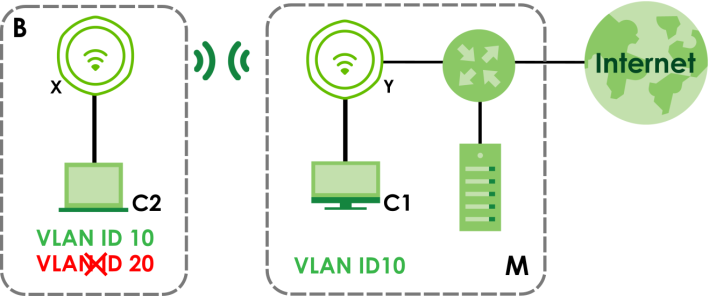
Use this screen to configure the VLAN settings for your Zyxel Device.
Each field is described in the following table.
Label | Description |
|---|---|
VLAN Settings | |
Management VLAN ID | Enter a VLAN ID for the Zyxel Device. The range is 1–4094. |
As Native VLAN | Select this option to treat the Management VLAN ID as a VLAN created on the Zyxel Device and not one assigned to it from outside the network. Outbound traffic transmitted through the Zyxel Device Ethernet port will NOT be tagged with the Management VLAN ID. Clear this option to have the Zyxel Device add the Management VLAN ID tag to outbound traffic transmitted through the Zyxel Device Ethernet port. The uplink device connected to the Zyxel Device Ethernet port needs to have the same VLAN ID configured to receive traffic from the Zyxel Device. |
LAN Setting The following settings are only available if your Zyxel Device supports wireless bridge and have more than one Ethernet port. See the feature comparison table in Zyxel Device Product Feature Comparison. | |
Port Setting | |
Edit | Double-click an entry or select it and click Edit to open a screen where you can modify the entry’s settings. In some tables you can just click a table entry and edit it directly in the table. For those types of tables small red triangles display for table entries with changes that you have not yet applied. |
Activate/Inactivate | To turn on an entry, select it and click Activate. To turn off an entry, select it and click Inactivate. |
# | This is the index number of the port. |
Status | This field indicates whether the port is enabled (a yellow bulb) or not (a gray bulb). |
Port | This field displays the name of the port. |
PVID | This field displays the PVID of a port. You can click Edit to set the PVID in the Edit Port screen. This only governs the incoming untagged packets. The Zyxel Device will tag packets received on the port with the specified PVID. The packets will then be sent to the VLANs they belong to accordingly. |
VLAN Configuration | |
Add | Click this to create a new entry. For features where the entry’s position in the numbered list is important (features where the Zyxel Device applies the table’s entries in order like the SSID for example), you can select an entry and click Add to create a new entry after the selected entry. |
Edit | Double-click an entry or select it and click Edit to open a screen where you can modify the entry’s settings. In some tables you can just click a table entry and edit it directly in the table. For those types of tables small red triangles display for table entries with changes that you have not yet applied. |
Remove | To remove an entry, select it and click Remove. The Zyxel Device confirms you want to remove it before doing so. |
Activate/Inactivate | To turn on an entry, select it and click Activate. To turn off an entry, select it and click Inactivate. |
# | This is the index number of the VLAN ID. |
Status | This field indicates whether the VLAN is enabled (a yellow bulb) or not (a gray bulb). |
Name | This field displays the name of each VLAN. |
VID | This field displays the VLAN ID. The VLAN ID you set here will be added as an entry in the Wireless Bridge VLAN Settings table. |
Member | This field displays the VLAN membership to which the port belongs. This also displays if outgoing packets from the port are tagged or not. (T) means the packets going out from the port are tagged. (U) means the packets going out from the port are untagged. For WAX620D-6E, WAX640S-6E, and NWA220AX-6E, the Tx-tagging settings are unconfigurable. The Tx-tagging settings will be synced with the PVID settings in the Port Settings table. If the VID is the same as the PVID set on the port, the outgoing traffic will be untagged, the member port will display (U). Otherwise, the outgoing packets will be tagged with the VID, the member port will display (T). |
Wireless Bridge Vlan Setting This section appears if your Zyxel Device supports wireless bridge. See the feature comparison table in Zyxel Device Product Feature Comparison. | |
Add | Click this to add an entry in the table. |
Remove | Select an entry and click this to remove the selected entry. |
# | This field is a sequential value. It is not associated with any VLAN ID. |
Wireless Bridge Vlan ID (1-4094) | Enter a VLAN ID for the wireless bridge. Duplicate VLAN IDs are not allowed. The VLAN IDs you set on your root AP should be the same as the VLAN IDs you set here. See Zyxel Device Product Feature Comparison for more information on wireless bridge. The VLAN ID you set here will be added as an entry in the VLAN Configuration table. |
Apply | Click Apply to save your changes back to the Zyxel Device. |
Reset | Click Reset to return the screen to its last-saved settings. |
Storm Control
Traffic storm control limits the number of broadcast and/or multicast packets the Zyxel Device receives on the ports. When the maximum number of allowable broadcast and/or multicast packets is reached, the subsequent packets are discarded. Enable this feature to reduce broadcast and/or multicast packets in your network.
Not all Zyxel Device models support the storm control feature. See the feature comparison table in Zyxel Device Product Feature Comparison.The maximum traffic rate can be changed using the CLI (see the CLI Reference Guide).Each field is described in the following table.
label | description |
|---|---|
Broadcast Storm Control | Select the checkbox to enable broadcast storm control on the Zyxel Device. Enabling this will drop ingress broadcast traffic in the physical Ethernet port if it exceeds the maximum traffic rate. |
Multicast Storm Control | Select the checkbox to enable multicast storm control on the Zyxel Device. Enabling this will drop ingress multicast traffic in the physical Ethernet port if it exceeds the maximum traffic rate. |
Apply | Click Apply to save your changes back to the Zyxel Device. |
Reset | Click Reset to return the screen to its last-saved settings. |