Config Templates
Use a configuration template to apply settings to a site. If you applied a configuration template to a group of sites but now want to change the settings to a specific bound site, then unbind or turn on the local override function (see Local Override).
Use this screen to create and manage configuration templates. You can bind or unbind a site from a template (see Site Binding).
 You can bind a template to many sites, but each site can only use one template. The sites and the template should belong to the same organization for binding. All the sites will unbind from the template if the NCC service is downgraded from Nebula Professional Pack tier to Nebula Base tier (the Professional Pack license of a Nebula Device in the organization expires), but will retain the settings already applied from the template. The settings from the Configuration templates cannot be bound to Security Firewall(s) in Cloud Monitoring mode.
 Click MSP > MSP cross-org manage > Config templates to access this screen.
MSP > MSP cross-org manage > Config templates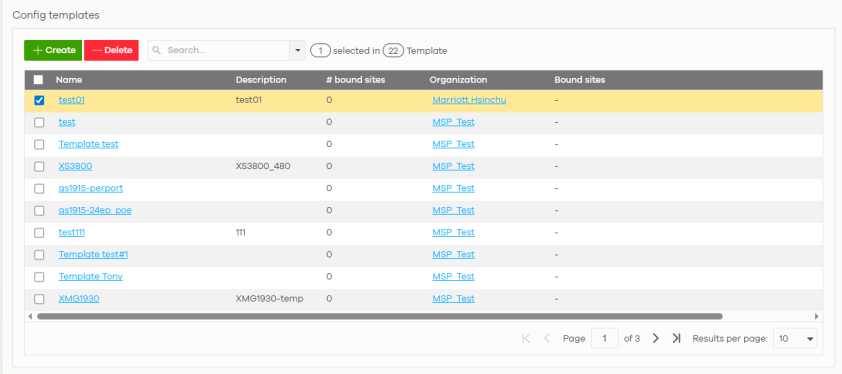
The following table describes the labels in this screen.
Label | Description |
|---|---|
Create | Click this button to create a new configuration template. You can copy settings from an existing site or configuration template, or create a new template with default settings. You do not have to bind templates immediately after creating them. 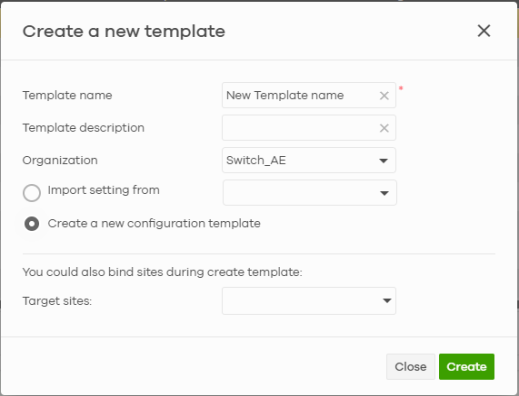 |
Delete | Click this button to unbind the selected templates. A window pops up asking you to confirm that you want to unbind the templates. If you unbind a template that is being used by a site, the site will be unbound from the template automatically and retain the settings previously applied from the template. 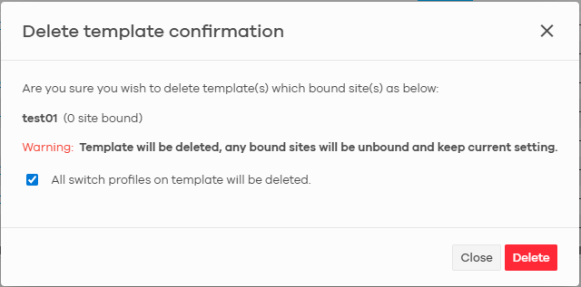 |
Search | Enter a key word as the filter criteria to filter the list of templates. |
Templates | This shows how many templates match the filter criteria and how many templates are created in total. |
Name | This shows the name of the template. |
Description | The shows a description of the template. |
# Bound sites | This shows the number of the sites bound to the template. |
Organization | This shows the name of the organization bound to the template. |
Bound sites | This shows the name of the sites bound to the template. |
Site Binding
Use this screen to bind or unbind a site from a template. Click an existing template from the list in the MSP > MSP cross-org manage > Config templates screen to access this screen. To go back to the previous screen, click the Configuration templates list link.
MSP > MSP cross-org manage > Config templates: Template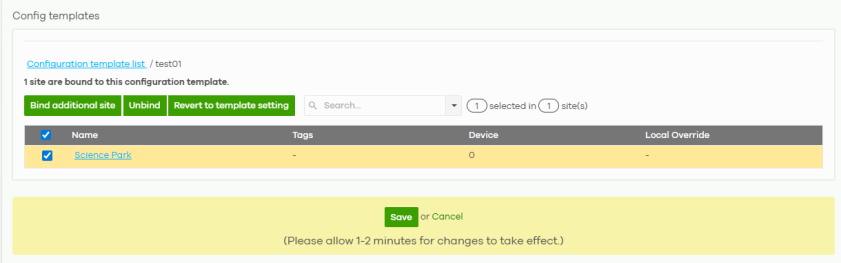
The following table describes the labels in this screen.
Label | Description |
|---|---|
Bind additional site | Click this button to bind more sites to the template. A window displays. Select the name of the sites in the Target sites field and click Bind. 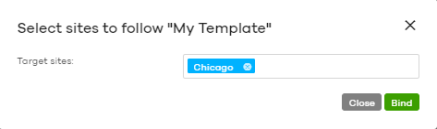 |
Unbind | Click this button to remove the selected sites from the template. The site which is unbound from the template still retains the settings applied from the template. |
Revert to template setting | Click this button to remove the local override settings from the selected sites and force them to revert to the configuration template setting. |
Search | Enter a key word as the filter criteria to filter the list of sites. |
Sites | This shows how many sites match the filter criteria and how many sites are bound to the template in total. |
Name | This shows the name of the site bound to the template. Click the Name to go to the site’s dashboard. |
Tags | This shows the tags added to the site. |
Device | This shows the number of Nebula Devices which are assigned to the site. |
Local override | This shows which settings in the template do not apply to the site. |
Template settings
An MSP administrator that has full access to the organization can modify the template configurations. To access a template’s configuration screen, select the template name from the Site field in the NCC title bar. It also shows the number of sites that are bound to the template on each configuration screen.
At the time of writing, you can use a template to configure Switches and access points in a site. Local Override
When a site is bound to a template, you can see the name of the template on the site’s configuration screens (which are also available in a template and can be configured).
There is also an option to make the changes you made locally to a site override the template. If you select the override checkbox of the site’s configuration screen, all the configuration screens under the same menu tab (Site-Wide or Switches) are configurable. Settings in these screens will not be affected and modified by the template. If the override checkbox is not selected, any changes of the same configuration screen in the template apply to the site.
Switch Port Profile and Configuration
Just as a profile is a configuration template for a Switch, so is a configuration template for a site. The settings you configured in a profile will apply to the Switches which are bound to the profile. If you do not want to apply any new settings from the profile to a Switch, just unbind that Switch. If you want to configure some specific settings directly in a Switch (for example, a port’s Broadcast (pps) value) (see Update ports for details) after the Switch is bound to a profile, turn on the local override function (see Local Override).