Limit Applications Usage or Block Applications
This section shows you how to limit or block specific applications on Nebula Device.
Limit Applications Usage or Block Applications for Nebula Security Appliances
You can do the following to manage application usage for clients connected to your Nebula Device.
Limit the Usage of Specific Applications Through a Specific Interface
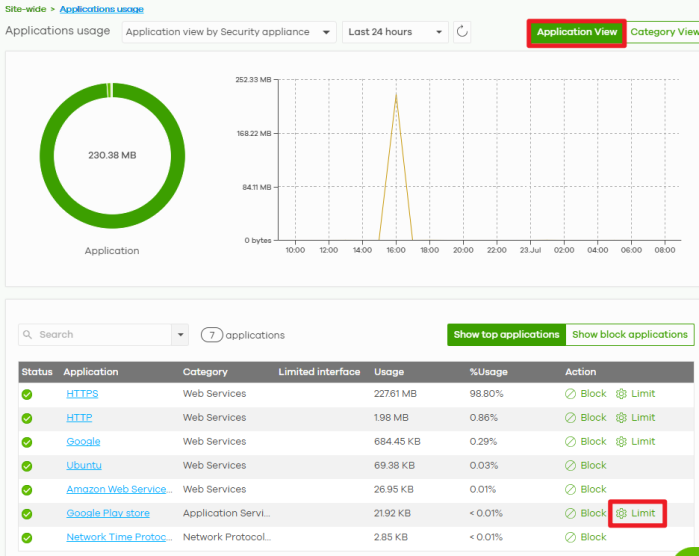
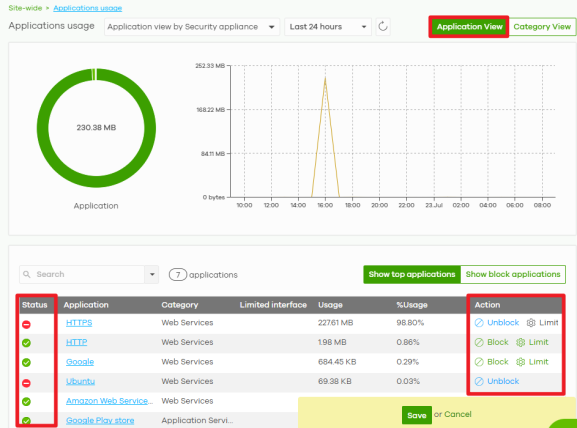
1 Go to Site-wide > Applications usage > Application View to view the usage statistics for applications used in the site. In this example, you want to limit the bandwidth usage of Google Play Store. Downloading or updating apps can use a significant amount of Internet bandwidth, which may affect the performance of other applications. Click Limit for Google Play Store.
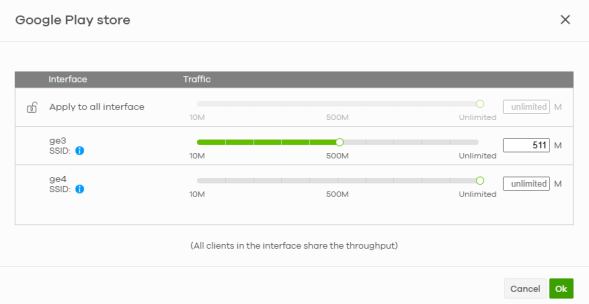
2 Set the maximum bandwidth for this application on each interface. You can use the slider or enter a value to configure the bandwidth limit.
2a To set a bandwidth limit for a specific interface, configure the limit on that interface. Click Ok.
2b To apply the same bandwidth limit to all interfaces, click the Apply to all interface unlock icon to configure the bandwidth limit. Click Ok.
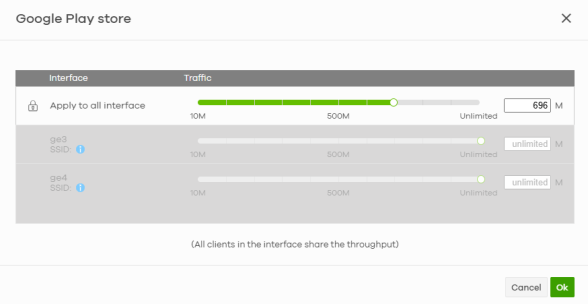
 The bandwidth limit configured using Apply to all Interface for all interfaces is not applied to newly created interfaces. If you want to apply the same bandwidth limit to a new interface, you must configure the bandwidth limit here again.
Block Specific Applications for All Client Devices
Go to Site-wide > Applications usage > Application View to view the usage statistics for applications used on the site. To block an application, click Block. The status of the blocked application shows a blocked icon. Click Save to save your changes.
Block Specific Applications for Specific Clients
1 Go to Site-wide > Applications usage > Application View to view the usage statistics for applications used on the site. In this example, you block a specific client from using Ubuntu. Click Ubuntu.
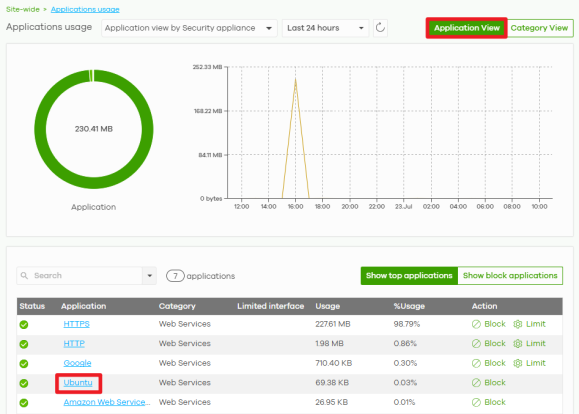
2 Click Block for the client device. The status of the blocked client shows a blocked icon. Click Save to save your changes.

Block All Applications in the Same Category for All Client Devices
Each application belongs to a category. Follow the steps below to block all applications in a specific category.
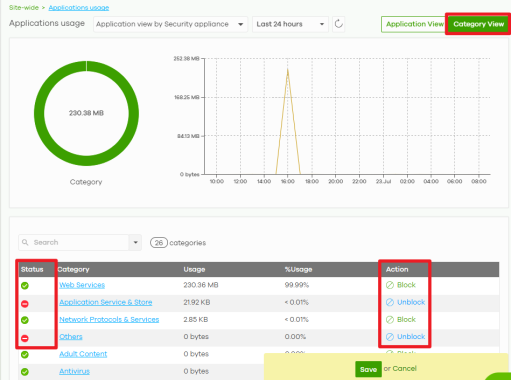
1 Go to Site-wide > Applications usage > Category View to view the usage statistics for application categories used on the site.
2 Click a category to view the applications in that category. To block all applications in a category, click Block. The status of the blocked category shows a blocked icon. Click Save to save your changes.
Limit Applications Usage or Block Applications for Nebula Access Points
To control network traffic throughput by limiting or blocking specific applications for Nebula Device, do the following:
Limit Applications Usage
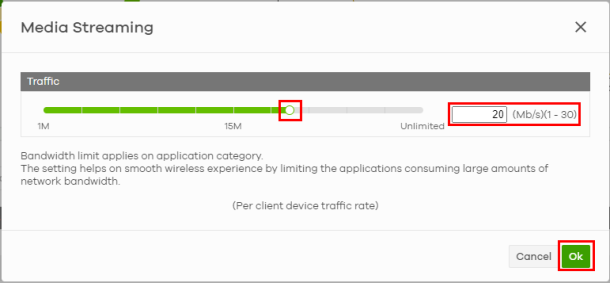
1 Go to Site-wide > Applications usage to view the usage statistics for applications used in the site. Hover the mouse on the application (for example, YouTube) you wish to limit the bandwidth and click Limit.
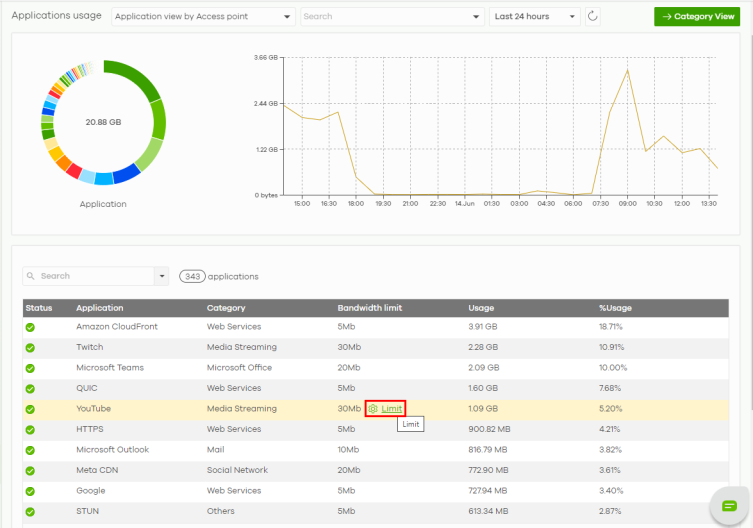
2 On the Media Streaming screen that appears, set the maximum bandwidth by:
• using the slider, or
• entering the bandwidth limit (1 to 30 Mb/s).
Then click Ok.
Block Applications
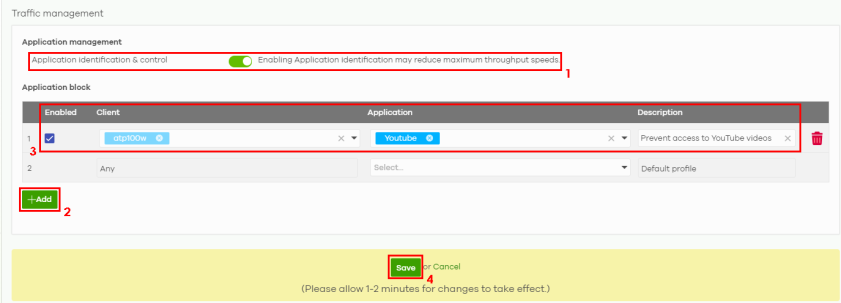
Go to the Site-wide > Configure > Security router > Traffic management screen and do the following:
• Click the Application identification & control switch to the right to control usage of applications.
• Click +Add to create up to 5 application management profiles.
• Select the Enabled checkbox to turn on the rule. Select the Client to which this rule applies. Select the YouTube Application to apply the rule. Then enter a Description for this profile (up to 512 characters long).
• Then click Save to create a new application management profile.