Hardware Panels
Overview
This chapter describes the LEDs and port panels of the Zyxel Device.
LEDs
The following figures show the Zyxel Device LED indicators. None of the LEDs are on if the Zyxel Device is not receiving power.
 Blinking (slow) means the LED blinks once per second. Blinking (fast) means the LED blinks once per 0.5 second.
Indoor Mobile Routers
Outdoor Mobile Routers
Nebula LTE3301-PLUS
LED Indicators (Nebula LTE3301-PLUS)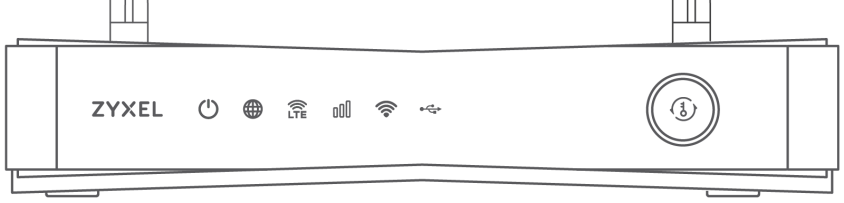
The following are the LED descriptions for your Zyxel Device.
LED | COLOR | STATUS | DESCRIPTION |
|---|---|---|---|
POWER  | White | On | The Zyxel Device is receiving power and ready for use. |
POWER | White | Blinking | The Zyxel Device is booting or self-testing. |
POWER | White | Off | The Zyxel Device is not receiving power. |
Internet  | White | On | There is Internet connection. |
Internet | White | Blinking | The Zyxel Device is sending or receiving IP traffic. |
Internet | White | Off | There is no Internet connection. |
LTE/3G  | White | On | The Zyxel Device is registered and successfully connected to a 4G network. |
LTE/3G | White | Blinking (slow) | The Zyxel Device is connected to a 3G network. |
LTE/3G | White | Blinking (fast) | The Zyxel Device is trying to connect to a 3G/4G network. |
LTE/3G | White | Off | There is no service. |
LTE/3G | Green | On | The Zyxel Device has an Ethernet connection on the WAN. |
LTE/3G | Green | Off | There is no Ethernet connection on the WAN. |
Signal Strength  | Green | On | The signal strength is excellent. |
Signal Strength | Amber | On | The signal strength is fair. |
Signal Strength | Red | On | The signal strength is poor. |
Signal Strength | Red | Blinking | There is no SIM card inserted, no signal, or the signal strength is below the poor level. |
Signal Strength | Red | Off | The SIM card is invalid, or the PIN code is not correct. |
WLAN  | Green | On | The 2.4G wireless network is activated. |
WLAN | Green | Blinking (slow) | The Zyxel Device is setting up a WPS connection with a 2.4G wireless client. |
WLAN | Green | Blinking (fast) | The Zyxel Device is communicating with 2.4G wireless clients. |
WLAN | White | On | The 5G wireless network is activated. |
WLAN | White | Blinking (slow) | The Zyxel Device is setting up a WPS connection with a 5G wireless client. |
WLAN | White | Blinking (fast) | The Zyxel Device is communicating with 2.4G and 5G wireless clients. |
WLAN | White | Off | The wireless network is not activated. |
USB  | White | On | The Zyxel Device recognizes a USB connection through the USB port. |
USB | White | Blinking | The Zyxel Device is sending/receiving data to/from the USB device connected to it. |
USB | White | Off | The Zyxel Device does not detect a USB connection through the USB port. |
Nebula NR5101
LED Indicators (Nebula NR5101 LED)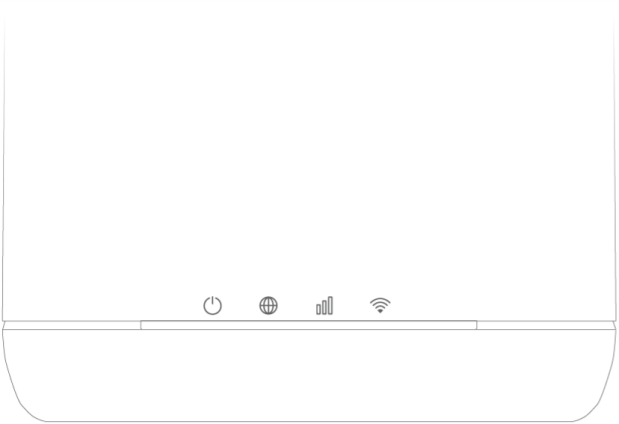
The following are the LED descriptions for your Zyxel Device.
LED | COLOR | STATUS | DESCRIPTION |
|---|---|---|---|
Power/USB  | Green | On | The Zyxel Device is receiving power and ready for use. |
Power/USB | Green | Blinking | The Zyxel Device is booting. |
Power/USB | Green | Off | The Zyxel Device is not receiving power. |
Power/USB | Blue | On | A USB device is connected to the USB port on the Zyxel Device. |
Internet/SMS  | Green | On | The Zyxel Device is connected to the Internet using 3G/4G. |
Internet/SMS | Green | Blinking | There is a new SMS message. |
Internet/SMS | Green | Off | The Zyxel Device is not connected to the Internet. |
Internet/SMS | Blue | On | The Zyxel Device is connected to the Internet using 5G. |
Cellular Signal Strength  | Green | On | The signal strength is excellent. |
Cellular Signal Strength | Orange | On | The signal strength is fair. |
Cellular Signal Strength | Red | On | The signal strength is poor. |
Cellular Signal Strength | Red | Blinking | There is no cellular signal, or signal strength is below the poor level. |
WiFi/WPS  | Green | On | WiFi is enabled. |
WiFi/WPS | Green | Blinking (fast) | Data is being transmitted and received. |
WiFi/WPS | Green | Blinking (slow) | WPS is activated, and the Zyxel Device is establishing a WPS connection. |
Nebula FWA505
LED Indicators (Nebula FWA505 LED)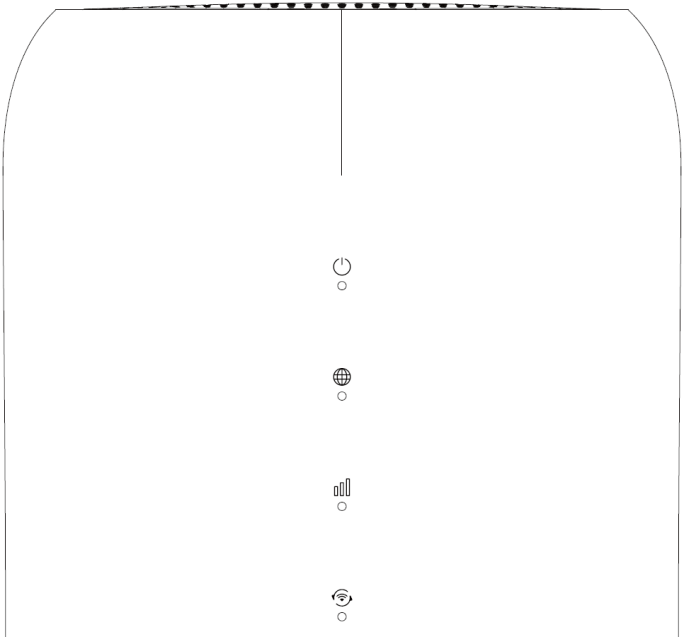
The following are the LED descriptions for your Zyxel Device.
LED | COLOR | STATUS | DESCRIPTION |
|---|---|---|---|
Power  | Green | On | The Zyxel Device is receiving power and ready for use. |
Power | Green | Blinking | The Zyxel Device is booting. |
Power | Green | Off | The Zyxel Device is not receiving power. |
Power | Red | On | Zyxel Device error, need to take action. |
Power | Blue | On | There is a new SMS message. |
Power | Blue | Blinking | The Inbox is full. |
Internet  | Blue | On | The Zyxel Device is connected to the Internet using 5G. |
Internet | Green | On | The Zyxel Device is connected to the Internet using 4G, or is connected in Ethernet WAN mode. |
Internet | Red | On | Internet connection is unavailable. |
Cellular Signal Strength  | Blue | On | The signal strength is good. |
Cellular Signal Strength | Blue | Blinking | No SIM card or invalid SIM card. |
Cellular Signal Strength | Green | On | The signal strength is medium. |
Cellular Signal Strength | Red | On | The signal strength is poor. |
Cellular Signal Strength | Red | Blinking | There is no cellular signal, or signal strength is below the poor level. |
WiFi/WPS  | Green | On | WiFi is enabled. |
WiFi/WPS | Green | Blinking | WPS is activated, and the Zyxel Device is establishing a WPS connection. |
WiFi/WPS | Green | Off | WiFi is disabled. |
Nebula FWA505v2
LED Indicators (Nebula FWA505v2 LED)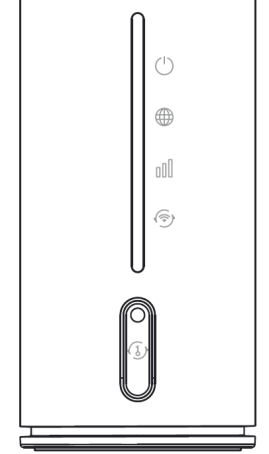
LED | COLOR | STATUS | DESCRIPTION |
|---|---|---|---|
Power  | Blue | On | There is a new SMS message. |
Power | Blue | Blinking | The SMS inbox is full. |
Power | Green | On | The Zyxel Device is receiving power and ready for use. |
Power | Green | Blinking | The Zyxel Device is booting. |
Power | Off | Off | The Zyxel Device is not receiving power. |
Power | Red | On | The Zyxel Device has encountered an error, and requires action. |
Internet  | Blue | On | The Zyxel Device is connected to the Internet using 5G. |
Internet | Green | On | The Zyxel Device is connected to the Internet using 4G, or is connected in Ethernet WAN mode. |
Internet | Red | On | The Internet connection is unavailable. |
Cellular Signal Strength  | Blue | On | The signal strength is good. |
Cellular Signal Strength | Blue | Blinking | There is no SIM card or the SIM card is invalid. |
Cellular Signal Strength | Green | On | The signal strength is medium. |
Cellular Signal Strength | Red | On | The signal strength is poor. |
Cellular Signal Strength | Red | Blinking | There is no signal or it is too weak to be detected. |
WiFi or WPS  | Green | On | The WiFi network is enabled. |
WiFi or WPS | Green | Blinking | WPS is activated, and the Zyxel Device is establishing a WPS connection. |
WiFi or WPS | Off | Off | The WiFi network is disabled. |
All LEDs | Green | Blinking | The Zyxel Device is resetting to factory default settings or upgrading firmware. |
Nebula FWA510
LED Indicators (Nebula FWA510)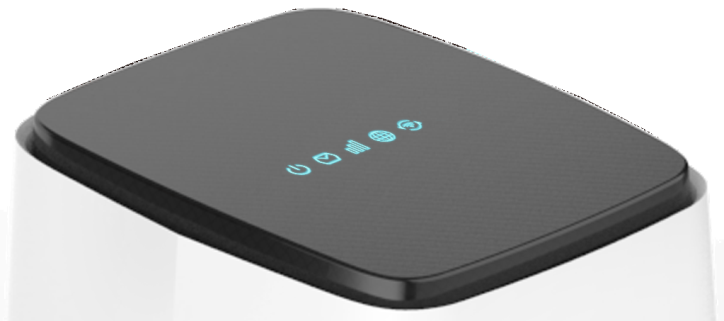
The following are the LED descriptions for your Zyxel Device.
LED | COLOR | STATUS | DESCRIPTION |
|---|---|---|---|
Power  | Green | On | The Zyxel Device is receiving power and ready for use. |
Power | Green | Blinking | The Zyxel Device is booting. |
Power | Green | Off | The Zyxel Device is not receiving power. |
Power | Red | On | Zyxel Device error, need to take action. |
SMS  | Green | On | There is a new SMS message. |
SMS | Green | Blinking | The Inbox is full. |
SMS | Green | Off | There is no unread SMS message. |
Cellular Signal Strength  | Blue | On | The signal strength is good. |
Cellular Signal Strength | Green | On | The signal strength is medium. |
Cellular Signal Strength | Red | On | The signal strength is poor. |
Cellular Signal Strength | Red | Blinking | There is no cellular signal, or signal strength is below the poor level. |
Cellular Signal Strength | Red | Off | The Zyxel Device is booting. |
Internet  | Blue | On | The Zyxel Device is connected to the Internet using 5G. |
Internet | Green | On | The Zyxel Device is connected to the Internet using 4G, or is connected in Ethernet WAN mode. |
Internet | Red | On | Internet connection is unavailable. |
WiFi/WPS  | Green | On | WiFi is enabled. |
WiFi/WPS | Green | Blinking | WPS is activated, and the Zyxel Device is establishing a WPS connection. |
WiFi/WPS | Green | Off | WiFi is disabled. |
Nebula FWA515
LED Indicators (Nebula FWA515)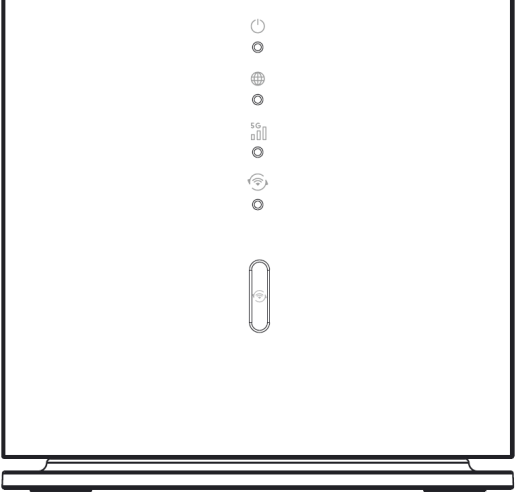
The following are the LED descriptions for your Zyxel Device.
LED | COLOR | STATUS | DESCRIPTION |
|---|---|---|---|
Power  | Blue | On | There is a new SMS message. |
Power | Blue | Blinking | The Inbox is full. |
Power | Green | On | The Zyxel Device is receiving power and ready for use. |
Power | Green | Blinking | The Zyxel Device is booting. |
Power | Green | Intermittent On | The Zyxel Device is in power-saving mode. |
Power | Green | Off | The Zyxel Device is not receiving power. |
Power | Red | On | Zyxel Device error, need to take action. |
Internet  | Blue | On | The Zyxel Device is connected to the Internet using 5G. |
Internet | Green | On | The Zyxel Device is connected to the Internet using 4G, or is connected in Ethernet WAN mode. |
Internet | Red | On | Internet connection is unavailable. |
Cellular Signal Strength  | Blue | On | The signal strength is good. |
Cellular Signal Strength | Blue | Blinking | No SIM card or invalid SIM card. |
Cellular Signal Strength | Green | On | The signal strength is medium. |
Cellular Signal Strength | Red | On | The signal strength is poor. |
WiFi/WPS  | Green | On | WiFi is enabled. |
WiFi/WPS | Green | Blinking | WPS is activated, and the Zyxel Device is establishing a WPS connection. |
WiFi/WPS | Green | Off | WiFi is disabled. |
All LEDs | Green | Blinking | The Zyxel Device is resetting to factory default settings or upgrading firmware. |
LED | COLOR | STATUS | DESCRIPTION |
Nebula LTE7641-M602
LED Indicators (Nebula LTE7641-M602)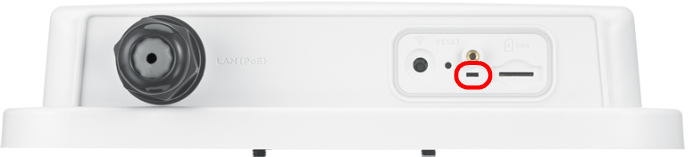
The following are the LED descriptions for your Zyxel Device.
color | status | description |
|---|---|---|
Red | Blinking | The Zyxel Device is booting or self-testing. |
Red | On | The Zyxel Device encountered an error. |
Green | Blinking | The Zyxel Device is trying to connect to the Internet. |
Green | On | The Zyxel Device is connected to the Internet. |
Amber | Blinking | The Zyxel Device WiFi is on. |
Nebula NR7101
LED Indicators (Nebula NR7101)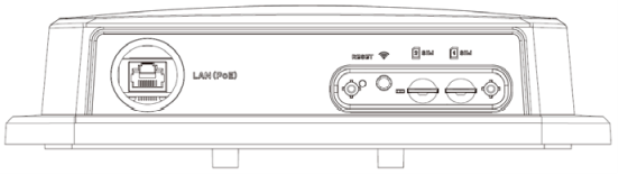
The following are the LED descriptions for your Zyxel Device.
COLOR | STATUS | DESCRIPTION |
|---|---|---|
Green | On | The Zyxel Device is connected to the Internet. |
Green | Blinking | The Zyxel Device is trying to connect to the Internet. |
Amber | On | The WiFi is activated. The Zyxel Device is connected to the Internet. |
Amber | Blinking | The WiFi is activated. The Zyxel Device is not connected to the Internet. |
Red | On | The Zyxel Device is not connected to the Internet. |
Red | Blinking | The Zyxel Device is booting or self-testing. |
Red | Off | There is a system failure. |
Green/Amber/Red | Looping | Firmware upgrade is in process. |
Nebula FWA70
LED Indicators (Nebula FWA70)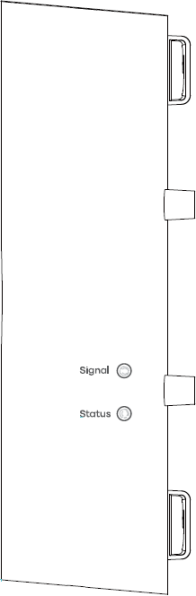
The following are the LED descriptions for your Zyxel Device.
LED | COLOR | STATUS | DESCRIPTION |
|---|---|---|---|
Signal | Green | On | The 5G signal strength is excellent. |
Signal | Green | Blinking | The 4G signal strength is excellent. |
Signal | Amber | On | The 5G signal strength is fair. |
Signal | Amber | Blinking | The 4G signal strength is fair. |
Signal | Red | On | The 5G signal strength is weak. |
Signal | Red | Blinking | The 4G signal strength is weak. |
Signal | Red | Off | The Zyxel Device is not connected to the Internet. |
Status | Green | On | The Zyxel Device is connected to the Internet with WiFi off. |
Status | Green | Fast blinking | The Zyxel Device is trying to connect to the Internet with WiFi off. |
Status | Green | Slow blinking | The Zyxel Device is booting. |
Status | Amber | On | The Zyxel Device is connected to the Internet with WiFi on. |
Status | Amber | Blinking | The Zyxel Device is trying to connect to the Internet with WiFi on. |
Status | Red | On | There is a system failure. |
Status | Red | Off | The power is off. |
Status | Green / Amber / Red | Looping | Firmware upgrade is in progress. |
Nebula FWA710
LED Indicators (Nebula FWA710)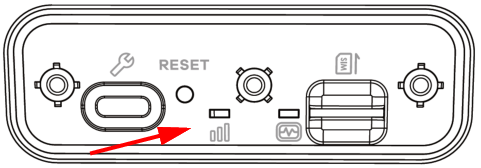
The following are the LED descriptions for your Zyxel Device.
LED | COLOR | STATUS | DESCRIPTION |
|---|---|---|---|
Cellular Signal Strength  | Green | On | The signal strength is excellent. |
Cellular Signal Strength | Amber | On | The signal strength is fair. |
Cellular Signal Strength | Red | On | The signal strength is weak. |
Cellular Signal Strength | Red | Blinking | There is no cellular signal, or signal strength is below the weak level. |
Status  | Green | On | The Zyxel Device is connected to the Internet. |
Status | Green | Blinking | The Zyxel Device is trying to connect to the Internet. |
Status | Green | Off | The Zyxel Device is not receiving power. |
Status | Amber | On | The WiFi is on. |
Status | Red | On | There is a system failure. |
Status | Red | Blinking | The Zyxel Device is booting. |
Status | Green/Amber/Red | Looping | Firmware upgrade is in progress. |
Panel Ports
The following figures show the panel ports and buttons of the Zyxel Device.
Indoor Mobile Routers
Outdoor Mobile Routers
Nebula LTE3301-PLUS
Place the Zyxel Device with the feet at the bottom and the ports facing you. The two antenna ports are located on the rear panel, closer to the top of the Zyxel Device.
Rear Panel (Nebula LTE3301-PLUS)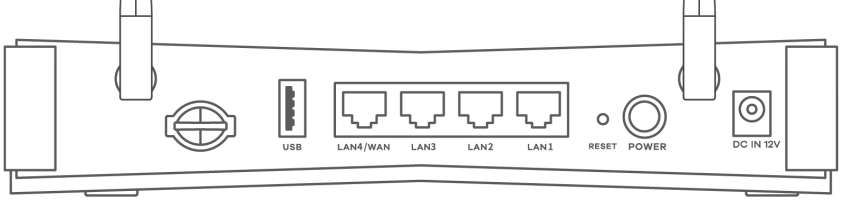
The WiFi / WPS button is on the front panel of the Zyxel Device, closer to the right, with the ports positioned farther from you.
WPS and WiFi On/Off Button on the Front Panel (Nebula LTE3301-PLUS)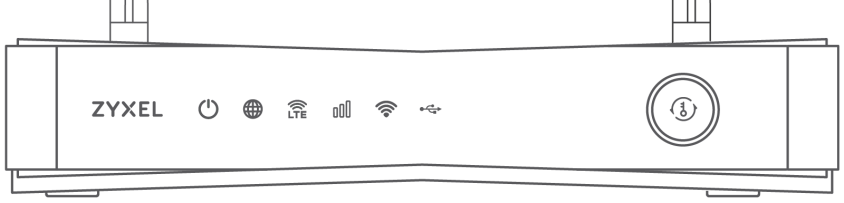
The following table describes the ports and buttons on your Zyxel Device.
LABELS | DESCRIPTION |
|---|---|
ANT1-ANT2 | Install the external antennas to strengthen the cellular signal. |
Micro SIM | Insert a micro-SIM card into the slot with the chip facing down and the beveled corner in the top left corner. |
USB | The USB port of the Zyxel Device is used for file sharing. |
LAN4/WAN | LAN mode: LAN4 is a 1G LAN port that supports speeds of 100/1000 Mbps. Connect computers or other Ethernet devices to Ethernet ports for Internet access. WAN mode: The 1G WAN port supports speeds of 100/1000 Mbps. Use an Ethernet cable to connect the WAN port to a gateway/modem for Internet connection. |
LAN3- LAN1 | LAN3 – LAN1 are 1G LAN ports that support speeds of 100/1000 Mbps. Connect computers or other Ethernet devices to Ethernet ports for Internet access. |
RESET | Press the RESET button for more than 5 seconds to return the Zyxel Device to the factory defaults. Press the RESET button for more than 2 seconds but less than 5 seconds, it will cause the system to reboot. |
POWER | Press the POWER button after the power adapter is connected to start the Zyxel Device. |
POWER / DC IN | Connect the power adapter and press the POWER button to start the Zyxel Device. |
WiFi | Press the WLAN (WiFi) button for more than 5 seconds to enable WiFi. |
WPS | After WiFi is enabled, press the WLAN button for more than one second but less than 5 seconds to quickly set up a secure wireless connection between the Zyxel Device and a WPS-compatible client. |
Nebula NR5101
Place the Zyxel Device with the ports facing you and closer to the bottom.
Rear Panel (Nebula NR5101)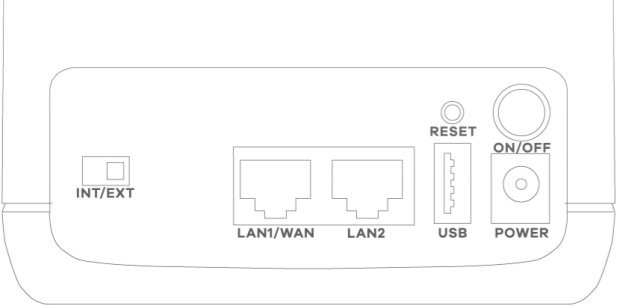
The WPS and WiFi On/Off button is on the top of the Zyxel Device.
WPS and WiFi On/Off Button on the Top Panel (NR5101)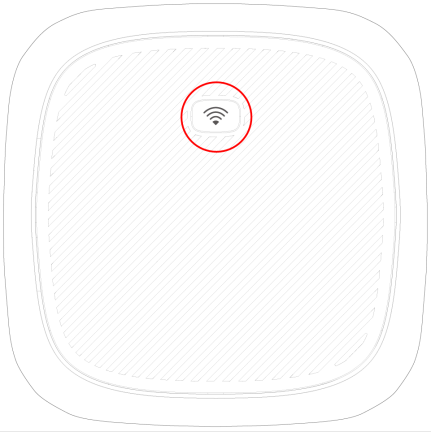
The two antenna ports are in the middle of the rear panel of the Zyxel Device.
Antenna Ports on the Rear Panel (NR5101)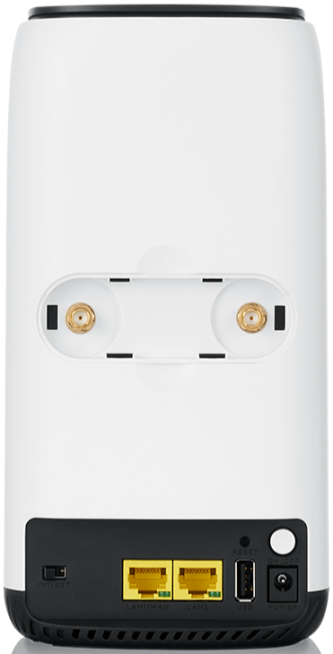
The Micro SIM card slot is on the bottom of the Zyxel Device.
Micro SIM card slot on the bottom panel (NR5101)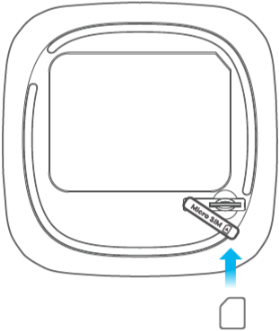
The following table describes the ports and buttons on your Zyxel Device.
LABELS | DESCRIPTION |
|---|---|
WPS/WiFi On and Off | Press for 1 second: Enable or disable WiFi. Press for more than 5 seconds: Activate WPS connection process. |
ANT1-ANT2 / Antenna | Install the external antennas to strengthen the cellular signal. To use the external antennas, you must set the INT/EXT switch to EXT. |
INT/EXT | Select between the internal or external cellular antennas. |
LAN1/WAN | LAN mode: LAN1 is a 1G LAN port that supports speeds of 100/1000 Mbps. Connect computers or other Ethernet devices to Ethernet ports for Internet access. WAN mode: The 1G WAN port supports speeds of 100/1000 Mbps. Use an Ethernet cable to connect the WAN port to a gateway/modem for Internet connection. |
LAN2 | Connect a computer to the LAN using an RJ45 cable. |
RESET | Press for 2 seconds: Reboot the Zyxel Device. Press for 5 seconds: Restore the Zyxel Device to its factory default settings. |
USB | The USB port of the Zyxel Device is used for file sharing. |
POWER Button | Press the POWER button after the power adapter is connected to start the Zyxel Device. |
POWER | Connect the power adapter and press the POWER button to start the Zyxel Device. |
Micro SIM | Insert a micro-SIM card into the slot with the chip facing down and the beveled corner in the top left corner. |
Nebula FWA505
Place the Zyxel Device with the ports facing you and closer to the bottom. The two antenna ports are located on the rear panel, closer to the top of the Zyxel Device.
Rear Panel (Nebula FWA505)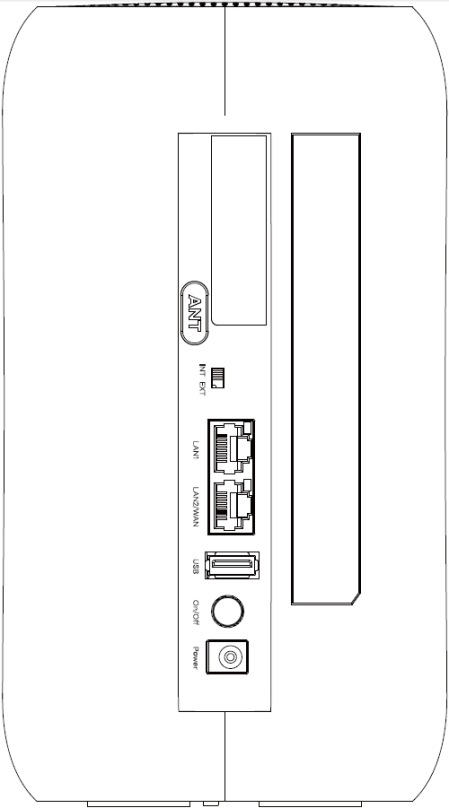
The WPS and WiFi On/Off button is on the front panel of the Zyxel Device, further from you, near the bottom.
WPS and WiFi On/Off Button on the Front Panel (FWA505)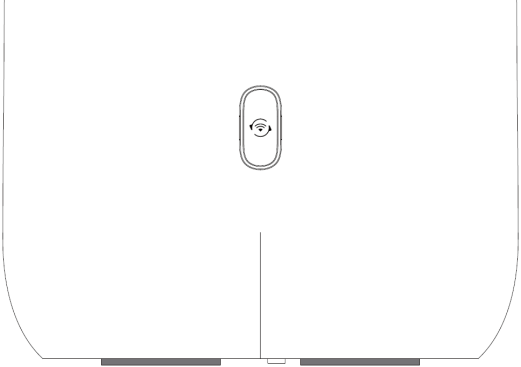
The Micro SIM card slot is at the bottom of the Zyxel Device.
Micro SIM card slot on the Bottom Panel (FWA505)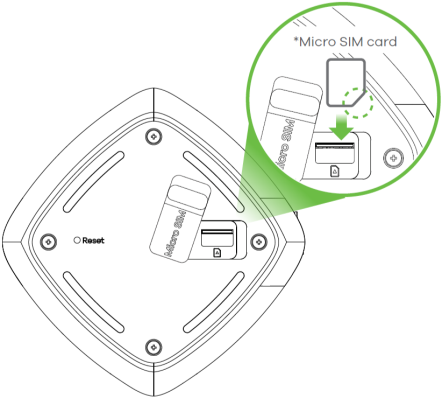
The following table describes the ports and buttons on your Zyxel Device.
LABELS | DESCRIPTION |
|---|---|
ANT1-ANT2/Antenna | Install the external antennas to strengthen the cellular signal. To use the external antennas, you must set the INT/EXT switch to EXT. |
INT/EXT | Select between the internal or external cellular antennas. |
LAN1 | Connect a computer to the LAN using an RJ45 cable. |
LAN2/WAN | LAN mode: Connect a computer to the LAN using an RJ45 cable. WAN mode: Connect the Zyxel Device to the Internet through the WAN. |
USB | The USB port of the Zyxel Device is used for file sharing. |
ON/OFF | Press the ON/OFF button after the power adapter is connected to start the Zyxel Device. |
POWER | Connect the power adapter and press the ON/OFF button to start the Zyxel Device. |
WiFi/WPS | Press the WiFi/WPS button to activate WPS connection process. See WiFi/WPS Button for more information. |
RESET | Press the RESET button to reboot or reset the Zyxel Device. See RESET Button for more information. |
Micro SIM | Insert a Micro-SIM card into the slot with the chip facing down and the beveled corner in the top left corner. |
Nebula FWA505v2
Place the Zyxel Device with the ports facing you and the ON/OFF button closer to the bottom.
Rear Panel (Nebula FWA505v2)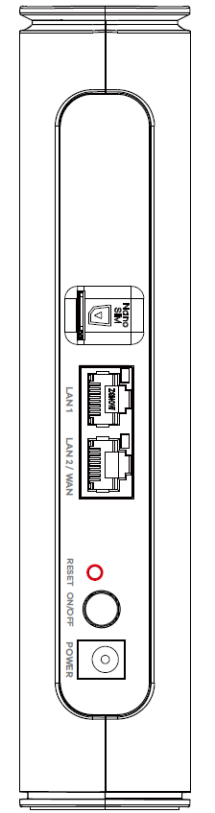
The WPS and WiFi On/Off button is on the front panel of the Zyxel Device, further from you, near the bottom.
WPS and WiFi On/Off Button on the Front Panel (FWA505v2)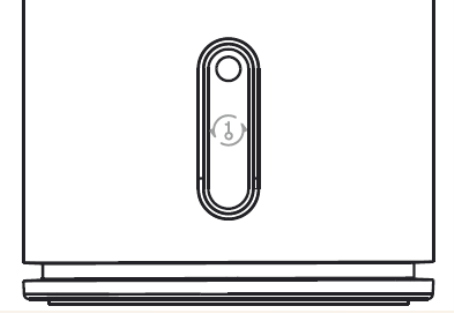
The following table describes the ports and buttons on the Zyxel Device.
LABELS | DESCRIPTION |
|---|---|
Nano SIM | Insert a nano SIM card into the slot with the chip facing left and the beveled corner positioned inward. |
LAN1 | Connect a computer to the LAN using an RJ45 cable. |
LAN2/WAN | LAN mode: Connect a computer to the LAN using an RJ45 cable. WAN mode: Connect the Zyxel Device to the Internet through the WAN. |
RESET | Press the RESET button to reboot or reset the Zyxel Device. See RESET Button for more information. |
ON/OFF | Press the ON/OFF button after the power adapter is connected to start the Zyxel Device. |
POWER | Connect the power adapter and press the ON/OFF button to start the Zyxel Device. |
WiFi or WPS | Press the WiFi or WPS button to activate WPS connection process. See WiFi/WPS Button for more information. |
Nebula FWA510
Place the Zyxel Device with the ports facing you and closer to the bottom. The two antenna ports are located on the rear panel, closer to the top of the Zyxel Device.
Rear Panel (Nebula FWA510)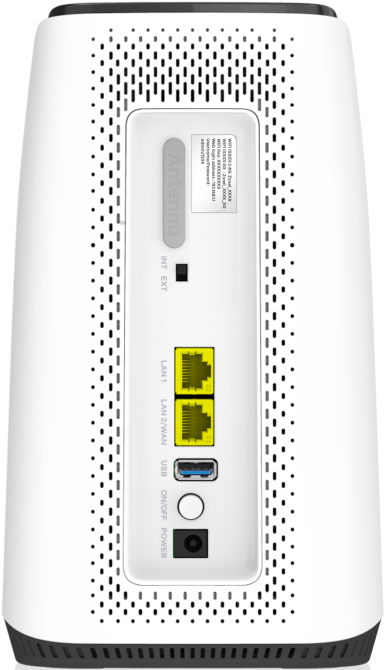
The WPS and WiFi On/Off button is on the front panel of the Zyxel Device, further from you, near the bottom.
WiFi / WPS on the Front Panel (Nebula FWA510)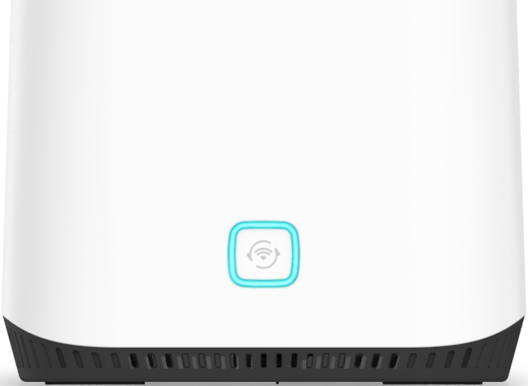
The Micro SIM card slot and RESET button are on the bottom of the Zyxel Device.
Micro SIM card slot and RESET button on the bottom panel (Nebula FWA510)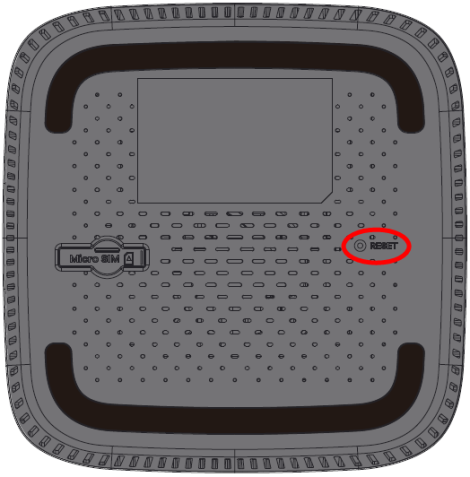
The following table describes the ports and buttons on your Zyxel Device.
LABELS | DESCRIPTION |
|---|---|
ANT1-ANT2/Antenna | Install the external antennas to strengthen the cellular signal. To use the external antennas, you must set the INT/EXT switch to EXT. |
USB | The USB port of the Zyxel Device is used for file sharing. |
LAN2/WAN | LAN mode: Connect a computer to the LAN using an RJ45 cable. WAN mode: Connect the Zyxel Device to the Internet through the WAN. |
LAN1 | Connect a computer to the LAN using an RJ45 cable. |
WiFi/WPS | Press the WiFi/WPS button to activate WPS connection process. See WiFi/WPS Button for more information. |
RESET | Press the RESET button to reboot or reset the Zyxel Device. See RESET Button for more information. |
ON/OFF | Press the ON/OFF button after the power adapter is connected to start the Zyxel Device. |
POWER | Connect the power adapter and press the ON/OFF button to start the Zyxel Device. |
Micro SIM | Insert a Micro-SIM card into the slot with the chip facing down and the beveled corner in the top left corner. |
INT/EXT | Select between the internal or external cellular antennas. |
Nebula FWA515
Place the Zyxel Device with the ports and buttons facing you and the rubber feet at the bottom.
Rear Panel (Nebula FWA515)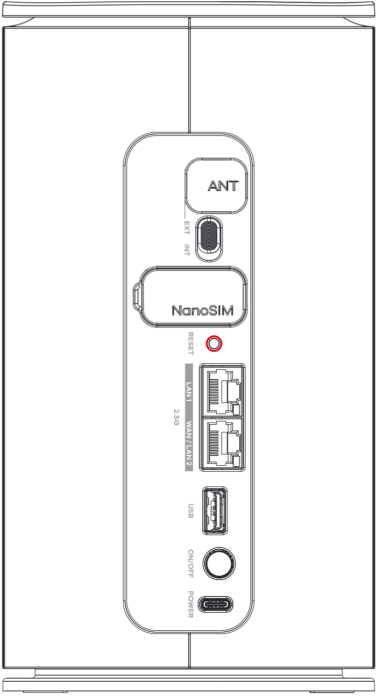
The WPS and WiFi On/Off button is on the front panel of the Zyxel Device, further from you, near the bottom.
WPS and WiFi On/Off Button on the Front Panel (FWA515)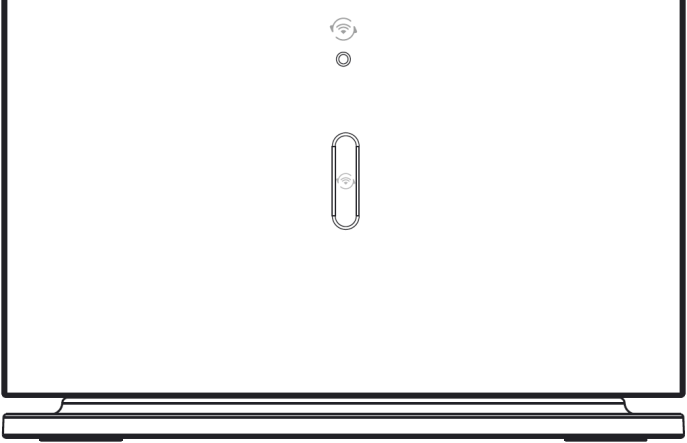
The following table describes the ports and buttons on your Zyxel Device.
LABELS | DESCRIPTION |
|---|---|
ANT | Connect external antennas to better receive the cellular signal from the base station. To use the external antennas, you must set the EXT/INT switch to EXT. |
EXT/INT | Select between the external or internal cellular antennas. |
NanoSIM | Place the Nano-SIM card on the tray with the chip facing up. Insert the tray into the slot with the beveled corner positioned at the top and facing forward. |
RESET | Press the RESET button to reboot or reset the Zyxel Device. See RESET Button for more information. |
LAN1 | Connect a computer to the LAN using an RJ45 cable. |
WAN/LAN2 | LAN mode: Connect a computer to the LAN using an RJ45 cable. WAN mode: Connect the Zyxel Device to the Internet through the WAN. |
USB | The USB port of the Zyxel Device is used for file sharing. |
ON/OFF | Press the ON/OFF button after the power adapter is connected to start the Zyxel Device. |
POWER | Connect the power adapter and press the ON/OFF button to start the Zyxel Device. |
WiFi/WPS | Press the WiFi/WPS button to activate WPS connection process. See WiFi/WPS Button for more information. |
Nebula LTE7461-M602
Place the Zyxel Device with the ports facing you.
Bottom Panel (Nebula LTE7461-M602)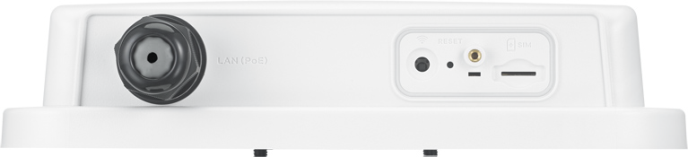
The following table describes the ports and buttons on your Zyxel Device.
labels | description |
|---|---|
LAN (PoE) | Connect a computer through the PoE injector for configuration. Connect the PoE injector to a power outlet to start the device. |
WiFi | Press the WLAN (WiFi) button for more than 5 seconds to enable WiFi. |
WPS | After WiFi is enabled, press the WLAN button for more than one second but less than 5 seconds to quickly set up a secure WiFi connection between the Zyxel Device and a WPS-compatible client. |
RESET | Press the button for more than 5 seconds to return the Zyxel Device to the factory defaults. |
Micro SIM | Insert a micro-SIM card into the slot with the chip facing down and the beveled corner in the top left corner. |
Nebula NR7101
Place the Zyxel Device with the ports facing you.
Bottom Panel (Nebula NR7101)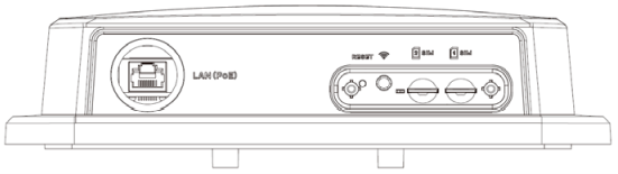
The following table describes the ports and buttons on your Zyxel Device.
LABELS | DESCRIPTION |
|---|---|
LAN (PoE) | Connect the PoE port on the PoE injector to the Zyxel Device’s LAN port through an Ethernet cable. Connect the LAN port on the PoE injector to your computer’s RJ45 port through another Ethernet cable. |
RESET | Press the RESET button to reboot or reset the Zyxel Device. See RESET Button for more information. |
WiFi/WPS | Press the WiFi/WPS button to activate WPS connection process. See WiFi/WPS Button for more information. |
SIM 1/2 | Insert a micro-SIM card into the slot with the chip facing down and the beveled corner in the top left corner. |
Nebula FWA70
Place the Zyxel Device with the ports facing you.
Bottom Panel (Nebula FWA70)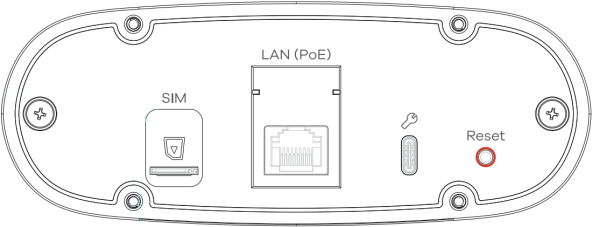
The following table describes the ports and buttons on your Zyxel Device.
LABELS | DESCRIPTION |
|---|---|
Nano SIM | Insert a nano-SIM card into the slot with the chip facing down and the beveled corner in the top left corner. |
LAN (PoE) | Connect the PoE port on the PoE injector to the Zyxel Device's LAN port through an Ethernet cable. Connect the LAN port on the PoE injector to your computer's RJ45 port through another Ethernet cable. |
Reset | Press the Reset button to reboot or reset the Zyxel Device. See RESET Button for more information. |
Nebula FWA710
Place the Zyxel Device with the ports facing you.
Bottom Panel (Nebula FWA710)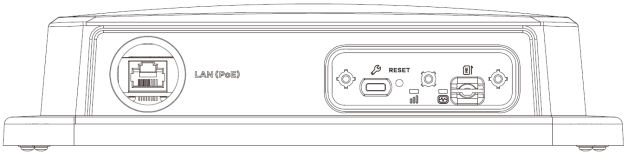
The following table describes the ports and buttons on your Zyxel Device.
LABELS | DESCRIPTION |
|---|---|
LAN (PoE) | Connect the PoE port on the PoE injector to the Zyxel Device's LAN port through an Ethernet cable. Connect the LAN port on the PoE injector to your computer's RJ45 port through another Ethernet cable. |
RESET | Press the RESET button to reboot or reset the Zyxel Device. See RESET Button for more information. |
Micro SIM | Insert a micro-SIM card into the slot with the chip facing down and the beveled corner in the top left corner. |
WiFi/WPS Button
Use the WiFi/WPS button on the Zyxel Device to turn on or turn off the WiFi network or quickly build a WiFi connection with a WiFi client.
Follow the steps below to activate WiFi or WPS on the Zyxel Device.
Activating WiFi
1 Make sure the power is on.
2 Press the WiFi/WPS button (see the following table) then release it.
Models | wifi button press hold time |
|---|---|
Nebula LTE3301-PLUS | More than 5 seconds. |
Nebula LTE7461-M602 | More than 5 seconds. |
Nebula NR7101 | More than 5 seconds. |
Nebula NR5101 | Press for 1 second. |
Nebula FWA505 | More than 10 seconds. |
Nebula FWA510 | WiFi can only be enabled/disabled through the Web Configurator. |
3 Check the WiFi LED to see if the WiFi is successfully turned on. See LEDs for your Zyxel Device LED behavior.
Activating WPS
You can quickly set up a secure WiFi connection between the Zyxel Device and a WPS-compatible client by adding one device at a time.
1 Ensure WiFi is turned on.
2 Press the WiFi/WPS button (see the following table) then release it.
Models | wifi button press hold time |
|---|---|
Nebula LTE3301-PLUS | More than 1 second but less than 5 seconds. |
Nebula LTE7461-M602 | More than 1 second but less than 5 seconds. |
Nebula NR7101 | More than 1 second but less than 5 seconds. |
Nebula NR5101 | More than 5 seconds. |
Nebula FWA505 | More than 3 seconds. |
Nebula FWA505v2 | More than 3 seconds. |
Nebula FWA510 | More than 3 seconds. |
3 Press the WPS button on another WPS-enabled device within range of the Zyxel Device (within 120 seconds).
4 Once the connection is successfully made, check the LED for connection status. See LEDs for the Zyxel Device LED behavior.
For Nebula LTE3301-PLUS, the WiFi / WPS button is on the front panel of the Zyxel Device, closer to the right, with the ports positioned farther from you.
Nebula LTE3301-PLUS WiFi/WPS Button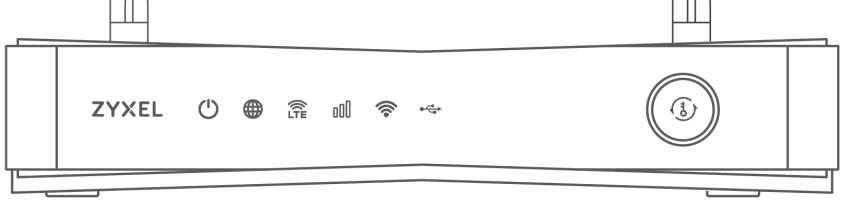
For Nebula LTE7461-M602, the WiFi / WPS button is on the rear panel of the Zyxel Device, closer to the right, with the ports facing you.
Nebula LTE7461-M602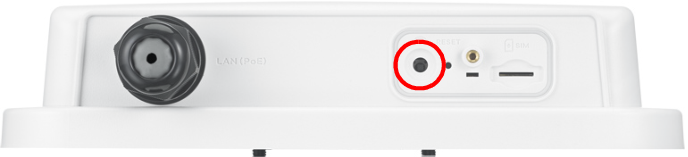
For Nebula NR5101, the WPS and WiFi On/Off button is on the top of the Zyxel Device.
Nebula NR5101 WiFi/WPS Button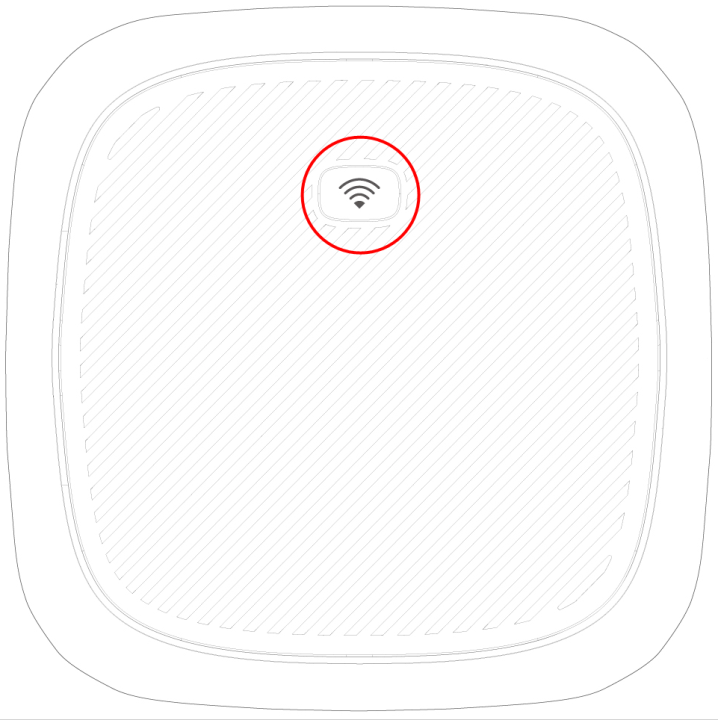
For Nebula NR7101, the WPS and WiFi On/Off button is on the bottom of the Zyxel Device.
Nebula NR7101 WiFi/WPS Button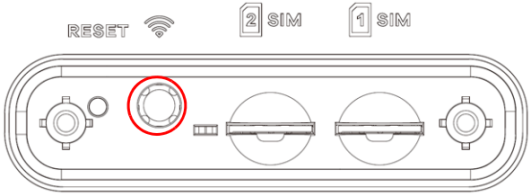
For Nebula FWA505, FWA510 and FWA515, the WPS and WiFi On/Off button is on the front panel of the Zyxel Device.
Nebula FWA505 WiFi/WPS Button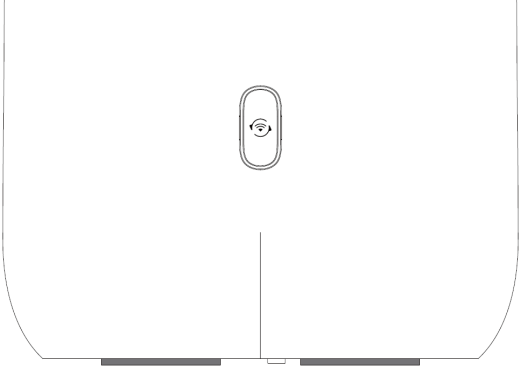
Nebula FWA505v2 WiFi/WPS Button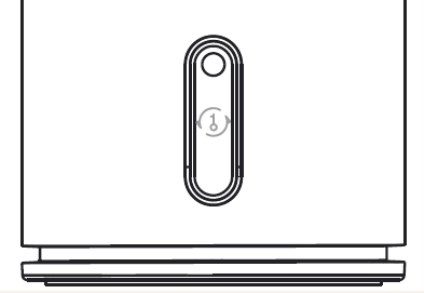
Nebula FWA510 WiFi/WPS Button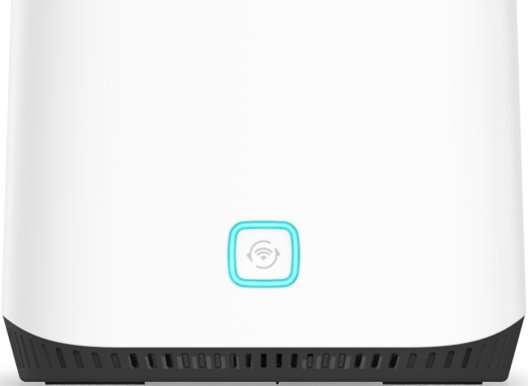
Nebula FWA515 WiFi/WPS Button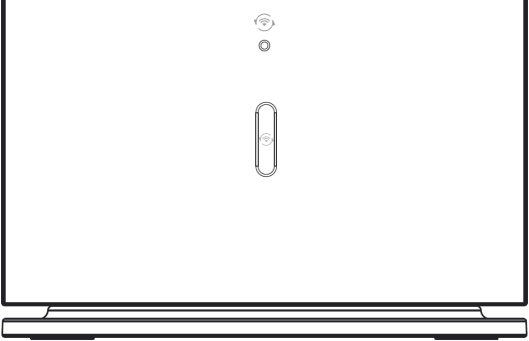
RESET Button
Insert a thin object into the RESET hole of the Zyxel Device to reload the factory-default configuration file if you forget your password or IP address, or you cannot access the Web Configurator. This means that you will lose all configurations that you had previously saved. The password will be reset to the default (see the Zyxel Device label) and the IP address will be reset to 192.168.1.1.
Nebula LTE3301-PLUS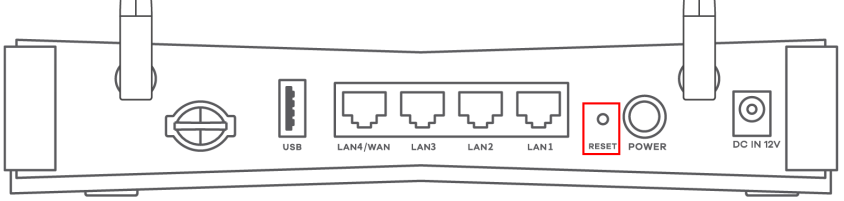
Nebula LTE7461-M602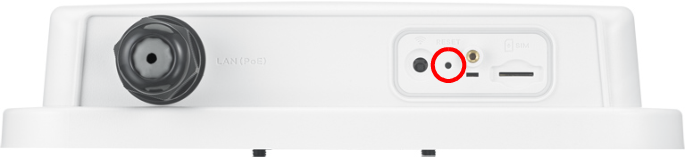
Nebula NR5101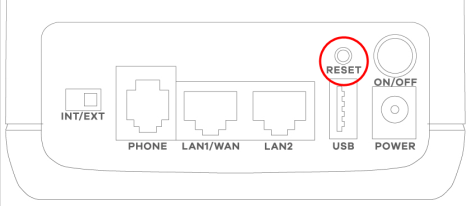
Nebula NR7101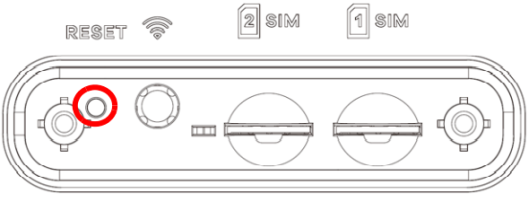
Nebula FWA505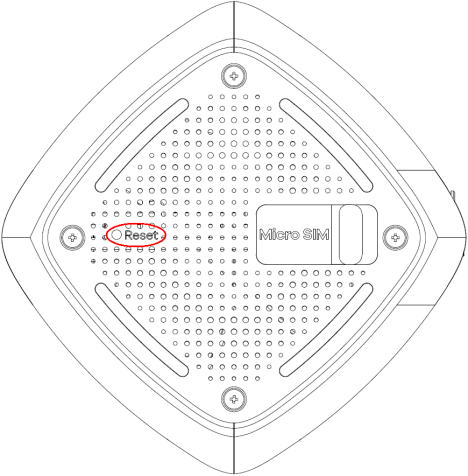
Nebula FWA505v2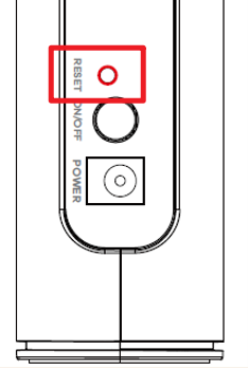
Nebula FWA510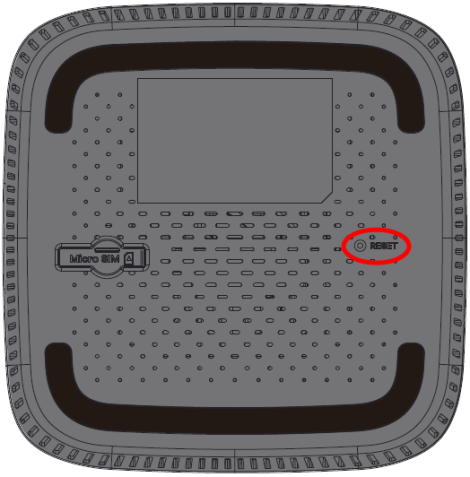
Nebula FWA515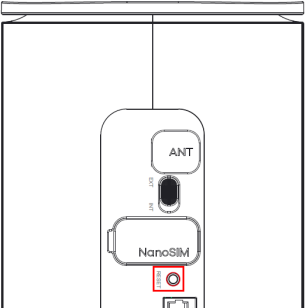
Nebula FWA70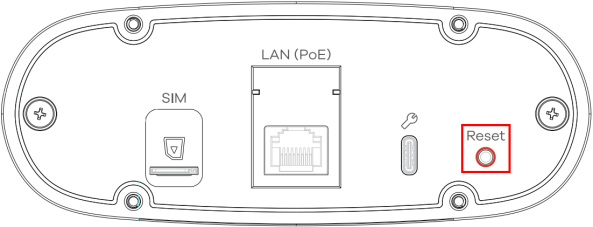
Nebula FWA710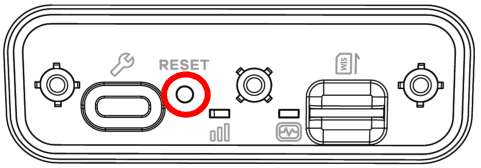
1 Make sure the Zyxel Device is connected to power and the POWER LED is on.
2 Using a thin object, press the RESET button for more than 5 seconds.
If you press the RESET button for less than 5 seconds, the Zyxel Device will reboot.