Introduction
Overview
The Zyxel Device refers to the following models:
Indoor Mobile Routers
• Nebula LTE3301-PLUS (4G LTE-A Indoor Router)
• Nebula NR5101(5G NR Indoor IAD)
• Nebula FWA505 (5G NR Indoor IAD)
• Nebula FWA505v2 (5G NR Indoor IAD)
• Nebula FWA510 (5G NR Indoor IAD)
• Nebula FWA515 (5G NR Indoor IAD)
Outdoor Mobile Routers
• Nebula LTE7461-M602 (4G LTE-A Outdoor Router)
• Nebula NR7101(5G New Radio Outdoor Router)
• Nebula FWA70 (5G New Radio Outdoor Router)
• Nebula FWA710 (5G New Radio Outdoor Router)
Feature Differences
The Zyxel Device is a router that supports (but is not limited to) the following features. Note the following differences between the Zyxel Device models:
FEATURE/model | nebula lte3301-plus | Nebula LTE7461-M602 | nebula nr5101 | nebula nr7101 |
|---|---|---|---|---|
2.4G WiFi | Y | Y (for config only) | Y | Y (for config only) |
5G WiFi | Y | N | Y | N |
1G LAN Port | Y | Y | Y | Y |
2.5G LAN Port | N | N | N | N |
External Antenna Support | Y | N | Y | N |
Ethernet WAN | Y | N | Y | N |
Dual SIM Slots | N | N | N | Y |
Cellular Backup | Y | N | Y | Y |
Cellular IP Passthrough | Y | Y | Y | Y |
Cellular Lock | Y | Y | N | Y |
Cellular SMS | Y | N | Y | N |
Guest/More AP | Y | N | Y | N |
More AP Edit | Y | N | Y | N |
WLAN Scheduler | Y | N | Y | N |
Channel Status | N | N | N | N |
USB File Sharing | Y | N | Y | N |
Parental Control | Y | N | Y | N |
Network Monitoring | N | Y | Y | Y |
Proxy ARP | N | N | N | Y |
FQ_Codel (Fair Queuing with Controlled Delay) | N | N | N | Y |
PIN Modification | Y | Y | Y | Y |
IGMP Proxy | Y | Y | Y | Y |
MLD Proxy | Y | Y | Y | Y |
Fullcone NAT | N | Y | Y | Y |
464XLAT | N | N | N | N |
DHCP | Y | Y | Y | Y |
DHCP Options | Y | Y | Y | Y |
Policy Route | Y | Y | Y | Y |
RIP | Y | Y | Y | N |
ALG | Y | Y | Y | Y |
Port Triggering | Y | Y | Y | Y |
Dynamic DNS | Y | Y | Y | Y |
VLAN Group | N | N | N | Y |
Interface Grouping | Y | Y | Y | Y |
Speed Test | N | Y | N | Y |
XMPP | N | N | N | Y |
TR-069 Client | Y | Y | Y | Y |
TR-369 Local Agent | N | N | N | N |
Email Notification | Y | Y | Y | Y |
Module Upgrade | N | N | N | Y |
Schedule Reboot | Y (NCC Web Portal) | Y | Y | Y |
Firmware Version | 1.15 | 1.15 | 1.15 | 1.15 |
FEATURE/model | nebula FWA505 | nebula FWA505v2 | nebula FWA510 | nebula FWA710 | nebula FWA515 |
|---|---|---|---|---|---|
2.4G WiFi | Y | Y | Y | Y (for config only) | Y |
5G WiFi | Y | Y | Y | N | Y |
1G LAN Port | Y | Y | N | N | N |
2.5G LAN Port | N | N | Y | Y | Y |
External Antenna Support | Y | N | Y | N | Y |
Ethernet WAN | Y | Y | Y | N | Y |
Dual SIM Slots | N | N | N | N | N |
Cellular Backup | Y | N | Y | N | Y |
Cellular IP Passthrough | Y | Y | Y | Y | Y |
Cellular Lock | N | N | N | Y | N |
Cellular SMS | Y | Y | Y | N | Y |
Guest/More AP | Y | Y | Y | N | Y |
More AP Edit | Y | Y | Y | N | Y |
WLAN Scheduler | Y | Y | Y | N | Y |
Channel Status | Y | N | Y | N | Y |
USB File Sharing | Y | N | Y | N | Y |
Parental Control | Y | Y | N | N | N |
Network Monitoring | N | Y | Y | Y | Y |
Proxy ARP | N | Y | N | Y | N |
FQ_Codel (Fair Queuing with Controlled Delay) | N | N | N | N | N |
PIN Modification | Y | Y | Y | Y | Y |
IGMP Proxy | Y | Y | Y | Y | Y |
MLD Proxy | Y | Y | Y | N | Y |
Fullcone NAT | Y | Y | Y | N | Y |
464XLAT | Y | Y | Y | N | Y |
DHCP | Y | Y | Y | Y | Y |
DHCP Options | Y | Y | Y | Y *Supports Custom DHCP Options screen | Y |
Policy Route | N | N | N | Y | N |
RIP | N | N | Y | N | Y |
ALG | N | N | N | N | N |
Port Triggering | N | N | N | N | N |
Dynamic DNS | N | N | N | Y | N |
VLAN Group | N | N | N | Y | N |
Interface Grouping | N | N | N | Y | N |
Speed Test | N | Y | N | Y | N |
XMPP | N | N | N | N | N |
TR-069 Client | Y | Y | Y | Y | Y |
TR-369 Local Agent | N | Y | N | N | Y |
Email Notification | N | N | N | N | N |
Module Upgrade | N | N | N | N | N |
Schedule Reboot | Y (NCC Web Portal) | Y (NCC Web Portal) | Y (NCC Web Portal) | Y (NCC Web Portal) | Y (NCC Web Portal) |
Firmware Version | 1.18 | 1.60 | 1.15 | 1.15 | 1.50 |
FEATURE/model | nebula FWA70 |
|---|---|
2.4G WiFi | Y (for config only) |
5G WiFi | N |
1G LAN Port | N |
2.5G LAN Port | Y |
External Antenna Support | N |
Ethernet WAN | N |
Dual SIM Slots | N |
Cellular Backup | N |
Cellular IP Passthrough | Y |
Cellular Lock | Y |
Cellular SMS | N |
Guest/More AP | N |
More AP Edit | N |
WLAN Scheduler | N |
Channel Status | N |
USB File Sharing | N |
Parental Control | N |
Network Monitoring | N |
Proxy ARP | Y |
FQ_Codel (Fair Queuing with Controlled Delay) | N |
PIN Modification | Y |
IGMP Proxy | Y |
MLD Proxy | N |
Fullcone NAT | N |
464XLAT | N |
DHCP | Y |
DHCP Options | Y *Supports Custom DHCP Options screen |
Policy Route | Y |
RIP | N |
ALG | N |
Port Triggering | N |
Dynamic DNS | Y |
VLAN Group | Y |
Interface Grouping | N |
Speed Test | N |
XMPP | N |
TR-069 Client | Y |
TR-369 Local Agent | Y |
Email Notification | N |
Module Upgrade | N |
Schedule Reboot | Y (NCC Web Portal) |
Firmware Version | 1.60 |
See the Quick Start Guide for how to do the hardware installation, mounting, and Internet setup.
Nebula Management
You can manage the Zyxel Device with the Zyxel Nebula Control Center. The Zyxel Nebula Control Center (NCC) is a cloud-based network management system that allows you to remotely manage and monitor Zyxel Nebula routers. You need to create a Zyxel Account to log into the NCC for management first. You can access the NCC through the NCC web portal through a web browser on your computer or the Nebula Mobile app on your smartphone, see How to Manage your Zyxel Device for more information.
For more information on configuring the Zyxel Device on the NCC, go to https://nebula.zyxel.com/cc/ui/index.html#/help. You will be prompted to log into the NCC using your NCC account.
For advanced configurations, such as configuring WAN settings, wireless LAN settings and firewall settings, use the Zyxel Device Web Configurator. To find the best place for your Zyxel Device to receive the optimal cellular signal or perform a signal strength test, use the Zyxel Air app.
Management Method | When to use it |
|---|---|
Nebula Mobile APP | Registration and Monitoring |
NCC Web Portal | Registration, Monitoring and Basic Management |
Zyxel Device Web Configurator | Advanced Management |
ZyxelAir App | Zyxel Device Installation |
 The configurations you make in the NCC have priority over the configurations in the Web Configurator and the Zyxel Air app.
The Nebula Control Center (NCC) is an alternative cloud-based network management system that allows you to remotely manage and monitor the Zyxel Nebula Security Appliances (SA), Ethernet Switches (S), and Access Points (AP). You may also access the Web Configurator in cloud mode.
NCC Example Network Topology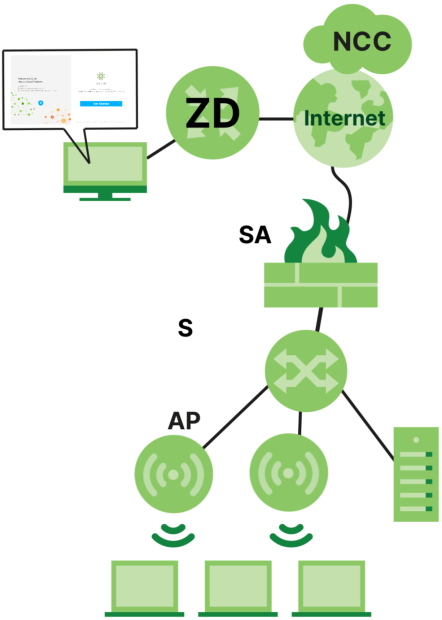
Register Your Zyxel Device Using the Nebula Web Portal
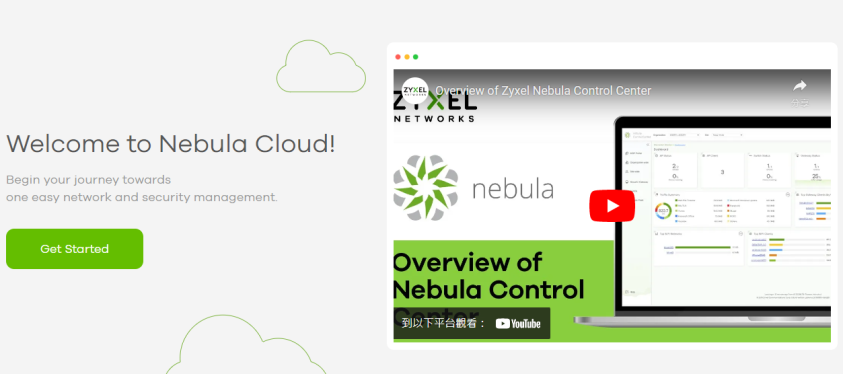
2 The login screen displays. Enter your Zyxel Account information to log in. If you do not have one, click Create account. You will be redirected to another screen where you can sign up for a Zyxel Account.
3 Click Create organization to create an organization and a site (using the Nebula setup wizard), or select an existing site.
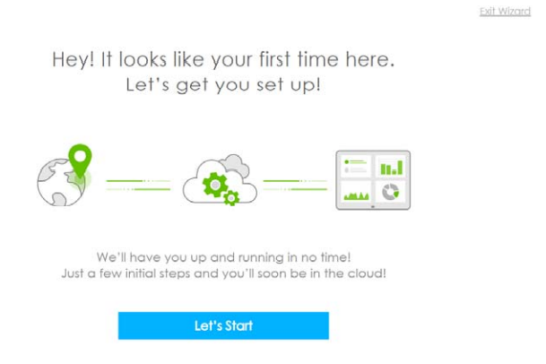
4 If you are creating the first organization under your account, click Let’s Start to begin.
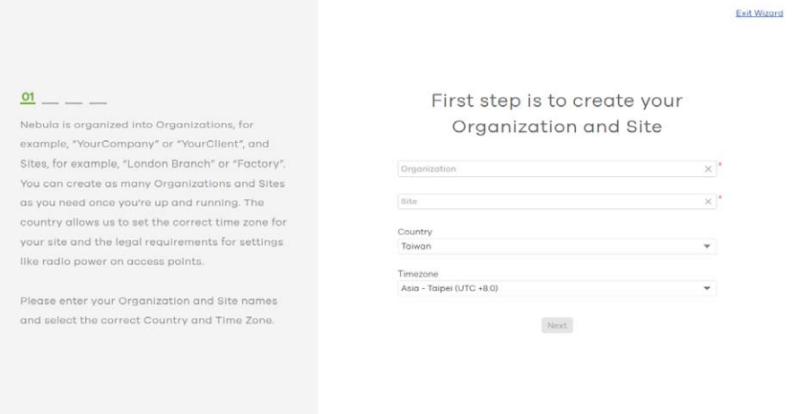
5 Enter a descriptive name for your organization and site. Both names must consist of 1 to 64 characters.
6 Select the time zone of your location. This will set the time difference between your time zone and Coordinated Universal Time (UTC).
7 Click Next to continue.
8 Enter your Zyxel Device MAC address and serial number. Enter a descriptive name for your Zyxel Device.
9 Click the +Add button to register and add the Zyxel Device to the site. You can register multiple Zyxel Device at a time.
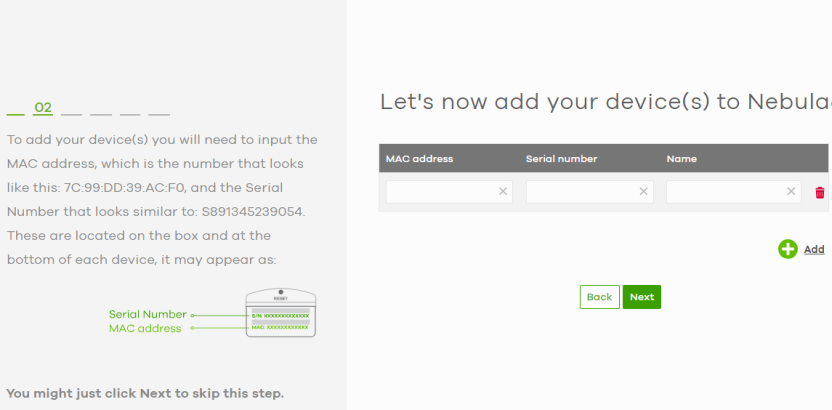
10 Click Next to proceed to setting up your WiFi network and guest WiFi network.
Your default web configurator login password will be changed when you register your Zyxel Device at NCC. Make sure to check the changed password and change it to your preferred one before logging in the web configurator. The password must be at least 8 characters long, including one letter and one number. ~!@#$%^&*()_+’-={};:<> are allowed.Applications for the Zyxel Device
See the above table for which applications are supported by your Zyxel Device.
Wireless WAN
The Zyxel Device can connect to the Internet through a 4G/5G SIM card to access a wireless WAN connection. Just insert a SIM card into the SIM card slot of the Zyxel Device.
You can also install external antennas to improve your wireless WAN signal strength, see Feature Differences 1 for more information.
You must insert the SIM card into the card slot before turning on the Zyxel Device.Internet Access
Your Zyxel Device provides shared Internet access by connecting to a cellular network. A computer can connect to the Zyxel Device’s LAN port for configuration through the Web Configurator.
Zyxel Device’s Internet Access Application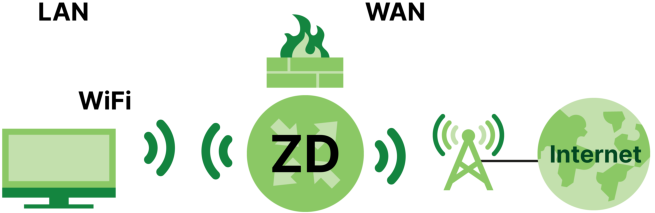
Wireless LAN (WiFi)
WiFi clients can connect to the Zyxel Device to access network resources and the Internet. The Zyxel Device supports WiFi Protected Setup (WPS), which allows you to quickly set up a WiFi network with strong security.
Your Zyxel Device WiFi may only be for configuration, see Feature Differences 1 for more information.
Zyxel Device’s Wireless LAN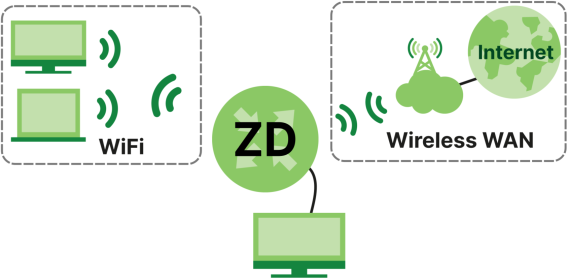
Carrier Aggregation
Carrier Aggregation (CA) is a technology to deliver high downlink data rates by combining more than one carrier in the same or different bands together.
Zyxel Device’s CA Application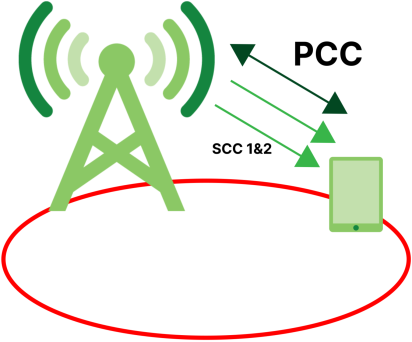
Ethernet WAN
Connect the WAN port to the Internet. Connect computers to the Zyxel Device’s LAN ports, or wirelessly, and access the Internet simultaneously.
If you have another broadband modem or router available, you can use the Ethernet WAN port and then connect it to the broadband modem or router. This way, you can access the Internet through an Ethernet connection and still use the Firewall function on the Zyxel Device.
See Feature Differences to see if your Zyxel Device supports an Ethernet WAN port.
Zyxel Device’s Internet Access Application: Ethernet WAN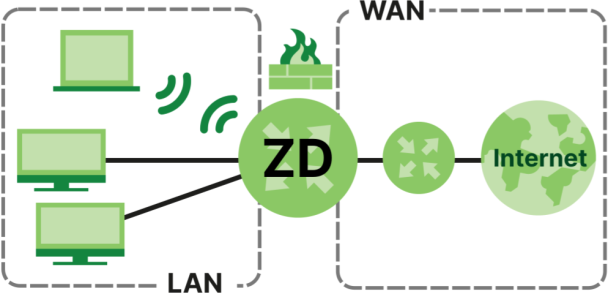
In the figure above, you can also configure Firewall on the Zyxel Device for secure Internet access. When the Firewall is on, all incoming traffic from the Internet to your network is blocked by default unless it is initiated from your network. This means that probes from the outside to your network are not allowed, but you can safely browse the Internet and download files.
Cellular Backup
Some Zyxel Devices support a WAN backup connection to ensure always-on Internet connectivity.
For Zyxel Devices that support Ethernet WAN, when the Ethernet WAN goes down, the Zyxel Devices automatically switch to use the cellular WAN connection.
The WAN connection priority is as follows:
1 Ethernet WAN
2 Cellular WAN
For Zyxel Devices that support dual SIM slots, when the primary cellular WAN goes down, the Zyxel Devices automatically switch to use the backup connection on the second SIM card.
See Feature Differences to see if your Zyxel Device supports Cellular Backup.
How to Manage your Zyxel Device
You can use the following way to manage your Zyxel Device.
• Web Configurator. This is recommended for everyday management of Zyxel Device using a (supported) web browser.
• Nebula Control Center Web Portal. Use the NCC web portal to monitor your Zyxel Device. You can register your Zyxel Device to a site and organization using the NCC web portal.
• Nebula Mobile App. Use the Nebula mobile app to monitor your Zyxel Device. You can register your Zyxel Device to a site and organization using the Nebula Mobile app. Download the Nebula Mobile app at Apple Store or Google Play.
• Zyxel Air. Use the Zyxel Air app (available on the App Store for Apple devices and Google Pay for Android devices) for setup and management of the Zyxel Device on your smartphone. You can also use the app for finding the optimal 5G NR signal strength. This User’s Guide provides information about using the Zyxel Air app. To install the app, scan the QR code on the QSG.
Good Habits for Managing the Zyxel Device
Do the following things regularly to make the Zyxel Device more secure and to manage the Zyxel Device more effectively.
• Change the password. Use a password that is not easy to guess and that consists of different types of characters, such as numbers and letters.
• Back up the configuration (and make sure you know how to restore it). Restoring an earlier working configuration may be useful if the Zyxel Device becomes unstable or even crashes. If you forget your password to access the Web Configurator, you will have to reset the Zyxel Device to its factory default settings. If you backed up an earlier configuration file, you would not have to totally re-configure the Zyxel Device. You could simply restore your last configuration. Write down any information your ISP provides you.