Remote Management
Remote Management Overview
Use Remote Management to control web services (HTTP, HTTPS, SSH, SNMP, and Ping) can access the Zyxel Device through which interfaces.
 Use the Web Configurator (HTTP) to manage the Zyxel Device.
What You Can Do in this Chapter
• Use the MGMT Services screen to allow various approaches to access the Zyxel Device remotely from a WAN and/or LAN connection (MGMT Services).
• Use the Trust Domain screen to enable users to permit access from local management services by entering specific IP addresses (Trust Domain).
• Use MGMT Services for IP Passthrough to configure which interfaces you can use to access the Zyxel Device for a given service (MGMT Services for IP Passthrough).
• Use Trust Domain for IP Passthrough to view a list of public IP addresses and complete domain names which are allowed to access the Zyxel Device (Trust Domain for IP Passthrough),
MGMT Services
The MGMT Services screen will be hidden if you enable the IP Passthrough function in Network Setting > Broadband > Cellular IP Passthrough screen.Use this screen to configure the interfaces through which services can access the Zyxel Device. You can also specify service port numbers computers must use to connect to the Zyxel Device. Click Maintenance > Remote Management > MGMT Services to open the following screen.
Maintenance > Remote Management > MGMT Services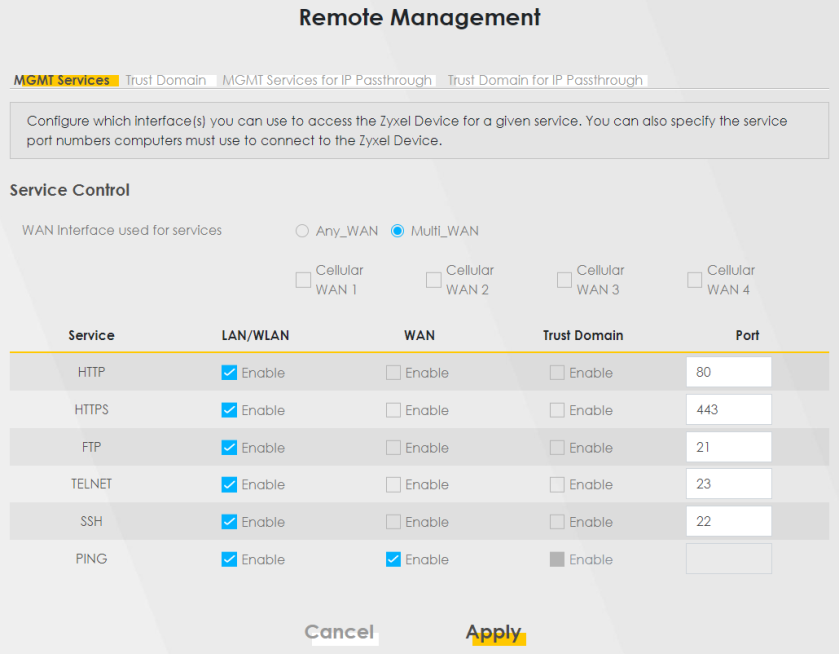
The following table describes the fields in this screen.
Label | Description |
|---|---|
Service Control | |
WAN Interface used for services | Select Any_WAN to have the Zyxel Device automatically activate the remote management service when any WAN connection is up. Select Multi_WAN and then select one or more WAN connections to have the Zyxel Device activate the remote management service when the selected WAN connections are up. |
Cellular WAN | Enable the cellular WAN connection configured in Network Setting > Broadband > Cellular WAN to access the service on the Zyxel Device. If there are multiple cellular WANs configured on the Zyxel Device, you can select which to use for the Zyxel Device management. |
ETHWAN | Enable the Ethernet WAN connection configured in Network Setting > Broadband > Ethernet WAN to access the service on the Zyxel Device. |
Service | This is the service you may use to access the Zyxel Device. |
LAN/WLAN | Select the Enable checkbox for the corresponding services that you want to allow access to the Zyxel Device from the LAN or WLAN. |
WAN | Select the Enable checkbox for the corresponding services that you want to allow access to the Zyxel Device from all WAN connections. |
Trust Domain | Select the Enable checkbox for the corresponding services that you want to allow access to the Zyxel Device from the trusted host IP address. |
Port | You may change the server port number for a service if needed, however you must use the same port number in order to use that service for remote management. |
Redirect | To allow only secure Web Configurator access, select this to redirect all HTTP connection requests to the HTTPS server. For example, if you enter http://192.168.1.1 in your browser to access the Web Configurator, then the Zyxel Device will automatically change this to the more secure https://192.168.1.1 for access. |
Apply | Click Apply to save your changes back to the Zyxel Device. |
Cancel | Click Cancel to restore your previously saved settings. |
Trust Domain
Use this screen to view a list of public IP addresses which are allowed to access the Zyxel Device through the services configured in the Maintenance > Remote Management > MGMT Services screen. Click Maintenance > Remote Management > Trust Domain to open the following screen.
Enter the IP address of the management station permitted to access the local management services. If specific services from the trusted hosts are allowed access but the trust domain list is empty, all public IP addresses can access the Zyxel Device from the WAN using the specified services.Maintenance > Remote Management > Trust Domain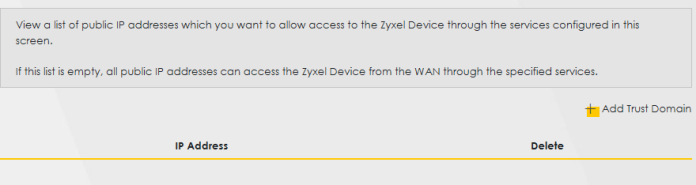
The following table describes the fields in this screen.
Label | Description |
|---|---|
Add Trust Domain | Click this to add a trusted host IP address. |
IP Address | This field shows a trusted host IP address. |
Delete | Click the Delete icon to remove the trusted host IP address. |
Add Trust Domain
Use this screen to add a public IP addresses or a complete domain name of a device which is allowed to access the Zyxel Device. Enter the IP address of the management station permitted to access the local management services. If specific services from the trusted-hosts are allowed access but the trust domain list is empty, all public IP addresses can access the Zyxel Device from the WAN using the specified services.
Click the Add Trust Domain button in the Maintenance > Remote Management > Trust Domain screen to open the following screen.
Maintenance > Remote Management > Trust Domain > Add Trust Domain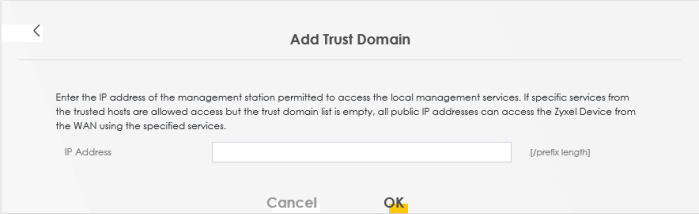
The following table describes the fields in this screen.
label | description |
|---|---|
IP Address | Enter a public IPv4/IPv6 IP address which is allowed to access the service on the Zyxel Device from the WAN. |
OK | Click OK to save your changes back to the Zyxel Device. |
Cancel | Click Cancel to restore your previously saved settings. |
MGMT Services for IP Passthrough
Configure which interfaces you can use to access the Zyxel Device when IP Passthrough is enabled for a given service. You can also specify the service port numbers computers must use to connect to the Zyxel Device. IP Passthrough allows Internet traffic to go to a LAN computer behind the Zyxel Device without going through NAT. Make sure to enable IP Passthrough in Network Setting > Broadband > Cellular IP Passthrough.
Click Maintenance > Remote Management > MGMT Services for IP Passthrough to open the following screen.
Maintenance > Remote Management > MGMT Services for IP Passthrough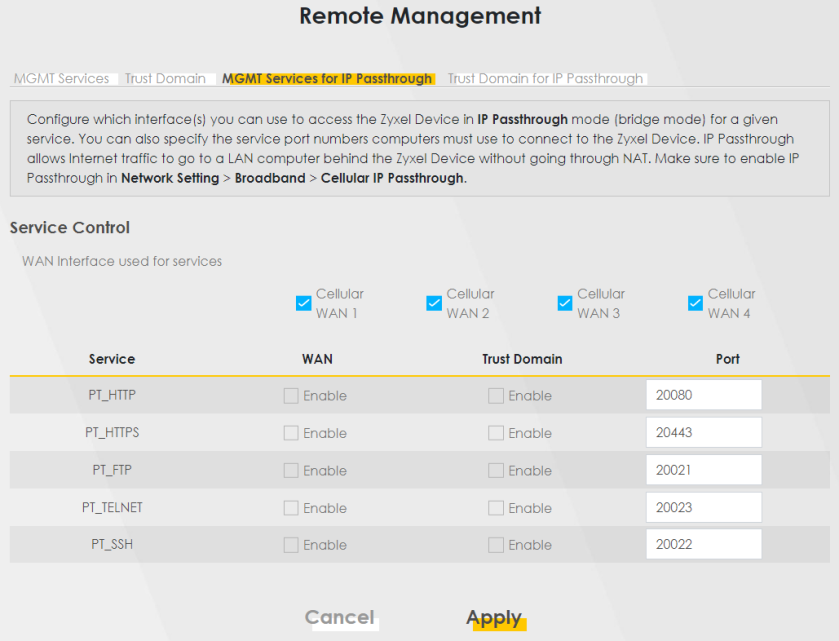
The following table describes the fields in this screen.
Label | Description |
|---|---|
Service | This is the service you may use to access the Zyxel Device. |
WAN | Select the Enable checkbox for the corresponding services that you want to allow access to the Zyxel Device from all WAN connections. |
Trust Domain | Select the Enable checkbox for the corresponding services that you want to allow access to the Zyxel Device from the trusted host IP address. |
Port | You may change the server port number for a service if needed, however you must use the same port number in order to use that service for remote management. |
Apply | Click Apply to save your changes back to the Zyxel Device. |
Cancel | Click Cancel to restore your previously saved settings. |
Trust Domain for IP Passthrough
Use this screen to view a list of public IP addresses/complete domain names which are allowed to access the Zyxel Device when IP Passthrough is enabled. IP Passthrough allows Internet traffic to go to a LAN computer behind the Zyxel Device without going through NAT. Make sure to enable IP Passthrough in Network Setting > Broadband > Cellular IP Passthrough.
Click Maintenance > Remote Management > Trust Domain for IP Passthrough to open the following screen.
Maintenance > Remote Management > Trust Domain for IP Passthrough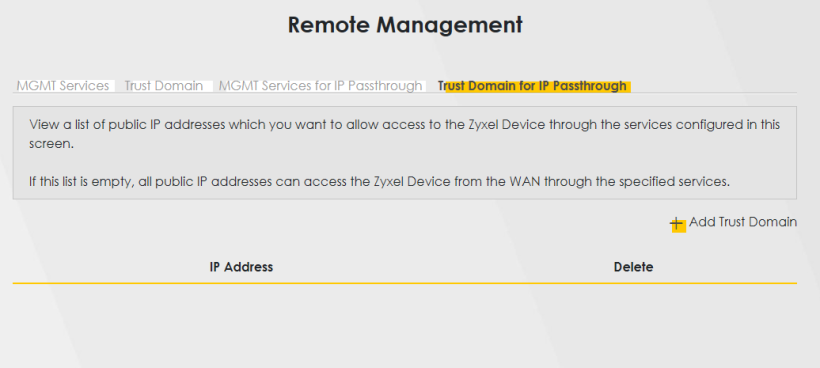
The following table describes the fields in this screen.
Label | Description |
|---|---|
Add Trust Domain | Click this to add a trusted host IP address. |
IP Address | This field shows a trusted host IP address. |
Delete | Click the Delete icon to remove the trusted host IP address. |
Add Trust Domain
Use this screen to add a public IP address or a complete domain name of a device which is allowed to access the Zyxel Device. Click the Add Trust Domain button in the Maintenance > Remote Management > Trust Domain for IP Passthrough screen to open the following screen.
Maintenance > Remote Management > Trust Domain for IP Passthrough > Add Trust Domain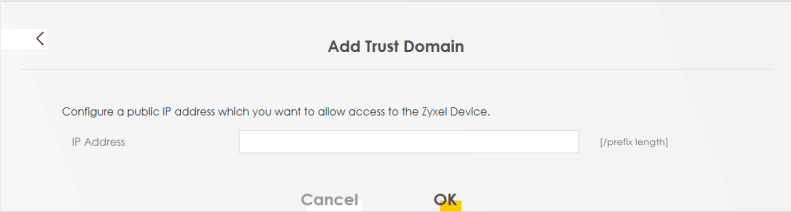
The following table describes the fields in this screen.
Label | Description |
|---|---|
IP Address | Enter a public IPv4/IPv6 IP address which is allowed to access the service on the from the WAN. |
Cancel | Click Cancel to restore your previously saved settings. |
OK | Click OK to save your changes. |