SSL VPN
Overview
Use SSL VPN to allow users to use a web browser for secure remote user login. The remote users do not need a VPN router or VPN client software.
What You Can Do in this Chapter
Use the VPN > SSL VPN screen (see The SSL VPN Screen) to configure a SSL access policy.
Full Tunnel Mode
In full tunnel mode, a virtual connection is created for remote users with private IP addresses in the same subnet as the local network. This allows them to access network resources in the same way as if they were part of the internal network.
Split Tunnel Mode
In split tunnel mode, only the traffic going to the networks behind the Zyxel Device is encrypted. Traffic going to the Internet from the remote client does not go through the Zyxel Device and is not encrypted.
SSL VPN Policy
An SSL VPN policy allows the Zyxel Device to perform the following tasks:
• limit user access to specific applications or file sharing server on the network.
• allow user access to specific networks.
• assign private IP addresses and provide DNS/WINS server information to remote users to access internal networks.
SSL Access Policy Objects
The SSL access policies reference the following objects. If you update this information, in response to changes, the Zyxel Device automatically propagates the changes through the SSL policies that use the object(s). When you delete an SSL policy, the objects are not removed.
Object Type | Object screen | Description |
|---|---|---|
User Accounts | User Account/ User Group | Configure a user account or user group to which you want to apply this SSL access policy. |
Application | SSL Application | Configure an SSL application object to specify the type of application and the address of the local computer, server, or web site SSL users are to be able to access. |
IP Pool | Address | Configure an address object that defines a range of private IP addresses to assign to user computers so they can access the internal network through a VPN connection. |
Server Addresses | Address | Configure address objects for the IP addresses of the DNS and WINS servers that the Zyxel Device sends to the VPN connection users. |
VPN Network | Address | Configure an address object to specify which network segment users are allowed to access through a VPN connection. |
Please note that you cannot delete an object that is referenced by other settings.
The SSL VPN Screen
Configure the settings in this screen to create a new or edit an existing SSL access policy.
SecuExtender is a Zyxel subscription-based VPN client. A remote access VPN client must have SecuExtender VPN client installed on his device and uses a supported computer operating system. The supported computer operating systems are:
• Window 10 (64-bit) and later versions.
• macOS 10.15 and later versions.
Make sure the settings configured on the SSL VPN client matches the settings you configured on the Zyxel Device.
The following table describes the labels in this screen.
label | description |
|---|---|
Enable | Click the switch to enable the SSL access policy. |
Download | Click to download a VPN configuration script to send to clients using SecuExtender VPN client or OpenVPN Connect VPN client. The supported operating systems for SecuExtender are: • Windows 10 (64-bit) and later versions. • macOS 10.15 and later versions. |
VPN Server Address | |
Type | Select the method the Zyxel Device uses for incoming traffic from remote clients. If Nebula manages your Zyxel Device and assigns it a domain name, then you will see Nebula Assigned Domain Name in this field. • Interface: Use the public IP address of the interface. • Domain Name: Use a domain name. Select this if DDNS is assigning a dynamic IP address to the interface (for example, vpn.zyxel.com). • Nebula Assigned Domain Name: Use the domain name Nebula assigns to your network. |
Interface | Select an interface from the drop-down list box for incoming traffic to your Zyxel Device. |
DNS Name | Enter the domain name (for example, vpn.zyxel.com) if you’re using DDNS to assign the interface a dynamic IP address. |
Domain Name | If you chose Nebula Assigned Domain Name in the Type field, this field displays the assigned domain name. |
Binding Address | If you select Nebula Assigned Domain Name in the Type field, this field displays the settings from your Nebula. |
Server Port | Specify the server port of the Zyxel Device for full tunnel mode SSL VPN access. Leave this field to default settings unless it conflicts with another interface. |
Zone | Select the security zone into which to add this VPN connection policy. Any security rules or settings configured for the selected zone apply to this VPN connection, so do not select a zone that a security policy may block. |
Authentication | You must first create a server in User & Authentication > AAA Server for it to display in the following fields. • If you have one authentication server, it can be on the Zyxel Device (local) or an external AAA server. • If you have two authentication servers, one of them must be on the Zyxel Device (local). You cannot use two external AAA servers. |
Primary/Secondary Server | Select local or a specified AAA server from the drop-down list box for the Zyxel Device to use for authentication. These are listed in the following order and then sorted alphabetically: Local (1), Nebula Cloud Authentication (2), AD Server (3), LDAP Server (4), OIDC Server (5), RADIUS Server (6). |
Allowed Users | Select or create a user or user group that can connect to this SSL access policy. 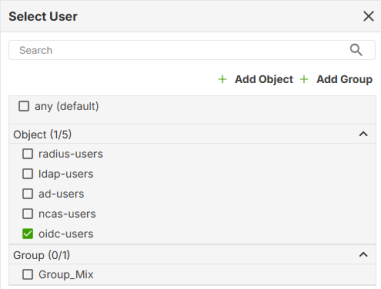 • This is a required field. • The User Type must be: User, External User, or External Group User. • It cannot be an admin or viewer account type. • SecuExtender VPN clients must log in with a User account in Menu > Configuration > Get from Server screen. See What You Need To Know for more information on user accounts. ncas-users are users authenticated by Nebula. oidc-users are users authenticated by OpenID Connect (OIDC). See Add an OIDC Server for more information on OIDC.  When the number of connections to the Zyxel Device reaches the number of IP addresses specified in the IP Address Pool, then additional VPN clients cannot access the Zyxel Device. When the number of connections to the Zyxel Device reaches the number of IP addresses specified in the IP Address Pool, then additional VPN clients cannot access the Zyxel Device. |
Clients will use VPN to access | |
Internet and Local Networks (Full Tunnel) | Select this to encrypt all traffic through the VPN. Enable Auto SNAT to allow the Zyxel Device to rewrite the source address of packets being sent to the interface's IP address. |
Auto-SNAT | Auto-SNAT changes the (private) source IP addresses of VPN clients to the Zyxel Device WAN interface’s public IP address for traffic going to the Internet. The Internet cannot route privately-assigned IP addresses, so the Zyxel Device must perform Source NAT (SNAT) to convert them to the public IP address on its WAN interface. For example, if the SSL VPN client has a privately-assigned IP address such as 192.168.1.88, then that IP address is automatically translated to the Zyxel Device’s WAN interface IP address, such as 1.1.1.1 when going to the Internet. If you disable Auto-SNAT, then SSL VPN clients can reach internal LAN subnets, but not the Internet, unless you create an outbound NAT rule for the SSL VPN pool in Network > NAT. |
Local Networks Only (Split Tunnel) | Select this to only encrypt traffic going to networks behind the Zyxel Device. Enter an IPv4 address in CIDR notation. Traffic going to the Internet from this IP address is encrypted. Traffic going to the Internet from the remote client does not go through the Zyxel Device is not encrypted. • Define a range of IP address using a subnet mask. For example, enter 192.168.1.0/24. • Define a specific IP address. For example, enter 192.168.1.1/32. |
Client Network | |
IP Address Pool | Enter an IPv4 address in CIDR notation. The IP address pool is used to assign IP addresses to the VPN clients. The SSL VPN IP pool should not overlap with IP addresses on the Zyxel Device's local networks and the SSL user's network. • Define a range of IP address using a subnet mask. For example, enter 192.168.1.0/24. • Define a specific IP address. For example, enter 192.168.1.1/32. |
DNS Server | Specify up to two DNS servers for VPN clients to use. This allows them to access devices on the local network using domain names instead of IP addresses. • Disable: No DNS server is defined. • ZyWALL: The VPN clients use the IP address of the WAN interface you specified in the SSL VPN rule and the Zyxel Device works as a DNS relay. • Custom: Enter the static IP address of the DNS server. |
First DNS Server | Specify the IP address of the DNS server for the VPN clients to use. |
Second DNS Server | Specify a secondary DNS server IP address that is checked if the first one is unavailable. |
DNS Domain Suffix | Set the DNS suffix that is appended to hostnames typed by VPN clients to form a complete domain name. For example, if a user types only a hostname (fileserver), the DNS suffix (example.com.) is automatically appended, resulting in fileserver.example.com. |
Advanced Settings | |
Client Profile | You can create one or more profiles to apply the configured settings to specific user(s). |
Add | Click this to create a new entry. |
Edit | Select an entry and click this to be able to modify it. |
Remove | Select an entry and click this to delete it. |
Move to | To change a policy’s position in the numbered list, select the policy and click Move to. Enter the position number and press [ENTER] to move the policy to that position. |
# | This is the entry’s index number in the list. If a user belongs to two or more profiles, the profile with the lower index number is applied first. |
IP Address Pool | This displays the IP address pool used to assign IP addresses to VPN clients in this profile. |
DNS Server | This displays the DNS server used by VPN clients in this profile. |
Tunnel Type | This displays whether VPN clients in this profile use a full tunnel or split tunnel to access the network. |
User | This displays the VPN clients in this profile. |
Minimum TLS Version | Select the minimum TLS version required for this SSL access policy. TLS connections using a version lower than the selected one will be blocked. The Zyxel Device requires a TLS 1.2 minimum to block insecure protocols (like TLS 1.0/1.1) that have known vulnerabilities. TLS 1.3 provides stronger cipher suites and more secure key exchange methods than earlier versions. |
Generate Certificate | Click this to have the Zyxel Device generate a self-signed certificate for the Zyxel Device to identify itself when setting up the SSL VPN tunnel. Note the expiry date in Certificate Expires on. Click Generate Certificate to generate a new certificate when the certificate expires and notify all SSL VPN and OpenVPN clients to import the SSL VPN file again as all SSL VPN and OpenVPN clients have to update their SSL VPN settings to match the Zyxel Device SSL VPN settings. |
Apply | Click Apply to save your changes back to the Zyxel Device. |
Cancel | Click Cancel to exit this screen without saving. |
Add/Edit Client Profile
You can create one or more profiles to apply the configured settings to specific user(s). The settings here have higher priority than the global settings on the VPN > SSL VPN screen. In the VPN > SSL VPN screen, click the Add or Edit icon under Client Profile.
See the Product Feature appendix for the maximum number of profiles your Zyxel Device can create and the maximum number of users allowed per profile.The following table describes the labels in this screen.
label | description |
|---|---|
Clients will use VPN to access | |
Internet and Local Networks (Full Tunnel) | Select this to encrypt all traffic through the VPN. Enable Auto SNAT to allow the Zyxel Device to rewrite the source address of packets being sent to the interface's IP address. |
Auto-SNAT | Auto-SNAT changes the (private) source IP addresses of VPN clients to the Zyxel Device WAN interface’s public IP address for traffic going to the Internet. The Internet cannot route privately-assigned IP addresses, so the Zyxel Device must perform Source NAT (SNAT) to convert them to the public IP address on its WAN interface. For example, if the SSL VPN client has a privately-assigned IP address such as 192.168.1.88, then that IP address is automatically translated to the Zyxel Device’s WAN interface IP address, such as 1.1.1.1 when going to the Internet. If you disable Auto-SNAT, then SSL VPN clients can reach internal LAN subnets, but not the Internet, unless you create an outbound NAT rule for the SSL VPN pool in Network > NAT. |
Local Networks Only (Split Tunnel) | Select this to only encrypt traffic going to networks behind the Zyxel Device. Enter an IPv4 address in CIDR notation. Traffic going to the Internet from this IP address is encrypted. Traffic going to the Internet from the remote client does not go through the Zyxel Device is not encrypted. • Define a range of IP address using a subnet mask. For example, enter 192.168.1.0/24. • Define a specific IP address. For example, enter 192.168.1.1/32. Make sure to add the local network after selecting this. |
Client Network | |
IP Address Pool | Enter an IPv4 address in CIDR notation. The IP address pool is used to assign IP addresses to the VPN clients. The SSL VPN IP pool should not overlap with IP addresses on the Zyxel Device's local networks and the SSL user's network. • Define a range of IP address using a subnet mask. For example, enter 192.168.1.0/24. • Define a specific IP address. For example, enter 192.168.1.1/32. The IP address pool you configure here for users in this profile must be within the IP Address Pool configured in the VPN > SSL VPN screen. |
DNS Server | Specify up to two DNS servers for VPN clients to use. This allows them to access devices on the local network using domain names instead of IP addresses. • Inherit from Global Settings: Use the DNS server(s) configured in the VPN > SSL VPN screen. • ZyWALL: The VPN clients use the IP address of the interface you specified in the SSL VPN rule and the Zyxel Device works as a DNS relay. • Custom: Enter the static IP address of the DNS server. |
First DNS Server | Specify the IP address of the DNS server for the VPN clients to use. |
Second DNS Server | Specify a secondary DNS server IP address that is checked if the first one is unavailable. |
DNS Domain Suffix | A DNS suffix is the domain name of where the DNS server is located. Set the DNS suffix that is appended to hostnames typed by VPN clients to complete the domain name. For example, if a user types only a hostname (fileserver), the DNS suffix (company.com.) is automatically appended, resulting in fileserver.company.com. You can use a subdomain of your real domain, such as corp.company.com, resulting in fileserver.corp.company.com. |
Members | |
User | Select or create a user or user group that can connect to this SSL access policy. 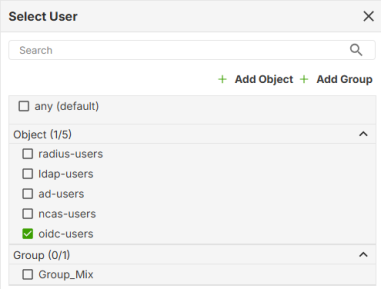 • This is a required field. • The User Type must be: User, External User, or External Group User. • It cannot be an admin or viewer account type. • SecuExtender VPN clients must log in with a User account in Menu > Configuration > Get from Server screen. See What You Need To Know for more information on user accounts. ncas-users are users authenticated by Nebula. oidc-users are users authenticated by OpenID Connect (OIDC). See Add an OIDC Server for more information on OIDC. When the number of connections to the Zyxel Device reaches the number of IP addresses specified in the IP Address Pool, then additional VPN clients cannot access the Zyxel Device. |
OK | Click OK to save your changes. |
Cancel | Click Cancel to exit this screen without saving. |