BWM (Bandwidth Management)
Overview
Bandwidth management provides a convenient way to manage the use of various services on the network. It manages general protocols (for example, HTTP and FTP) and applies traffic prioritization to enhance the performance of delay-sensitive applications like voice and video.
Use the BWM screens to control bandwidth for services passing through the Zyxel Device, and to identify the conditions that define the bandwidth control.
What You Need to Know
When you allow a service, you can restrict the bandwidth it uses. It controls TCP and UDP traffic. Use policy routes to manage other types of traffic (like ICMP).
 Bandwidth management in policy routes has priority over TCP and UDP traffic policies.
If you want to use a service, make sure both the security policy allow the service’s packets to go through the Zyxel Device.
The Zyxel Device checks security policies before it checks bandwidth management rules for traffic going through the Zyxel Device.Bandwidth management examines every TCP and UDP connection passing through the Zyxel Device. Then, you can specify, by port, whether or not the Zyxel Device continues to route the connection.
Upload and Download Bandwidth Limits
You can limit an application’s upload or download bandwidth. This limit keeps the traffic from using up too much of the upload interface’s bandwidth. This way you can make sure there is bandwidth for other applications. When you apply a bandwidth limit to upload or download traffic, each member of the upload zone can send up to the limit. Take a LAN to WAN policy for example.
• Upload traffic is limited to 200 kbps. The connection initiator is on the LAN1 so upload means the traffic traveling from the LAN1 to the WAN. Each of the WAN zone’s two interfaces can send the limit of 200 kbps of traffic.
• Download traffic is limited to 500 kbps. The connection initiator is on the LAN so download means the traffic traveling from the WAN to the LAN.
Bandwidth Management Priority
• The Zyxel Device gives bandwidth to higher-priority traffic first, until it reaches its configured bandwidth rate.
• Then lower-priority traffic gets bandwidth.
• The Zyxel Device uses a priority queueing scheduler to divide bandwidth among traffic flows with the same priority.
• The Zyxel Device automatically treats traffic with bandwidth management disabled as priority 7 (the lowest priority).
Configured Rate Effect
In the following table the configured rates total less than the available bandwidth and maximize bandwidth usage is disabled, both servers get their configured rate.
Policy | Configured RAte | Max. bandwidth usage | priority | Actual rate |
|---|---|---|---|---|
A | 300 kbps | No | 1 | 300 kbps |
B | 200 kbps | No | 1 | 200 kbps |
Priority and Over Allotment of Bandwidth Effect
Server A has a configured rate that equals the total amount of available bandwidth and a higher priority. You should regard extreme over allotment of traffic with different priorities (as shown here) as a configuration error. Even though the Zyxel Device still attempts to let all traffic get through and not be lost, regardless of its priority, server B gets almost no bandwidth with this configuration.
Policy | Configured RAte | Max. bandwidth usage | priority | Actual rate |
|---|---|---|---|---|
A | 1000 kbps | Yes | 1 | 999 kbps |
B | 1000 kbps | Yes | 2 | 1 kbps |
Limit the Bandwidth for a Specific VLAN
If you want to limit the bandwidth for a specific VLAN, set the VLAN as the incoming interface and VPN as the outgoing interface. Then, set the bandwidth limit for this BWM rule.
The Configuration > Bandwidth Management Add/Edit screen allows you to create a new condition or edit an existing one.
802.1p
Use 802.1p to prioritize outgoing traffic from a VLAN interface. The Priority Code Point (PCP) is a 3-bit field within a 802.1Q VLAN tag that’s used to prioritize associated outgoing VLAN traffic. "0" is the lowest priority level and "7" is the highest. Receiving devices will prioritize the traffic according to this tag.
802.1Q Frame.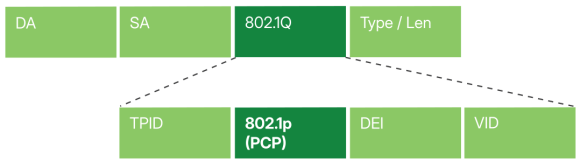
DA | Destination Address | TPID | Tag Protocol Identifier |
SA | Source Address | 802.1p (PCP) | 802.1p Priority |
802.1Q | 802.1Q Frame | DEI | Drop Eligible Indicator |
Type/ Len | Ethernet Type / Length | VID | VLAN ID |
The following table is a guide to the types of traffic for each priority code.
Priority | Traffic Types |
|---|---|
0 (lowest) | Background |
1 | Best Effort |
2 | Excellent Effort |
3 | Critical Applications |
4 | Video, less than 100 ms latency and jitter |
5 | Voice, less than 10 ms latency and jitter |
6 | Internetwork Control |
7 (highest) | Network Control |
The Bandwidth Management Configuration
The Bandwidth management screens control the bandwidth allocation for TCP and UDP traffic. You can use incoming interface, outgoing interface, user, source, destination information, application, and service type as criteria to create a sequence of specific conditions, similar to the sequence of rules used by firewalls, to specify how the Zyxel Device allocates bandwidth for the matching packets.
This screen allows you to enable/disable bandwidth management and add, edit, and remove user-defined bandwidth management policies.The default bandwidth management policy is the one with the priority of “default”. It is the last policy the Zyxel Device checks if traffic does not match any other bandwidth management policies you have configured. You cannot remove, activate, deactivate or move the default bandwidth management policy.
Label | Description |
|---|---|
Enable | Click to slide the switch to the right to activate bandwidth management on the Zyxel Device. |
Add | Click this to create a new entry. Select an entry and click Add to create a new entry after the selected entry. |
Edit | Select an entry and click this to be able to modify it. |
Remove | Select an entry and click this to delete it. |
Activate | To turn on an entry, select it and click Activate. |
Inactivate | To turn off an entry, select it and click Inactivate. |
Move to | To change an entry’s position in the numbered list, select it and click Move to display a field to type a number for where you want to put that entry and press [ENTER] to move the entry to the number that you typed. |
Status | The activate (light bulb) icon is lit when the entry is active and dimmed when the entry is inactive. The status icon is not available for the default bandwidth management policy. |
Pri (Priority) | This field displays a sequential value for each bandwidth management policy and it is not associated with a specific setting. This field displays default for the default bandwidth management policy. |
Name | This is the name of the BWM rule. |
Description | This field displays additional information about this policy. |
User | This is the type of user account to which the policy applies. If any displays, the policy applies to all user accounts. |
Incoming Interface | This is the source interface of the traffic to which this policy applies. |
Outgoing Interface | This is the destination interface of the traffic to which this policy applies. |
Source | This is the source address or address group, including geographic address and FQDN (group) objects, for whom this policy applies. If any displays, the policy is effective for every source. |
Destination | This is the destination address or address group, including geographic address and FQDN (group) objects, for whom this policy applies. If any displays, the policy is effective for every destination. |
Service | App and the service name displays if you selected Application Object for the service type. An Application Object is a pre-defined service. Obj and the service name displays if you selected Service Object for the service type. A Service Object is a customized pre-defined service or another service. Mouse over the service object name to view the corresponding IP protocol number. |
BWM Download/Upload/Pri | This field shows the amount of bandwidth the traffic can use. Download - This is how much inbound bandwidth, in megabits per second, this policy allows the matching traffic to use. Inbound refers to the traffic the Zyxel Device sends to a connection’s initiator. If 0 displays here, it means the download traffic has reached the maximum capacity the Zyxel Device can transmit. Upload - This is how much outbound bandwidth, in megabits per second, this policy allows the matching traffic to use. Outbound refers to the traffic the Zyxel Device sends out from a connection’s initiator. If 0 displays here, it means the upload traffic has reached the maximum capacity the Zyxel Device can transmit. Pri - This is the priority for the inbound or outbound traffic that matches this policy. The smaller the number, the higher the priority. Traffic with a higher priority is given bandwidth before traffic with a lower priority. |
Apply | Click Apply to save your changes back to the Zyxel Device. |
Cancel | Click Cancel to return the screen to its last-saved settings. |
The Bandwidth Management Add/Edit Screen
The Network > BWM > Add/Edit screen allows you to create a new condition or edit an existing one.
The first BWM policy is the default and can only be edited.
The following table describes the labels in this screen.
Label | Description |
|---|---|
Configuration | |
Enable | Select this check box to enable this policy. |
Name | Enter a name to identify the BWM rule. You may use 1-31 alphanumeric characters, underscores (_), or dashes (-), but the first character cannot be a number. This value is case-sensitive. |
Description | Enter a description of this policy. It is not used elsewhere. You can use alphanumeric and ()+/:+?!*#@$_%- characters, and it can be up to 60 characters long. |
BWM Type | Shared BWM is selected by default in a bandwidth management rule. All matched traffic shares the bandwidth configured in the rule. If you select Per user, each matching user can use the configured bandwidth. If you select this, you cannot set the User field to any. Select Per-Source-IP to set the maximum bandwidth for a source IP address object. Only address objects with up to 1,024 IP addresses are available in the Source field. If you select this, you cannot set the Source field to any. |
Criteria | Use this section to configure the traffic conditions for this policy. |
Incoming Interface | Select the source interface of the traffic to which this policy applies. |
Outgoing Interface | Select the destination interface of the traffic to which this policy applies. |
Source | Select a source address or address group object for this policy. Select any to apply the policy to every source. A FQDN (Fully Qualified Domain Name) address object allows you to apply bandwidth policies based on a domain name (such as example.com), rather than just an IP address. You must first create the FQDN address object or select Create new Object. The Zyxel Device resolves the domain name to its associated IP address(es). It uses those IP addresses to find matching traffic for this policy. |
Destination | Select a destination address or address group object for this policy. Select any to apply the policy to every destination. A FQDN (Fully Qualified Domain Name) address object allows you to apply bandwidth policies based on a domain name (such as example.com), rather than just an IP address. You must first create the FQDN address object or select Create new Object. The Zyxel Device resolves the domain name to its associated IP address(es). It uses those IP addresses to find matching traffic for this policy. |
Service Type | Select Service Object or Application Group to specify the traffic type. Select Service Object for a specific service defined in a service object. Select Application Group for AN application patrol service. |
Service Object | This field is available if you selected Service Object as the service type. Select a service or service group to specify the traffic type for this policy. any means all services. |
Application Group | This field is available if you selected Application Group as the service type. Select an application to specify the traffic for this policy. If you select BitTorrent, it includes the services listed below at the time of writing: • BitTorrent • BitTorrent_FileTransfer • BitTorrent_Application • BitTorrent_Bundle |
User | Select a user name or user group for this policy. Select Create new Object to create a new user account. Select any to apply the policy to every user. |
Schedule | If you created a One Time or Recurring schedule in Object > Schedule, select it. The schedule determines when the policy applies. Alternatively, select Create Object to configure a new schedule. Otherwise, select none to keep the policy always effective. |
Traffic Shaping | Configure these fields to set the amount of bandwidth the matching traffic can use. |
Download Limit (Mbps) | Enter the maximum inbound bandwidth in megabits per second, that the policy allows. Inbound traffic is traffic the Zyxel Device receives from the initiator of the connection. Select Unlimited to allow the maximum available transmission for matching traffic. Select Limited to apply bandwidth management for matching traffic, and enter a number from 1 to 10,000 Mbps. Traffic matching a Limited policy may “borrow” all unused bandwidth on the inbound interface. If the bandwidth for routes using the same next hop exceeds the transmission speed, lower priority traffic may not be sent. |
Upload Limit (Mbps) | Enter the maximum outbound bandwidth in megabits per second, that the policy allows. Outbound traffic is traffic the Zyxel Device sends to the initiator of the connection. Select Unlimited to allow the maximum available transmission for matching traffic. Select Limited to apply bandwidth management for matching traffic, and enter a number from 1 to 10,000 Mbps. Traffic matching a Limited policy may “borrow” all unused bandwidth on the upload interface. If the bandwidth for routes using the same next hop exceeds the transmission speed, lower priority traffic may not be sent. |
Priority | Choose a number between 0 and 7 to set the priority for traffic that matches this policy. The smaller the number, the higher the priority. 0 is for high-priority traffic such as video,. 7 is for low-priority traffic such as background traffic. Higher-priority receives bandwidth before lower-priority.traffic. When higher-priority traffic reaches its bandwidth limit, lower-priority traffic can use the remaining bandwidth. The Zyxel Device uses a priority queueing scheduler to divide bandwidth among traffic flows with the same priority. The number in this field is ignored if the download and upload limits are both set to Unlimited. |
802.1P Marking | Use 802.1P to prioritize outgoing traffic from a VLAN interface. Receiving devices prioritizes traffic according to this tag. See 802.1p for details. |
Enable | Click to slide the switch to the right to enable 802.1P Marking. |
Priority Code | This 3-bit field in an 802.1Q VLAN tag prioritizes associated outgoing VLAN traffic. "0" is the lowest priority level and "7" is the highest. This setting overrides the priority settings on the VLAN interface. |
Related Setting | |
Log | Select whether the Zyxel Device generates a log (log), log and alert (log alert) or neither (no) when traffic matches a policy. |
Apply | Click Apply to save your changes back to the Zyxel Device. |
Cancel | Click Cancel to return the screen to its last-saved settings. |
Adding Objects for the BWM Policy
Objects are parameters to which the Policy rules are built upon. You can add/edit User and Address objects for the BWM policy.
User Objects
The following table describes the fields in the above screen.
Label | Description |
|---|---|
User Name | Type a user or user group object name of the rule. |
User Type | Select a user type from the drop down menu. The user types are Admin, Limited admin, User, Guest, Ext-user, Ext-group-user. |
Password | Type a password for the user object. The password can consist of alphanumeric characters, the underscore, and some punctuation marks (+-/*= :; .! @$&%#~ ‘ \ () ), and it can be up to eight characters long. |
Retype | Retype the password to confirm. |
Description | Enter a description of this policy. It is not used elsewhere. You can use alphanumeric and ()+/:+?!*#@$_%- characters, and it can be up to 60 characters long. |
Save | Click Save to save the setting. |
Cancel | Click Cancel to return the screen to its last-saved settings. |
User Group Objects
The following table describes the fields in the above screen.
Label | Description |
|---|---|
Name | Type a user group name of the object. |
Description | Enter a description of this policy. It is not used elsewhere. You can use alphanumeric and ()+/:+?!*#@$_%- characters, and it can be up to 60 characters long. |
Member List | Select the users or user groups that will be in this user group. |
Save | Click Save to save the setting. |
Cancel | Click Cancel to return the screen to its last-saved settings. |
Address Objects
The following table describes the fields in the above screen.
Label | Description |
|---|---|
Name | Enter a name for the Address object of the rule. |
Address Type | Select an Address Type from the drop down menu on the right. The Address Types are Host, Range, Subnet, Interface IP, Interface Subnet, and Interface Gateway. |
IP Address | Enter an IP address for the Address object. |
Save | Click Save to save the setting. |
Cancel | Click Cancel to return the screen to its last-saved settings. |
Address Group Objects
The following table describes the fields in the above screen.
Label | Description |
|---|---|
Name | Type an address group name of the object. |
Description | Enter a description of this object. It is not used elsewhere. You can use alphanumeric and ()+/:+?!*#@$_%- characters, and it can be up to 60 characters long. |
Member List | Select the address objects that will be in this user group. |
Save | Click Save to save the setting. |
Cancel | Click Cancel to return the screen to its last-saved settings. |
Example: Prioritize a Specific Application
You are a client on the Zyxel Device LAN. You use Teams to communicate with your colleagues and have video meetings often at work. You want to create a bandwidth management rule to prioritize traffic for Teams so that you can always use Teams without any delay.
This example uses the parameters given below.
description | service type | service object | guaranteed bandwidth |
|---|---|---|---|
Teams | Application Group | Teams | Download 20 mbps/ Priority: 1 Upload: 20 mbps/ Priority: 1 |
1 Go to Network > BWM . Click Add to create a bandwidth management rule using the parameters given in BWM Example.
2 Select Teams under Application Group.
3 Click Apply to save your changes.
4 The traffic for Teams is now at the highest priority to use the Zyxel Device bandwidth.