Licensing
Registration
Use the Configuration > Licensing > Registration screens to register your Zyxel Device and manage its service subscriptions.
Subscription Services Available
See Configuration > Licensing > Registration > Service for the subscription services that your Zyxel Device supports. Zyxel offers two types of security packs for your Zyxel Device. The subscription services you can use on the Zyxel Device vary depending on the security pack license you purchase. See the table below for services available in each pack.
You can purchase an iCard and enter its license key at myZyxel to extend a service.
License Update
Licenses are updated using port 443. Make sure TCP service port 443 is allowed on the router connected to the Zyxel Device.
Features Available Without a License
You can use the following Zyxel Device features without a license:
monitor | configuration | maintenance |
|---|---|---|
Traffic Statistics | Wireless | File Manager |
Wireless | Network | Diagnostics |
VPN Monitor | VPN | Packet Flow Explore |
Log | BWM | Shutdown/Reboot |
Web Authentication | ||
Security Policy | ||
Object | ||
System | ||
Log & Report |
Please note that you cannot use the security services if your Zyxel Device does not have a license. Your Zyxel Device and network will be exposed to threats and attacks. We strongly recommend you to buy a license to better protect your Zyxel Device and network.
Gold Security Pack License and UTM Bundled License
The UTM bundled license includes the UTM security services listed below:
• Web Filtering
• IPS
• Application Patrol
• Anti-Malware
• Email Security
• Collaborative Detection & Response
• SecuReporter
• Network Premium
• Security Profile Sync
 You can renew the Anti-Malware and SecuReporter service licenses individually.
If you renew a UTM license, the Expiration Date in Configuration > Licensing > Registration > Service is extended by one, two or three years depending on the license or service you bought. See Expiration Date for more information on the expiration date.
The Status for each service in the renewed UTM license displays Queued in portal.myzyxel.com. These services will become active when the current UTM bundled license services expire. See Service Status for more information on the service status.
The Gold Security Pack license is the UTM license that comes with the Zyxel Device when you buy it and is good for 1 year. The Gold Security Pack license includes all security services in the default UTM bundled license, with the additional services listed below:
• Sandboxing
• DNS Threat Filter
• IP Reputation
• Secure WiFi
• Nebula Professional Pack
You can renew the Secure WiFi and Nebula professional pack service licenses individually.If you buy a Gold Security Pack license and renew a UTM license, the Expiration Date is not extended in Configuration > Licensing > Registration > Service as the Expiration Date of licenses with different services cannot be added together. See Expiration Date for more information on the expiration date.
The Status for each service in the Gold Security Pack license displays Queued in portal.myzyxel.com. The Status for each service in the renewed UTM license displays Deferred in portal.myzyxel.com. The Gold Security Pack license services will become active when the current UTM bundled license services expire. See Service Status for more information on the service status.
Hospitality Pack License and Hotspot Management License
The hospitality pack license includes the licenses listed below:
• Hotspot management subscription service license
• Concurrent device upgrade license
The hotspot management license includes the license listed below:
• Hotspot management subscription service license
Hotspot management subscription service license is a license to manage hotspot functions such as billing, printer manager, free time, IPnP, walled garden and advertisement; see Hotspot for more information.
Concurrent device upgrade license is a license to increase the number of devices (based on the MAC addresses) that can log in and use the Zyxel Device hotspot at the same time.
Please note that:
• Not all Zyxel Devices support hospitality pack license or hotspot management license.
• A Zyxel Device cannot support hospitality pack license and hotspot management license at the same time.
See USG FLEX Model Feature Comparison for more information on the license each Zyxel Device supports.
License Priority
Please note that in On-Premises Mode, if you purchase a UTM license before a Gold Security Pack license expires, the UTM license services will only be available after the Gold Security Pack license expires.
Services within licenses become active in the following order:
1 Trial Gold Security Pack license
2 Default Gold Security Pack license
3 Gold Security Pack license
4 New UTM license
5 Individual service license
If your Zyxel Device is managed by Nebula in On Cloud Mode, you can use the Gold Security Pack security services, right after you purchase the Gold Security Pack license.
The hospitality pack license and hotspot management license will become active once you buy them. They are independent and will not be affected by the priority of the licenses listed above.
Contact customer support if you have a problem using your licenses.
Expiration Date
Only the Expiration Date for services that are currently running on the Zyxel Device are displayed in Configuration > Licensing > Registration > Service. The Expiration Date changes after you buy a new license.
For example, if you are currently using the default Gold Security Pack license, with expiration date of 2024/4/1, and then you purchase a new 1-year Gold Security Pack license, the new Expiration Date will be in 2025/4/1.
If you purchase a 1-year UTM license after purchasing a new Gold Security Pack license, a year will be deducted from the Expiration Date because:
• The Expiration Date of licenses with different services cannot be added together.
• The services in the Gold Security Pack license take priority over the new UTM license.
Default Gold Security Pack License | +1-Year Gold Security Pack License | +1-Year UTM License | |
Expiration Date | 2024/4/1 | 2025/4/1 | 2024/4/1 |
Service Status
Your service may show one of the following states.
• Consuming: The license service is active.
• Queued: This displays when you bought a new UTM license. Services are queued as they will become active when current UTM services expire.
• Deferred: This displays when you bought a Gold Security Pack license and a new UTM license. The new UTM license services are deferred as the Gold Security Pack license has priority, so the new UTM license services will not become active until the Gold Security Pack license services first become active, then expire.
• Expired: The license service expiry date (and grace period) is over.
Registration Screen
Click the link in this screen to register your Zyxel Device at myZyxel. Then click Refresh in this screen and wait a few moments for the registration information to update. If the page does not refresh, make sure the Internet connection is working and click Refresh again. The Zyxel Device should already have Internet access and be able to access myZyxel.
Service Screen
Use this screen to display the status of your service registrations and upgrade licenses. To activate or extend a standard service subscription, purchase an iCard and enter the iCard’s PIN number (license key) at NCC or myZyxel.
The Service screen may show different services depending on the licenses you purchase or activate.
• Managed AP Service will be replaced by Secure WiFi when it’s activated.
Anti-Malware signatures contain Anti-Malware signatures and Threat Intelligence Machine Learning (TIML) signatures for Sandboxing. Both sets of signatures are included in the Gold Security Pack license, but only Anti-Malware signatures are included in the UTM license. If your Gold Security Pack license expires and you replace it with a UTM license, then your Sandboxing (TIML) signatures will not be updated and Sandboxing will not work. If your Gold Security Pack license expires, you should replace it with another Gold Security Pack license.Check if Your Zyxel Device Has an Inactivate License
After purchasing a license, assign it to your Zyxel Device. You have to activate the assigned license manually before your Zyxel Device can use it.
Follow the steps below to check if a license is assigned to your Zyxel Device and activate it (if not yet activated) through NCC or myZyxel.
Through NCC
1 Go to NCC and log in.
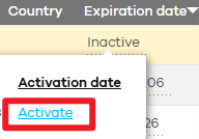
2 Go to Organization-wide > Device. Find your Zyxel Device and check the Expiration date field for the assigned license’s status.
3 If the license has not been activated, hover over Inactive and click Activate to activate it on your Zyxel Device.
Through myZyxel
1 Go to myZyxel and log in.
2 Go to Device Management > My Devices. Find your Zyxel Device and click its MAC Address.
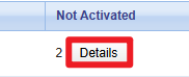
3 Go to Linked Services to see the licenses assigned to your Zyxel Device. Check the Not Activated field to see the number of inactivate licenses.
4 If there is any license that has not been activated, click Details.
5 Click Activate to activate it on your Zyxel Device.
Click Configuration > Licensing > Registration > Service to display the following screen.
The following table describes the labels in this screen.
Label | Description |
|---|---|
Service Status | |
# | This is the entry’s position in the list. |
Service | This lists the name of services or service modules that are available on the Zyxel Device. |
Web Filtering | This is a license to a database that can block websites by category, such as Gambling. |
IPS (IDP) | This is a license to detect Intrusion Detection and Prevention attacks. |
Application Patrol | This is a license to use signatures for Application Patrol inspection to manage the use of various applications on the network. |
Anti-Malware | This is a license for signatures to detect malware patterns in files. |
Email Security | This is a license to use anti-spam signatures to mark or discard spam (unsolicited commercial or junk email). |
Sandboxing | This is a license to provide a safe environment to separate running programs from your network and host devices. |
Reputation Filter | This is a license to recognize packets coming from suspect IPv4 addresses. |
Collaborative Detection & Response | This is a license to detect wired and wireless clients that have become infected in your network and to block or isolate traffic coming from them. |
SecuReporter | This is a license that allows SecuReporter to collect and analyze logs from your Zyxel Device in order to identify anomalies, notify you of potential internal or external threats, and report on network usage. The Zyxel Device retains logs up to 1 year. |
Managed AP Service | This is a license to manage more APs than the default for your Zyxel Device when the AP controller is enabled. |
Secure WiFi | This is a license to: • Manage more than 8 APs. • Enable Remote AP to allow an IPSec VPN tunnel from a supported remote AP to the Zyxel Device. The Secure WiFi license replaces the Managed AP Service license. If the Secure WiFi license expires, then the Managed AP Service license will reappear, but you cannot renew it. You can only renew a Secure WiFi license. |
Network Premium | This is a license to use Single-Sign On (SSO) that allows the Zyxel Device to communicate with an SSO agent. |
Hotspot Management Subscription Service | This is a license to manage hotspot functions such as Billing, Printer Manager, Free Time, IPnP, Walled Garden and Advertisement. |
Concurrent Device Upgrade | This is a license to increase the number of devices (based on unique MAC address) that can log in and use the Zyxel Device Hotspot at the same time. |
Device HA Pro | This is a license for professional High Availability (HA) that lets a backup Zyxel Device automatically take over if the master Zyxel Device fails. |
Firmware Upgrade Service | This is a free license to get Cloud Helper notifications when new firmware is available. You must register your Zyxel Device at myZyxel. |
Status | This field displays whether a service license is enabled at myZyxel (Activated) or not (Not Activated) or expired (Expired). It displays the remaining Grace Period if your license has Expired. It displays Not Licensed if there isn’t a license to be activated for this service. Default displays for quantity-based licenses when the Zyxel Device is currently using the allowed free number without a license. For example, if a Zyxel Device is allowed to manage x number of APs without a license and it is currently using that number, then Managed AP Service Status displays Default. |
Service Type | This field displays whether you applied for a trial application (Trial) or registered a service with your iCard’s PIN number (Standard). This field is blank when a service is not activated. |
Expiration Date | This field displays the date your service license expires or the date the grace period expires if the license has already expired. You can continue to use IDP/AppPatrol, Anti-Malware, Content Filter, Email Security during the grace period. After the grace period ends, all of these features are disabled. |
Count | This field displays how many instances of a service you can use with your current license. N/A means a count does not apply to this service. |
Action | If you need a license or a trial license has expired, click Buy to buy a new one. If a Standard license has expired, click Renew to extend the license. Then, click Activate to connect with the myZyxel server to activate the new license. |
Service License Refresh | Click this button to renew service license information (such as the registration status and expiration day). It is recommended you use this button after you register for a new service. |
Signature Update
This section shows you how to update the signature packages of the Zyxel Device.
• Use the Configuration > Licensing > Signature Update screen (The Signature Screen) to update the signatures used for a service, such as IDP and application patrol.
What you Need to Know
• You need a valid service registration to update the anti-malware signatures, the DNS Threat filter signatures, the IPS signatures, the IP reputation signatures and the App-Patrol signatures.
• You do not need a service registration to update the system-protection signatures.
• Schedule signature updates for a day and time when your network is least busy to minimize disruption to your network.
• Your custom signature configurations are not over-written when you download new signatures.
The Zyxel Device does not have to reboot when you upload new signatures.The Signature Screen
The following table describes the labels in this screen.
label | description |
|---|---|
Service Status | The following fields display the status and information on the current signature set that the Zyxel Device is using. |
Feature | This field displays the name of the services available on the Zyxel Device. |
Type | This field displays the type of service engine used by the Zyxel Device. |
Current Version | This field displays the signatures version number currently used by the Zyxel Device. This number gets larger as new signatures are added. |
Released Date | This field displays the date and time the set was released. |
Last Sync | This field displays the date and time the Zyxel Device last checked for new signatures at myZyxel. |
Action | Click the Update icon to have the Zyxel Device immediately check for new signatures at myZyxel. If new signatures are found, they are then downloaded to the Zyxel Device. Click the Schedule icon to have the Zyxel Device automatically check for new signatures regularly at the time and day specified. You should select a time when your network is not busy for minimal interruption. |
Auto Update
Click the Schedule icon of a service to display the following screen.
The following table describes the labels in this screen.
label | description |
|---|---|
Auto Update | Select this checkbox to have the Zyxel Device automatically check for new signatures regularly at the time and day specified. You should select a time when your network is not busy for minimal interruption. |
Hourly | Select this option to have the Zyxel Device check for new signatures every hour. |
Daily | Select this option to have the Zyxel Device check for new signatures every day at the specified time. The time format is the 24 hour clock, so ‘23’ means 11 PM for example. |
Weekly | Select this option to have the Zyxel Device check for new signatures once a week on the day and at the time specified. |
OK | Click this button to save your changes to the Zyxel Device. |