Captive Portal
Overview
Use this screen to configure captive portal settings for each interface. A captive portal is a designated login web page for client authentication before network access.
The policy can be applied:
• to a specific interface or zone
• with the walled garden feature
• to a specific client or group of clients
The policy can be configured:
• to exempt specific source and destination address objects
• to exempt specific type of traffic
• to use with HTTP or HTTPS server
What You Can Do in This Chapter
Use the Authentication Policy screens (Authentication Policy Overview) to configure the policy of the captive portal.
What You Need to Know
Walled Garden
With a walled garden, you can define one or more web site addresses that all clients can access without logging in. These can be used for advertisements for example.
HSTS
HSTS (HTTP Strict Transport Security) is a web security policy that instructs browsers to always use HTTPS to prevent unencrypted connections. This protects users from man-in-the-middle attacks and protocol downgrade attacks.
Redirect TCP Port 443 Traffic to Login Page
The table below shows scenarios for enabling or disabling the ‘Redirect TCP Port 443 Traffic to Login Page’ option in a captive portal policy.
Scenario | Disabled (default) | Enabled |
|---|---|---|
Access HTTP website | Browser redirected to Captive Portal landing page | Browser redirected to Captive Portal landing page |
Access HTTPS website without HSTS | Browser cannot load page and shows ‘Site cannot be reached’ | Browser shows certificate warning and requires user to proceed |
Access HTTPS website with HSTS | Browser cannot load page and shows ‘Site cannot be reached’ | Browser shows certificate warning and does not allow user to proceed |
Access with Captive Network Assistance (CNA) | Pop-up browser redirected to Captive Portal landing page | Pop-up browser redirected to Captive Portal landing page |
Authentication Policy Overview
Use this screen to configure the authentication policy that the captive portal applies to control client’s access.
The Policy Screen
Use this screen to configure the authentication policy for the captive portal.
The following table describes the labels in this screen.
Label | Description |
|---|---|
General Settings | |
Enable | Click to slide the switch to the right to activate captive portal on the Zyxel Device. |
Add | Click this to create a new entry. Select an entry and click Add to create a new entry after the selected entry. |
Edit | Double-click an entry or select it and click Edit to open a screen where you can modify the entry’s settings. |
Remove | To remove an entry, select it and click Remove. The Zyxel Device confirms if you want to remove it before doing so. |
Active | To turn on an entry, select it and click Active. |
Inactive | To turn off an entry, select it and click Inactive. |
Move to | To change a policy’s priority in the list, select the policy and click Move to. Enter the desired priority number for the selected policy and press [ENTER]. |
Search | Enter an item in the search box, then click this to display all sessions in the table below according to the item you entered. |
Status | This icon is lit when the entry is active and dimmed when the entry is inactive. |
Pri. | This field displays the policy’s priority. The policies are applied in this numerical order. You can use Move to to change the order (priority). |
Incoming | This field displays the interface or zone that enforces the policy. |
Source | This field displays the object or group whose outgoing traffic the policy will apply to. |
Destination | This field displays the object or group whose incoming traffic the policy will apply to. |
Sign-in Method | This field displays the authentication server that enforces the policy. |
Sign-on With | This field displays the sign in method of the policy. |
Portal Type | This field displays the portal type of the policy. |
Description | This field displays the description of the policy. |
The Policy Add/Edit Screen
In the Captive Portal > Authentication Policy > Policy screen, click the Add or Edit icon to create or edit an existing profile.
The following table describes the labels in this screen.
Label | Description |
|---|---|
General Settings | |
Enable | Slide the switch to the right to enable the policy. |
Description | Enter a description for the policy. |
Criteria | |
Incoming | Select an interface or zone from the drop-down list to enforce the policy on the incoming traffic from the selected interface or zone interface member. Select any to enforce the policy on any incoming traffic from internal interfaces.  The captive portal will not function on external and general interfaces. If the selected zone includes both an external interface and the internal interface 'ge3', the captive portal will function only on 'ge3'. The captive portal will not function on external and general interfaces. If the selected zone includes both an external interface and the internal interface 'ge3', the captive portal will function only on 'ge3'. |
Source Address | Select an object or group from the drop-down list to enforce the policy on traffic from the selected object or group members. Select any to apply the policy to all traffic from IPv4 addresses. |
Destination Address | Select an object or group from the drop-down list to enforce the policy on traffic to the selected object or group members. Select any to apply the policy to all traffic going to IPv4 addresses. |
Exempt List | Create a list to exempt specific traffic from the policy. You can exempt traffic by source IP address or service. Select an entry from the list to exempt specific traffic with that IP address or service from captive portal authentication. |
Add | Click this to create a new entry. |
Remove | Select an entry and click this to delete it. |
Type | Select the type of traffic: • Source IP: Exempts traffic with a specific source destination ports or IP protocol. • Service: Exempts traffic with a specific service port, such as 21 for FTP traffic. |
Object | Select an object of IP address or service you created. To create an object, click Add Object. Add a new object when you select Source IP as the Type: 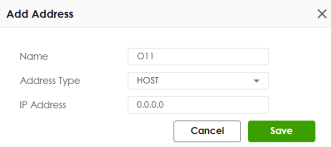 • Name: Enter the name of this object. It must begin with a letter and cannot exceed 31 characters. The valid characters are A-Z, a-z, 0-9, underscores (_), dashes (-), and dots (.). Spaces are not allowed. • Address Type: Select the address type of this object from the drop-down list. • IP Address: Enter the source IP address of the object. • Network: Enter an IPv4 address in CIDR notation, for example, 192.168.1.1/24. • Netmask: This field displays the subnet mask depends on the Network you entered. • Cancel: Click Cancel to close the window with changes unsaved. • Save: Click Save to save the entry. Add a new object when you select Service as the Type: 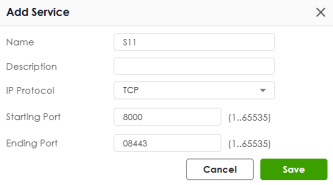 • Name: Enter the name of this object. It must begin with a letter and cannot exceed 30 characters. The valid characters are A-Z, a-z, 0-9, underscores (_), dashes (-), and dots (.). Spaces are not allowed. • Description: Enter a description for the object. • IP Protocol: Select the IP portal of the object from the drop-down list. TCP and UDP: If you select TCP or UDP as the IP Protocol, enter the Starting Port and Ending Port from 1 to 65535. ICMP: If you select ICMP or ICMPv6 as the IP Protocol, select the ICMP Type from the drop-down list. User Defined: If you select User Defined as the IP Protocol, enter the IP Protocol No. from 1 to 255. • Cancel: Click Cancel to close the window with changes unsaved. • Save: Click Save to save the entry. |
Remove | Select an entry and click this icon to delete it.  |
Enable Walled Garden | Slide the switch to the right to enable walled garden of the policy. Enable this and define one or more web site addresses that all clients can access without logging in. |
Walled Garden List | Select the object you created. The selected objects will be applied to the policy. This list allows you to specify walled garden web site links, which use a FQDN (Fully Qualified Domain Name, consist of a host name and a domain name), domain name, and IPv4 address for web sites that clients are allowed to access without logging in. |
Add | Click this to create a new entry. |
Remove | Select an entry and click this to delete it. |
Type | Select the type of traffic allowed in the walled garden: • Allows traffic to the specified fully qualified domain name (for example, host.example.com) without logging in. • Domain Name: Allows traffic to any host within the specified domain (for example, ‘example.com’ or ‘*.example.com’, which does not include ‘example.com’) without logging in. • IPv4 Address: Allows traffic to the specified IP address (for example, 192.168.1.10) without logging in. |
Object | Select an object you created. To create an object, click Add Object. 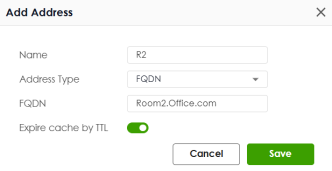 • Name: Enter the name of this object. It must begin with a letter and cannot exceed 30 characters. The valid characters are A-Z, a-z, 0-9, underscores (_), dashes (-), and dots (.). Spaces are not allowed. • Address Type: Select the address type of the object you want to create from the drop-down list. • FQDN: Enter the FQDN of the of a web site. An FQDN starts with a host name and continues all the way up to the top-level domain name. For example, www.zyxel.com.tw is a fully qualified domain name, where “www” is the host, “zyxel” is the third-level domain, “com” is the second-level domain, and “tw” is the top level domain. Underscores are not allowed. Use "*" as a prefix in the FQDN for a wildcard domain name (for example, *.example.com). • Expire cache by TTL: Slide the switch to refresh the data in the cache when it expires based on the Time-to-Live (TTL). The cached data remains valid for the specified TTL duration before it is refreshed or discarded. • Cancel: Click Cancel to close the window with changes unsaved. • Save: Click Save to save the entry. |
Remove | Select an entry and click this icon to delete it.  |
Sign-in Method | Use this to configure how clients authenticate or acknowledge terms before accessing the network. |
Click-to-continue | Select this to block network access until clients agree to the user agreement policy. |
Sign-on With | Select this and choose an authentication policy you configured in User & Authentication > User Authentication > AAA Server to block network access until a client authenticates. local is the default authentication policy on the Zyxel Device. |
Portal Type | Use this to configure a portal that clients are directed to for network access. |
Internal | Select this to use the default web page on the Zyxel Device. |
External | Select this and enter the URL of an external portal. You can configure the look and feel of the web portal page. Specify the login page’s URL; for example, http://IIS server IP Address/login.asp. The Internet Information Server (IIS) is the web server on which the web portal files are installed. |
Advanced Settings | |
After the Captive Portal Page Where the User Should Go? | • Select Stay on Captive Portal Authenticated Successfully Page to keep users on the success page after a successful login. • Select Stay on Login Session Page to keep users on the login page after a successful login. • Select To promotion URL and specify an URL to redirect users to after a successful login. |
Redirect TCP Port 443 Traffic to Login Page | Slide the switch to the right to require that users use HTTPS for access to the captive portal. Users may see a certificate warning when they log into the captive portal. Refer to Redirect TCP Port 443 Traffic to Login Page for example scenarios. |
Idle Timeout | Slide the switch to the right and enter the number of minutes a user can remain logged in but without activity before being automatically logged out. |
Log | Select whether to have the Zyxel Device generate a log (log), log and alert (log alert) or not (no) when the policy is matched to the criteria listed above. |
Apply | Click Apply to save your changes back to the Zyxel Device. |
Cancel | Click Cancel to return the screen to its last-saved settings. |
The Advance Screen
You can use another server for clients to access the captive portal. Click Captive Portal > Authentication Policy > Advance to display the Advance screen.
The following table describes the labels in this screen.
Label | Description |
|---|---|
General Settings | |
Server Address | Enter the IP address of the service address. |
Redirect FQDN | Enter the FQDN for the server containing the captive portal. |
HTTP | Configure the HTTP connection of the captive portal. |
Enable | Slide the switch to the right to allow clients access to the captive portal web page using HTTP. |
HTTP Port | Enter the HTTPS port. This HTTPS server listens on port 1080 by default. If you choose a port already in use, you will see a port conflict message telling you to choose another port. |
Redirect HTTPS | Slide the switch to the right to allow only secure access by redirecting all HTTP connection requests to the HTTPS server. |
HTTPS | Configure the HTTPS connection of the captive portal. |
Enable | Slide the switch to the right to require clients access to the captive portal web page using secure HTTPS connections. |
HTTPS Port | Enter the HTTPS port. This HTTPS server listens on port 1443 by default. If you choose a port already in use, you will see a port conflict message telling you to choose another port. |
Authenticate Client Certificates | Slide the switch to the right to require the captive portal client to authenticate to the HTTPS server by sending a certificate. To do that the captive portal client must have a CA-signed certificate from a CA that has been imported as a trusted CA on the Zyxel Device. Make sure the common name of certificate matches the Redirect FQDN setting. |
Server Certificate | Select a certificate the HTTPS server uses to authenticate itself to the HTTPS client. You must have certificates already configured in System > Certificate > My Certificates screen. |