Tailscale
Overview
The Zyxel Device supports Tailscale, a site-to-site mesh VPN (Virtual Private Network) service that connects client devices (computer, smartphone, router, firewall) across different networks.
What You Can Do in this Chapter
Use the VPN > Tailscale screen (see The Tailscale Screen) to configure Tailscale settings.
What You Need to Know
By default, Tailscale only routes traffic between client devices running Tailscale and does not protect public Internet traffic. However, there may be times when you want to route traffic from the Tailscale VPN to the public Internet, such as when you need access to an online service only available in another country.
In the following figure, the Tailscale server (TS) creates a mesh network, allowing each client device to connect directly with others, resulting in lower latency. The Zyxel Device act as the exit node (E) to route the VPN traffic to the public Internet.
Tailscale Example Topology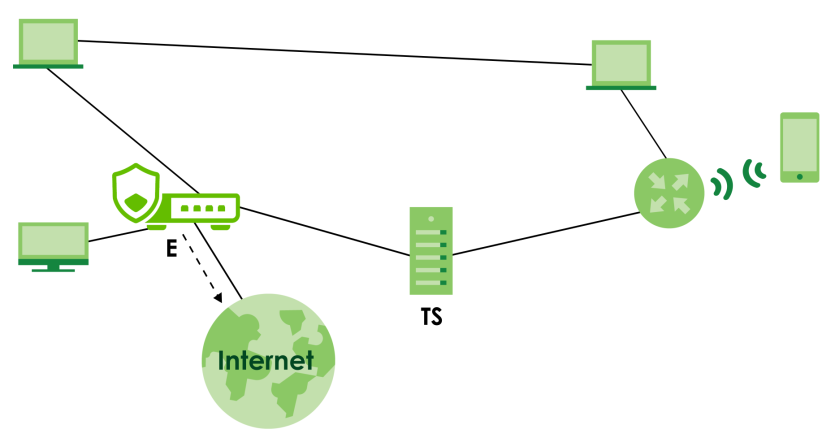
The Tailscale Screen
Use this screen to configure Tailscale settings. Click VPN > Tailscale to open this screen.
The following table describes the labels in this screen.
label | description |
|---|---|
General Settings | |
Enable | Enable this to run Tailscale on the Zyxel Device so that VPN clients with Tailscale software can establish a VPN connection. |
Auth Keys | Input the authentication key from the Tailscale admin console here. You cannot reuse an authentication key. You should disable key expiry in the Tailscale admin console. After you click Apply the Revoke button appears. |
Revoke | Click Revoke to disconnect and log out from Tailscale. To reconnect to Tailscale, you will need to log into Tailscale again and create a new authentication key to enter in Auth Keys. |
Server Port | Enter the port number for the Tailscale service. The default port number is 41641. |
Zone | Select a Tailscale zone object for incoming or outgoing Tailscale VPN traffic. |
Routing | |
As an Exit Node | By default, Tailscale only routes VPN traffic between running client devices, but does not route VPN traffic to the Internet. Enable this if you want Tailscale to route the client devices’ Internet traffic through the Zyxel Device. See What You Need to Know for more information about exit node. |
Advertised Networks | You must first enable Tailscale, enter the Auth Key, and click Apply in this screen to select a SUBNET-type object. Select an address object of host or subnet type if you want to share them with other Tailscale VPN nodes. The selected subnets are open for access by the Tailscale network. Other client devices in the Tailscale network that accept advertised routes can access these resources through the Zyxel Device. This must also be configured on the Tailscale admin console. |
Add | Click Add to add a SUBNET-type object for other Tailscale client devices to access. |
Remove | Select an entry and click Remove to remove a subnet from the table. |
Network | This displays the subnet(s) on the Zyxel Device that other Tailscale client devices can access. |
Advanced Settings | |
Accept routes | Enable this to accept advertised routes from other Tailscale VPN nodes. If you disable this, the Zyxel Device can only access peer VPN nodes, but not the advertised routes of those nodes. |
Default SNAT | Select this to have the Zyxel Device use the IP address of the outgoing interface as the source IP address of the packets it sends out through its WAN trunk interfaces. The Zyxel Device automatically adds local source IP addresses for traffic it routes from internal interfaces to external interfaces. |
Apply | Click Apply to save your changes back to the Zyxel Device. |
Cancel | Click Cancel to exit this screen without saving. |
Set Up a Tailscale Network
Follow these steps to set up a Tailscale network and have your Zyxel Device connect to it.
Sign Up for Tailscale
1 Go to the Tailscale website and click Get started. Alternatively, you can download and install the Tailscale software on your network device, such as a computer or smartphone, then sign up and log in.
Connect the Zyxel Device to Tailscale
1 First, you need to create an authentication key for your Zyxel Device to join the Tailscale network. Go to Settings > Keys in the Tailscale admin console, and click Generate auth key. The following screen appears. Enter a description to identify the key, then click Generate key to create the key.
2 The following screen appears. Copy the key to the clipboard and click Done. This key will be used to authenticate the Zyxel Device to the Tailscale network. Keep it in a safe place.
3 Go to VPN > Tailscale in the Zyxel Device’s Web Configurator, enable Tailscale, paste the copied key into the Auth Keys field, then click Apply to authenticate and connect the Zyxel Device to the Tailscale network.
4 To check if the Zyxel Device has successfully connected to the Tailscale network, go to the Machines screen in the Tailscale admin console. Your Zyxel Device should appear in the list.
5 To ensure the key never expires, go to the Machines screen, click the More icon next to your Zyxel Device, then click Disable key expiry.
Add Subnets for Tailscale Access
1 Go to VPN > Tailscale in the Web Configurator, click Add Advertised Networks, and select a SUBNET-type object to add the subnet on the Zyxel Device for the Tailscale network to access. Click the  icon, then click Apply to save the settings.
icon, then click Apply to save the settings.2 To approve the Zyxel Device’s subnets to join Tailscale, go to the Machines screen in the Tailscale admin console, click your Zyxel Device from the list. The following screen appears, select the subnet(s) for Tailscale to access, and click Save.
3 To have the Zyxel Device access the subnet behind other sites, go to VPN > Tailscale in the Web Configurator and enable Accept routes and Default SNAT, and click Apply to save the changes.
Set the Zyxel Device as an Exit Node
Set the Zyxel Device as an exit node to allow other client devices to route traffic to the Internet through the Zyxel Device. See The Tailscale Screen for more information about exit node.
1 Go to VPN > Tailscale in the Web Configurator and enable As an Exit Node on the Zyxel Device.
2 Go to the Machines screen in the Tailscale admin console, click your Zyxel Device from the list. The following screen appears, select Use as exit node, and click Save.
3 In the machine list, your Zyxel Device will be displayed as an exit node.