Application Patrol
Overview
Application patrol provides a convenient way to manage the use of various applications on the network. It manages general protocols (for example, HTTP and FTP) and instant messenger (IM), peer-to-peer (P2P), Voice over IP (VoIP), and streaming (RSTP) applications. You can even control the use of a particular application’s individual features (like text messaging, voice, video conferencing, and file transfers).
If a license has expired, you will see a reminder in this screen. You need to renew the license in order to keep using the feature. Click Buy Now to go to Marketplace to purchase a new license. Click See Details to go to the Zyxel web page to find more information on licenses for your Zyxel Device. 
If you want to use a service, make sure both the Security Policy and application patrol allow the service’s packets to go through the Zyxel Device.
 The Zyxel Device checks secure policies before it checks application patrol rules for traffic going through the Zyxel Device.
Application patrol examines every TCP and UDP connection passing through the Zyxel Device and identifies what application is using the connection. Then, you can specify whether or not the Zyxel Device continues to route the connection. Traffic not recognized by the application patrol signatures is ignored.
Application Profiles & Policies
An application patrol profile is a group of categories of application patrol signatures. For each profile, you can specify the default action the Zyxel Device takes once a packet matches a signature (forward, drop, or reject a service’s connections and/or create a log alert).
Use policies to link profiles to traffic flows based on criteria such as source zone, destination zone, source address, destination address, schedule, user.
Classification of Applications
There are two ways the Zyxel Device can identify the application. The first is called auto. The Zyxel Device looks at the IP payload (OSI level-7 inspection) and attempts to match it with known patterns for specific applications. Usually, this occurs at the beginning of a connection, when the payload is more consistent across connections, and the Zyxel Device examines several packets to make sure the match is correct. Before confirmation, packets are forwarded by App Patrol with no action taken. The number of packets inspected before confirmation varies by signature.
The Zyxel Device allows the first eight packets to go through the security policy, regardless of the application patrol policy for the application. The Zyxel Device examines these first eight packets to identify the application.The second approach is called service ports. The Zyxel Device uses only OSI level-4 information, such as ports, to identify what application is using the connection. This approach is available in case the Zyxel Device identifies a lot of “false positives” for a particular application.
Custom Ports for SIP and the SIP Pinhole
Configuring application patrol to use custom port numbers for SIP traffic also configures the SIP Pinhole to use the same port numbers for SIP traffic. Likewise, configuring the SIP Pinhole to use custom port numbers for SIP traffic also configures application patrol to use the same port numbers for SIP traffic.
Application Patrol Profile
Use the application patrol screens to customize action and log settings for a group of application patrol signatures. You then link a profile to a policy. Use this screen to create an application patrol profile, and view signature information. It also lists the details about the signature set the Zyxel Device is using.
You must register for the AppPatrol signature service (at least the trial) before you can use it. A profile is an application object(s) or application group(s) that has customized action and log settings.
Click the Application Patrol icon for more information on the Zyxel Device’s security features.The following table describes the labels in this screen.
Label | Description |
|---|---|
Collect Statistics | |
Enable | Enable to have the Zyxel Device identify and display application traffic statistics in Traffic Statistics > Application Usage. All statistics are erased if you restart the Zyxel Device or click Flush Data in Security Statistics > App Patrol. |
Analyze All Traffic | Enable this to have the Zyxel Device identify applications in all traffic. Traffic is identified, but no action is taken. Use security policies to take action on matched traffic. Disable this to have the Zyxel Device identify applications only from traffic that matches security policies that have app patrol profiles applied. For example, if you create an app patrol profile and apply it to the LAN_Outgoing security policy, the Zyxel Device will only collect application statistics from traffic that matches the LAN_Outgoing security policy. |
Profile Management | |
Add | Click this to create a new profile. Select an entry and click Add to create a new entry after the selected entry. |
Edit | Select an entry and click Edit to open a screen where you can modify the entry’s settings. |
Remove | Select one or more entries and click Remove to delete the selected entry. |
Reference | Select an entry and click Reference to check which settings use the entry. |
Copy | You can create a new entry by copying an existing one to a new position, and then editing it. Select an existing policy and click Copy to display a field to type a number for where you want to put that entry, then press [ENTER] to copy the entry to the number that you typed. After copying it, edit it to change it from the one copied. |
Name | This displays the name of the profile created. |
Description | This displays the description of the App Patrol Profile. |
Reference | This displays the number of times an object reference is used in a profile. |
Action | Click this icon to go to a screen to apply the entry to a policy control rule. Go to the Security Policy > Policy Control screen to check the result. |
Signature Information | The following fields display information on the current signature set that the Zyxel Device is using. |
Current Version | This field displays the App Patrol signature set version number. |
Released Date | This field displays the date and time the set was released. |
Update Signatures | Click this link to go to the screen you can use to download signatures from the update server. |
Application Patrol Profile > Add/Edit - Application Management
Use this screen to configure profile settings. The following table describes the labels in this screen.
Label | Description |
|---|---|
General Settings | |
Name | Type the name of the profile. You may use 1-31 alphanumeric characters, underscores(_), or dashes (-), but the first character cannot be a number. This value is case-sensitive. These are valid, unique profile names: • MyProfile • mYProfile • Mymy12_3-4 These are invalid profile names: • 1mYProfile • My Profile • MyProfile? • Whatalongprofilename123456789012 |
Description | Type a description for the profile rule to help identify the purpose of rule. You may use 1-31 alphanumeric characters, underscores (_), or dashes (-), but the first character cannot be a number. This value is case-sensitive. This field is optional. |
Allow only selected apps (with allowed actions) | Enable this to have the Zyxel Device drop packets from applications that are not included in this profile and send a TCP RST or ICMP host unreachable message to both the sender and receiver. |
Rejected unrecognized apps | Enable this to have the Zyxel Device drop packets from applications that are not recognized and send a TCP RST or ICMP host unreachable message to both the sender and receiver. |
Log rejected apps | Enable this to have the Zyxel Device generate a log when it rejects applications that are not included in this profile or are unrecognized. |
Application Management | |
Add | Click Add to create a new profile. You may select individual applications within each category. Type in the search box to display all associated entries. 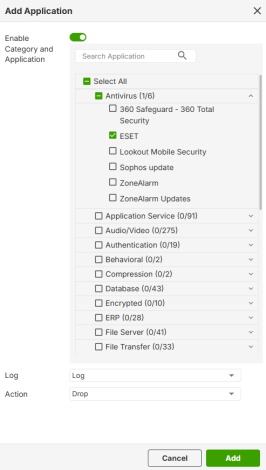 |
Remove | To remove one or more entries, select them and click Remove. The Zyxel Device confirms you want to remove it before doing so. |
Active | To turn one or more entries, select them and click Active. The Status light changes accordingly. |
Inactive | To turn off one or more entries, select them and click Inactive. The Status light changes accordingly. |
Log | Select whether to have the Zyxel Device generate a log (log), log and alert (log alert) or neither (no) by default when traffic matches a signature in the selected profiles. You may still edit individual profiles within the profile row. |
Action | Select the default action for all signatures in the selected profiles. You may still edit individual profiles within the profile row. • forward - the Zyxel Device routes packets that matches these signatures. • drop - the Zyxel Device silently drops packets that matches these signatures without sending a TCP RST or ICMP host unreachable message to both the sender and receiver. • reject - the Zyxel Device drops packets that matches these signatures and sends a TCP RST or ICMP host unreachable message to both the sender and receiver. |
Priority | This field is a sequential value showing the number of the profile. The ordering of your profiles is important as profiles are applied in sequence. |
Status | Set whether this entry is Active or Inactive. |
Category | This field displays the category type of the application. You may edit this for each entry. |
Application | This field displays the application name or numbers of applications included in the policy. You may edit this for each entry. |
Log | Select whether to have the Zyxel Device generate a log (log), log and alert (log alert) or neither (no) by default when traffic matches a signature in this category. |
Action | Select the default action for all signatures in this category. forward - the Zyxel Device routes packets that matches these signatures. drop - the Zyxel Device silently drops packets that matches these signatures without notification. reject - the Zyxel Device drops packets that matches these signatures and sends notification. |
Apply | Click Apply to save your settings to the Zyxel Device. |
Cancel | Click Cancel to return to the profile summary page without saving any changes. |
Example: Block an Application
In this example, you want to block clients on the Zyxel Device LAN from accessing a specific application (for example, TikTok). You also want to receive a log and an alert when traffic going out from the LAN tries to access TikTok.
Create an App Patrol profile that includes TikTok,. Then apply it to the LAN_Outgoing security policy. Clients on the Zyxel Device LAN will be blocked from accessing TikTok.
This example uses the parameters listed below.
profile name | application | action | log |
|---|---|---|---|
BlockMedia | TikTok | Reject | Log Alert |
to | from | log | app patrol profile |
|---|---|---|---|
WAN | LAN | By Profile | BlockMedia |
1 Go to Security Service > App Patrol and click Add.
2 In the following screen, enter the profile name using the parameter given in App Patrol Profile Configuration Example. Click Add under Application Management to open the Add Application screen.
3 Search for TikTok in Category and Application and select the checkbox. Set Log to Log Alert and Action to Reject. Click Add to save your changes.
4 Click Apply to save the app patrol profile.
5 Go to Security Policy > Policy Control. Select LAN_Outgoing then click Edit.
6 Set Application Patrol to BlockMedia and Log to by profile. Click Apply to save your changes.
7 You can check the result in the Policy Control screen. Mouse-over the icon under the Action column to check that the BlockMedia profile has been applied to the LAN_Outgoing security policy. You can also check the logs in Log & Report > Log / Events. The Zyxel Device will create logs if the clients on the Zyxel Device LAN try to access TikTok.