Firmware/File Manager
Overview
Configuration files define the Zyxel Device’s settings. You can store multiple configuration files on the Zyxel Device.You can edit configuration files in a text editor and upload them to the Zyxel Device. Configuration files use a .conf extension.
Configuration Files
When you apply a configuration file, the Zyxel Device uses the factory default settings for any features that the configuration file does not include. Other settings do not change.
The Zyxel Device applies configuration files in the following way:
• Reset to default configuration.
• Go into CLI Configuration mode.
• Run the commands in the configuration file.
 Device HA remains disabled even if you apply a configuration file in which Device HA is enabled. This prevents the Zyxel Device from becoming a passive (secondary) device.You cannot apply a configuration file when Device HA is enabled.
Configuration File Flow at Restart
You can manually restart the Zyxel Device through a management interface or by physically turning the power off and back on.
The Zyxel Device restarts automatically when you upload new firmware.
The Zyxel Device always checks for errors in any configuration file when rebooting. The Zyxel Device generates a log for any errors.
• If there is not a startup-config.conf when you restart the Zyxel Device, the Zyxel Device uses the system-default.conf configuration file with the Zyxel Device’s default settings. The Zyxel Device will apply the system-default.conf when it boots without a startup-config.conf, even if you have a lastgood.conf.
• If there is a startup-config.conf, the Zyxel Device checks it for errors and applies it if there are no errors. The Zyxel Device also copies it to the lastgood.conf configuration file as a back up file.
• If there is an error in startup-config.conf, the Zyxel Device generates a log and copies startup-config.conf to startup-config-bad.conf and then tries the existing lastgood.conf configuration file.
• If there isn’t a lastgood.conf configuration file or it also has an error, the Zyxel Device applies the system-default.conf configuration file.
Zyxel Device Start-up Flow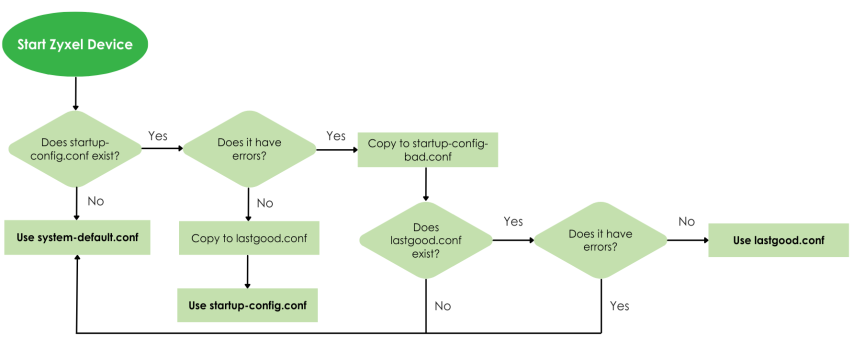
The Configuration File Screen
Use the Configuration screen to store, run, and name configuration files. You can also download configuration files from the Zyxel Device to your computer and upload configuration files from your computer to the Zyxel Device.
Once your Zyxel Device is configured and functioning properly, it is highly recommended that you back up your configuration file before making further configuration changes. The backup configuration file will be useful in case you need to return to your previous settings.
Do not turn off the Zyxel Device while configuration file upload is in progress.
The following table describes the labels in this screen.
Label | Description |
|---|---|
Configuration | |
Rename | Use this button to change the label of a configuration file on the Zyxel Device. You can only rename manually saved configuration files. You cannot rename the lastgood.conf, system-default.conf and startup-config.conf files. You cannot rename a configuration file to the name of another configuration file in the Zyxel Device. Click a configuration file’s row to select it and click Rename to open the Rename File screen. Specify the new name for the configuration file. Use up to 63 characters (including a-zA-Z0-9;‘~!@#$%^&()_+[]{}’,.=-). Click OK to save the renamed label or click (  ) to close the screen without saving the renamed label. ) to close the screen without saving the renamed label. |
Remove | Click a configuration file’s row to select it and click Remove to delete it from the Zyxel Device. You can only delete manually saved configuration files. You cannot delete the system-default.conf, startup-config.conf and lastgood.conf files. A pop-up window asks you to confirm that you want to delete the configuration file. Click OK to delete the configuration file or click Close to close the screen without deleting the configuration file. |
Download | Click a configuration file’s row to select it and click Download to save the configuration into your computer. |
Copy | Use this button to save a duplicate of a configuration file on the Zyxel Device. Click a configuration file’s row to select it and click Copy to open the Copy File screen. Specify a name for the duplicate configuration file. Use up to 63 characters, including [a-zA-Z0-9;‘~!@#$%^&()_+[]{}’,.=-]. Click OK to save the duplicate or click (  ) to close the screen without saving a duplicate of the configuration file. ) to close the screen without saving a duplicate of the configuration file. |
Apply | Use this button to have the Zyxel Device use a specific configuration file. Click a configuration file’s row to select it and click Apply to have the Zyxel Device use that configuration file. The following screen displays. Click OK to have the Zyxel Device start applying the configuration file or click Cancel to close the screen. 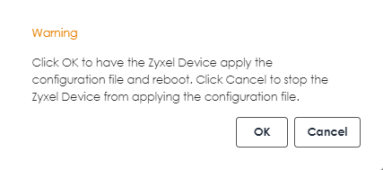 An error message appears if the Zyxel Device fails to apply the selected configuration file. To view detailed error information, click the link to go to the Diagnostics > System Log screen and download the apply-config-error.log file. Contact customer support if the issue cannot be resolved. This button is not available when Device HA is enabled. To apply a configuration file, first disable Device HA in System > Device HA > HA Configuration. |
Email | Use this button to have the Zyxel Device send the selected configuration file to a valid email address. Click a configuration file’s row to select it and click Email to have the Zyxel Device mail that configuration file. The following screen displays. 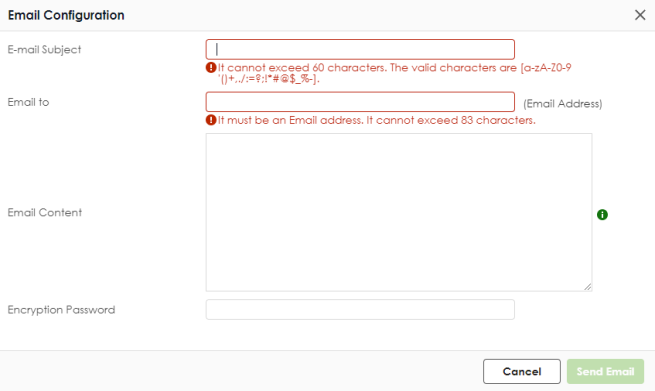 |
E-mail Subject | Enter a email subject text with 1-60 characters. It may consist of letters, numbers, and the following special characters: ‘()+,./:=?;!*#@$%- |
Email To | Enter up to 83 characters for the email address of the receiver. |
Email Content | Enter the backup email body text using 1 to 251 single-byte characters, including [0-9a-zA-Z!”#$%&’()*+,-./:;<=>@[\]^_‘{|}] and spaces are allowed. ? is not allowed. |
Encryption Password | Configuration files are zipped when they are emailed. For security, enter an unzip password to require the recipient to use this password to unzip the configuration file. The password cannot exceed 128 characters. Valid characters are [0-9a-zA-Z~!@#$%^&*()_-+={}|;:<>,./]. If you do not set a password here, then none is needed to unzip the configuration file. |
Send Email | Click this to send the email to the email address you configured. |
Cancel | Click this to close the screen. |
Upload | Click this to upload a new or previously saved configuration file from your computer to your Zyxel Device. You cannot upload a configuration file named system-default.conf, startup-config.conf or lastgood.conf. |
File Path | Type in the location of the file you want to upload in this field or click Browse ... to find it. |
Browse... | Click Browse... to find the .conf file you want to upload. The configuration file must use a “.conf” filename extension. You will receive an error message if you try to upload a fie of a different format. Remember that you must decompress compressed (.zip) files before you can upload them. |
Upload | Click Upload to begin the upload process. This process may take up to two minutes. |
Cancel | Click this to close the screen. |
Test | Before applying a configuration file to the Zyxel Device, you can select the file and click Test to check if the configuration file has errors. Configuration Test: Pass - The configuration file is correct. Configuration Test: Fail - An error was found in the configuration file. Applying a configuration file with errors may cause malfunctions in your Zyxel Device. To view detailed error information, click the link to go to the Diagnostics > System Log screen and download the apply-config-error.log file. Contact customer support if errors cannot be solved. Make sure startup-config.conf does not have an error before you restart the Zyxel Device or upload new firmware. |
File Name | This column displays the label that identifies a configuration file. You cannot change the following configuration files their file names. The system-default.conf file contains the Zyxel Device’s default settings. Select this file and click Apply to reset all of the Zyxel Device settings to the factory defaults. This configuration file is included when you upload a firmware package. The startup-config.conf file is the configuration file that the Zyxel Device is currently using. If you make and save changes during your management session, the changes are applied to this configuration file. The Zyxel Device applies configuration changes made in the Web Configurator to the configuration file when you click Apply or OK. It applies configuration changes made through commands when you use the write command. The lastgood.conf is the most recently used (valid) configuration file that was saved when the device last restarted. If you upload and apply a configuration file with an error, you can apply lastgood.conf to return to a valid configuration. |
Size | This column displays the size (in KB) of a configuration file. |
Last Modified | This column displays the date and time that the individual configuration files were last changed or saved. |
Configure Backup Schedule | Backups created by a schedule are given an automatic name by the Zyxel Device. The name of a scheduled backup file follows this format: 'backup-yyyy-mm-dd-hh-mm-ss'.conf. To restore a configuration file, click Upload to upload the file, then select the file and click Apply to apply the file to the Zyxel Device. |
Enable Auto Backup | Select the check box to back up the running (current) configuration file automatically at a scheduled time. After the first backup, subsequent back ups only occur if the configuration file is different from the previous backed up configuration file. |
Daily | Set the Zyxel Device to back up its current configuration file once a day at the specified hour and minute. |
Weekly | Set the Zyxel Device to back up its current configuration file once a week on the specified day, at the specified hour and minute. |
Monthly | Set the Zyxel Device to back up its current configuration file once a month on the specified day, at the a specified hour and minute. If the date you select is greater than the number of days in a month, the Zyxel Device automatically backs up its configuration file on the last day of the month. For example, if you select 31 and the month is February, the Zyxel Device backs up its configuration file on day 28 or 29. |
Backup Rotation | Use this field to have a newer backup replace the oldest backup when the number you enter here is reached. Enter a number from 1 to 50. For example, if you use 50, then the 51st backup configuration file will replace the first configuration file. You will always have a maximum of 50 backup configuration files. |
Send Email | Enable this to send the backed up configuration file to the email address(es) you configured. |
Encryption Password | For security, enter a password for the recipient to unzip the compressed backup configuration file. Use 1 to 128 characters. [" \] are invalid. |
E-mail Subject | Enter a email subject text with 1-60 characters. It may consist of letters, numbers, and the following special characters: ‘()+,./:=?;!*#@$%- |
Email To | Enter up to 83 characters for the email address of the receiver. You and send the configuration file to a maximum of five recipients. |
Email Content | Enter the backup email body text using 1 to 251 single-byte characters, including 0-9a-zA-Z!”#$%&’()*+,-./:;<=>@[\]^_‘{|} and spaces are allowed. ? is not allowed. |
Recovery Manager | Use this to create a complete recovery file of the Zyxel Device that can be used if the Zyxel Device needs to be replaced or you want to sell it to someone else. You should save a backup or recovery file to your computer each time you make a configuration change. The recovery file can then be restored on a replacement Zyxel Device. You must set a password for the recovery file. The password must be 8 to 128 characters long, and can contain [0-9a-zA-Z~!@#$%^&*()_-+={}|;:<>,.?]. Write this password down in a safe place as it will be required if you want to restore this configuration on a replacement Zyxel Device later. 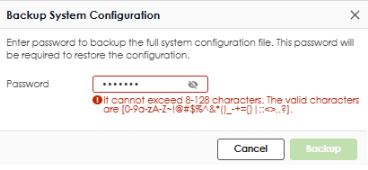 The Zyxel Device automatically names the recovery file to ‘Hostname_Recovery_YYYY-MM-DD.rbf’, where YYYY-MM-DD is the date created. This is an example file name: ‘MyUSGFLEX500H_Recovery_2025-07-28.rbf’. You set the Host Name for this Zyxel Device in System > Settings. You can only upload recovery files with an ‘.rbf’ extension. The recovery file includes the following: Configuration files Contains all configuration files from the Maintenance > Firmware/File Manager > Configuration File screen. Certificates • My Certificates (Site-to-Site VPN, Remote access VPN) • SSL VPN Certificates • Trusted Certificates: Certificates that you have set the Zyxel Device to accept as trusted. Google Authenticator File Contains two-factor authentication (2FA) information. Google Authenticator adds an extra layer of security for local users accessing the Zyxel Device or a secured network behind the Zyxel Device through a VPN tunnel. |
Status | This displays the status of the file backup. You must first back up the file to the Zyxel Device and then download it to your computer. This recovery file does not display in the Configuration list. • Done - The recovery file has been successfully saved to the Zyxel Device. • None - No backup of the recovery file has been made. • Failed - The backup of the recovery file failed. Ensure the Internet is working. Click the Backup button to set up the recovery file. The following screen appears. 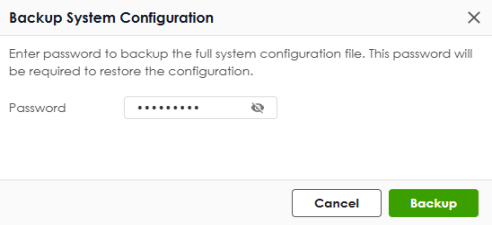 |
Password | Enter a password for the recovery file. You will need this password to restore the recovery file on the replacement Zyxel Device. It can contain 8 to 128 single-byte characters, including 0-9, a-z, A-Z, and the following characters: ~!@#$%^&*()_-+={}|;:<>,.? Spaces are not allowed. This field cannot be blank. |
Cancel | Click Cancel to exit this screen without saving. |
Backup | Click Backup to save the recovery file to the Zyxel Device. |
File Name | This displays the name of the recovery file that will be downloaded to your computer. You can rename the file when you are saving it to your computer. |
Backup Date/Time | This field displays the date and time when the recovery file was saved to the Zyxel Device. The format is yyyy-mm-dd hh:mm:ss. |
File Size | This field displays the file size of the recovery file that will be downloaded to your computer. |
Download | Click Download to save the backup file to your computer in ZIP format. |
Restore | Click Restore to upload a recovery file to the replacement Zyxel Device. Check that the replacement Zyxel Device has firmware version 1.31 or later. The following screen appears. 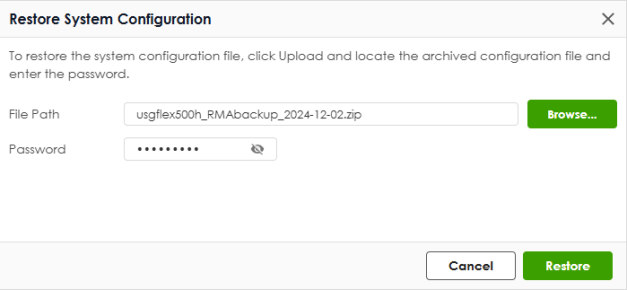 The replacement Zyxel Device must be the same model with the exact same firmware version as the one on which the backup was done. You must use the password that you configured when you downloaded the recovery file. The replacement Zyxel Device must be the same model with the exact same firmware version as the one on which the backup was done. You must use the password that you configured when you downloaded the recovery file. |
File Path | Click Browse to select a recovery file on your computer that you want to upload. |
Password | Enter the password for the recovery file created during the backup. |
Cancel | Click Cancel to exit this screen without saving. |
Restore | Click Restore to upload the recovery file to the replacement Zyxel Device. The Zyxel Device automatically reboots when you apply the new recovery file. |
Apply | Click Apply to save your changes back to the Zyxel Device. |
Cancel | Click Cancel to return the screen to its last-saved settings. |
Example: Back Up and Restore Zyxel Device Configuration
• The system-default.conf file all of the Zyxel Device settings to the factory defaults.
• The startup-config.conf file is the configuration file that the Zyxel Device is currently using.
• The lastgood.conf is the most recently used (valid) configuration file that was saved when the device last restarted.
Back Up the Current Configuration
Follow these steps to save the current configuration file from the Zyxel Device to your computer:
1 Go to Maintenance > Firmware/File Manager, select startup-config.conf, and click Download to save the configuration file to your computer.
2 Rename the downloaded configuration file with the current date.
Upload a Configuration File to the Zyxel Device
Follow these steps to upload a previously saved configuration file from your computer to the Zyxel Device:
1 Go to Maintenance > Firmware/File Manager and click Upload.
2 Click Browse... to locate the .conf file on your computer to restore, then click Upload.
The configuration file must have a “.conf” filename extension. You cannot upload a file named system-default.conf, startup-config.conf, or lastgood.conf. 3 Select the configuration file and click Apply to have the Zyxel Device use the configuration file.
Firmware Management
Use the Firmware Management screen to check your current firmware version and upload firmware to the Zyxel Device.
The Web Configurator or NCC is the recommended method for uploading firmware. You only need to use the command line interface if you need to recover the firmware. See the CLI Reference Guide for how to determine if you need to recover the firmware and how to recover it.Find the firmware file in a folder that (usually) uses the system model name with the model code and a bin extension. For example, a firmware for USG FLEX 200HP is “100ABEX0b3s1.bin”. The Zyxel Device restarts automatically when you upload new firmware. Cloud Helper
Cloud Helper lets you know if there is a later firmware available on the Cloud Helper server and lets you download it if there is.
Go to NCC, create an account and register your Zyxel Device first. Then you will be able to get notifications on new firmware available when you log into the Zyxel Device web configurator.Cloud Firmware  | Cloud firmware is being downloaded from the Cloud Helper Server. |
Local Firmware  | Use this if you have already downloaded the latest firmware from the Zyxel website to your computer and unzipped it. Click the icon and then browse to the location of the unzipped files. The Zyxel Device will reboot automatically when it finishes uploading. |
The Firmware Management Screen
The Zyxel Device automatically reboots when you upload new firmware.The following table describes the labels in this screen.
Label | Description |
|---|---|
Status | This displays the running firmware status. |
Model | This is the model name of the device which the firmware is running on. |
Version | The firmware on each Zyxel Device is identified by the firmware trunk version, followed by a unique code which identifies the model, and then the release number after the period. For example, V1.31 (ABXE.0) is a firmware for the 1.31 version trunk, the ABXE code identifies the USG FLEX 200HP model, and .0 is the first firmware release for the model. |
Released Date | This is the date that the version of the firmware was created. |
Action | Click (  ) to upload a firmware from your computer to the Zyxel Device. Click Upload to upload the firmware as the running firmware after the Zyxel Device reboots. Your current configuration settings will be saved and applied after reboot. ) to upload a firmware from your computer to the Zyxel Device. Click Upload to upload the firmware as the running firmware after the Zyxel Device reboots. Your current configuration settings will be saved and applied after reboot.Click (  ) to download a later firmware from the Cloud Helper Server. This icon shows if there is a later firmware on the Cloud Helper Server than the running firmware on your Zyxel Device. ) to download a later firmware from the Cloud Helper Server. This icon shows if there is a later firmware on the Cloud Helper Server than the running firmware on your Zyxel Device. |
Cloud Firmware Information | You must register your Zyxel Device at NCC first to use cloud firmware. |
Firmware Type | Use this to check if there is a later firmware of the selected type on the Cloud Helper Server. • The Latest firmware is the most recent officially released firmware that has undergone extensive internal testing. It has the most advanced firmware features and fixes - see the Release notes. • A Stable firmware is a previously released firmware that has undergone extensive internal testing, and has also been used by customers with no major issues reported. Use this if you do not need the most advanced firmware features at this time. |
Latest Version | This displays the latest firmware version of the selected type (Latest or Stable) at the Cloud Helper Server. If the running firmware version is earlier than the version displayed here, then a cloud icon will display under Action in the above screen to take you to the Cloud Helper Server. |
Check Now | Click Check Now to see if there is a later firmware of the selected type (Latest or Stable) on the Cloud Helper Server. |
Release Date | This displays the date the latest firmware of the selected type (Latest or Stable) was made available. |
Release Note | The release note contains details of firmware of the selected type (Latest or Stable) such as new or changed features and bug fixes. |
Auto Update | If you have not enabled Schedule Reboot in Maintenance > Reboot/Shutdown, you may use Auto Update in this screen to have the Zyxel Device automatically check for and download new firmware at a particular time each day, or at a particular time once a week. The Zyxel Device will automatically reboot after new firmware is downloaded. You should select a time when your network is not busy for minimal interruption. If you have enabled Schedule Reboot in Maintenance > Reboot/Shutdown, then you cannot use Auto Update in this screen. |
Daily | Select this option to have the Zyxel Device check for new firmware every day at the specified time. The time format is the 24 hour clock, so ‘0’ means midnight for example. |
Weekly | Select this option to have the Zyxel Device check for new firmware once a week on the day and at the time specified. |
Apply | Click Apply to save your changes back to the Zyxel Device. |
Cancel | Click Cancel to return the screen to its last-saved settings. |
The CLI Script Screen
Use CLI script files to have the Zyxel Device execute commands that you specify. You can use a script file to apply multiple configuration commands at once.
Use a text editor to create CLI script files. The file must have a .cli extension. Refer to CLI Script File Command Rules and Examples for script file command rules and examples.
Click Maintenance > Firmware/File Manager > CLI Script to open the CLI Script screen.
The following table describes the labels in this screen.
Label | Description |
|---|---|
CLI Script | |
Rename | Use this button to rename the selected uploaded script file. The file must have a .cli extension. Use up to 63 characters [0-9a-zA-Z~_=-]. Click a script file’s row to select it and click Rename. Enter the new name in the Target file field. Click OK to save the renamed label or click Cancel to close the screen without saving the renamed label. |
Remove | Use this button to delete the selected uploaded script file. A pop-up window asks you to confirm that you want to delete the script file. Click OK to delete the script file or click Cancel to close the screen without deleting the script file. |
Download | Select an uploaded script file and click this button to download it to your computer. |
Apply | Click this button to have the Zyxel Device execute the commands in the selected script file. An error message appears if the Zyxel Device fails to apply the selected script file. To view the error information, click the link to go to the Diagnostics > System Log screen and download the apply-script-error.log file. |
Upload | Click this button to upload a specified script file. Click Browse to select the script file, and then click Upload to upload the file to the Zyxel Device. 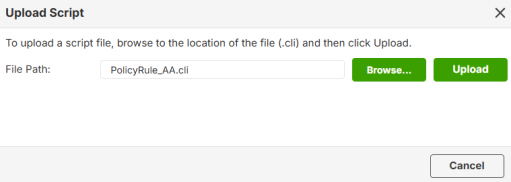 • The file must have a .cli extension. • You can upload up to five files. • The file size cannot exceed 5 MB. • You cannot upload an empty file. |
Test | Before applying a script file to the Zyxel Device, select the file and click this button to check for errors. Test: Pass - No error was found. Test: Failed - An error was found in the script file. You can click the link to go to the Diagnostics > System Log screen and download the apply-script-error.log file to view the error information. |
File Name | This column displays the name of the script files. |
Size | This column displays the size (in Bytes) of the script files. |
Last Modified | This column displays the date and time that the script files were last changed or saved. |
CLI Script File Command Rules and Examples
You can refer to the CLI RG for descriptions of Zyxel Device commands and how to use them.
Only configuration commands are supported. RPC (Remote Procedure Call) commands are not supported. You can use the Test button to check whether the commands in the script file are supported after uploading the file.
• Configuration commands modify or store the Zyxel Device configuration. For example: configure VLAN, set hostname.
• RPC commands send requests to the Zyxel Device and receive responses or perform actions without changing the configuration. For example: ping 8.8.8.8, reboot device.
Follow the rules below to specify commands in the script file.
Rule | Example |
|---|---|
Start with / and a space | / vrf main interface ... |
Use # for comments | # this is a comment |
Add del and a space before a command to delete configurations | del / vrf main interface ethernet ge4 → Delete ge4 and all its settings del / vrf main interface ethernet ge4 ports p7 → Delete only port p7 on ge4 |
Enclose values containing spaces in quotation marks. | / vrf main system hostname "my device" |
The following script file example shows how to add multiple interfaces along with their detailed configurations.
#VLAN100 for the sales team / vrf main interface vlan vlan100 vlan-id 10 / vrf main interface vlan vlan100 type internal / vrf main interface vlan vlan100 enabled true / vrf main interface vlan vlan100 link-port p10 / vrf main interface vlan vlan100 ipv4 address 192.168.10.1/24 / vrf main interface vlan vlan100 mtu 1400 #VLAN200 for the IT team / vrf main interface vlan vlan200 vlan-id 20 / vrf main interface vlan vlan200 type internal / vrf main interface vlan vlan200 enabled true / vrf main interface vlan vlan200 link-port p11 / vrf main interface vlan vlan200 ipv4 address 192.168.20.1/24 / vrf main interface vlan vlan200 mtu 1400 #VLAN300 for the guests / vrf main interface vlan vlan300 vlan-id 30 / vrf main interface vlan vlan300 type internal / vrf main interface vlan vlan300 enabled true / vrf main interface vlan vlan300 link-port p12 / vrf main interface vlan vlan300 ipv4 address 192.168.30.1/24 / vrf main interface vlan vlan300 mtu 1400 |