Hardware
Hardware Connections
Place the Zyxel Device with the ports and RESET button facing you.
1 Use the included power cable to connect the Zyxel Device’s power port to a power outlet.
2 Connect the Internet port of the Zyxel Device to a broadband modem or router that is connected to the Internet.
USG LITE 60AX Ports Panel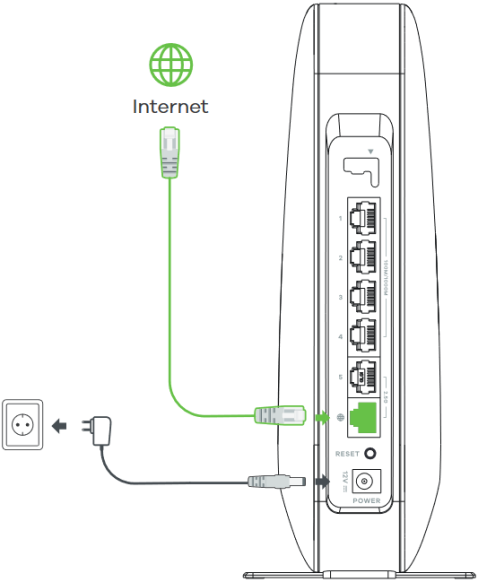
Desk Placement
You may place your Zyxel Device on a desk, table, shelf, and so on.
Attach the bottom of the Zyxel Device to the magnetic stand. Then, place the Zyxel Device on a desk, table, shelf, and so on.
Desk Placement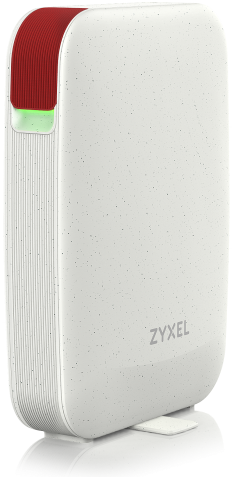
Reset Button
Place the Zyxel Device with the ports and RESET button facing you. If you need to return the Zyxel Device to its default settings, use the RESET button on the rear panel.
Reset Button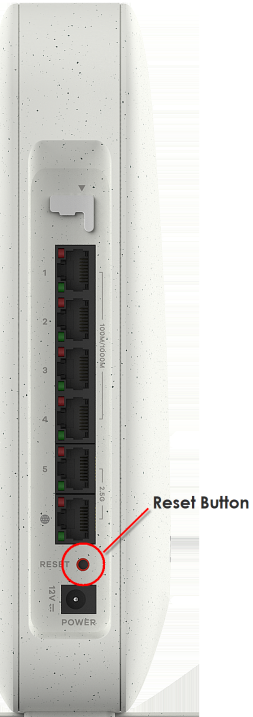
Reset the Zyxel Device Back to Factory Default Settings
For a factory reset, press the RESET button for at least 8 seconds.
Console Port
Place the Zyxel Device with the ports and RESET button facing you. The console port is located on the front panel as shown below. Slide the cover to the side and connect a UART-to-USB console port cable to a USB port on a computer.
 The console port is for troubleshooting by qualified personnel only.
 USG LITE 60AX Console Port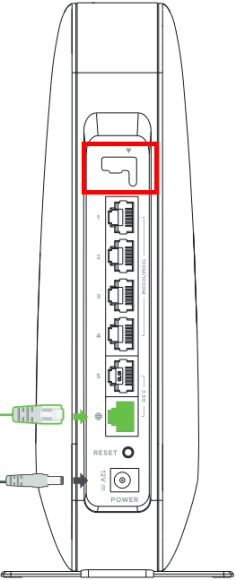
USG LITE 60AX Console Cable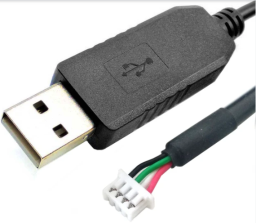
From the view in USG LITE 60AX Console Port, pin 4 is the leftmost pin, and pin 1 is the rightmost pin. RXD and TXD are the receive and transmit data pins, 3 and 2 respectively. The VCC pin is for 3.3 V DC power, and the GND pin is for grounding (0 V).
pin | definition |
|---|---|
4 | GND |
3 | RXD |
2 | TXD |
1 | VCC (3.3 V) |
The following is the default configuration for console port login using a Terminal emulation software:
• Baud rate: 115200
• Data: 8-bit
• Parity: None
• Stop bit: 1-bit
• Flow control: None
LED Indicator
Place the Zyxel Device with the LED facing you. Look at the LED behavior to determine the status of the Zyxel Devices. See USG LITE 60AX LED Descriptions for more information.
USG LITE 60AX LED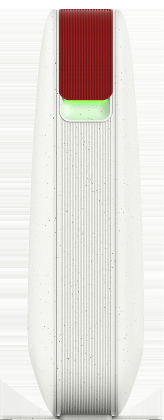
The following are the LED descriptions for your Zyxel Device.
Color | status | description | |
|---|---|---|---|
 | Amber | Fast blinking between amber and green (300 milliseconds interval). | The Zyxel Device is booting up. |
Green | |||
| Amber | Slow blinking between amber and green (1 second interval). | The Zyxel Device is setting up a connection with NCC. |
Green | |||
 | Green | Slow Blinking (1 second interval) | • The Zyxel Device is not registered with NCC. • The Zyxel Device-Extender pairing has failed or the Zyxel Device-Extender connection has expired. |
Fast Blinking (300 milliseconds interval). | The Zyxel Device-Extender pairing is in progress. | ||
 | Green | Steady On | • The Zyxel Device is connected to NCC, and WiFi clients are connected to the Zyxel Device. • The Zyxel Device-Extender pairing has succeeded. • The power is on. |
 | Blue | Slow Blinking (1 second interval) | The Zyxel Device is connected to NCC, but no WiFi clients are connected to the Zyxel Device. |
 | Red | Fast Blinking (50 milliseconds interval) | The Zyxel Device is undergoing firmware upgrade. |
Slow Blinking (Blink for 3 times, off for 3 seconds) | The uplink of the Zyxel Device is disconnected. | ||