Configuration
WAN Setting
The WAN Setting screen allows you to configure basic settings for your WAN port.
 Use this screen to fix your Zyxel Device’s connection problem with NCC.
WAN Setting (DHCP) 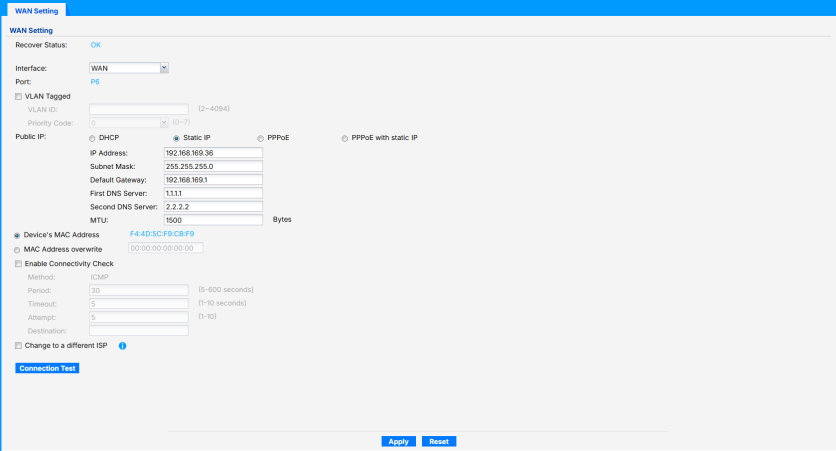
The following table describes the labels shown on the WAN Setting screen.
label | description |
|---|---|
Recover Status | The Zyxel Device will restore the last valid WAN settings if it fails to connect to Nebula after you change the WAN settings by displaying the following: • Checking Internet connectivity. Please wait! • Recovering WAN settings. • WAN settings recovered successfully, and Connectivity Check has been disabled after rollback. This field displays OK if the Zyxel Device has restored the last valid WAN settings. |
Interface | Select WAN to configure the settings for the primary WAN interface. Alternatively, select WAN2 to configure the settings for the secondary (backup) WAN interface. When the WAN2 interface is configured as LAN, then WAN2 will automatically be hidden. Make sure to click Apply to save the configurations before switching to another interface; otherwise, the configurations will be lost. |
Port | This shows the corresponding P6 port of the Zyxel Device when WAN is selected in Interface. Alternatively, this shows the corresponding P2 port of the Zyxel Device when WAN2 is selected in Interface. |
VLAN Tagged | Select the checkbox to assign a VLAN ID to the WAN interface. |
VLAN ID | This field is available when the previous field VLAN Tagged is selected. Enter a number as the WAN interface VLAN ID (2 to 4094). A WAN interface VLAN ID is the tag that the Zyxel Device applies to traffic on the WAN interface when your ISP requires the connection to use a specific VLAN. This ensures that the Zyxel Device can send the WAN traffic to the correct VLAN as required by your Internet service provider. |
Priority Code | This field is available when the previous field VLAN Tagged is selected. This is a 3-bit field within a 802.1Q VLAN tag that is used to prioritize associated outgoing VLAN traffic. ‘0’ is the lowest priority level (default) and ‘7’ is the highest. See Priority Code and Types of Traffic. The setting configured here overwrites existing priority settings. |
Public IP | Select DHCP if you want the WAN interface to automatically get an IP address and other network settings from a DHCP server. Select Static IP if you want to manually configure an IP address and other network settings for the WAN interface. Select PPPoE if you want the WAN interface to authenticate with an Internet Service Provider, and then automatically get an IP address from the ISP's DHCP server. You can use this type of interface to connect to a DSL modem. Select PPPoE with static IP if you want to assign a static IP address to the WAN interface, and your WAN interface is getting the Internet connection from a PPPoE server. |
IP Address | This field shows the IP address assigned by a DHCP server to the WAN interface. When you select Static IP or PPPoE with static IP, enter the static IP address of this interface. 0.0.0.0 will display when you select DHCP or PPPoE. |
DHCP Option 60 | DHCP Option 60 is used by the Zyxel Device for identification to the DHCP server using the VCI (Vendor Class Identifier) on the DHCP server. The Zyxel Device adds it in the initial DHCP discovery message that a DHCP client broadcasts in search of an IP address. The DHCP server can assign different IP addresses or options to clients with the specific VCI or reject the request from clients without the specific VCI. Enter a string using up to 63 of these characters [a to z A to Z 0 to 9 !\"#$%&\'()*+,-./:;<=>?@\[\\\]^_`{}] (but cannot start or end with a space) to identify this Zyxel Device to the DHCP server. For example, Zyxel-TW. |
DHCP Option 61 | Enter the Identity Association Identifier (IAID) that identifies the device. Enter a string using up to 63 of these characters [a to z A to Z 0 to 9 !\"#$%&\'()*+,-./:;<=>?@\[\\\]^_`{}] (but cannot start or end with a space). For example, the WAN connection index number. |
Subnet Mask | When you select Static IP, enter the subnet mask for this WAN interface’s IP address. |
Default Gateway | When you select Static IP, enter the IP address of the Zyxel Device through which this WAN connection will send traffic. |
First DNS Server | When you select Static IP or PPPoE with static IP, enter a DNS server’s IPv4 address. The Domain Name System (DNS) maps a domain name to an IP address and so forth. The Zyxel Device uses the first and second DNS servers, in that order to resolve domain names for VPN, DDNS and the time server. Leave the field blank if you do not want to configure DNS servers. |
Second DNS Server | When you select Static IP, enter the IPv4 address of another DNS server. This field is optional. |
Username | When you select PPPoE or PPPoE with static IP, enter the user name given to you by your ISP. You can use alphanumeric and -_@$./ characters. It can be up to 31 characters long. |
Password / Retype Password | When you select PPPoE or PPPoE with static IP, enter the password associated with the user name above. Use up to 64 ASCII characters except the [] and ?. |
MTU | Enter the MTU (Maximum Transfer Unit) size for traffic through the Internet connection. |
Device’s MAC Address | This field displays the factory-assigned default MAC address. By default, the Zyxel Device uses the factory-assigned MAC address to identify itself. |
MAC Address overwrite | Select this option to have the interface use a different MAC address. Enter a MAC address in the format ‘xx:xx:xx:xx:xx:xx’ or ‘xx-xx-xx-xx-xx-xx’ (48-bit (6 bytes)). Once it is successfully configured, the address will be copied to the configuration file. It will not change unless you change the setting or upload a different configuration file. |
Enable Connectivity Check | Select this to turn on the connection check. The interface can regularly check the connection to the gateway you specified to make sure it is still available. |
Method | This field is available when the previous field Enable Connectivity Check is selected. This field displays ICMP (Internet Control Message Protocol). The Zyxel Device regularly ping the gateway you specify to make sure it is still available. |
Period | This field is available and mandatory when the previous field Enable Connectivity Check is selected. Enter the number of seconds between connection check attempts (5 to 600 seconds, default is 30). |
Timeout | This field is available and mandatory when the previous field Enable Connectivity Check is selected. Enter the number of seconds to wait for a response before the attempt is a failure (1 to 10 seconds, default is 5). |
Attempt | This field is available and mandatory when the previous field Enable Connectivity Check is selected. Enter the number of consecutive failures before the Zyxel Device stops routing through the gateway (1 to 10, default is 5). |
Destination | This field is available and mandatory when the previous field Enable Connectivity Check is selected. Enter the gateway using an IPv4 address to receive test packets. For example, you can check if your ISP’s gateway is reachable. For example, type '192.168.1.2'. |
Disable WAN automatic rollback | If the Zyxel Device disconnects from the NCC (Nebula Control Center) after applying a WAN configuration change, it will revert to the last valid local WAN setting. Select this if you want to temporarily disable reverting to the last valid local WAN setting. This field will be automatically disabled after rebooting the Zyxel Device so, you will need to enable this again if the Zyxel Device reboots. |
Connection Test | Click this if you want to test if the Zyxel Device can access the Internet successfully. This field displays OK if the Connection Test is successful. Otherwise, it shows FAIL. |
Apply | Click Apply to save your changes back to the Zyxel Device. |
Reset | Click Reset to return the screen to its last-saved settings. |
802.1P Marking
Use 802.1P to prioritize outgoing traffic from a VLAN interface. The Priority Code is a 3-bit field within a 802.1Q VLAN tag that’s used to prioritize associated outgoing VLAN traffic. ‘0’ is the lowest priority level and ‘7’ is the highest.
DA | SA | TPID | Priority | VID | Len/Etype | Data | FCS | IEEE 802.1Q customer tagged frame |
DA | Destination Address | Priority | 802.1p Priority |
SA | Source Address | Len/Etype | Length and type of Ethernet frame |
TPID | Tag Protocol IDentifier | Data | Frame data |
VID | VLAN ID | FCS | Frame Check Sequence |
The following table is a guide to types of traffic for the priority code.
Priority | Traffic Types |
|---|---|
0 (lowest) | Background |
1 | Best Effort |
2 | Excellent Effort |
3 | Critical Applications |
4 | Video, less than 100 ms latency and jitter |
5 | Voice, less than 10 ms latency and jitter |
6 | Internetwork Control |
7 (highest) | Network Control |